ENEnglish
 LTLietuviškai
 DEDeutsch
 FRFrançais
 RUРусский
 ESEspañol
 PLPolski
 ITItaliano
 UKУкраїнська
 CSČeština
 PTPortuguês
 JA日本語
JA日本語 LVLatviešu valoda
 ETEesti
 HUMagyar
 IDBahasa Indonesia
 TRTürkçe
 HIहिन्दी
 ELΕλληνικά
 ARالعربية
 THไทย
THไทย VITiếng Việt
 RORomână
 MSBahasa Melayu
 BNবাংলা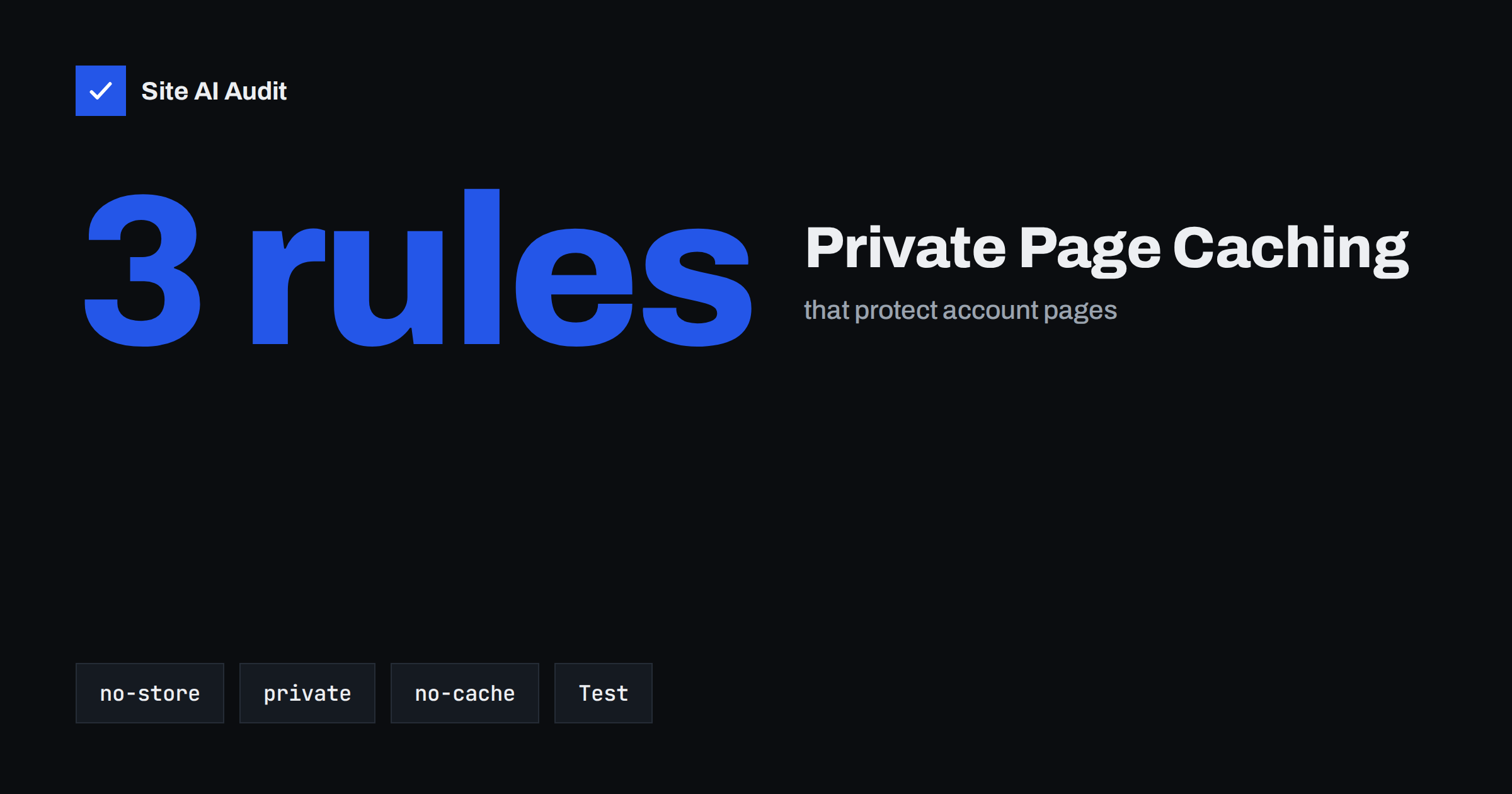
Short answer: Cache-Control is an HTTP header that tells browsers and shared caches, such as a CDN or proxy, whether they may keep a copy of a response. For pages with personal or sensitive content, such as accounts, orders and invoices, use no-store to stop copies from being kept, or at least private to keep them out of shared caches. Do not confuse no-cache, which allows storing but requires checking first, with no-store. Test the headers of your private pages, because the wrong rule can show one visitor’s data to another.
Why caching can be a privacy issue
Caching is what makes the web fast. Browsers keep copies of files so they do not have to download them again. Content delivery networks, proxies and hosting caches keep copies on servers close to visitors. For public content, this is exactly what you want.
The same machinery becomes a risk when it copies pages that belong to one person. Imagine that a shared cache stores the account page of the first customer who visits and then hands it out to the second. That has happened in real systems, usually after a configuration mistake. A related and more deliberate problem is known as web cache deception, where an attacker tricks a cache into storing a private page under an address that anyone can request. The background on caches and their weaknesses is in web cache poisoning explained.
Even without a shared cache, local copies matter. On a public or shared computer, a browser that keeps a copy of a bank statement or an order page lets the next person press the Back button and see it.
What the main directives mean
The Cache-Control header can hold several directives. These are the ones most relevant to private pages.
- no-store. The response must not be stored in any cache. This is the strongest rule for sensitive pages, because neither the browser nor a shared cache should keep a copy.
- private. The response is for one user and must not be stored by shared caches. The browser’s own cache may keep it.
- public. Any cache may store the response, even in cases where it would normally not do so. Never use it for personal pages.
- no-cache. The response may be stored, but a cache must check with the server before reusing it. Despite its name, it does not forbid storing.
- max-age and s-maxage. How long a copy stays fresh, for browsers and for shared caches. Not suitable for personalised content.
- must-revalidate. Once a copy is stale, it must be checked and not served without validation.
The older Pragma: no-cache header is a legacy form, kept for very old software. Modern systems use Cache-Control, and the general rules for static files are explained in browser caching and Cache-Control.
no-store versus no-cache
This is the most common confusion. Many people read no-cache and assume that nothing is stored. In fact, the browser may keep the page on disk and can show it again after checking with the server, which may send a short “not modified” answer. For a public page that changes often, that is fine. For a page that contains personal data, it may not be.
No-store tells the browser not to keep the response. It is the right choice for pages with account details, health or financial information, order confirmations, password reset pages and any response that contains tokens or secrets. For pages that are personalised but not highly sensitive, such as a dashboard greeting a user by name, private with revalidation is often enough. Think about what would go wrong if a stranger saw the copy, and choose the rule accordingly.
What to protect
- Account and profile pages. Names, addresses, phone numbers and settings.
- Order, invoice and payment pages. Items, prices, tracking details and part of card or bank information.
- Login, logout and reset pages. They may carry tokens or messages with personal details.
- Private downloads. Contracts, reports and personal documents. See protecting private downloads on WordPress.
- API responses with personal data. JSON returned to logged-in users is cached by the same rules.
- Admin screens. Back-office pages with customer data.
Public pages such as the home page, articles and product pages should keep their normal cache rules, otherwise your site will become slower for no gain.
How to set the headers
- In the application. Frameworks and WordPress plugins usually let you send no-store for logged-in or account pages. Many e-commerce plugins already do this for the cart and checkout.
- In the server configuration. You can add the header for specific paths, such as the account area, in the web server settings. The guide to adding headers in Apache and Nginx shows the syntax for adding headers.
- In the CDN rules. Make sure the CDN bypasses its cache for private paths and for requests that carry login cookies, rather than relying only on the origin’s header. See CDN cache hit ratio for how caching rules interact.
- With the Vary header. If a page changes with the cookie or the language, the cache must know. Vary tells it which request headers decide the version. It is a safeguard, not a substitute for no-store on private pages.
Remember that page caching plugins on WordPress usually skip logged-in users, but some settings or custom rules change that. Check after each configuration change, as noted in page caching explained.
The Back button and speed
No-store has a side effect. Browsers keep recently visited pages in a fast back and forward cache so that the Back button feels instant, as in back and forward cache. Pages marked no-store were historically excluded from it, and some browsers are changing the rules, so behaviour may vary. For sensitive pages, accept this trade-off, because privacy matters more than a quicker Back button. For ordinary pages, do not add no-store out of habit.
How to test your headers
- Log in and open a private page. Use the browser’s developer tools, and look at the response headers in the Network tab.
- Check Cache-Control. Confirm that sensitive pages show no-store, or at least private, and that nothing shows public.
- Look for CDN cache status headers. Many CDNs add a header such as “hit” or “miss”. A hit on a private page is a serious sign of trouble.
- Test as two users. Log in as one test user, visit the account page, then use a different browser and test user. Confirm that nobody sees someone else’s data.
- Try the Back button after logout. The browser should not show the old page contents.
- Retest after changes. New plugins, CDN rules and theme updates can change headers.
Use dummy data in test accounts, and do not test with real customers’ information.
A short example
Suppose an online shop shows an order confirmation page after payment. The page lists the customer’s name, address, items and total. If it is sent with a long max-age and a public rule, a CDN may keep it and serve it to the next visitor who requests the same address, or a browser on a family computer may keep it for days. The fix is to send no-store on that response, to make sure the CDN never caches the checkout paths and to test the page with two accounts. After the change, the next customer sees only their own order, and the Back button on a shared computer no longer reveals the old one.
Document the rule for your team. A single line in your site notes, saying which paths must never be cached and which header they send, prevents someone from undoing the protection when they tune performance later. Speed work and privacy work should be done together, not against each other.
How Site AI Audit helps
Site AI Audit does not log in to your site or test private pages, so use the steps above for those. It does check the public side of your configuration, including SSL, HTTP to HTTPS redirects, security headers, compression and server response time, explained in plain words and ranked by impact. The first check is free, covers up to 50 pages and needs no sign-up. You can run a free check of your website or see the plans for regular monitoring.
Related reading
- HTTP Security Headers Explained: What Each One Does
- Session Hijacking and Fixation: Protect Logged-In Users
- ETag and Last-Modified: How Conditional Requests Save Time
- Secure Cookies Explained: Secure, HttpOnly and SameSite Flags
The bottom line
Caching rules are a security setting as much as a speed setting. Use no-store for pages that contain sensitive personal data, private for personalised pages that need a browser cache only, and never public for anything that belongs to one user. Make sure the CDN respects the rules, test as two different users and keep your normal cache settings for public content so the site stays fast.
FAQ
Does no-cache stop a browser from storing a page?
No. It lets the browser store the page but requires checking with the server before using it again. To prevent storing, use no-store.
What is the difference between private and no-store?
Private allows the browser to keep a copy but forbids shared caches. No-store forbids all caches from keeping a copy, which suits sensitive data.
Should I add no-store to every page?
No. That removes the speed benefits of caching for public content. Use it only where a stored copy could expose private information.
Can a CDN cache logged-in pages by mistake?
Yes, if a rule caches everything or ignores login cookies. Configure the CDN to bypass the cache for private paths and for logged-in requests.
How can I check whether my site leaks private pages through caches?
Inspect the headers of account pages, look at any cache status header from your CDN and test with two different test users in separate browsers.