ENEnglish
 LTLietuviškai
 DEDeutsch
 FRFrançais
 RUРусский
 ESEspañol
 PLPolski
 ITItaliano
 UKУкраїнська
 CSČeština
 PTPortuguês
 JA日本語
JA日本語 LVLatviešu valoda
 ETEesti
 HUMagyar
 IDBahasa Indonesia
 TRTürkçe
 HIहिन्दी
 ELΕλληνικά
 ARالعربية
 THไทย
THไทย VITiếng Việt
 RORomână
 MSBahasa Melayu
 BNবাংলা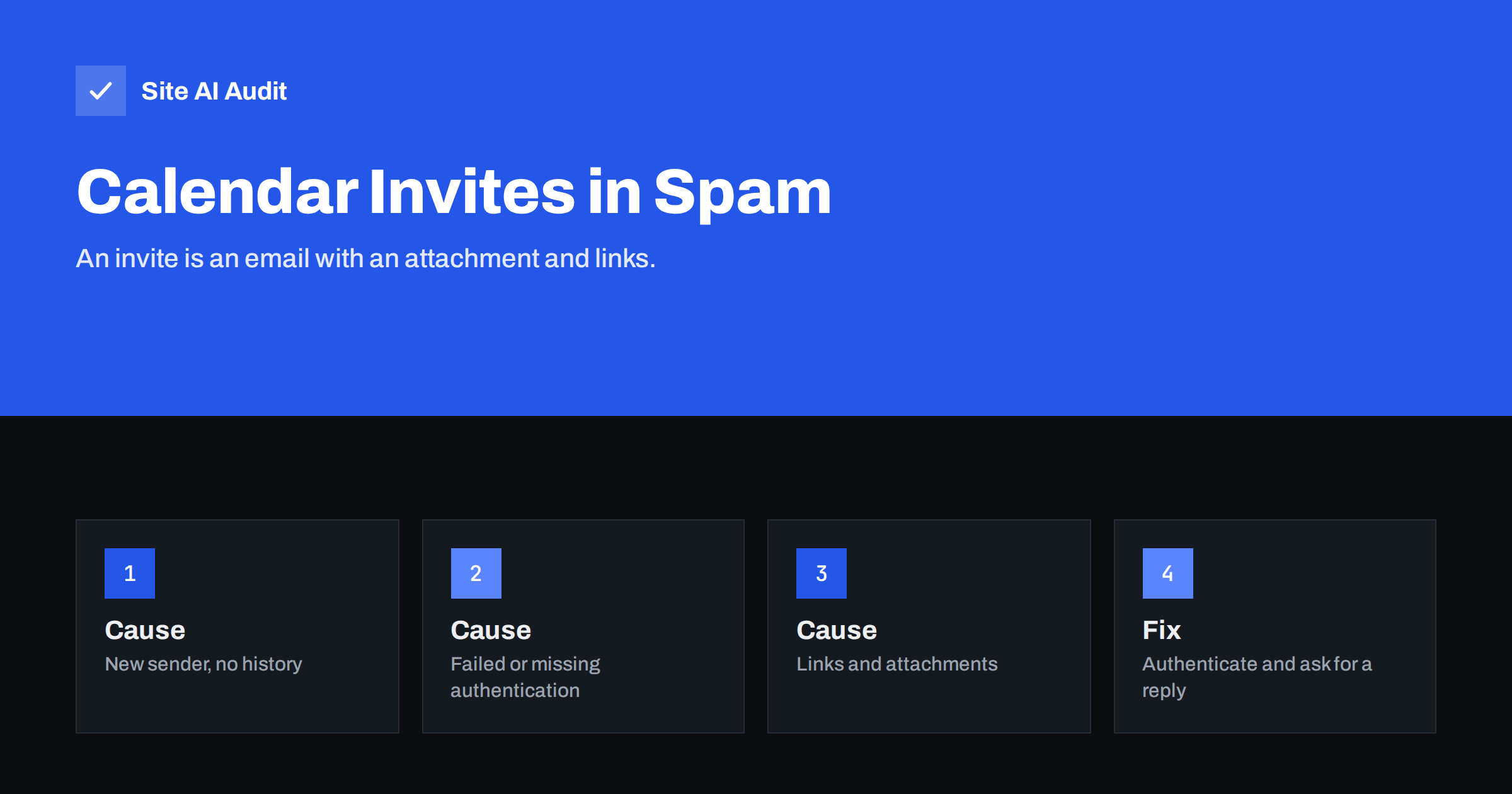
Short answer: A calendar invitation is an ordinary email that carries a small calendar attachment and often a meeting link. Spam filters judge it by the same signals as any other message: whether the sender is authenticated, how reputable the sending domain is, whether the recipient knows you, and what the links and attachments look like. Invites sent to someone who has never heard from you are the most likely to be filtered.
What an invite really is
When you press send on a meeting request, your calendar service builds an email message. It has a short readable text, a part in a special calendar format, and usually an attached file with the extension ics. It also often contains a link to a video meeting and buttons to accept or decline. The message travels through the same mail systems as everything else, and receiving servers decide where to put it using the same checks.
That means an invite can fail for the same reasons as a normal email, and a few extra reasons of its own. Our overview of why emails go to spam explains the general causes, which also apply here.
Why legitimate invites get filtered
- The recipient does not know you. Invites to prospects, applicants or customers who have never been in touch are first contact, and first contact is where filters are strictest.
- Weak or failing authentication. If SPF, DKIM or DMARC fail for the system that sends your invites, the message looks forged. This is the most fixable cause.
- A new or quiet domain. A domain with no sending history that suddenly sends invites to many strangers looks like spam.
- Links and attachments together. Spammers abuse invites because they can include a link in the description of the event, and a message containing both an attachment and an unfamiliar link is treated with suspicion. See also our article on email attachments and deliverability.
- Almost no text. A message that contains only a calendar part and a link, without a human explanation, looks automated.
- Scheduling tools using their own sending domain. If a booking tool sends invites on your behalf from its domain and not yours, the message is judged by the tool’s reputation and may not match your From address.
Check authentication for the invite sender
Find out which system really sends your invites. If you use the calendar of your mailbox provider, invites generally go out through the same system as your normal mail, so your standard records apply. If you use a booking page or a separate scheduling tool, it may send from its own servers, and your domain needs to authorise it.
- Send an invite to a mailbox that you control at another provider.
- Open the message headers and look at the SPF, DKIM and DMARC results. Our guide to reading email headers shows where to look.
- If a check fails, follow the setup for your provider: Google Workspace, Microsoft 365, or, for a separate tool, our guide to authenticating third-party email senders.
- If DKIM fails only on invites, see DKIM fail troubleshooting.
Many scheduling tools can send from your own address, but then they must be authorised in your records. If a tool cannot be authenticated for your domain, consider whether it should send the invite at all, or whether you can send the invite from your own calendar instead.
Make the invite look like a real message
A little human context changes how filters and recipients treat an invite. Do these things:
- Send a short normal email first when you contact someone for the first time, and send the invite after they reply. A reply from the recipient is among the strongest signs that the conversation is wanted.
- Write a clear title and description. Say who you are, what the meeting is about and how long it lasts. Avoid titles that look like urgent warnings or payments.
- Use a recognisable sender name and a real reply address, as recommended in our guide to the From name and address.
- Keep links few and clear. One meeting link from a known video service is fine. Avoid link shorteners and tracking domains that nobody recognises; see our article on tracking links and domains.
- Do not attach extra files to an invite. Send documents separately after the person has accepted.
What the recipient can do
If you are the one missing an invite, check the spam folder and mark the message as not spam. Add the sender to your contacts, which tells the provider that you want mail from that person. Ask the sender to send a normal email first, or to share the meeting link in a message. Business email administrators can also allow trusted senders or partner domains, but should do it with care, because overly broad allow rules let real spam through.
When invites go missing from the calendar, the settings of the calendar itself may be the cause. Some calendars automatically add invitations only from people the user knows, or only when the user has previously interacted with the sender, and show other invites as a message to accept manually. That setting is useful against spam, so change it only if you understand the effect.
Spam invites and how to handle them
The same feature that helps legitimate meetings also helps abuse. Spammers and scammers send invites with fake events, such as a prize, a payment notice or a security warning, with a link in the description. Because the event can appear directly in the calendar, it bypasses some of the normal mail checks and looks more official than an email.
- Do not click links in an event from someone you do not know, and do not reply to it.
- Report the event as spam, using the option in your calendar, instead of just deleting it. Declining may confirm your address is active.
- Change the calendar setting so that only invitations from known contacts are added automatically.
- Treat events that ask for passwords, payments or urgent action as phishing. Our article on the “Be careful with this message” warning shows how providers flag suspicious mail.
For businesses sending many invites
Companies that book many appointments, such as clinics, agencies or sales teams, send invites in volume, and volume matters. Keep the list to people who requested a meeting. Do not mass-invite cold contacts, because complaints on invites hurt the domain just like complaints on newsletters. Keep invitations on your normal mailbox domain, and keep marketing mail on a separate subdomain so that a problem in one stream does not harm the other. Our article on engagement and inbox placement describes how reactions from recipients shape future delivery.
Test before you rely on it
Do not wait for a customer to miss a meeting. Before you use a new calendar setup or scheduling tool, send test invites to several mailboxes at different providers, such as a free personal mailbox, a business mailbox and a mailbox at a large company if you can reach one. Check where each invite lands, whether the accept button works, and whether the event appears in the calendar. Test both a brand new recipient and a contact who has replied to you before, because the results are often different.
Repeat the test after any change to your email records, your sending tool or your domain. Keep a small note of the results, with dates, so you can see whether a change helped or hurt. If one provider keeps filtering your invites while the others accept them, look at that provider’s own guidance for senders, and consider asking the recipient to whitelist your address while you work on the cause. If every provider filters them, the problem is on your side, and authentication is the first place to look.
How Site AI Audit helps
Site AI Audit checks the email records of your domain: SPF and its lookup limit, DKIM signatures, the DMARC policy and MX records. Those are the basis for every message your domain sends, including invites. It does not test individual messages, scheduling tools or your reputation with a particular provider, so use message headers and your provider’s tools for that. You can run a free check of your website or see the plans.
Related reading
- SPF vs DKIM vs DMARC: What Each One Does and Why You Need All
- Email Deliverability Checklist: 20 Checks for Small Businesses
- Plain Text vs HTML Email: Which Delivers Better?
- DMARC Explained: Policies, Alignment and a Safe Rollout
The bottom line
Treat an invite like any other first email. Make sure the system that sends it is authenticated, give it a human explanation, keep links and attachments minimal, and warm up the contact with a normal message when you can. On the receiving side, mark real invites as not spam and report fake ones.
SSS
Why does my invite go to spam but my normal emails do not?
Invites often contain a calendar attachment and a link, and they go to people who may not know you. A missing human explanation also makes them look automated.
Do I need to authenticate my scheduling tool?
If it sends from your domain, yes. It must be authorised in your SPF or sign with DKIM for your domain, otherwise the message can fail DMARC.
Can I stop receiving spam calendar events?
Yes. Report the event as spam and set your calendar to add invitations automatically only from people you know.
Should I attach a document to the invite?
Better not. Send documents in a separate message after the person has accepted.
Does a reply from the recipient help?
Yes. Replies and contacts are strong positive signs, so ask the person to reply once, and later invites are more likely to arrive in the inbox.