 ENEnglish
 LTLietuviškai
 DEDeutsch
 FRFrançais
 RUРусский
 ESEspañol
 PLPolski
 ITItaliano
 UKУкраїнська
 CSČeština
 PTPortuguês
 JA日本語
JA日本語 LVLatviešu valoda
 ETEesti
 HUMagyar
 IDBahasa Indonesia
 TRTürkçe
 HIहिन्दी
 ELΕλληνικά
 ARالعربية
 THไทย
THไทย VITiếng Việt
 RORomână
 MSBahasa Melayu
 BNবাংলা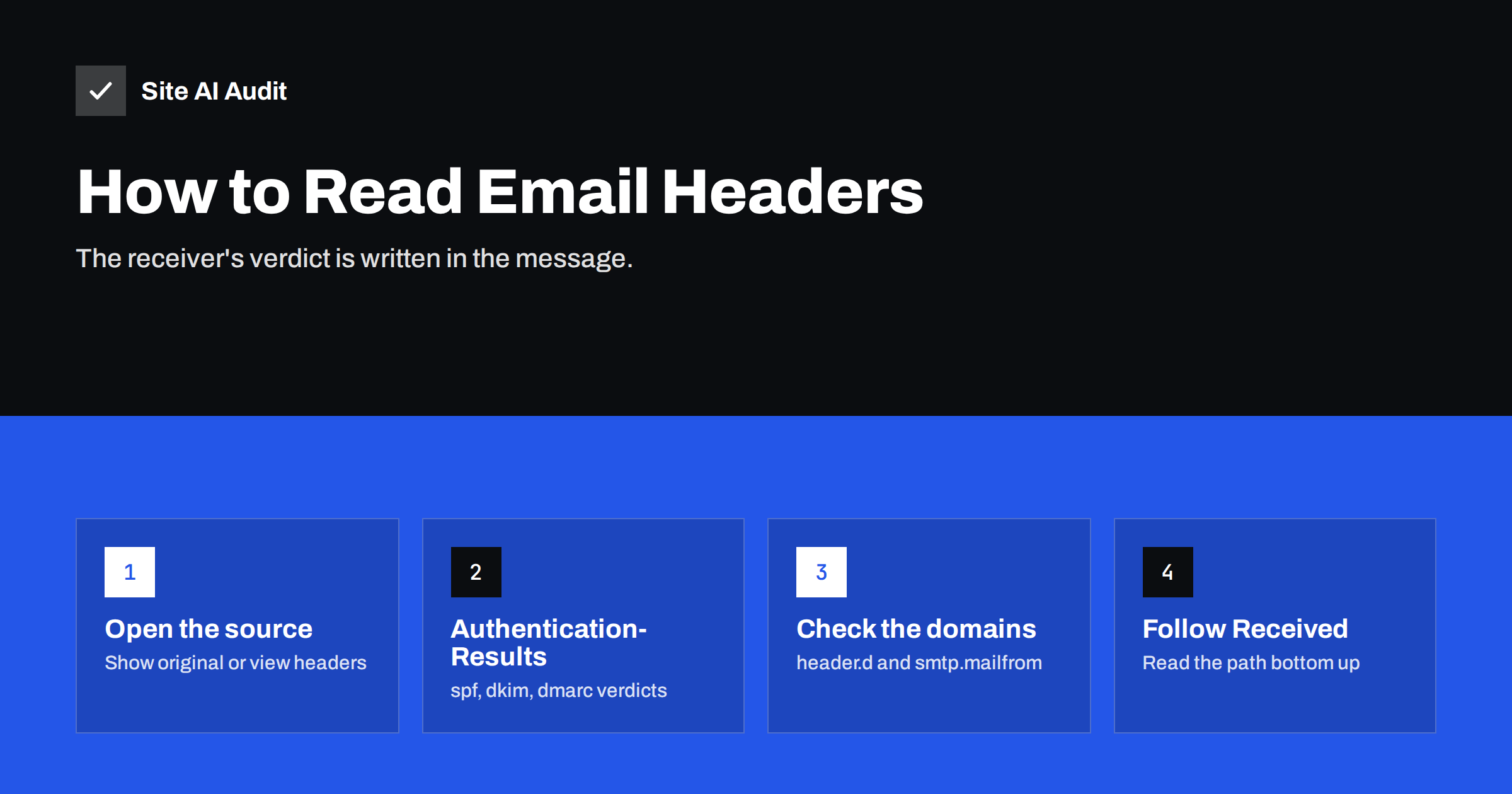
Short answer: Every delivered message carries headers that record its path and how the receiving server judged it. To check authentication, open the full message source (“Show original” in Gmail, “View message source” or message details in Outlook), find the Authentication-Results header added by the receiver, and read the spf=, dkim= and dmarc= results along with the domains they refer to. The domains matter as much as the pass or fail: DMARC only passes when a passing check belongs to your From domain.
Why headers are the best evidence
When e-mail lands in spam or bounces, it is tempting to guess: maybe the subject line, maybe the link, maybe the new logo. Headers remove the guesswork for the technical part. They contain the receiving server’s own record of what it checked and what it concluded, written at the moment of delivery.
A DNS lookup tells you what your records say today. A header tells you what a real receiver saw for a real message, including which server actually sent it and which domain actually signed it. The two often differ in revealing ways, for example when a newsletter platform signs with its own domain even though your DNS contains a DKIM key for it.
Headers are also the evidence to send to anyone helping you. A support team at your mail provider, a developer or an agency can diagnose a problem far faster from a full header than from a screenshot of the spam folder. When you forward a header, copy the complete source rather than a partial excerpt, because the relevant line is often not the one you expect.
Reading headers takes a few minutes to learn. After that, it is the fastest way to diagnose almost any authentication problem.
How to open the headers
- Gmail (web): open the message, click the three-dot menu next to Reply and choose Show original. A summary at the top shows SPF, DKIM and DMARC results; the full headers follow.
- Outlook on the web and Outlook.com: open the message, choose the three-dot menu, then View and View message details (the wording varies slightly between versions).
- Outlook desktop (Windows): open the message in its own window, choose File, then Properties, and look at the Internet headers box.
- Apple Mail: select the message and choose View, Message, All Headers or Raw Source.
- Thunderbird: open the message and choose View, Message Source.
For testing your own setup, send to a personal Gmail and an Outlook.com account. Both add detailed Authentication-Results headers, and between them they represent a large share of recipients.
Reading Authentication-Results
A typical header added by Gmail looks like this (shortened):
Authentication-Results: mx.google.com; dkim=pass [email protected] header.s=google header.b=AbC123; spf=pass (google.com: domain of [email protected] designates 203.0.113.25 as permitted sender) [email protected]; dmarc=pass (p=QUARANTINE sp=QUARANTINE dis=NONE) header.from=yourdomain.com
Take it apart piece by piece:
mx.google.comis the server that performed the checks. Only trust Authentication-Results headers added by the receiving system itself; headers added earlier in the path can be forged.dkim=pass [email protected] header.s=google: a DKIM signature fromyourdomain.comwith selectorgoogleverified. Some receivers writeheader.d=for the signing domain.spf=pass ... [email protected]: the envelope sender domain’s SPF record authorised the sending IP.dmarc=pass ... header.from=yourdomain.com: at least one pass aligned with the From domain. The part in brackets shows the policy the receiver found (p=) and what it did (dis=NONEmeans no action was needed).
Microsoft adds a similar header and often a compauth= result, its composite authentication verdict, with a reason code.
What the result values mean
| Result | Meaning | Typical cause when not pass |
|---|---|---|
pass | Check succeeded | – |
fail | Check clearly failed | SPF: server not listed with -all; DKIM: signature invalid; DMARC: nothing aligned |
softfail | SPF: not listed, domain uses ~all | Unlisted sender or forwarding |
neutral | SPF: domain makes no assertion (?all) | Weak SPF policy |
none | No record or no signature found | Missing SPF, DKIM signing not enabled, no DMARC record |
temperror | Temporary DNS problem | DNS timeout; usually resolves itself |
permerror | Record cannot be evaluated | Two SPF records, over ten lookups, syntax error, malformed DKIM key |
Checking alignment by comparing domains
This is where most real problems hide. Write down three domains from the headers:
- The From domain: from the
From:header, orheader.from=in the DMARC result. - The SPF domain: from
smtp.mailfrom=, which is the envelope sender (also visible in theReturn-Path:header). - The DKIM domain: from
header.d=orheader.i=, or thed=tag in theDKIM-Signature:header.
If the SPF or DKIM domain matches the From domain (or is a subdomain of it, in relaxed mode) and that check passed, DMARC passes. A common pattern for third-party tools is: SPF passes for bounces.vendor.example, DKIM passes for vendor.example, and DMARC fails for yourdomain.com. The fix is custom domain authentication in that tool, not changing your SPF record.
Three worked examples
Example 1: the contact form. A notification from a website form shows spf=softfail for yourdomain.com, dkim=none and dmarc=fail. The bottom Received header names the hosting company’s web server. Diagnosis: the website sends mail directly from the web server, which is neither in SPF nor signing with DKIM. Fix: route website mail through the mail provider or a transactional service with authenticated SMTP.
Example 2: the newsletter. A campaign shows spf=pass with smtp.mailfrom on the platform’s bounce domain, dkim=pass with header.d set to the platform’s domain, and dmarc=fail for your domain. Diagnosis: authenticated but not aligned. Fix: set up custom domain DKIM, and a custom bounce subdomain if offered, inside the newsletter platform.
Example 3: the forwarded message. A message that reached a customer through their old address shows spf=fail for your domain, dkim=pass for your domain, dmarc=pass, and the Return-Path starts with SRS0=. Diagnosis: normal forwarding, handled correctly thanks to DKIM. Nothing to fix.
In each case the header answered the question in under a minute, and none of the answers had anything to do with the wording of the message.
Following the Received headers
Each server that handles a message adds a Received: header at the top. Read them from the bottom up to follow the message’s journey from sender to recipient. They tell you:
- which server first accepted the message (your provider, your web server, a platform);
- the IP address that connected to the receiver, which is the one SPF evaluated;
- whether TLS was used on each hop;
- timestamps, which reveal delays and queueing.
If the bottom-most server is your web host rather than your mail provider, you have found the reason your website mail fails authentication: it is being sent directly from the web server.
Other headers worth a glance
DKIM-Signature: shows the signing domain (d=), selector (s=) and signed headers (h=). Multiple signatures are normal; platforms often add their own next to yours.Return-Path: the envelope sender, where bounces go.List-UnsubscribeandList-Unsubscribe-Post: one-click unsubscribe for marketing mail.ARC-*headers: added by intermediaries that forwarded the message.- Spam filter headers, such as Microsoft’s
X-Forefront-Antispam-Reportwith a spam confidence level (SCL). The meaning varies by system, but they can explain why a message went to junk despite passing authentication.
A quick diagnostic workflow
- Send a test from the system in question (mailbox, website form, newsletter, CRM) to Gmail and Outlook.com.
- Open the headers and find the receiver’s Authentication-Results.
- Note the three results and the three domains.
- If SPF fails, check which IP sent the message and whether your SPF record covers it.
- If DKIM is none or fails, check whether signing is enabled and the key is published at the selector shown.
- If DMARC fails with passing SPF and DKIM, fix alignment in the sending platform.
- Change one thing, wait for DNS, and test again.
For the DNS side of steps 4 and 5, Site AI Audit checks SPF with its lookup limit, DKIM, DMARC and MX records and explains each problem in plain words next to the website’s SSL, speed and SEO findings. A free check and a header from a real message together usually pinpoint the problem in minutes.
Related reading
- SPF vs DKIM vs DMARC: What Each One Does and Why You Need All
- Why Are My Emails Going to Spam? 12 Causes and Fixes
- Email Forwarding and Authentication: SPF, SRS and ARC Explained
The bottom line
Headers are the receiver’s written verdict on your message. Open the source, find Authentication-Results from the receiving server, read the three results and, most importantly, compare the three domains. Most failures reveal themselves as a missing signature, an unlisted server or a platform authenticating with its own domain instead of yours.
SSS
How do I see e-mail headers in Gmail?
Open the message, click the three-dot menu next to Reply and choose Show original. The top shows SPF, DKIM and DMARC results, followed by the full headers.
What is the Authentication-Results header?
It is added by the receiving server and records the results of its SPF, DKIM and DMARC checks, including the domains that were evaluated.
Why does DMARC fail when SPF and DKIM pass?
Because the passing checks belong to a different domain than the one in the From address. DMARC requires alignment with the From domain.
What does dkim=none mean?
The message had no DKIM signature the receiver could evaluate. Enable DKIM signing in the service that sent the message.
Can I trust Authentication-Results headers in a forwarded message?
Only the one added by the final receiving server you trust. Earlier headers can be added by anyone, including attackers, so treat them as information, not proof.
What does spf=softfail mean?
The sending server was not listed in the SPF record, and the record ends with ~all. It often indicates a forgotten sender or a forwarded message.


