ENEnglish
 LTLietuviškai
 DEDeutsch
 FRFrançais
 RUРусский
 ESEspañol
 PLPolski
 ITItaliano
 UKУкраїнська
 CSČeština
 PTPortuguês
 JA日本語
JA日本語 LVLatviešu valoda
 ETEesti
 HUMagyar
 IDBahasa Indonesia
 TRTürkçe
 HIहिन्दी
 ELΕλληνικά
 ARالعربية
 THไทย
THไทย VITiếng Việt
 RORomână
 MSBahasa Melayu
 BNবাংলা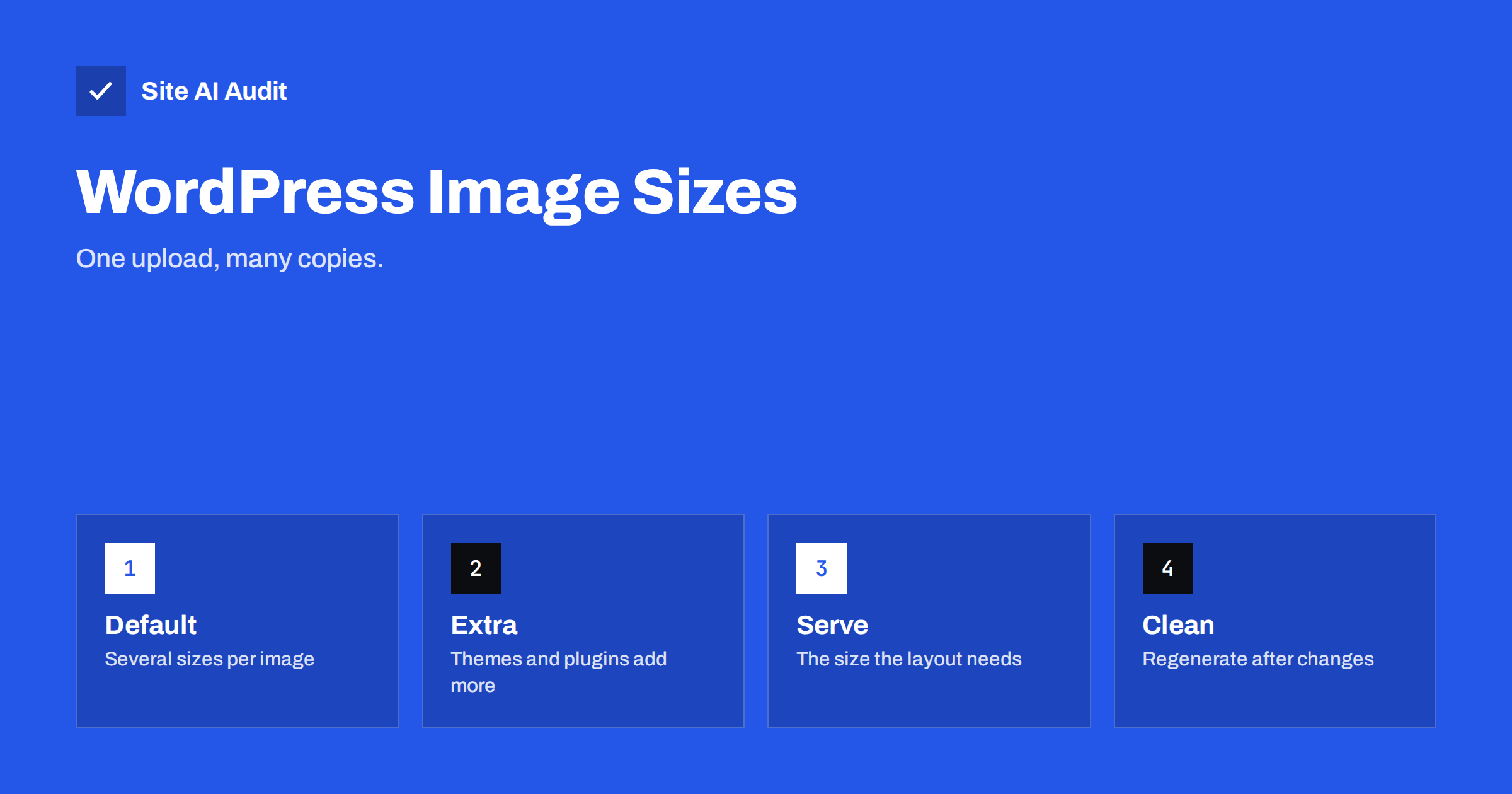
Short answer: Every time you upload an image, WordPress saves the original and creates several smaller copies, and your theme and plugins can add many more. The copies exist so that browsers can load a size that fits the layout, which is good for speed. The problems are unused sizes that fill your disk and backups, and templates that pick a size far larger than needed. Keep the sizes you really use, upload sensible originals and regenerate after changes.
What WordPress does with an upload
When you add a picture to the media library, WordPress keeps the file you uploaded and generates smaller versions, usually called thumbnail, medium, medium large and large, with typical widths from about 150 to 1,024 pixels. It then records all the versions in the database. When you insert an image into a page, WordPress writes a list of these versions into the page’s markup, so the browser can choose the one that suits the screen. This list is called srcset, and our guide to responsive images with srcset and sizes explains how the browser chooses.
Very large originals, such as straight-from-the-camera photos, are also scaled down by WordPress to a maximum size when they exceed a threshold of 2,560 pixels, and the large original is kept alongside. So a single upload can create six or more files.
Why this becomes a problem
Default sizes are not the whole story. Themes register their own sizes for post thumbnails, hero banners, grids and sliders. Page builders, shop plugins, gallery plugins and slider plugins add more. A site that has changed theme two or three times may be producing a dozen versions of every image, many of which are never used by the current design.
- Disk space and backups. The extra files multiply the size of your uploads folder. Bigger folders mean slower and costlier backups, as discussed in our backup strategy guide.
- Slow uploads. Creating many sizes takes processor time and memory on the server. On weak hosting, this can cause timeouts or errors when you upload large images.
- Wrong size on the page. If a template asks for a size that is much larger than the space it fills, visitors download extra data for no visual gain. This directly raises page weight; see our guide to reducing page weight.
- Blurry images. The opposite problem also exists: when a template picks a size smaller than the space, the browser stretches the picture.
Notice that unused thumbnails do not slow down visitors directly, because browsers only download the files that a page references. The cost is mostly on the server side, in storage and processing. The cost to visitors comes from choosing a size that is too large.
Find out which sizes you really use
- List the registered sizes. The Settings, Media screen shows the three standard sizes. A developer, or a plugin that lists image sizes, can show every size registered by the theme and plugins.
- Look at the current design. Open key pages and use the browser’s inspector to see which image file each picture loads and how large it is displayed. Compare the file’s pixel width with the width on screen.
- Check the uploads folder. Pick a recent image and look at the files that exist for it. Names ending in dimensions, such as -300×200, are the generated copies.
- Match sizes with templates. Ask which template uses which size. If a size appears nowhere, it is a candidate for removal.
Reduce what WordPress generates
You can turn off sizes you do not need. Be careful, and make a backup first.
- Settings, Media: set the thumbnail, medium and large dimensions to what your design uses. Setting a dimension to zero on both axes stops that standard size from being generated.
- Theme or plugin options: some themes and builders let you disable their extra sizes in their settings.
- A small piece of code or a plugin can remove registered sizes, using the WordPress filter that controls generated sizes. Ask a developer if you are not comfortable with code, and test on a staging copy.
- Choose themes and plugins carefully. Fewer plugins that touch images means fewer surprises. Our guide to page builders and performance covers the trade-offs.
Removing a size does not delete existing files. It only stops new ones from being created, and any template that asks for the missing size falls back to another one, usually the original, which can be larger. Check your main pages afterwards.
Regenerate and clean up
After changing the design or the registered sizes, existing images do not change by themselves. Old uploads still have the old set of copies, and the new sizes do not exist for them. To bring everything in line, you can regenerate thumbnails, either with a plugin made for the purpose or with the media regenerate command of the WordPress command-line tool, which can also be run in small batches on large libraries.
Regenerating creates the missing sizes. Removing old, unused files is a separate step, and it is the risky one: if any page, post or plugin still refers to an old file, deleting it breaks that image. Work in this order:
- Take a full backup, including the uploads folder.
- Try the process on a staging copy of the site first.
- Regenerate, then check the main pages, the posts that use many images and any gallery.
- Only then use a cleanup tool for unused sizes, and keep the backup until you are sure everything works.
Run the process during a quiet time, because it uses a lot of server resources.
Better originals, better results
The best way to reduce the size problem is to upload good originals. A picture that will be displayed 800 pixels wide does not need to be 6,000 pixels wide. Resize before uploading to about twice the largest display width, which keeps images sharp on high-density screens, and compress with a tool that balances quality and size. Modern formats help too: WordPress can create WebP versions in recent releases, and our comparison of WebP, AVIF and JPEG explains when to use each. The full process is described in our guide to image optimization.
Also check how images load. Pictures far down the page should be lazy loaded, but the main image at the top should not, since delaying it slows down the main content, as discussed in our guide to lazy loading images and in the article on improving Largest Contentful Paint. For large libraries, an image service or CDN that creates the needed sizes on demand can replace many stored copies; see our explanation of image CDNs.
Shops, galleries and builders
Online shops are the most common source of size trouble. A product image may be needed as a tiny cart icon, a catalogue thumbnail, a single product image, a zoom view and a gallery thumbnail, and each use can have its own size. Shop plugins usually let you set these sizes in their own settings, separate from the media settings. After changing them, regenerate thumbnails so that existing products follow the new sizes, and test a few product pages and the cart on a phone.
Gallery and slider plugins often create their own copies, sometimes stored in a separate folder. Page builders may ask for the full-size original in a column where a medium size would do, which wastes data without any visible benefit. When you build a page, check the image size options in each block, and choose the smallest size that still looks sharp. If you change themes, remember that the old theme’s sizes remain in the uploads folder, and plan a cleanup after you are sure that the new design is stable.
How Site AI Audit helps
Site AI Audit includes a Google PageSpeed check with mobile speed and Core Web Vitals, plus page weight and compression, so you can see whether images are making your pages heavy. It also reports missing alt text on the pages it crawls, up to 50 on the free check. It does not scan your media library or clean up thumbnails, so you must do that inside WordPress. You can run a free check of your website or see the plans.
Related reading
- Image Optimization for Faster Websites: A Practical Guide
- Page Weight: How Heavy Is Too Heavy and How to Trim It
- WordPress Database Cleanup: Safe Steps for Better Performance
- How to Fix a Slow WordPress Site: A Step-by-Step Guide
The bottom line
WordPress image sizes are a feature that turns into clutter when nobody manages them. Find the sizes your design uses, switch off the rest, upload sensible originals, regenerate carefully and always keep a backup. The result is a lighter site, smaller backups and faster pages.
SSS
Do unused thumbnails slow down my website for visitors?
Not directly, because browsers only download the files a page uses. They cost disk space and processing time on the server, and they make backups larger.
Is it safe to delete thumbnails from the uploads folder?
Only after a backup and a test on a staging copy. Pages that still reference a deleted file will show a broken image.
How large should my original uploads be?
About twice the largest width at which the image is displayed, which keeps it sharp on high-density screens without wasting data.
Will regenerating thumbnails change my images?
It creates new copies from the original files. The originals stay unchanged, but images may look different if the new sizes crop differently.
Can I stop WordPress from creating sizes altogether?
You can disable the standard sizes in the media settings and remove extra ones with code or a plugin. Check your theme first, because it may depend on some of them.