ENEnglish
 LTLietuviškai
 DEDeutsch
 FRFrançais
 RUРусский
 ESEspañol
 PLPolski
 ITItaliano
 UKУкраїнська
 CSČeština
 PTPortuguês
 JA日本語
JA日本語 LVLatviešu valoda
 ETEesti
 HUMagyar
 IDBahasa Indonesia
 TRTürkçe
 HIहिन्दी
 ELΕλληνικά
 ARالعربية
 THไทย
THไทย VITiếng Việt
 RORomână
 MSBahasa Melayu
 BNবাংলা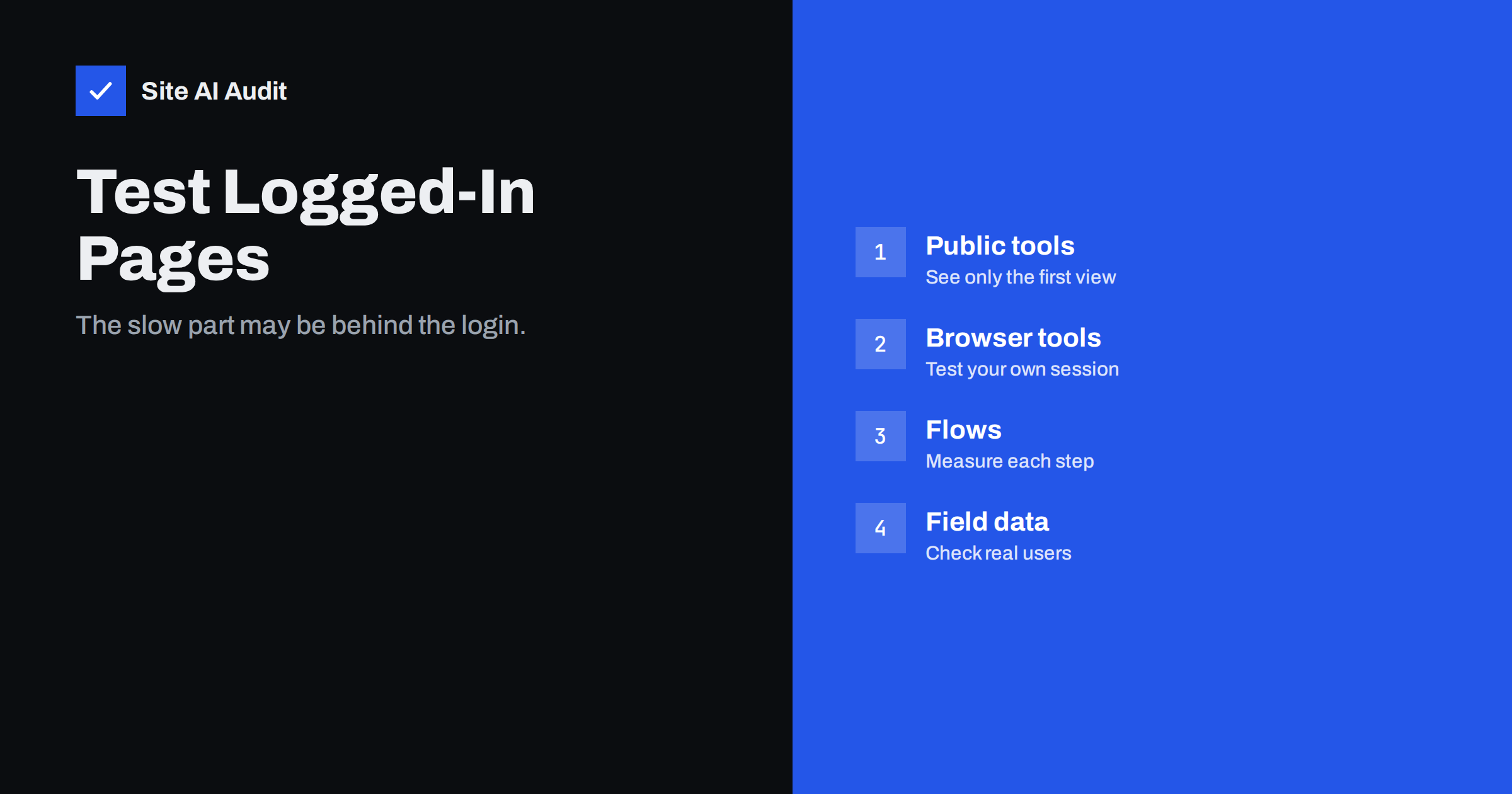
Short answer: Most online speed tests load a public address as an anonymous visitor with an empty cache, so they cannot see pages behind a login, a shopping cart or a multi-step form. To test those pages, run the test in your own browser session, use tools that can script a sign-in, measure each step of a journey and compare the results with real user data. Remember that logged-in pages often skip the page cache, so they are usually slower than the public pages you normally test.
Why public tests miss these pages
Online tools work like a stranger visiting your site. They request a web address, wait for it to load and measure what happens. They do not have your password, they do not click buttons and they do not remember anything from earlier visits. A page that requires a login simply redirects them to the sign-in screen, and the report describes the login page, not the account page behind it.
The same limit applies to a basket with items in it, a checkout that needs a cart, a dashboard that loads after a search or a page that changes after a user selects options. These screens are often the most important parts of a site, because that is where customers pay, book or manage their accounts. A slow checkout loses sales, and a slow account area frustrates people who have already chosen you.
Why logged-in pages are often slower
Several things make dynamic pages heavier than public ones.
- Page caching is bypassed. Sites usually serve cached copies to anonymous visitors. When a person is logged in or has items in a basket, the server must build the page again, which takes more time. See page caching explained.
- More database work. Personal data, orders, permissions and recent activity must be loaded for each request.
- More scripts. Dashboards often add charts, editors and widgets.
- Extra tools for logged-in users. Admin bars, chat widgets and tracking tags may load only for them.
- Background requests. Pages poll the server for updates, notifications and cart fragments, as discussed in high admin-ajax usage.
It follows that a site with a speed score of ninety on the home page can still be slow where it matters most. Testing only the public pages gives a flattering but incomplete picture.
Option 1: Test in your own browser
The simplest approach is to use the developer tools of the browser you already use, with your session logged in.
- Sign in to your site and open the page you want to test, for example an account page or a checkout.
- Open the browser’s developer tools and find the Lighthouse panel, if your browser includes it.
- Choose mobile or desktop, select the categories you need and run the audit. Because it runs in your session, it can see the page as you see it.
- Use the Network tab to view each request, its size and its time, and the Performance tab to record what the page does while loading and while you click.
- Repeat in a private window with extensions disabled, since browser extensions can distort results.
The method is quick and free. Its weakness is that your computer and connection are probably faster than those of your customers, so use throttling to simulate a slower phone and network. The guide to testing speed on slow connections and phones shows how.
Option 2: Measure whole journeys
A page is only one moment in a journey. A shopper adds an item, opens the cart, enters an address and pays. Delays can hide in the transitions between steps. Some browser tools can record a user flow, which means that you go through the steps by hand while the tool measures navigation and interactions. This reveals slow clicks and long waits that a single page load would never show.
When you record a flow, keep it short and repeatable, with a clear start and end. Name each step, and repeat the recording several times, because the first run may include warm-up effects. Look in particular at how long the site takes to respond after a click, a measure related to interaction to next paint.
Option 3: Scripted tests with a login
Some advanced testing services let you write a small script: open the login page, type the credentials, submit and then measure the next page. This allows scheduled, repeated tests from different locations. Use a dedicated test account with the lowest permissions that make the test valid, never an administrator account, and keep the password in the tool’s secret storage, not in the script text. Avoid tests that place real orders or send real e-mails; use a staging copy or payment test mode, and be careful about creating junk data on a live site.
Option 4: Real user data
Lab tests show what could happen. Real user data shows what does happen. Chrome collects anonymous performance data from many users, and the public report covers popular pages and origins. Search Console groups the data by page type; see the Core Web Vitals report. Account areas usually have too little traffic or are not public, so they may not appear. If you need this data, add your own real user monitoring script, or ask your hosting provider or developer whether the application can log timings.
Read field data explained to understand how lab and field numbers differ. Treat the two as complementary: lab tests help you find causes, field data shows impact.
What to look for
- Server response time. A long wait for the first byte on logged-in pages usually means heavy back-end work or no caching.
- Large or repeated requests. Look for the same data being fetched several times, and for big scripts used only on one screen.
- Slow clicks. Long delays after pressing a button point to heavy scripts or slow server calls.
- Layout shifts. Late-loading widgets can push buttons around, which is costly at checkout.
- Third-party tools. Payment, chat and analytics scripts can add seconds on important steps.
- Plugin overhead. On WordPress, some plugins add work to every logged-in request. A profiling tool can help find them; see finding slow WordPress plugins.
Make the comparison fair
Compare like with like. Test the same page, on the same device profile, network speed and location, and run each test several times before you trust a number. Keep notes of the date, the settings and what you changed, so that you know whether an improvement came from your work or from random variation. A fixed set of key pages, such as the home page, a product page, the cart, the checkout and the account page, gives you a simple dashboard. For how to track changes over time, see website speed monitoring.
Finally, decide in advance what counts as good enough. Many teams set a simple target for each key step, for example that the checkout page should respond within a couple of seconds on a mid-range phone, and treat anything slower as a bug to investigate. A written target turns vague unease into a clear task. Review the numbers after every major update, such as a new plugin, a theme change or a new payment method, because those are the moments when private pages quietly become slower.
Share the results with the people who can act on them. A short table with the page, the date, the result and the likely cause is enough. When developers, designers and shop owners see the same numbers, decisions about scripts and plugins become easier, and nobody has to rely on a feeling that the site seems slow.
How Site AI Audit helps
Site AI Audit tests the public pages of your site, up to 50 in the free check, without a sign-up. It does not log in or run through a checkout, so it will not measure the pages behind a login. It does show the speed of the main content on mobile, server response time, compression, page weight, SSL and security headers, explained in plain words and ranked by impact. If your public pages are slow, the private ones are unlikely to be fast. You can run a free check of your website or see the plans for regular monitoring.
Related reading
- PageSpeed Insights vs GTmetrix vs WebPageTest: Which to Use
- How to Read a PageSpeed Insights Report Without Guesswork
- How to Speed Up a Slow WooCommerce Store Without Breaking It
- Performance Budgets: How to Keep a Fast Website Fast
The bottom line
A fast home page does not prove a fast site. The pages that people use to pay, book and manage accounts sit behind logins and carts that public tools cannot see. Test them in your own browser, record complete journeys, use a safe test account for scripted checks, compare with real user data and keep your tests consistent. Then fix the biggest delays first.
الأسئلة الشائعة
Can PageSpeed Insights test a page behind a login?
No. It loads public addresses as an anonymous visitor. For private pages, use your browser’s developer tools or a testing service that supports scripted sign-in.
Why are logged-in pages slower than public pages?
They often skip the page cache, load personal data from the database and include extra scripts. The server has to do more work for every request.
Is it safe to give a testing tool my password?
Use a separate low-privilege test account, never an administrator, store the password in the tool’s secret storage and change it if you stop using the service.
How do I test a checkout without placing an order?
Use a staging copy or the payment provider’s test mode, and measure up to the last step. Do not place real orders or send test mail from a live site.
Which pages should I test first?
Start with those that earn money or keep customers: cart, checkout, account and the main forms. Fix the slowest steps first, then repeat the tests.