ENEnglish
 LTLietuviškai
 DEDeutsch
 FRFrançais
 RUРусский
 ESEspañol
 PLPolski
 ITItaliano
 UKУкраїнська
 CSČeština
 PTPortuguês
 JA日本語
JA日本語 LVLatviešu valoda
 ETEesti
 HUMagyar
 IDBahasa Indonesia
 TRTürkçe
 HIहिन्दी
 ELΕλληνικά
 ARالعربية
 THไทย
THไทย VITiếng Việt
 RORomână
 MSBahasa Melayu
 BNবাংলা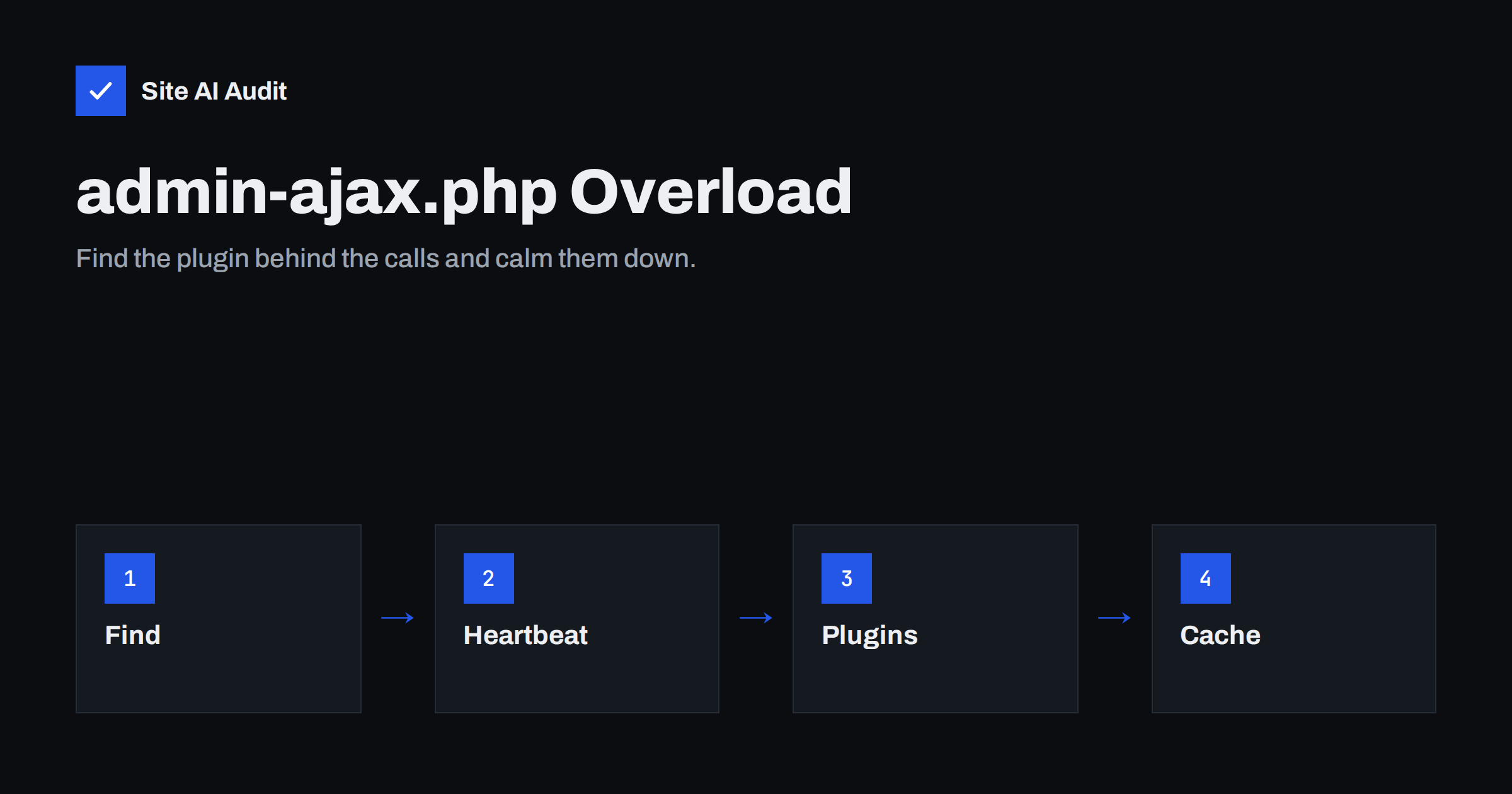
Short answer: admin-ajax.php is the file WordPress uses for background requests from the browser, both in the dashboard and on the public site. Each request loads the whole of WordPress with all active plugins and usually bypasses the page cache, so frequent or slow calls can overload the server and slow every page. Find out which “action” the calls belong to, in the browser’s network panel or the server logs, then slow down the Heartbeat API, fix or replace the plugin that polls, and move frequent read-only requests to cacheable endpoints.
What admin-ajax.php does
WordPress themes and plugins often need to talk to the server without reloading the page: saving a draft, loading more posts, updating a cart, checking for new chat messages, counting views or validating a form. The classic way to do this in WordPress is a request to /wp-admin/admin-ajax.php with an action parameter that says which plugin function should run.
The file sits in the wp-admin folder, but it is used on the public site too. That surprises many site owners when they see it in speed tests or server logs. Its presence is normal; the question is how often it is called and how long each call takes.
Why it can slow down a site
- Every call loads full WordPress. Core, the theme and every active plugin are loaded for each request, even if the answer is a single number. A call can easily take several hundred milliseconds of server time.
- It is usually not cached. Most calls are POST requests, which page caches and CDNs do not store. Each one reaches PHP and the database.
- Calls repeat. Features that poll the server every few seconds multiply quickly: ten open browser tabs polling every 15 seconds already mean 40 full WordPress loads a minute.
- It competes for the same workers. On shared hosting and small servers, the number of PHP processes is limited. When background calls occupy them, real page requests wait, which shows up as slow server response time.
The symptoms are high CPU usage or “resource limit reached” warnings from the host, a slow dashboard, and front-end pages that are fast in a speed test but slow for logged-in users or during busy hours.
Step 1: find which action is responsible
The action parameter tells you which plugin or feature makes the call.
- In the browser. Open the developer tools, go to the Network tab and filter for
admin-ajax. Leave the page open for a minute. Click each request and look at the payload or form data for theactionvalue. Note how often each action repeats and how long it takes. - In the server logs. Count requests to admin-ajax.php per hour. POST data is usually not logged, but GET calls show the action in the URL, and timing patterns, such as a request every 15 or 60 seconds from the same visitor, point to polling features.
- Match the action to a plugin. Action names often contain the plugin’s prefix. If not, search the plugin folder for the action name, or deactivate plugins one by one on a staging copy and see which calls disappear.
Developer plugins such as Query Monitor can show the database queries and hooks that run during AJAX requests, which helps when a single action is slow rather than frequent. Our guide to finding slow WordPress plugins describes this process in more detail.
Step 2: tame the Heartbeat API
The most common action is heartbeat. WordPress uses the Heartbeat API to save drafts automatically, show that another user is editing a post, and keep login sessions alive. By default, it calls the server about every 15 seconds in the post editor and about every 60 seconds on other dashboard pages, as long as the tab is open, with longer intervals when the tab is in the background.
A few admins with several dashboard tabs open all day can generate thousands of requests. Options:
- Slow it down. A small code snippet using the
heartbeat_settingsfilter, or a performance plugin with a Heartbeat setting, can raise the interval to 60 or 120 seconds. - Disable it where it is not needed, such as on the front end and on dashboard pages other than the editor. Keep it in the post editor, because autosave and edit locking depend on it.
- Close unused admin tabs. A simple habit that removes a surprising number of requests.
Our article on the slow WordPress admin dashboard covers other causes of a sluggish back end.
Step 3: fix plugins that poll the front end
On the public site, frequent calls usually come from a small number of feature types:
- View and visit counters that record every page view with a request.
- Live chat, notification and “recent sales” popups that check for updates every few seconds. See live chat widgets and page speed.
- Cart fragments in WooCommerce and similar systems, which refresh the mini cart on every page. Newer WooCommerce versions load this script in fewer places, but older setups and some themes still call it on every page. Our guide to speeding up a WooCommerce store covers it.
- Infinite scroll, filters and live search that send a request on every scroll step or keystroke.
- Forms and anti-spam features that fetch a token on page load.
For each one, ask whether the feature is needed, whether its interval can be longer, and whether the plugin has a setting to use a lighter method. Live search, for example, should wait until the user pauses typing instead of firing on every key.
Step 4: make the remaining calls cheaper
- Use the REST API with GET for read-only data. Unlike POST calls to admin-ajax.php, GET requests to REST endpoints can be cached by a CDN or page cache when the data is the same for everyone.
- Add an object cache. Persistent object caching keeps the results of repeated database queries in memory, which helps every uncached request, including AJAX. See object caching explained.
- Load less on each request. Every active plugin adds work to every AJAX call. Removing plugins you do not need speeds up all of them.
- Upgrade PHP. Newer PHP versions run the same code faster. See why upgrading PHP makes WordPress faster.
- Measure server time. The Server-Timing header can show how long each call spends in the database and in plugin code.
Do not block admin-ajax.php
Blocking the file in robots.txt or with a firewall rule to “save resources” breaks things. Many themes and plugins depend on it on the public site, and search engines may need the responses to render pages correctly; WordPress’s own default robots.txt explicitly allows admin-ajax.php while disallowing the rest of wp-admin. Rate limiting abusive clients is fine, but fix the source of legitimate calls instead of blocking them.
Unusual traffic patterns, such as thousands of calls from a few IP addresses with actions that do not match your plugins, may be attacks probing for vulnerable plugin functions. That is a security issue rather than a performance one; keep plugins updated and consider a web application firewall.
A quick before-and-after measurement
Measure before you change anything, so you know which fix worked:
- Count admin-ajax.php requests per hour in the server logs for a normal day, and note the average response time if your logs record it.
- Write down the server response time and CPU usage that your hosting panel shows for the same period.
- Make one change at a time, such as slowing the Heartbeat API or disabling one polling feature.
- Compare the same numbers on a similar day afterwards.
On many sites, the first two fixes, Heartbeat and one chatty plugin, remove most of the calls. If the count barely changes, the calls come from somewhere else, and the action names in the logs tell you where to look next.
How Site AI Audit helps
Site AI Audit shows the effects that heavy background requests have on visitors: how long your server takes to respond, which pages took over two seconds to load during the crawl, Google’s mobile PageSpeed score with LCP, CLS and INP, and the home page’s total weight. It does not log admin-ajax.php calls; use the browser’s network panel or server logs for that, then re-check after your fixes. You can run a free check, and the pricing page lists plans with unlimited re-checks.
Related reading
- WP-Cron Explained: Why It Slows WordPress and How to Replace It
- How to Fix a Slow WordPress Site: A Step-by-Step Guide
- Page Caching Explained: How to Speed Up a Dynamic Website
The bottom line
admin-ajax.php is normal, but every call is a full, uncached WordPress load. Find the actions behind the calls, slow down the Heartbeat API outside the editor, fix or replace plugins that poll the server, move read-only requests to cacheable endpoints, and make each remaining request cheaper. Do not block the file itself.
الأسئلة الشائعة
Is it normal to see admin-ajax.php on the front end?
Yes. Many themes and plugins use it for features on the public site. It becomes a problem only when calls are very frequent or slow.
Can I block admin-ajax.php in robots.txt?
No. Blocking it can break features and stop search engines from rendering pages correctly. WordPress’s default robots.txt allows it on purpose.
What is the Heartbeat API?
It is a WordPress feature that regularly calls admin-ajax.php to autosave posts, show edit locks and keep sessions alive. You can slow it down or limit it to the post editor.
How do I find which plugin is calling admin-ajax.php?
Look at the action parameter of each call in the browser’s network panel, then search your plugin folders for that action name or deactivate plugins one by one on a staging site.
Does page caching help with admin-ajax.php?
Not directly, because most calls are POST requests that caches do not store. It does free server resources for other pages. To cache read-only data, use GET requests to REST endpoints.