ENEnglish
 LTLietuviškai
 DEDeutsch
 FRFrançais
 RUРусский
 ESEspañol
 PLPolski
 ITItaliano
 UKУкраїнська
 CSČeština
 PTPortuguês
 JA日本語
JA日本語 LVLatviešu valoda
 ETEesti
 HUMagyar
 IDBahasa Indonesia
 TRTürkçe
 HIहिन्दी
 ELΕλληνικά
 ARالعربية
 THไทย
THไทย VITiếng Việt
 RORomână
 MSBahasa Melayu
 BNবাংলা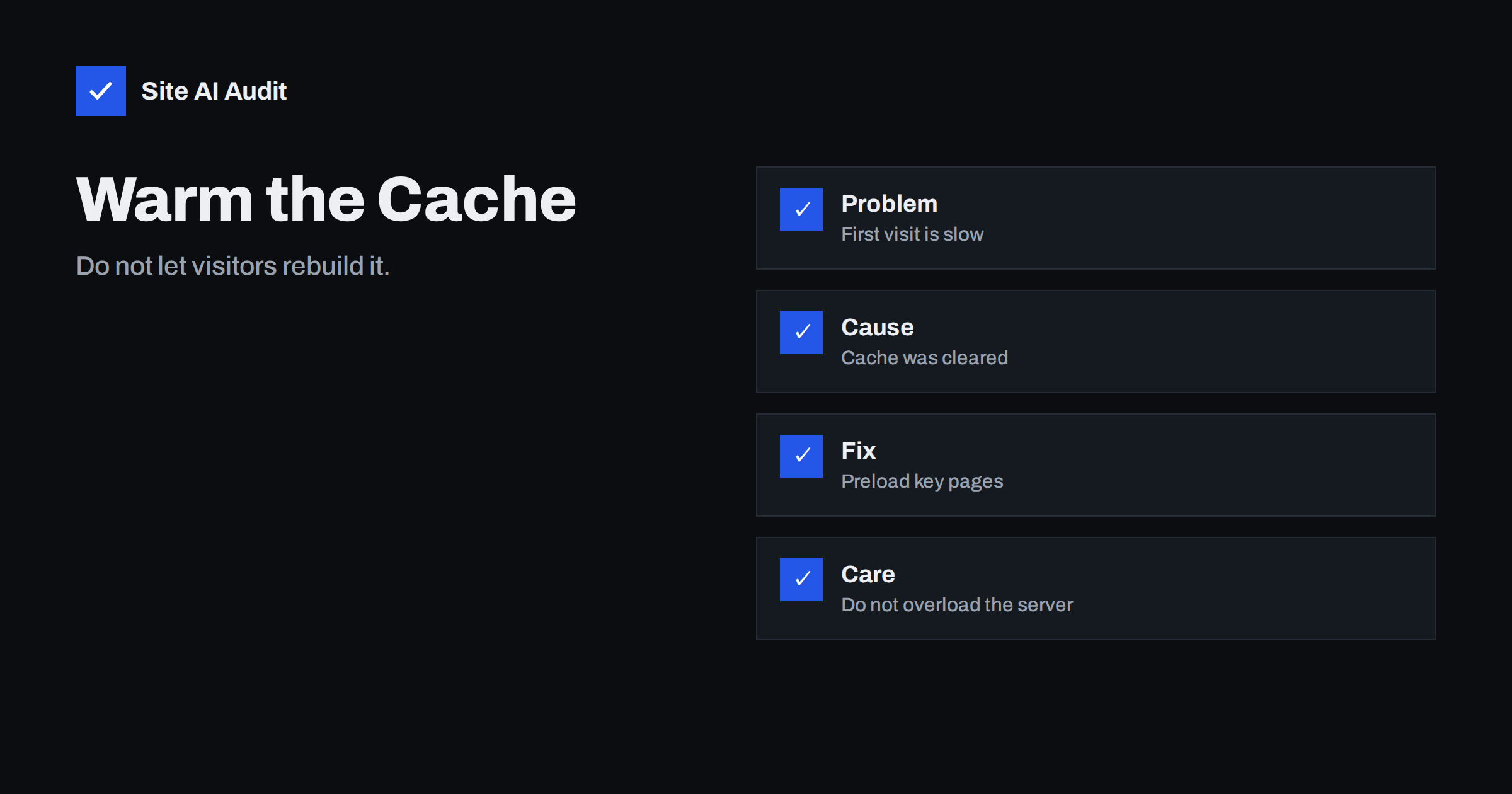
Short answer: Cache warming means requesting your pages yourself, right after the cache has been cleared, so that the saved copies are ready before real visitors arrive. Without it, the first visitor to each page waits for the server to build it from scratch. Warm the pages that matter most, in small steps, and check the response headers to confirm they are served from the cache.
What happens when the cache is empty
A cache keeps a ready-made copy of a page. When someone asks for it, the server hands over the copy instead of running the website code and database queries again. That is the reason cached pages answer in a fraction of the time, as we explain in page caching explained.
When the cache is cleared, those copies disappear. The next request for each page is a cache miss: the server must build the page, store a copy and then send it. On a busy WordPress site with many plugins this can take one to several seconds instead of a fraction of a second. Only after that first visit does the page become fast again.
The unlucky first visitor gets a slow page. If the visitor is a search engine robot, a slow response can reduce how many pages it crawls. And if many pages are requested at once after a purge, the server may be overloaded by all the rebuilding work happening in the same moment.
When the cache is cleared
The cache is emptied more often than most owners realise:
- You press “clear cache” or “purge all” in a plugin after changing the design or settings.
- A plugin or theme update triggers a full purge automatically.
- You publish or edit a post, and the plugin clears the pages that show it, such as the home page, archive pages and tag pages.
- The cache expires after its set lifetime.
- The hosting company clears the server cache during maintenance or after a migration.
- The server is restarted or moved.
A site that is purged completely several times a day may never get the full benefit of its cache. Reducing needless purges is often better than warming faster.
How cache warming works
The idea is simple: a script visits your pages in the same way a visitor would. Each visit causes a cache miss once, the copy is stored, and later real visitors get the fast version. There are three common ways to do it:
- A built-in preload feature. Many caching plugins have a “preload” or “cache warm-up” option that reads your sitemap and requests each address in order. This is the easiest method. See how to choose a WordPress caching plugin.
- A scheduled script. A task on your server or an outside service requests a list of addresses at a set time, for example after the nightly cache clearing.
- A hook after deployment. When you publish an update, your process runs the warming step automatically.
Most WordPress tools rely on the built-in task scheduler, which can be unreliable on quiet sites. If warming seems to stall, read about WordPress cron and performance.
What to warm first
You do not need to warm everything. Pages that are rarely visited waste effort, and a very large site cannot be warmed in one go. Start with these:
- The home page, which usually receives the most traffic.
- Main service, product and category pages.
- Your contact page and any landing pages used in advertising.
- The most popular blog articles, which you can find in your analytics.
- Pages in your sitemap that search engines are likely to crawl.
Order the list by importance, so that if the process stops early, the pages that matter most are already ready.
Different versions of the same page
A single address can have several cached copies. Many caches keep a separate version for mobile and desktop visitors, for each language, for different currencies and for different cookies. Warming with a desktop browser name only fills the desktop copy. If your plugin stores separate mobile copies, make sure the warming tool also requests the mobile version, or you will still have cold pages for half your visitors.
Pages for logged-in users, shopping carts and checkout pages are normally not cached at all and should not be warmed. Only warm pages that anonymous visitors see.
Content delivery networks are cold in many places
If you use a content delivery network, copies are stored in data centres around the world, and each location fills its own cache from the visitors it serves. Warming your site from one place warms your own server cache but may do nothing for a distant data centre. Some services offer a feature to preload their caches, and others do not. Keep this in mind when you read speed test results from different countries; a test from a location that has not seen the page yet will look slower. Our article on CDN cache hit ratio explains how to see how often pages are served from the cache.
How to check that warming worked
Do not assume; look at the headers. Request a page twice and compare the answers. Many cache systems add a header that says whether the page was a hit or a miss. The name differs by system, for example x-cache, cf-cache-status or a plugin-specific header, and you may also see an age value that shows how long the copy has been stored. The first request after a purge should show a miss, and the next should show a hit.
The browser’s developer tools show the same information in the network tab. Also compare the time to first byte, which is the delay before the server starts to answer. A warmed page typically answers much faster. If you want to understand this number better, read how to reduce server response time.
A simple example
Imagine a small shop with 400 pages. After a theme update the owner clears the cache at 22:00. Without warming, the first visitor to each product page waits about three seconds, and the first pass of a search robot is slow too. With a preload feature set to request ten pages per minute, starting with the home page, the categories and the 40 best-selling products, the key pages are ready in a few minutes and the rest follow overnight. The owner then compares the first and second response of the home page in the browser tools to confirm that the second answer is a hit.
Keep warming gentle
Warming creates real load. If the script requests hundreds of pages at once, you replace the visitors’ problem with a server problem. Follow these rules:
- Add a pause between requests, so that only a few pages are built per second.
- Run it at quiet times, such as the night, unless a purge happened in the daytime.
- Limit the list to important pages instead of the whole site.
- Stop when the server is busy. Many tools can slow down automatically.
- Do not warm with random parameters. Addresses with tracking parameters can create thousands of useless copies.
On a small shared hosting account, even gentle warming can be too much. In that case, reduce purges and let the cache fill naturally. Spikes in traffic add to this problem; see why a website is slow during traffic spikes.
Purge less, warm less
The best warming is the one you do not need. Set your tools to clear only the pages affected by a change, not the entire cache. Plan big changes, such as a redesign, for a quiet time and follow a process like the one in how to update a website safely. Set a sensible cache lifetime, long for pages that rarely change and shorter for those that change often.
What Site AI Audit can and cannot tell you
Site AI Audit measures the speed of your pages the way Google does, using real phones, and reports server response time, compression and page weight. If a page is slow on the first check, it may be uncached at that moment. Run it again after a few minutes and compare. It cannot clear or warm your cache for you. Check your site for free, or see the plans for unlimited re-checks.
Related reading
- Browser Caching Explained: How to Set Cache-Control Headers
- Object Caching with Redis: When Your Website Needs It
- Do You Need a CDN? A Plain-Language Guide for Site Owners
The bottom line
An empty cache means the next visitors get slow pages while the server rebuilds them. Cache warming fills the cache in advance by requesting your key pages after each purge. Warm the important pages first, include the mobile versions, keep the pace gentle, confirm it with cache headers and reduce needless full purges.
FAQ
What is cache warming?
Cache warming is the practice of requesting your pages automatically, so the server builds and stores copies before real visitors ask for them. It avoids slow first visits after the cache has been cleared.
Do I need cache warming on a small website?
Often not. A small site with few pages fills its cache quickly through normal traffic. Warming is most useful for larger sites, shops, sites with slow servers and sites that are purged often.
Can cache warming slow down my site?
Yes, if it requests too many pages too fast. Use a pause between requests, warm only important pages and run it at quiet times.
How do I know a page came from the cache?
Look at the response headers in your browser’s developer tools. Many cache systems add a header showing a hit or a miss, and a second request after a purge should show a hit and a much shorter wait.
Does cache warming help Google crawl my site?
It can help indirectly. Pages that answer quickly are easier for crawlers to fetch, and a cold cache after a purge can make the first crawl requests slow. It is not a ranking trick, only a way to keep response times consistent.