 ENEnglish
 LTLietuviškai
 DEDeutsch
 FRFrançais
 RUРусский
 ESEspañol
 PLPolski
 ITItaliano
 UKУкраїнська
 CSČeština
 PTPortuguês
 JA日本語
JA日本語 LVLatviešu valoda
 ETEesti
 HUMagyar
 IDBahasa Indonesia
 TRTürkçe
 HIहिन्दी
 ELΕλληνικά
 ARالعربية
 THไทย
THไทย VITiếng Việt
 RORomână
 MSBahasa Melayu
 BNবাংলা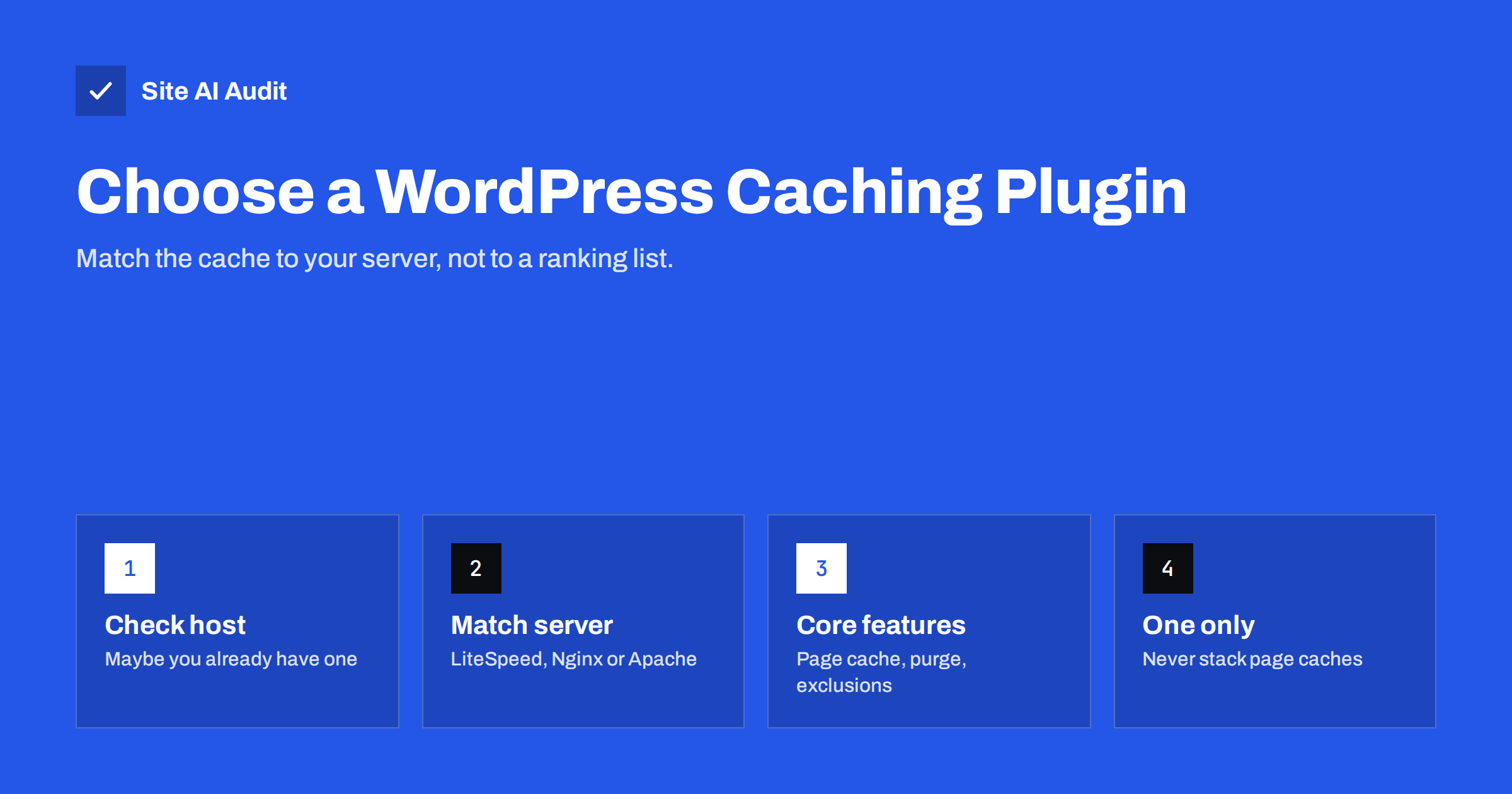
Short answer: Choose a WordPress caching plugin based on your hosting, not on popularity lists. First check whether your host already provides server-level page caching; if it does, use the host’s own plugin or integration and do not add another page cache. On LiteSpeed servers, the LiteSpeed Cache plugin uses the server’s built-in cache. On other servers, choose one well-maintained plugin that offers reliable page caching, sensible purge rules and automatic exclusions for carts and logged-in users. Enable extra optimisation features one at a time, and test after each.
Searching for “best WordPress caching plugin” returns endless comparison articles, each with a different winner. The reason is simple: there is no single best plugin, because caching works differently on different servers and hosts. A plugin that is excellent on one host can be redundant or even harmful on another. The better question is: which caching setup fits my hosting, and which features do I actually need?
What a caching plugin does
Most WordPress caching plugins combine several functions:
- Page caching: storing generated HTML so that most visitors are served without running PHP and database queries. This is the core function and the biggest speed gain.
- Browser caching rules: setting cache headers for static files.
- Cache purging: clearing the right pages when content changes.
- Preloading: visiting pages automatically to fill the cache after a purge.
- Object cache integration: connecting WordPress to Redis or Memcached, if the server provides them.
- Front-end optimisation: minification, deferring scripts, delaying JavaScript, removing unused CSS, lazy loading, critical CSS.
- CDN integration: rewriting asset URLs or purging a CDN cache.
Page caching and purging are what make a caching plugin a caching plugin. Everything else is optional and should be judged separately.
Step 1: Check what your host already does
Many managed WordPress hosts run their own server-level page caching, often with a custom plugin or a built-in integration for purging. Some explicitly disallow or discourage third-party page caching plugins because they conflict with the host’s system.
- Check your host’s documentation or ask support: “Do you provide page caching, and which plugins do you recommend or prohibit?”
- Look at the response headers of a page as a logged-out visitor. Headers indicating a cache hit from the server or host mean caching is already active.
- If your host provides page caching, keep it and use a separate plugin only for features the host does not cover, with its page caching switched off.
Step 2: Match the plugin to your web server
| Server type | Typical best approach |
|---|---|
| LiteSpeed or OpenLiteSpeed | LiteSpeed Cache plugin, which controls the server’s built-in page cache |
| Nginx with host-managed caching | Host’s cache and its purge plugin or integration |
| Nginx without server cache | A plugin that writes static HTML files, served efficiently with suitable Nginx rules |
| Apache | A plugin that writes static HTML files and uses .htaccess rules to serve them |
| Behind a CDN that can cache HTML | CDN edge caching plus a plugin or integration that purges the CDN on updates |
Server-level caching is generally faster than PHP-based caching, because cached pages are served before WordPress starts at all. Plugins that write static files and serve them through web server rules come close. Plugins that serve cached pages through PHP are simpler to set up but slower.
Step 3: Compare the features that matter
- Reliable purging: updating a post should clear that post, the home page, relevant archives and feeds, without clearing the whole site unnecessarily.
- WooCommerce and membership awareness: automatic exclusion of cart, checkout and account pages, and bypassing the cache for logged-in users and visitors with carts.
- Mobile handling: modern responsive themes do not need a separate mobile cache; avoid enabling it unless your theme serves different HTML to phones.
- Preloading: useful for sites where many pages are visited rarely.
- Compatibility: active development, regular updates and clear documentation.
- Control over optimisation features: the ability to enable, disable and exclude files for each feature separately.
Step 4: Be careful with “optimisation” features
Many caching plugins bundle aggressive front-end features: combining and minifying files, deferring or delaying all JavaScript, removing unused CSS, generating critical CSS. These can improve lab scores and sometimes real performance, but they are also the main source of broken layouts and non-working features after installing a caching plugin.
- Turn on page caching first and measure.
- Then enable one optimisation feature at a time, clear the cache and test.
- Check the mobile menu, forms, sliders, cookie consent, cart and checkout after each step.
- Use exclusion lists for scripts that break.
- Make sure no other plugin, CDN or host feature does the same optimisation.
Avoid these setups
- Two page caching plugins at once. They compete, produce stale pages and make debugging very hard.
- A page caching plugin on a host that already caches without checking compatibility.
- Caching plugin plus separate minification plugin plus CDN minification. Pick one layer for each job.
- Leaving an old caching plugin’s files behind after switching. Some plugins add rules to .htaccess or a drop-in file in wp-content; remove them properly using the plugin’s own uninstall process.
How to test your caching setup
- Log out or use a private window.
- Load a page twice and check the response headers for a cache hit, or the HTML comment some plugins add.
- Compare Time to First Byte for the first and second load.
- Update a post and confirm the change appears for logged-out visitors.
- Add a product to the cart in one browser and check that another browser still shows an empty cart.
- Run PageSpeed Insights on mobile and compare with your baseline.
Three typical scenarios
A small company site on shared hosting with Apache. The host offers no page cache. A single static-file caching plugin with default page caching, browser caching rules and automatic purging is the right starting point. Optimisation features can wait until the basics are measured. This setup alone often reduces server response for cached pages dramatically.
A WooCommerce shop on a LiteSpeed host. The LiteSpeed Cache plugin controls the server’s built-in cache and understands WooCommerce’s cart and session cookies. Object caching is worth enabling if the host provides Redis or Memcached, because carts and checkouts cannot be page-cached. Any other page caching plugin should be removed.
An agency site on managed WordPress hosting. The host caches pages at the server and provides a purge integration. No page caching plugin is needed. If the team wants script deferral or image optimisation, they use a plugin that offers those features with page caching turned off, after confirming with the host that it is allowed.
In all three cases, the decision starts with the same question about the hosting environment, not with a comparison of plugin feature lists. Once the page cache is in the right place, the remaining choices are about convenience and optional optimisation features, which matter far less.
When switching plugins makes sense
If your current plugin works, purges reliably and your cached pages are fast, switching rarely brings meaningful gains. Consider switching when you move to a server type with its own cache (such as LiteSpeed), when your host recommends a different integration, when the plugin is no longer maintained, or when it causes recurring conflicts. Plan the switch like any other change: deactivate and properly uninstall the old plugin, clear all caches, install the new one with default settings, and test.
How Site AI Audit helps
Site AI Audit measures how fast your server responds and runs Google PageSpeed for mobile, so you can see whether page caching is working as expected, before and after changing plugins. Slow server response on content pages is a typical sign that caching is missing or bypassed, and the report explains the fix in plain words together with your other speed, SEO, security and e-mail findings. Paid plans let you re-check after every change.
Related reading
- Page Caching Explained: How to Speed Up a Dynamic Website
- Browser Caching Explained: How to Set Cache-Control Headers
- Shared Hosting vs VPS: Which Is Faster for Your Website?
- 12 Website Speed Optimization Mistakes and How to Avoid Them
The bottom line
The right caching plugin is the one that matches your server and host. Use the host’s caching if it exists, the server’s native cache plugin on LiteSpeed, and one well-maintained static-file cache elsewhere. Prioritise reliable page caching, purging and exclusions, add optimisation features carefully one by one, and never run two page caches at the same time.
FAQ
What is the best caching plugin for WordPress?
There is no universal best. The right choice depends on your server and host. Use your host’s caching if provided, LiteSpeed Cache on LiteSpeed servers, and one reliable static-file caching plugin on other servers.
Do I need a caching plugin on managed WordPress hosting?
Often not for page caching, because many managed hosts provide it at the server level. Check your host’s documentation, as some prohibit third-party caching plugins. You may still use a plugin for other features with its page cache disabled.
Can I use two caching plugins together?
You should not run two page caching plugins at once. They conflict and cause stale or broken pages. If you need features from another plugin, disable its caching functions.
Why is my site broken after installing a caching plugin?
Usually the optimisation features, not page caching, are responsible: combined or deferred scripts, removed CSS or delayed JavaScript. Disable those features, clear caches and re-enable them one at a time with exclusions.
Does a caching plugin help logged-in users?
Page caching is normally bypassed for logged-in users, so they see little benefit. Object caching with Redis or Memcached, a current PHP version and efficient plugins help logged-in performance instead.


