ENEnglish
 LTLietuviškai
 DEDeutsch
 FRFrançais
 RUРусский
 ESEspañol
 PLPolski
 ITItaliano
 UKУкраїнська
 CSČeština
 PTPortuguês
 JA日本語
JA日本語 LVLatviešu valoda
 ETEesti
 HUMagyar
 IDBahasa Indonesia
 TRTürkçe
 HIहिन्दी
 ELΕλληνικά
 ARالعربية
 THไทย
THไทย VITiếng Việt
 RORomână
 MSBahasa Melayu
 BNবাংলা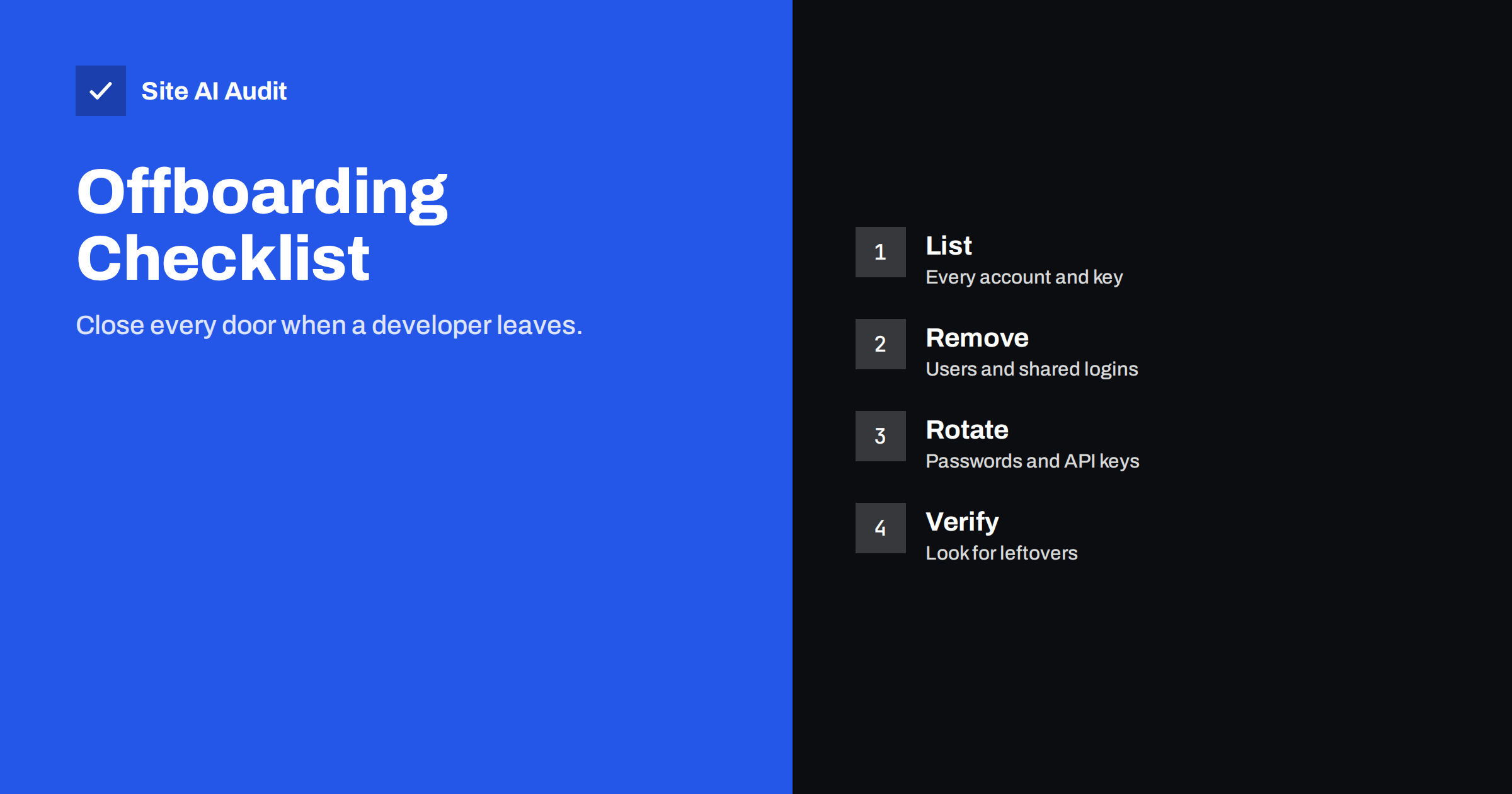
Short answer: When a developer, freelancer or agency stops working on your website, remove or change every access they had on the same day. That means website users, the hosting panel, FTP or SSH, the database, the domain registrar, DNS and CDN, email and analytics accounts, API keys and licences. Make a list first, take ownership of the accounts that matter, change shared passwords, delete named accounts, and then look for anything unexpected left behind.
Why old access is a real risk
Most former developers are honest, and the risk is not that they will harm your site on purpose. The risk is that forgotten access remains in places nobody looks. A password sent by email three years ago, an old FTP account, a test site on the same server, or a personal login on a shared plugin licence can all outlive the project. Any of these can be stolen if the former developer’s laptop or mailbox is compromised, or if their password was weak and reused.
There is a second problem: control. If the domain, hosting or Google accounts belong to the developer rather than to your company, you may not be able to prove ownership when you need to move or fix something. Offboarding is a good moment to put every important asset in your own name.
Step 1: list everything the person could reach
Before removing anything, build a complete list. Ask the developer for a handover list, and check it against your own records. Typical items are:
- Website users: administrator and editor accounts in WordPress or another content system.
- Hosting: the control panel, file manager, FTP and SFTP users, SSH keys, database users, cron jobs and staging copies.
- Domain and DNS: the registrar account, DNS provider and any CDN or firewall service in front of the site.
- Email: mailboxes, forwarding rules, SMTP logins and API keys for sending services.
- Google and marketing tools: Search Console, Analytics, Tag Manager, Google Business Profile and advertising accounts.
- Code and backups: repositories, deployment tools, backup services and cloud storage.
- Licences and payments: premium plugin and theme licences, payment gateway access, stock photo or font accounts.
- Social and other accounts that were created for the business.
If you do not know where to start, the list in the website security audit checklist helps to cover the ground.
Step 2: take ownership of the key assets
Some assets must be in your name, not in the developer’s:
- The domain. Check the registrant and the account that manages it. Make sure the renewal date and the contact email belong to you, and turn on the registrar lock. See domain hijacking and registrar lock and what happens when a domain expires.
- Hosting. The account holder should be your company, with the developer added as a user if they still need access.
- Google properties. Make sure at least two people in your company are owners of Search Console and Analytics before removing the developer.
- Licences. Move plugin and theme licences to an email address that your company controls.
Do this first. If the former developer is unfriendly or hard to reach, ownership is far harder to recover later.
Step 3: remove and rotate
Now close the doors. For each item on your list:
- Delete named accounts of the departing person. In WordPress, when you delete a user, choose to reassign their content to another user so that posts and pages are not lost.
- Change shared passwords. If the developer knew a password for the hosting panel, the database or a service, change it. Treat every shared secret as known.
- Rotate keys and tokens. Replace API keys, SMTP passwords, deployment tokens and SSH keys that the person created or knew.
- Change the WordPress security keys and salts in the configuration file. This logs out every logged-in user, so choose a quiet moment.
- Remove SFTP, SSH and database users that were created for the project.
- Remove from third-party tools such as Tag Manager, Search Console, advertising accounts and code repositories.
- Delete or lock test and staging sites that are public. They often hold old copies of your data and weaker protection.
Keep a written record of what you changed, with the date. It is useful for audits and for the next handover.
Step 4: look for leftovers
After the obvious removal, look for anything that does not belong. These checks take less than an hour:
- List all website users and sort by role. Remove unknown administrators.
- Check the list of plugins and themes for anything you did not approve, and for plugins that allow remote access or file editing.
- Look at scheduled tasks and, on the server, at cron jobs.
- Compare the files on the server with a clean copy or with a recent backup to see changes. Our guide to file permissions on a web server explains safe settings.
- Review the access log or the hosting security log for logins from unfamiliar places.
- Check email forwarding rules for the domain, in case copies of messages go to an outside address.
If something looks wrong, read signs that your website has been hacked and follow the steps in hacked website recovery steps.
Prevent the problem next time
Good habits make offboarding a short task instead of a project:
- Use named accounts. Give every person their own login so that you can remove one without touching others. Avoid shared passwords.
- Give the least access needed. A content editor does not need an administrator role. See user roles and least privilege.
- Turn on two-factor sign-in for admin accounts, hosting and the registrar, as explained in website two-factor authentication.
- Use a team password manager so that credentials are stored in one place the company controls, not in email or chat.
- Set an end date for contractor access when you grant it.
- Keep a living inventory of accounts and who owns them, reviewed twice a year.
- Keep your own backups outside the developer’s accounts, following a backup strategy that works.
Agencies that manage sites for clients can also use the advice in security checks for agency clients to document who has access to what.
Handling the conversation
Offboarding does not have to be hostile. Tell the developer in advance that you are updating access as a normal security routine, ask for a handover list and for any documentation, and agree on a date. Thank them for the work. Most professionals expect it and will help, because clear handovers protect them too: once their access is removed, nobody can blame them for a later problem.
Put the expectations into the contract at the start of a project: who owns the accounts, what documentation is delivered, how long the developer keeps access after the work ends and what happens to copies of your data.
If the person leaves suddenly
Sometimes there is no time for a polite handover: a freelancer disappears, an employee is dismissed or an agency closes. Then the order of work changes. First secure the accounts that control everything else: the registrar, the hosting account and the primary email address used for password resets. Second, change the passwords you can reach and turn on two-factor sign-in. Third, remove the person from the website, code and marketing tools. Finally, make a fresh backup and run the leftover checks above. If you cannot get into an account because it belongs to the former developer, contact the provider’s support with proof that your company owns the domain and the business, such as invoices and registration documents. Keep calm and keep records; most providers have a process for this.
What Site AI Audit checks
Site AI Audit does not see your user list, hosting panel or server accounts, so it cannot confirm that old access is gone. It does check what is visible from outside: the SSL certificate and its expiry, the redirect to HTTPS, security headers and exposed software versions, along with DNS-related email records such as SPF, DKIM and DMARC. These are useful after a change of control, because a surprise change in records or an expiring certificate often shows up first there. Run a free check of your website, and see the paid plans for weekly monitoring and alerts.
Related reading
- WordPress Security Checklist: 20 Steps That Actually Matter
- Website Security for Small Businesses: Where to Start
- Brute-Force Login Attacks: How to Protect Your Website Logins
The bottom line
Offboarding a developer is a routine security task. List every account and key, move the important assets into your own name, delete named accounts, change shared secrets, check for leftovers and record what you did. Better still, use named accounts, minimal roles and two-factor sign-in from the start, so that the next handover takes an afternoon.
SSS
How soon should I remove a developer’s access?
On the day the work ends, or earlier if the relationship ends badly. Prepare the list in advance so that you can act quickly, and take ownership of key assets before you announce the change.
Do I need to change passwords if I deleted the developer’s account?
Yes, for anything they could see or share. A deleted personal account does not change a shared password they knew. Change shared passwords, keys and tokens, and rotate the WordPress security keys.
What happens to the developer’s posts when I delete their user?
In WordPress you can reassign the content to another user during deletion. If you skip that choice, the posts may be removed with the account, so read the options on the screen carefully.
Who should own the domain and hosting account?
Your company. The developer can be added as a user if needed, but the registrant, billing and the main account should be yours, with contacts that you control.
Can I check whether my site was tampered with?
Review users, plugins, scheduled tasks and recent file changes, compare against a clean backup and read the logs. If anything is unfamiliar, follow a recovery procedure and consider asking a security professional for help.