ENEnglish
 LTLietuviškai
 DEDeutsch
 FRFrançais
 RUРусский
 ESEspañol
 PLPolski
 ITItaliano
 UKУкраїнська
 CSČeština
 PTPortuguês
 JA日本語
 LVLatviešu valoda
 ETEesti
 HUMagyar
 IDBahasa Indonesia
 TRTürkçe
 HIहिन्दी
 ELΕλληνικά
 ARالعربية
 THไทย
 VITiếng Việt
 RORomână
 MSBahasa Melayu
 BNবাংলা
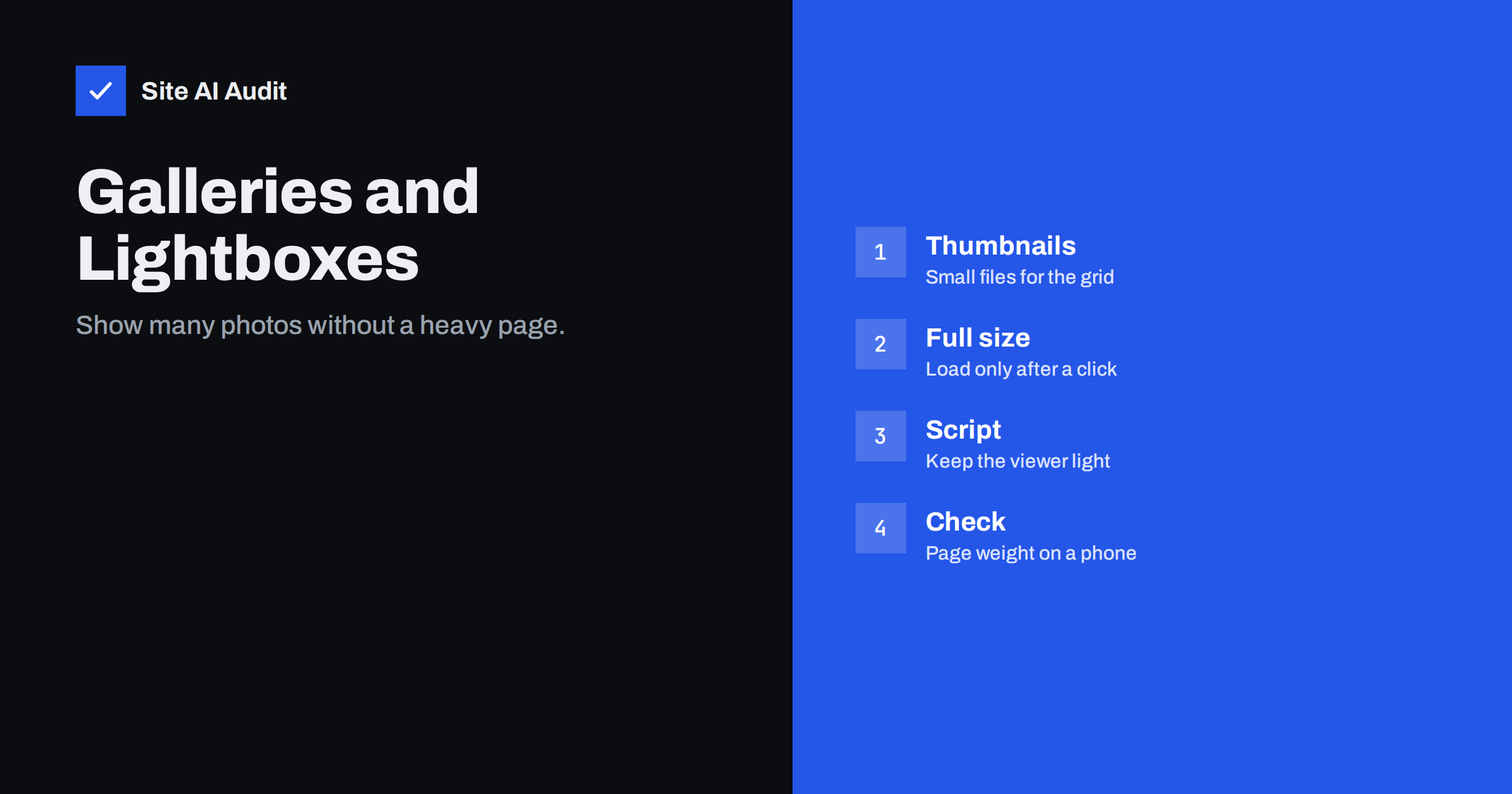
Short answer: A photo gallery becomes slow when the page loads full-size images for the grid, when every image downloads at once and when the lightbox script is heavier than the photos it shows. The fix is to use properly sized thumbnails, load images lazily, fetch the large version only when someone clicks, keep the viewer script small and give every image fixed dimensions so the page does not jump.
Why galleries slow pages down
A gallery is one of the heaviest things a normal website can contain. A grid of thirty photos taken on a modern phone can weigh more than the rest of the site together, because a single original file often measures several megabytes. If the page loads these originals and only scales them down with CSS, the browser still has to download every byte. On a mobile connection that means a long wait, a high data bill for the visitor and poor scores in the measurements that Google reads.
The lightbox, which is the window that opens when someone clicks a thumbnail, adds its own cost. Many plugins load a large script and a stylesheet on every page of the site, even where no gallery exists. Some also preload the large image of every thumbnail in the background, so that the pop-up opens quickly, which doubles the data the visitor receives. The aim of this article is to keep the good parts of galleries and remove this waste.
Use thumbnails of the right size
The grid should contain small files created for that purpose. If a thumbnail is shown at about 300 pixels wide, a file of 600 pixels is enough for sharp screens, and a file of 4000 pixels is wasteful. Most content systems create several sizes automatically when you upload an image, and the choice of the right one is the first and biggest saving. The topic is explained in detail in the article on WordPress image sizes and thumbnails.
- Match the file to the display size. Check the width of the grid cell on a phone and on a desktop screen.
- Offer several sizes with the
srcsetattribute, so that a phone receives a smaller file than a large monitor, as shown in the guide to responsive images. - Choose a modern format. WebP and AVIF are usually much smaller than JPEG at similar quality, a comparison made in the article on WebP, AVIF and JPEG.
- Compress sensibly. Photos tolerate stronger compression than most people expect, and the saving is large. Keep a master copy of the original elsewhere.
Load only what the visitor can see
A visitor sees the first row or two of a grid. The photos further down need not be downloaded until the person scrolls near them. Lazy loading does exactly this. Browsers support it with a simple attribute on the image tag, and many gallery plugins offer a setting for it. The full guide is in the article on lazy loading images.
There is one exception. Do not lazy load the first image or the first row if it is the main content of the screen, because this delays the largest element on the page. Give it priority instead, using the attribute described in the guide to fetchpriority. For long galleries, consider splitting the photos over several pages or adding a “show more” button, but keep the points about crawling in mind that are discussed in the article on infinite scroll and load more, so that every photo page remains reachable.
Load the large image only on click
The lightbox should request the full-size file at the moment someone opens it, not before. Check how your plugin behaves by opening the network panel in the browser developer tools and loading the page without clicking anything. If you see the large versions downloading, the plugin preloads them, and you should change the setting or choose another tool.
- Use a reasonable large size. A file of 1600 to 2000 pixels wide is enough for most screens. Serving the 6000 pixel original makes the pop-up slow for no visible gain.
- Preload only the next image if you want sliding to feel instant, and not the whole set.
- Avoid unlimited resolution. If visitors may need to zoom into details, such as a product, offer a separate zoom feature for those images only.
Keep the lightbox script light
Lightbox code ranges from a few kilobytes to hundreds. Some older plugins also require an entire library such as jQuery just to open a pop-up, which adds more weight and a risk of conflicts. Think about what you really need.
- Check whether you need a plugin at all. Recent versions of WordPress have a built-in option to expand an image in a pop-up when it is clicked, which avoids extra code.
- Choose a small, maintained library with keyboard support and no heavy dependencies.
- Load the script only on pages that have a gallery. The method is described in the article on loading plugin assets only where needed.
- Defer the script so that it does not block the first view, using the approach from the guide to defer and async JavaScript.
- Remove unused effects. Fancy transitions, social buttons and comment boxes inside the pop-up add weight and distraction.
Reserve space and avoid layout shifts
A gallery that jumps while the thumbnails load is annoying and bad for the layout stability score. Give each image a width and a height, or use a fixed aspect ratio for the grid cells, so the browser reserves the space before the file arrives. A neutral background colour in each cell looks calmer than white gaps. The metric is explained in the guide to fixing cumulative layout shift. Do the same for the lightbox: it should open at a fixed size and not resize several times as the image loads.
Do not forget accessibility and search
A fast gallery should also work for people who use a keyboard or a screen reader and for search engines. Make sure that the pop-up can be opened and closed with the keyboard, that focus moves into it and back, and that every image has a useful description. Short, factual alt text helps, as shown in the guide to image alt text. Write a heading and a sentence of context above the gallery, because search engines understand a page better with text than with pictures alone. The article on Google Images SEO adds more details about file names and image sitemaps.
How to test your gallery page
- Open the page on a phone with a normal mobile connection and watch how long the first photos take to appear.
- Check the page weight in the developer tools. A gallery page of more than a few megabytes deserves attention.
- Count the requests for images before any click. They should match what is visible.
- Click a thumbnail and confirm that the large image loads only now.
- Run a speed test and read the waterfall, using the method in the guide to reading a waterfall chart.
Finally, compare a gallery page with the rest of your site. If the gallery page is several times heavier than a normal page, ask whether all of the photos need to be on one address. A tidy set of thumbnails that opens separate pages, each with a single large photo and a short description, is often lighter, easier to share and better for search. Choose the approach that suits how people use the page. A portfolio benefits from a quick overview, while a shop benefits from large, detailed photos on each product.
How Site AI Audit helps
Site AI Audit measures the page that visitors get, including the Google PageSpeed score, Core Web Vitals, server response time, compression and page weight. A gallery page that is much heavier than the rest of your site shows up clearly in these numbers, and the report explains the likely cause in plain words. The free check covers up to 50 pages and needs no sign-up. You can run a free check of your website and see the plans for weekly monitoring that shows when a page becomes slower.
Related reading
- Lazy Loading Images: When It Helps and When It Hurts
- Hero Sliders and Carousels: The Hidden Cost to Page Speed
- Image Optimization for Faster Websites: A Practical Guide
- Page Weight: How Heavy Is Too Heavy and How to Trim It
The bottom line
A gallery does not have to be slow. Serve small thumbnails in a modern format, load photos as they come into view, fetch the large version only on click, keep the lightbox script small and reserve space for every image. Test the page on a phone and compare the weight before and after. Visitors then see your photos quickly, and the rest of the page stays fast.
FAQ
Why is my photo gallery page so slow?
Usually because it loads full-size images for the grid, downloads all photos at once or uses a heavy lightbox script. Check the page weight and the list of image requests to find which one it is.
Should I lazy load every image in a gallery?
Lazy load the images below the first view. Keep the first visible images loading normally, so the main content appears quickly.
What size should lightbox images be?
A width of about 1600 to 2000 pixels suits most screens. Larger files add loading time without a visible gain for most visitors.
Do I need a lightbox plugin?
Not always. Recent WordPress versions can open an image in a pop-up without a plugin. A small script is enough for most sites that need more features.
Can a slow gallery hurt SEO?
It can, because heavy pages score badly on speed measurements, and slow pages lose visitors. Fast image delivery supports both rankings and conversions.