ENEnglish
 LTLietuviškai
 DEDeutsch
 FRFrançais
 RUРусский
 ESEspañol
 PLPolski
 ITItaliano
 UKУкраїнська
 CSČeština
 PTPortuguês
 JA日本語
JA日本語 LVLatviešu valoda
 ETEesti
 HUMagyar
 IDBahasa Indonesia
 TRTürkçe
 HIहिन्दी
 ELΕλληνικά
 ARالعربية
 THไทย
THไทย VITiếng Việt
 RORomână
 MSBahasa Melayu
 BNবাংলা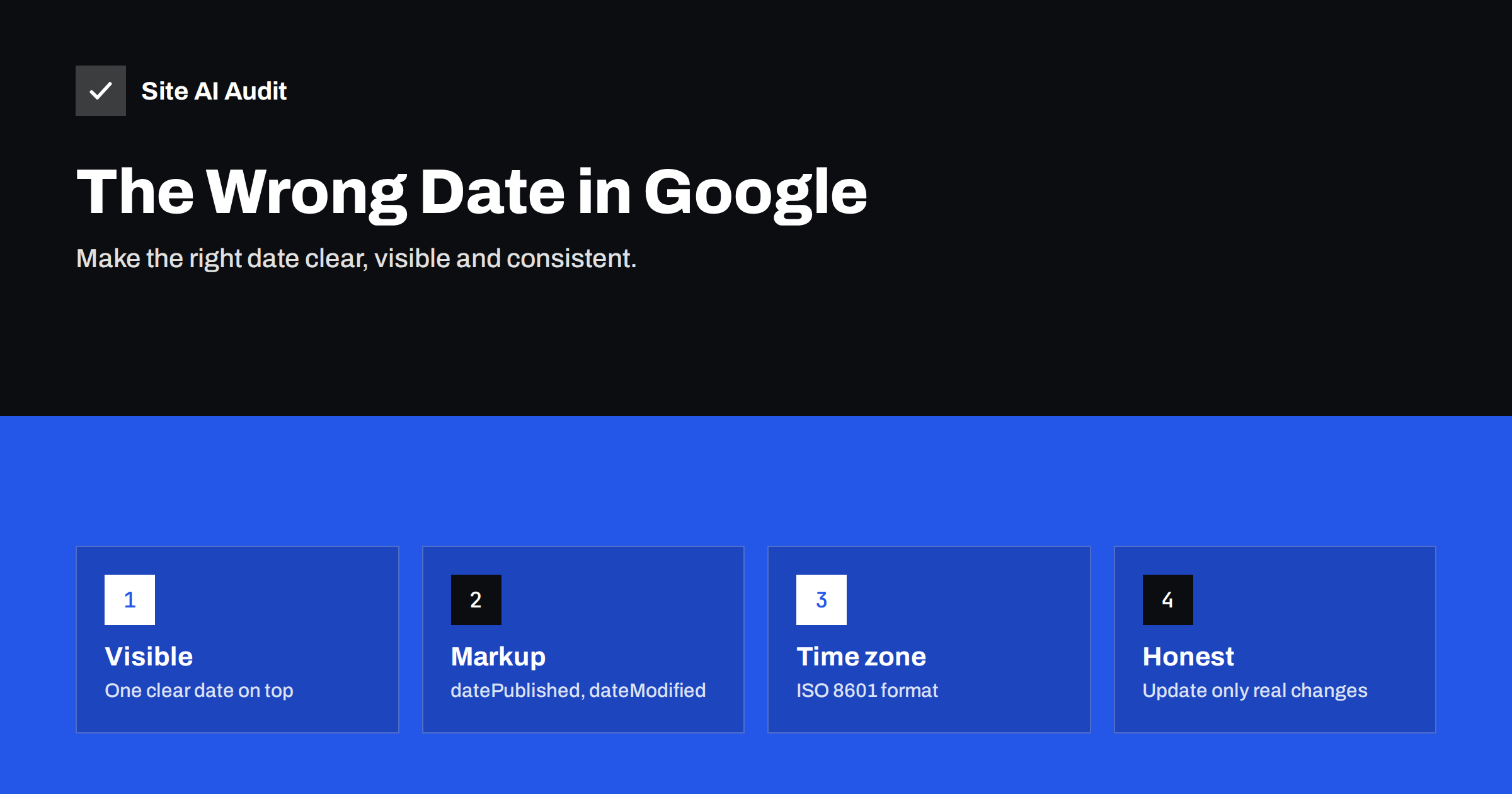
Short answer: Google picks the date in a search result from several signals: the date shown on the page, dates in structured data, and other dates it finds in the content or URL. A wrong date usually means these signals disagree, the page shows several dates near the top, the time zone is missing, or a plugin changes the modified date without real updates. Show one clear date near the title, use matching datePublished and dateModified values in structured data with a time zone, remove competing dates, and update the modified date only for meaningful changes.
Where Google gets the date
Google does not rely on a single field. Its documentation on publication dates says it uses several factors, including:
- a date that is visible on the page, especially near the title or byline;
- the
datePublishedanddateModifiedproperties in structured data such as Article or BlogPosting; - other dates in the page and, sometimes, the URL.
When the signals agree, Google usually shows the expected date. When they conflict, it may choose another date on the page, show a date months away from the real one, or show no date at all. Google also decides whether a date is useful for the query; many results, such as home pages and product pages, normally have none.
The date matters because searchers use it to judge freshness. An article that looks five years old gets fewer clicks, even if it was updated last week. A date in the future looks like an error and erodes trust.
Common reasons Google shows the wrong date
- Several dates near the top. A sidebar list of recent posts, a “latest comments” box, an event date, a date in a quote or a cookie banner with a date can all compete with the article date.
- Visible date and structured data disagree. The theme shows the original publication date while the markup says the post was modified yesterday, or the other way round.
- Missing time zone. A date like
2026-03-04T23:30:00without an offset can be read in a different time zone and move to the next or previous day. - Automatic “updates”. Plugins or bulk edits that touch every post change
dateModifiedon hundreds of pages without any real change in content. - Dates in the content. A page about a historical event, a past price change or an old law mentions dates prominently, and Google takes one of them.
- Old dates in the URL. Permalinks that contain a year and month can disagree with a refreshed article.
- Caching. An old cached copy served to crawlers keeps an outdated date in the HTML after you changed it.
Show one clear visible date
Start with what people see, because Google gives weight to it:
- Show the date close to the title or the author’s name, where readers expect it.
- Label it clearly: “Published 4 March 2026” or “Updated 12 October 2026”. If you show both, label both.
- Use a full, unambiguous date with the year. “03/04/26” can mean two different days depending on the reader’s country.
- Keep other dates away from the top of the page, or make sure they are clearly part of another element, such as a list of related posts further down.
Avoid tricks such as hiding dates entirely or showing today’s date on every page. Hiding dates does not stop Google from finding other ones, and a date that changes every day is misleading.
Use matching structured data
For articles, blog posts and news, add Article or BlogPosting structured data with:
datePublished: when the content was first published;dateModified: when it was last meaningfully changed.
Write the values in ISO 8601 format with a time zone, for example 2026-10-12T08:20:00+03:00. Make sure they match the visible dates. Most WordPress SEO plugins and many themes output this markup automatically; check that your theme and plugin do not both add conflicting versions. Our guide to structured data for small businesses explains how to check markup with Google’s Rich Results Test.
Also check your CMS time zone setting. In WordPress, it is under Settings, General. A wrong time zone shifts every timestamp the site outputs.
Update dates honestly
Changing the date without changing the content does not make a page fresher for Google, and readers notice when an “updated” article is clearly old. Google’s guidance is to change the date only when the content has really changed.
- Change
dateModifiedwhen you add new information, correct facts, rewrite sections or update recommendations. - Do not change it for spelling fixes, new internal links, plugin updates or design changes.
- Keep
datePublishedas the original date. A rewritten article can show “Updated” rather than pretending to be new. - Check plugins that bulk-edit posts, such as search-and-replace or tag tools, so they do not update the modified date of every post.
Our guide to updating old content for SEO covers which updates are worth the effort.
Special cases
- Events. An event page naturally shows the event date. Use Event structured data for it, and keep a separate, labelled publication date if you want one shown for the article itself.
- Evergreen pages. Service pages, product pages and guides that are updated continuously often work best without a visible date, or with a clear “Last reviewed” date if freshness matters to readers.
- Translated or syndicated copies. Each language version should carry its own correct dates. Syndicated copies on other sites may carry their own dates; a canonical link back to your original helps Google choose the right version.
- Old URLs with years in them. If you refresh such an article substantially, a new URL without the year and a redirect may be cleaner than keeping a misleading address. Plan it like any URL change.
After the fix: check and wait
- Open the page source or use URL Inspection’s “View tested page” to confirm that the HTML Google receives shows the right dates.
- Test the structured data in the Rich Results Test.
- Request indexing for the most important pages in URL Inspection.
- Give Google time. The date in search results changes after the page is recrawled and processed, which can take days or weeks.
If the date is still wrong after a recrawl, look again for competing dates on the page. Google sometimes rewrites other parts of a snippet too, as described in our guide to why Google rewrites title tags.
Checking dates on WordPress sites
On WordPress, dates come from several places, and each can be configured differently. A short review usually finds the conflict:
- The theme template decides which date appears next to the title: the publication date, the modified date or both. Some themes show only the publication date even after major updates, others only the modified date.
- The SEO plugin usually outputs Article or BlogPosting markup with
datePublishedanddateModified, and Open Graph tags with published and modified times. Check that these values match the visible dates. - The theme’s own markup. Some themes add their own schema with dates in addition to the plugin. Two different sets of dates on the same page are a common cause of confusion. Keep one source.
- Widgets and blocks such as “recent posts” or “latest comments” with dates, placed in the header or above the article. Move them below the content or hide their dates.
- Site settings. The time zone and the date format under Settings, General affect every timestamp the site prints.
Open the page source of a typical post and search for the year. Every date you find there is a candidate Google may consider, and the list often makes the cause obvious within a minute. Repeat the check for one post per template type, such as news, guides and event pages, because each template can output dates differently.
How Site AI Audit helps
Site AI Audit checks the on-page basics that shape how a page appears in search: whether pages have a title and meta description of a sensible length, whether titles or descriptions are duplicated, whether each page has one H1, a canonical URL and a declared language, whether structured data from schema.org is present, and whether Open Graph tags for sharing exist. It does not compare publication dates, so use the steps above for that. You can run a free check; plans are on the pricing page.
Related reading
- Blog Post SEO Checklist: What to Check Before You Publish
- Site Name and Favicon in Google: How to Get Them Right
- Featured Snippets: How to Format Content Google Can Quote
- WordPress SEO Basics: Settings to Check on Every Site
The bottom line
Google shows the date it believes is right, based on visible dates, structured data and other dates on the page. Give it one clear, labelled date near the title, matching datePublished and dateModified values with a time zone, no competing dates at the top, and honest updates. Then let Google recrawl the page.
الأسئلة الشائعة
Why does Google show an old date for my updated article?
Usually because the page still shows the original date prominently, or the structured data lacks a dateModified value that matches a visible “Updated” date. Show and mark up the update date clearly.
Can I tell Google exactly which date to show?
Not directly. You can make the right date clear with a visible date near the title and matching structured data, which makes Google much more likely to use it.
Why is there a date in the future next to my page?
Often because of an event date, a missing time zone, a wrong CMS time zone setting or a scheduled date in the markup. Check the HTML that Google receives and fix the conflicting value.
Does changing the date improve rankings?
No. Changing a date without improving the content does not make a page rank better and can mislead readers. Update dates only when the content really changes.
How long until Google shows the corrected date?
After Google recrawls and processes the page, which can take days or a few weeks. Requesting indexing in URL Inspection can speed it up for important pages.