ENEnglish
 LTLietuviškai
 DEDeutsch
 FRFrançais
 RUРусский
 ESEspañol
 PLPolski
 ITItaliano
 UKУкраїнська
 CSČeština
 PTPortuguês
 JA日本語
JA日本語 LVLatviešu valoda
 ETEesti
 HUMagyar
 IDBahasa Indonesia
 TRTürkçe
 HIहिन्दी
 ELΕλληνικά
 ARالعربية
 THไทย
THไทย VITiếng Việt
 RORomână
 MSBahasa Melayu
 BNবাংলা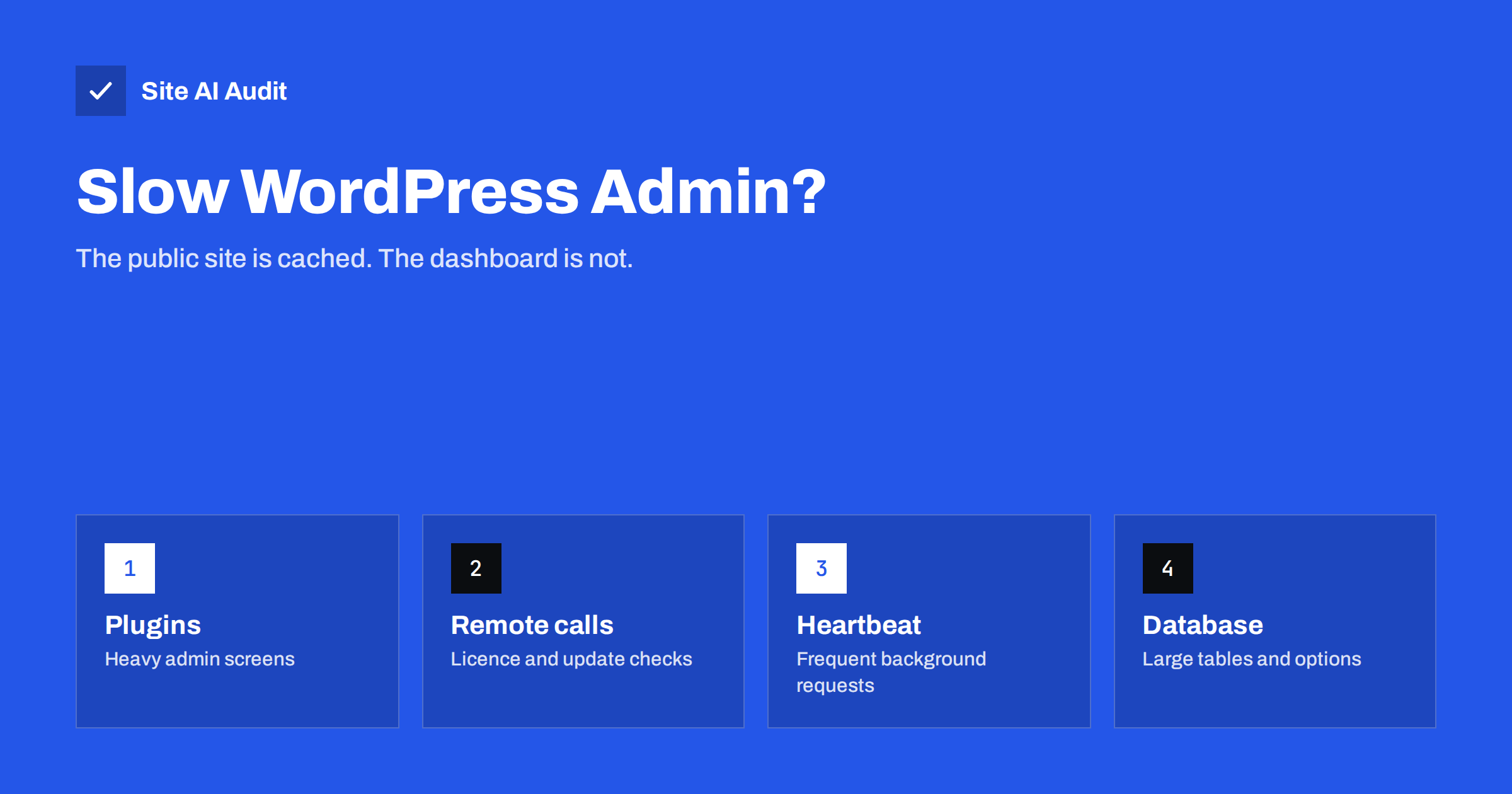
Short answer: The WordPress admin is often slow even when the public site is fast, because page caching does not apply to logged-in users. Every admin screen is built from scratch by PHP and the database. The usual causes are plugins that do heavy work on admin pages, slow requests to external servers for licence and update checks, the Heartbeat API, a bloated database, missing object caching and weak or outdated hosting. Measure first with a tool such as Query Monitor, then fix the biggest cause.
Why the admin is slower than the public site
When a visitor opens a page, a caching plugin or the server can deliver a stored copy in milliseconds. When you log in, WordPress turns caching off for you, because the pages must show your toolbar, your drafts and your current data. Every click in the dashboard runs WordPress, all active plugins and the theme’s admin code, and queries the database.
That makes the admin a good honest test of your server and code. A slow dashboard often means the uncached site is slow too, which affects visitors whenever the cache is cold, for logged-in customers in a shop, and for checkout and cart pages that cannot be cached. Our guide on page caching explains which pages benefit from caching and which never will.
Step 1: measure before you change anything
Guessing wastes time. Install Query Monitor, a free developer plugin, and open the slow admin screen. Its toolbar panel shows:
- The total time to generate the page and peak memory use.
- The number of database queries and the slowest ones, grouped by the plugin or theme that ran them.
- HTTP API calls, the requests WordPress made to external servers while building the page, with their duration.
- PHP errors and warnings.
Compare a few screens: the dashboard home, the posts list, the editor and, for shops, the orders list. If one screen is slow and the others are fine, the cause is usually a plugin that hooks into that screen. If everything is slow, look at hosting, the database and global plugins. When you are done, deactivate Query Monitor; it is a diagnostic tool, not something to keep running.
If you cannot install plugins, a staging copy of the site is the safest place to test. Our guide to finding the plugin that slows your site explains how to do this step by step.
Cause 1: plugins doing heavy work in the admin
Many plugins add dashboard widgets, notices, statistics or checks to every admin page. Typical examples are SEO plugins analysing content, page builders loading their editors, statistics plugins drawing charts from large tables, and security plugins scanning on admin load.
- Remove dashboard widgets you never look at, under Screen Options at the top of the dashboard.
- Check each heavy plugin’s settings for options to disable admin features you do not use.
- Replace plugins that consistently add seconds to every screen with lighter alternatives.
- Deactivate and delete plugins you no longer need. Inactive plugins do not run, but deleting them also removes a security risk.
Cause 2: slow requests to external servers
Premium plugins and themes check licences and updates on remote servers. Some do this on every admin page load, and if the remote server is slow or unreachable, your dashboard waits for it. Query Monitor’s HTTP API panel shows these calls and their timing. A call that takes several seconds, or times out, is an obvious target.
Fixes include updating the plugin, which often adds caching for these checks, contacting the vendor, or, if a vendor has disappeared, replacing the plugin. Also check that your server can reach the internet properly: a broken DNS resolver or a firewall that silently drops outgoing connections makes every external call wait for a timeout.
Cause 3: the Heartbeat API
The Heartbeat API lets the browser and the server talk in the background while you are in the admin. It powers autosave, post locking when two people edit the same post, and live notifications from some plugins. Each beat is a request to admin-ajax.php, and each one loads WordPress.
On cheap shared hosting with several editors and many open tabs, these requests can use up the PHP workers your hosting allows, which makes every other admin click wait. Reasonable steps:
- Close admin tabs you are not using.
- Use a small plugin or a code snippet to slow Heartbeat down, for example to 60 seconds instead of 15, on screens other than the editor.
- Do not disable it completely in the editor; you would lose autosave and post locking.
Cause 4: the database and autoloaded options
WordPress loads all options marked as autoloaded on every request, admin included. Plugins that store large amounts of data there, and leftovers from plugins you removed long ago, make every page slower. Large tables of revisions, transients, logs, form entries, sessions or old orders also slow down admin lists and searches.
- Check the total size of autoloaded options; Site Health in recent WordPress versions warns when it is large.
- Remove data from plugins you no longer use.
- Limit post revisions and clean up expired transients.
- Archive or trim log tables from security, email and form plugins.
Back up before cleaning anything. Our guide to WordPress database cleanup covers each step safely.
Cause 5: hosting, PHP version and object cache
Some admin slowness is simply a lack of resources. Shared hosting with a low limit on PHP processes, slow storage or a database on an overloaded server cannot make an uncached dashboard fast. Before upgrading, check the basics:
- PHP version. Newer PHP versions run WordPress noticeably faster. Our article on upgrading PHP explains how to do it safely.
- OPcache. It should be enabled; without it, PHP recompiles every file on every request.
- Object cache. A persistent object cache such as Redis stores database results in memory and helps the admin in particular, because the admin cannot use page caching. See object caching with Redis.
- Background tasks. Backups, imports and scheduled jobs running during the day compete with you. Moving cron to a real server schedule helps; see WP-Cron explained.
If the dashboard is still slow after all of this, the hosting plan is probably too small for the site, and moving to a better plan or a VPS is the honest fix.
Quick wins for large sites and shops
- Show fewer items per page in long admin lists, such as 20 instead of 200 orders.
- Hide columns you do not need in list screens through Screen Options.
- For WooCommerce, keep the order storage and analytics features up to date and let scheduled data imports finish.
- Use the block editor’s preferences to turn off panels and features you do not use.
- Upload images already resized, so the media library and editor do not handle huge files.
Finally, rule out the browser. The block editor is a large JavaScript application, and on an older laptop with many tabs and browser extensions it can feel sluggish even when the server answers quickly. Open the same screen in a private window without extensions, or on another computer. If it is fast there, the server is not the problem. Query Monitor’s page generation time helps here too: if the server builds the page in half a second but the screen takes five seconds to become usable, the delay is in the browser, often caused by a plugin that loads heavy scripts into the editor.
How Site AI Audit helps
Site AI Audit cannot log in to your dashboard, but it measures the public side of the same server: how long the server takes to respond, which pages took more than two seconds to load during the crawl, whether text is compressed, the HTTP protocol version and Google PageSpeed results with Core Web Vitals. A slow server response on the public site and a slow admin often share a cause. It also shows whether your WordPress version is publicly visible. You can run a free check, and the pricing page lists plans with re-checks after each fix.
Related reading
- How to Fix a Slow WordPress Site: A Step-by-Step Guide
- Are Page Builders Slowing Down Your WordPress Website?
- Shared Hosting vs VPS: Which Is Faster for Your Website?
The bottom line
A slow WordPress admin is the uncached truth about your site’s code and server. Measure with Query Monitor, then deal with the biggest cause: heavy plugins, slow external calls, a busy Heartbeat, a bloated database or under-powered hosting without an object cache. Most sites get a much faster dashboard from a few targeted changes, and the same changes make uncached pages faster for visitors and customers too.
الأسئلة الشائعة
Why is my WordPress admin slow but the website fast?
Because visitors get cached pages while the admin is generated fresh for every click. A slow admin shows how fast your server and plugins really are without caching.
Does a caching plugin speed up the admin?
A page caching plugin does not, because admin pages are not cached. A persistent object cache, such as Redis, can help the admin noticeably.
Is it safe to disable the Heartbeat API?
Disabling it everywhere breaks autosave and post locking. Slowing it down outside the editor is a safer compromise.
How do I find which plugin slows the admin?
Use Query Monitor to see slow queries and external requests by plugin, or deactivate plugins one by one on a staging copy and measure each screen.
Will more hosting resources fix a slow admin?
Sometimes. If the cause is a plugin making slow external calls or heavy queries, more resources help little. Measure first, then decide.