ENEnglish
 LTLietuviškai
 DEDeutsch
 FRFrançais
 RUРусский
 ESEspañol
 PLPolski
 ITItaliano
 UKУкраїнська
 CSČeština
 PTPortuguês
 JA日本語
JA日本語 LVLatviešu valoda
 ETEesti
 HUMagyar
 IDBahasa Indonesia
 TRTürkçe
 HIहिन्दी
 ELΕλληνικά
 ARالعربية
 THไทย
THไทย VITiếng Việt
 RORomână
 MSBahasa Melayu
 BNবাংলা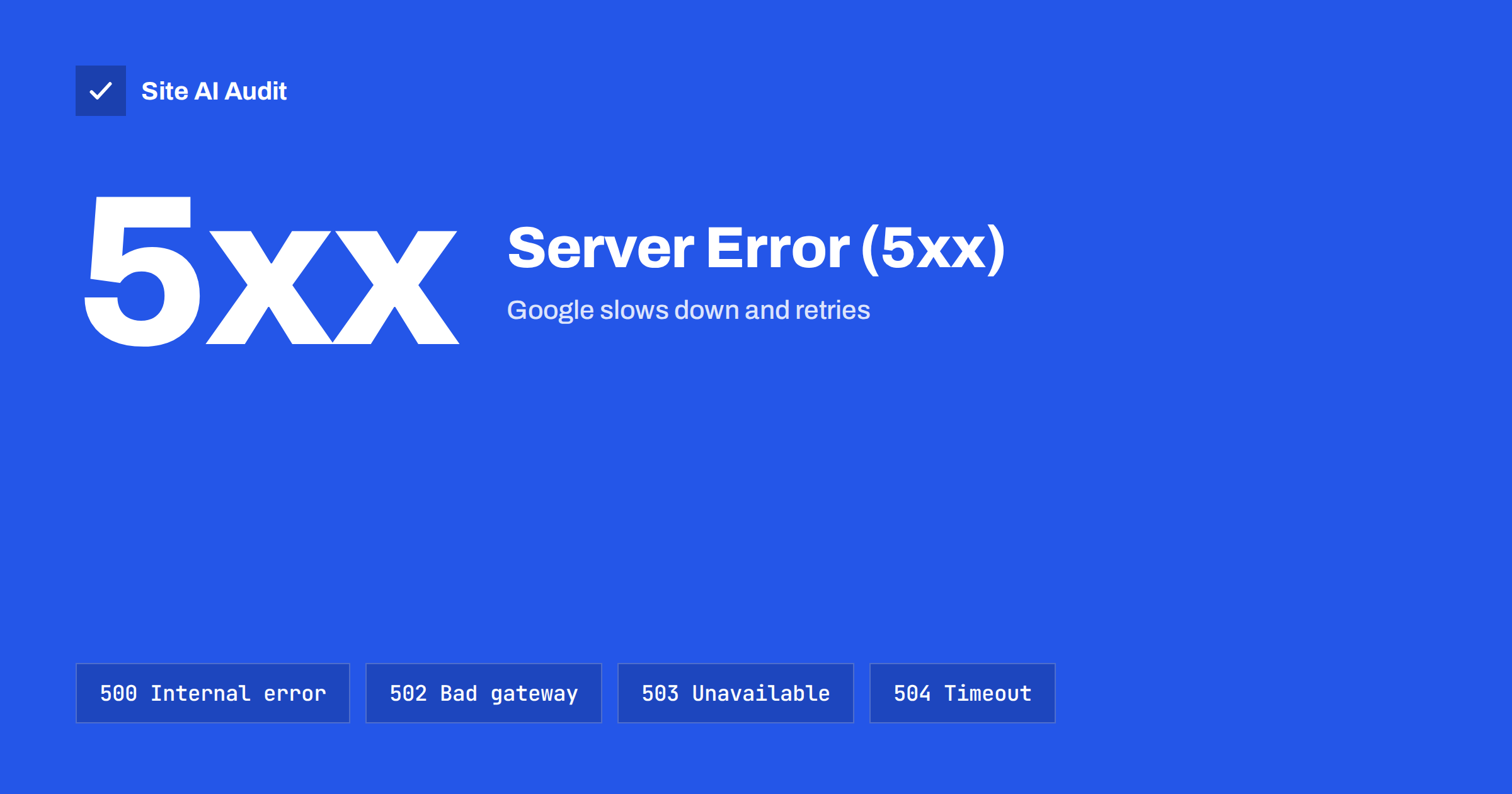
Short answer: “Server error (5xx)” in Google Search Console means that Googlebot requested a page and your server answered with a 5xx status code, such as 500, 502, 503 or 504, instead of the page. Google retries and slows its crawling, but if the errors continue, affected pages can drop out of the index. Find out which URLs and times are affected, match them with your server logs, fix the cause (usually overloaded hosting, PHP errors, timeouts or a firewall rule), then validate the fix in Search Console.
What the status means
A 5xx status code says that the request was valid but the server failed to fulfil it. It is the server admitting a problem, unlike a 4xx code, which says the request itself was wrong or the page does not exist. Search Console groups these responses in the Page indexing report under “Server error (5xx)” and also shows them in the Crawl stats report under host status and response codes.
Google treats server errors as temporary at first. It reduces how fast it crawls your site, so that it does not make an overloaded server worse, and it tries the URL again later. Pages that were already indexed usually stay indexed for a while. If the same URLs keep failing for days or weeks, Google eventually drops them, and new pages are not added until they can be fetched.
That means a short burst of 5xx errors during a hosting incident is rarely a disaster, while a slow, persistent trickle of errors on important pages is a real ranking risk.
The common 5xx codes and what usually causes them
- 500 Internal Server Error. The application crashed while building the page. Typical causes are a PHP fatal error after a plugin or theme update, a broken
.htaccessrule, an exhausted memory limit or a database query that fails. - 502 Bad Gateway. A proxy or web server in front of the application did not get a valid response from the back end. This often means PHP-FPM or the application process crashed or was restarted, or that the CDN could not reach your origin.
- 503 Service Unavailable. The server is temporarily unable to handle the request: it is overloaded, in maintenance mode, or a hosting limit on processes or connections has been reached.
- 504 Gateway Timeout. The back end took too long. Slow database queries, external API calls during page generation and heavy pages on weak hosting are the usual suspects.
- Other 5xx codes. Some CDNs use their own codes in the 520 to 530 range to describe origin connection problems. Search Console reports them as server errors too.
Step 1: find out which URLs and when
Open the Page indexing report, click “Server error (5xx)” and look at the example URLs. Then use the URL Inspection tool on a few of them and run a live test. If the live test works, the problem was temporary or happens only under load. If it fails, you can reproduce it right now.
Next, open Settings, then Crawl stats. The host status section shows whether Google had problems with server connectivity, and the breakdown by response shows how many requests returned 5xx and on which days. A spike on specific dates points to an incident, such as an outage or a bad deploy. A steady share of errors every day points to a capacity problem or a page type that always fails.
Look for patterns in the URLs as well. If the errors are concentrated on search result pages, filtered category pages or very old archives, those pages may be expensive to generate. If they are spread across the whole site, the server itself is struggling.
Step 2: match the errors with your server logs
Search Console tells you that Googlebot saw an error; your logs tell you why. In the web server access log, filter requests with a user agent containing Googlebot and a status from 500 to 599. Then look at the error log for the same times. PHP fatal errors, memory limit messages, upstream timeouts and “too many connections” errors from the database usually appear there.
If you use a CDN, check its analytics too. A CDN may report origin errors that never reach your server logs because the connection failed. Also check that the requests really came from Google: fake Googlebot user agents are common, and genuine Googlebot IP addresses resolve back to Google’s domains.
When you have no access to logs, as on some shared hosting, ask your host for the error log of the affected period. Many hosts can also tell you whether your account hit a resource limit.
Step 3: fix the cause
Application errors. Roll back or fix the update that introduced the fatal error, raise the PHP memory limit if the log shows it being exhausted, and test the affected template. In WordPress, enabling debug logging for a short time often shows the plugin or theme file at fault.
Capacity problems. If errors appear when traffic or crawling increases, the server lacks headroom. Page caching is the most effective cure, because cached pages do not need PHP or the database at all. Our guide to page caching explains how it works, and the article on traffic spikes covers what else to do when demand jumps. Sometimes the honest answer is a better hosting plan.
Slow pages. Timeouts mean pages take too long to build. Reduce slow queries and external calls during page generation and improve server response time; see how to reduce TTFB.
Firewalls and bot protection. Security plugins, rate limits and bot challenges sometimes return 503 to crawlers. Make sure verified Googlebot is allowed and that rate limits are generous enough for normal crawling.
Planned maintenance. During maintenance, return 503 with a Retry-After header. That tells Google the outage is temporary. Do not return 200 with a maintenance message, and do not keep a site in 503 for days.
Step 4: validate the fix in Search Console
When you are confident the cause is gone, open the “Server error (5xx)” issue in the Page indexing report and click “Validate fix”. Google then recrawls the affected URLs over the following days or weeks and reports whether they pass. You can also request indexing for a few important pages with the URL Inspection tool to speed things up.
Validation that fails on some URLs is useful information: it shows which pages still have a problem. Fix those and validate again. Watch Crawl stats for a few weeks afterwards; the crawl rate usually recovers once Google sees that the server answers reliably.
How to prevent 5xx errors from coming back
- Monitor uptime from outside, so you hear about outages before Google or your customers do.
- Test updates on a staging copy before applying them to the live site, especially major plugin, theme and PHP version changes.
- Keep caching on and make sure it survives updates and configuration changes.
- Watch resource usage in your hosting panel and upgrade before you hit limits, not after.
- Check Crawl stats monthly for a rising share of server errors.
- Keep your sitemap clean, so Google spends its crawl on real pages rather than on endless filtered URLs that are expensive to generate.
How Site AI Audit helps
When Site AI Audit crawls your site, it records how every page responds. Pages that did not respond are reported, as are broken internal links, links that go through several redirects, a slow server response and pages that took more than two seconds to load. On paid plans, weekly monitoring re-runs the audit and alerts you when a page breaks, so a growing server problem shows up in your inbox rather than months later in Search Console. Our crawler is polite, at about three requests per second, and follows your robots.txt. You can run a free check, and the pricing page lists what each plan includes.
Related reading
- HTTP Status Codes for SEO: What 200, 404, 410 and 503 Mean
- Crawled or Discovered, Currently Not Indexed: How to Fix It
- Crawl Budget Explained: Does It Matter for Your Website?
- Google Traffic Dropped? How to Find the Cause Step by Step
The bottom line
A “Server error (5xx)” entry in Search Console means Googlebot found your server unable to deliver pages. Short incidents are forgiven; persistent errors slow crawling and can remove pages from Google. Identify the affected URLs and dates, read the matching server logs, fix the application, capacity or firewall cause, and validate the fix. Then keep monitoring, so the next problem is caught in hours rather than weeks.
FAQ
Will a few 5xx errors hurt my rankings?
Brief, occasional errors are normal and Google retries. Rankings are at risk when important pages fail repeatedly over days or weeks, because Google may then drop them from the index.
Why does the live test work when Search Console still shows errors?
The report reflects earlier crawls. If the live test passes, the problem may have been temporary or load related. Check your logs for the reported dates and validate the fix once you are sure.
Should I use 503 during maintenance?
Yes. A 503 with a Retry-After header tells Google the outage is temporary. Keep maintenance short, because a site that returns 503 for a long time can lose pages from the index.
Can my CDN cause 5xx errors in Search Console?
Yes. If the CDN cannot reach your origin server, or a firewall rule blocks Googlebot, the CDN returns an error code that Google records as a server error.
How long does validation take?
Usually from a few days to a few weeks, depending on how many URLs are affected and how often Google crawls your site.