ENEnglish
 LTLietuviškai
 DEDeutsch
 FRFrançais
 RUРусский
 ESEspañol
 PLPolski
 ITItaliano
 UKУкраїнська
 CSČeština
 PTPortuguês
 JA日本語
 LVLatviešu valoda
 ETEesti
 HUMagyar
 IDBahasa Indonesia
 TRTürkçe
 HIहिन्दी
 ELΕλληνικά
 ARالعربية
 THไทย
 VITiếng Việt
 RORomână
 MSBahasa Melayu
 BNবাংলা
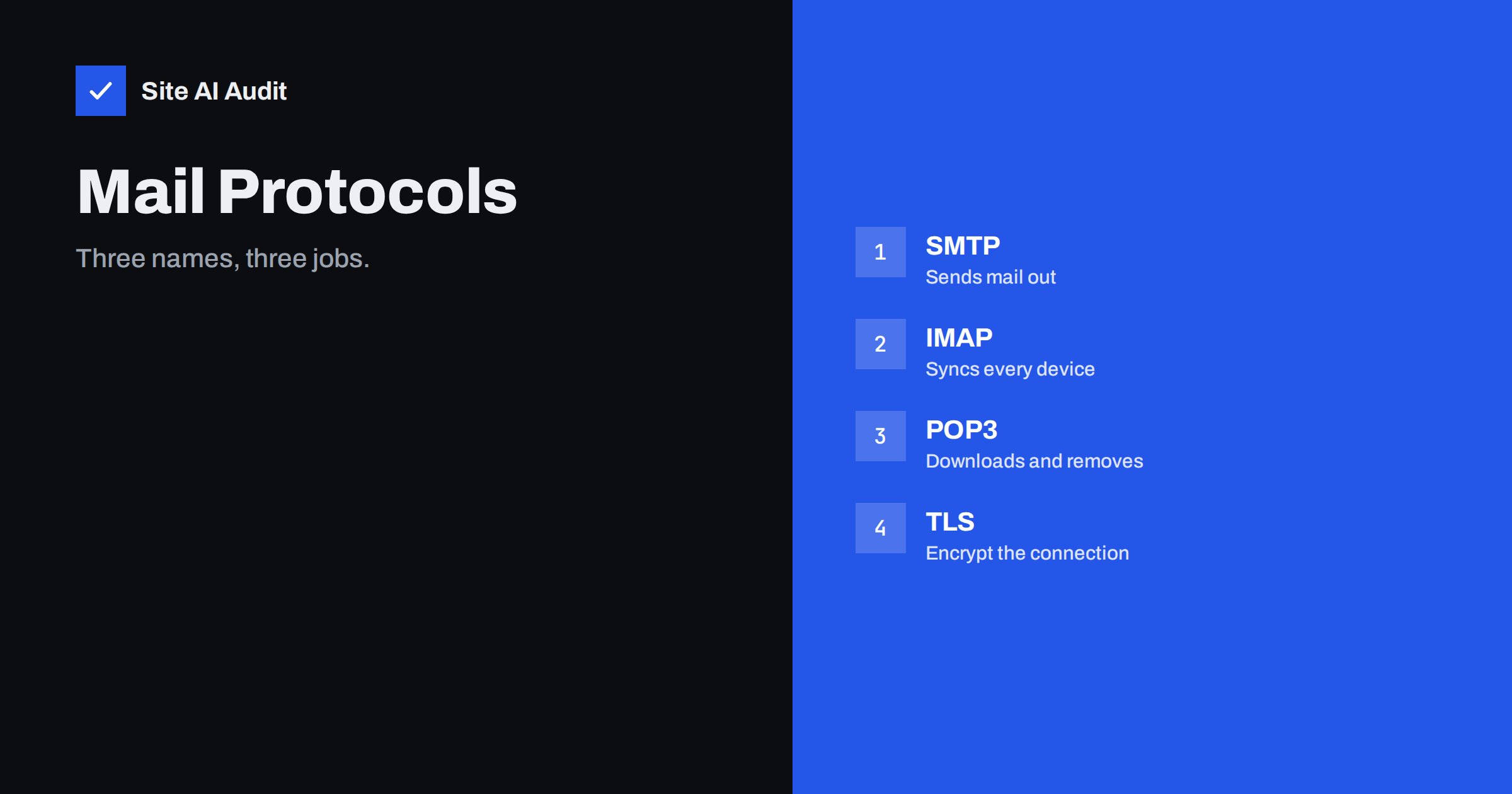
Short answer: SMTP sends email, while IMAP and POP3 fetch it. IMAP keeps messages on the server and syncs them across all your devices, so it is the right choice for almost everyone today. POP3 downloads messages to one device and usually removes them from the server. Use encrypted connections for all three, with the settings your provider gives you.
Three protocols, three jobs
Email programs such as Outlook, Apple Mail or Thunderbird, and the mail apps on phones, do not talk to each other directly. They talk to a mail server, and the server talks to other servers. Three protocols cover the conversation.
- SMTP (Simple Mail Transfer Protocol) carries messages from your program to the server and from server to server. It is the “send” part.
- IMAP (Internet Message Access Protocol) lets your program read and manage the mailbox that lives on the server.
- POP3 (Post Office Protocol) lets your program download messages from the server, usually deleting them there afterwards.
When you send a message, your program uses SMTP to hand it to your provider. The provider uses DNS to find the recipient’s mail server, as explained in the article on MX kayıtları, and passes it on by SMTP. The recipient then reads it with IMAP or POP3.
IMAP: the mailbox stays on the server
With IMAP, your mail program shows a view of the mailbox on the server. Folders, read marks, flags and drafts are all stored there. If you read a message on your phone, it appears as read on your laptop. If you move it to a folder, it moves everywhere. You can also search the whole mailbox, and the program downloads only what it needs, such as headers first and the body when you open a message.
This is why IMAP is the default choice today. People use several devices, and IMAP keeps them consistent. The price is that the mailbox uses space on the server, so you must watch the quota, and you need a connection to read old messages unless the program keeps a local copy.
POP3: download and go
POP3 is older and simpler. The program connects, downloads new messages and, in the usual setup, tells the server to delete them. After that the only copy is on your computer. Read marks and folders are not shared, because the server no longer knows anything about the messages.
POP3 still has uses. It suits a single computer with a small mailbox quota, or a case where you want to take mail away from a server permanently. Most programs also offer “leave a copy on the server for a number of days”, which makes POP3 behave a little like IMAP, but without synchronised folders. If you ever see mail “disappear” from the phone after being read on the computer, a POP3 setting is the usual cause.
SMTP: sending and the submission port
Your program should not send mail by connecting to any random server on port 25. Port 25 is for server-to-server transfers, and many providers block it for ordinary users to limit spam. Mail programs use the submission service, normally port 587 with STARTTLS or port 465 with implicit TLS, and log in with a username and password. The article on SMTP ports 25, 587 and 465 explains the differences.
For websites, the same applies. A contact form or shop that sends mail through the PHP mail function often ends in spam, whereas authenticated SMTP with your domain’s mailbox is more reliable, as the comparison of PHP mail and SMTP shows.
A common surprise is how IMAP behaves on a phone with a weak signal. The program keeps a local cache of recent messages, so you can read them offline, and it sends your changes to the server when the connection returns. Some programs let you choose how many days of mail to keep on the device. If a phone shows only the last month of a mailbox, that setting is the reason, not a missing message. Larger attachments are downloaded only when needed, which saves mobile data.
Webmail, the browser interface supplied by your provider, talks to the same mailbox on the server. That is why a message you delete in webmail disappears from an IMAP program a moment later, whereas a POP3 program that already downloaded it will still hold its own copy.
Typical ports and security
| Protocol | Encrypted port | Notes |
|---|---|---|
| IMAP | 993 (TLS) | Port 143 with STARTTLS is also used |
| POP3 | 995 (TLS) | Port 110 with STARTTLS is also used |
| SMTP submission | 587 (STARTTLS) or 465 (TLS) | Needs a login; port 25 is for server-to-server |
Always choose an encrypted option. Without it, the username and password cross the network in readable form. The article on TLS and STARTTLS for email describes what the encryption protects and what it does not. Use the host name and the ports your provider documents, and make sure the certificate name matches, otherwise the program will warn you about a mismatch.
How automatic setup finds the settings
Modern programs often need only your address and password. They look up configuration through special DNS records or files hosted by the mail provider, so you do not type server names. If you host your own mail, adding these records saves your users from mistakes. The guide to Autodiscover and Autoconfig records shows how they work.
Common connection problems
- Wrong password or disabled app access. Many providers require an app-specific password or modern sign-in for older programs. Check the provider’s help page.
- Wrong port or security type. Port 993 with the wrong security setting will fail. Match the port with the option listed in the table above.
- Certificate warnings. They appear when the server name in the program differs from the name on the certificate. Use the name your provider gives, not your own domain, unless they say otherwise.
- Cannot send, but can receive. The outgoing server may need authentication turned on, or your network may block port 25. Switch to 587.
- Messages vanish from the server. A POP3 account is set to delete after download. Change it to keep a copy, or move to IMAP.
- Mailbox full. IMAP uses server space. Clear large attachments or ask for a bigger quota.
Moving between protocols
If you change from POP3 to IMAP, do not simply add the account again and delete the old one, because mail that exists only on the computer would be lost. First copy the local messages into folders of the new IMAP account, which uploads them to the server, then check that the quota is large enough. When you change provider, the same care applies: keep both mailboxes active until all messages are copied and the MX records point to the new server, as the checklist for switching email provider describes. A short overlap period prevents the most painful loss, which is mail that arrives at the old server after you stopped looking there.
Shared mailboxes and aliases follow the same rules, but they depend on server features. Read the article on aliases, shared mailboxes and groups before you decide how a team should receive mail.
Security habits that matter
A mailbox that other people can log into is a tool for sending spam and fraud in your name. Use a strong, unique password and turn on two-factor authentication where your provider offers it. Remove devices you no longer use. If your account sends messages you did not write, change the password and read the guide to a compromised email account at once. Also check that your domain has SPF, DKIM and DMARC, since they limit what a thief can do with your name.
Connection settings are only half of the picture. Your domain also needs the right MX and authentication records. Run a free check with Site AI Audit to see SPF, DKIM, DMARC and MX in one report, and fix what is missing.
If you are unsure whether an old account still works the way you think it does, test it with a message to another mailbox and a reply back, then read the full headers of the reply. The article on reading email headers shows how to see whether authentication passed. It is a ten-minute check that often reveals a forgotten forwarding rule or an outdated server name.
Related reading
- SMTP Ports 25, 587 and 465: Which One Should You Use?
- MX Records Explained: How Email Finds Your Mail Server
- Switching Email Providers: A Checklist to Avoid Lost Mail
- Email Aliases, Shared Mailboxes and Groups: What to Use
The bottom line
Use SMTP on the submission port to send, and IMAP to read on every device. Keep POP3 for rare single-computer cases. Choose encrypted ports, match the certificate name and protect the account with a strong password and a second factor.
SSS
Should I use IMAP or POP3?
Use IMAP if you read mail on more than one device, which is almost everyone. POP3 fits a single computer where you want mail removed from the server.
Does IMAP send mail?
No. IMAP only reads and manages the mailbox. Sending is done by SMTP, so your program needs settings for both.
Which SMTP port should I use?
Use 587 with STARTTLS or 465 with TLS and log in. Port 25 is meant for transfers between servers and is often blocked for users.
Why do I get a certificate warning?
The server name in your program probably does not match the name on the certificate. Use the exact host name your provider gives you.
Is my email private if I use TLS?
TLS protects the connection between your program and the server. It does not hide the message from your provider or encrypt it end to end.