ENEnglish
 LTLietuviškai
 DEDeutsch
 FRFrançais
 RUРусский
 ESEspañol
 PLPolski
 ITItaliano
 UKУкраїнська
 CSČeština
 PTPortuguês
 JA日本語
JA日本語 LVLatviešu valoda
 ETEesti
 HUMagyar
 IDBahasa Indonesia
 TRTürkçe
 HIहिन्दी
 ELΕλληνικά
 ARالعربية
 THไทย
THไทย VITiếng Việt
 RORomână
 MSBahasa Melayu
 BNবাংলা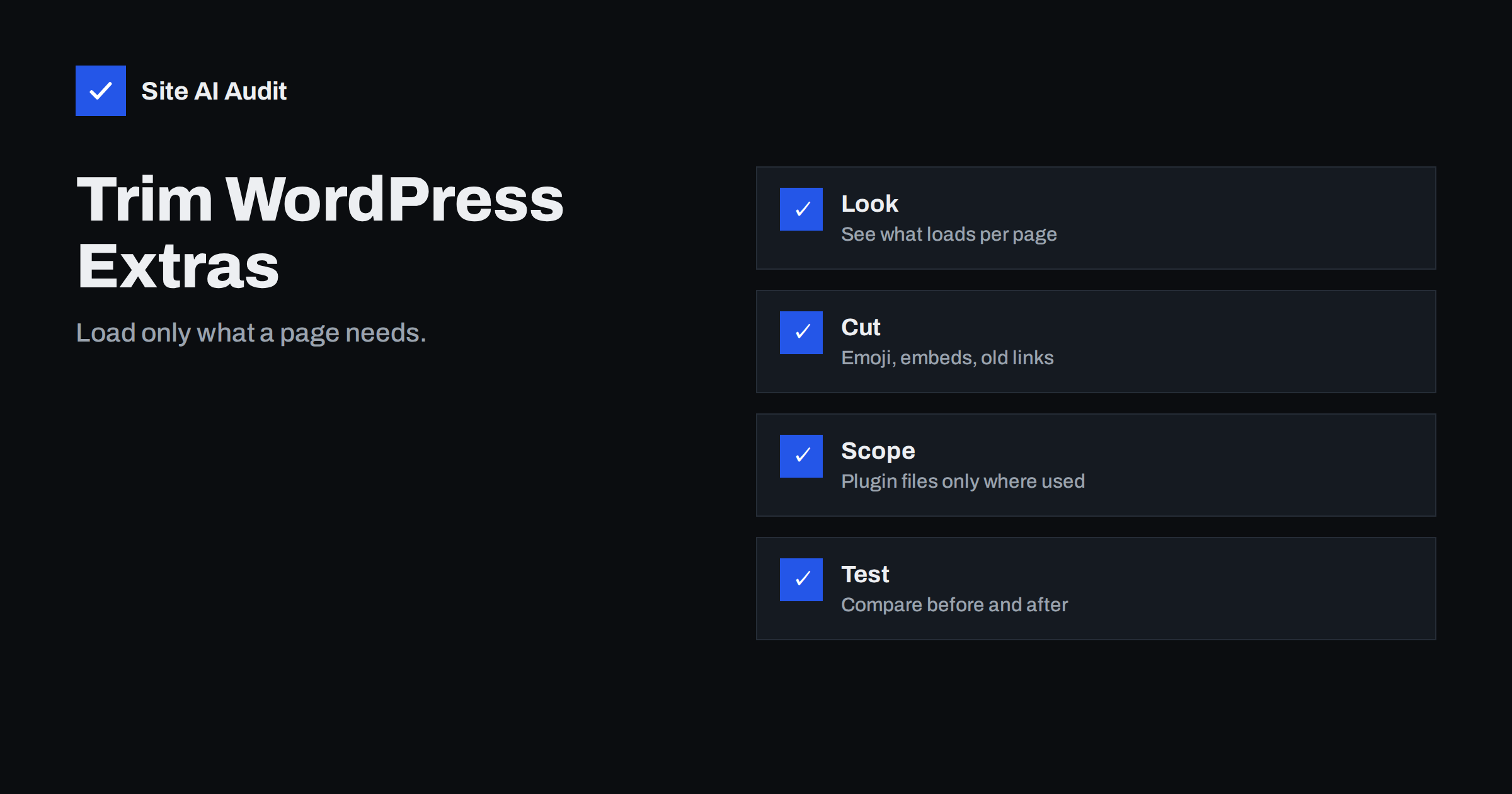
Short answer: A standard WordPress site loads several small extras on every page, such as emoji detection code, an embed script, block styles and header links that most sites never use. Switching off the ones you do not need can save a few requests and kilobytes, but the gain is modest. The bigger win is usually to stop plugins from loading their scripts and styles on pages where they do nothing. Make changes carefully, one at a time, and test the result.
What WordPress loads by default
WordPress is designed to work for millions of different sites, so it includes features that many of them never use. Depending on the version, theme and plugins, a page may carry:
- Emoji support. A small script and style that detect whether the browser can show emoji and, if not, swap in images. Modern browsers handle emoji natively.
- The embed script. It lets other WordPress sites embed your posts as cards, and lets your posts embed content from other sites.
- Block library styles. A stylesheet for the block editor’s front-end styling, loaded even if your theme does not use the blocks.
- Extra links in the page head. Examples are the generator tag showing the WordPress version, a link for the REST API, and old links for editing tools. Some are harmless, and a few reveal more than needed.
- Shortlinks and feed links. Useful on some blogs, pointless on others.
None of these is a large file. Each one adds up with the others, though, and every extra request has a cost on slow mobile connections. If you want to understand why requests matter, read our article on reducing HTTP requests.
First, look at what your pages actually load
Do not remove things from a list you found online without checking your own site. Open a typical page, such as the home page, a blog post and a product or contact page, and look at the files that load. The Network tab of the browser developer tools shows them, and our guide on reading a waterfall chart explains how to interpret it. Sort by type and note:
- which scripts and stylesheets load from plugins and the theme;
- which of them are used on this page;
- how large each file is and how long it takes.
Write the numbers down. Without a “before” measurement you cannot tell whether a change helped. A speed test run three times before and three times after gives a fairer picture than a single run; see why PageSpeed scores fluctuate.
Emoji scripts: safe to remove for most sites
The emoji code exists for old browsers that could not draw emoji characters. Current browsers on phones and computers can, so for most sites the script does nothing useful. Removing it saves one script and one inline style per page.
It is usually done with a few lines of code in a small custom plugin or in the theme’s functions file, or with a setting in a performance plugin. The code removes the actions that print the emoji detection script and styles. If you use a plugin that offers a “disable emojis” toggle, that is simpler and easier to undo.
The only risk is that visitors with very old browsers see an empty box instead of an emoji. For almost every business site, this is not a concern.
Embeds: check before you disable
The embed script is what turns a pasted address into a video player, a social post or a card. Disabling embeds can be fine for a site that never uses them. Before you do it, check that:
- no page uses an embedded video, map or social post pasted as a plain address;
- you do not want other WordPress sites to show your posts as embeds;
- the editor still works for your team.
If you do embed videos, it is better to improve how they load than to remove the feature. Our article on embedding videos without slowing your site shows how.
Block styles and old head links
The block library stylesheet is useful if your pages are built with the standard blocks. If your theme or page builder replaces the layout and you do not use blocks on the front end, the file may be dead weight. Test by removing it and checking each template type: posts, pages, archives, search and the shop. If something looks different, put it back.
The old head links are a matter of tidiness more than speed. Removing the generator tag, for example, hides the WordPress version from the page source, which is a small step in line with hiding version information. It is not a security fix by itself, since the real protection is to keep the software updated. The same goes for the old XML-RPC interface, which you can read about in how to disable XML-RPC.
Bigger win: plugin files on pages that do not need them
For most sites, the largest saving comes from plugins that load their scripts and styles on every page. A contact form plugin may add its files to the whole site although the form sits on one page. A slider, a map plugin, a review widget or a booking calendar can do the same.
You can fix this in three ways:
- Plugin settings. Some plugins have an option to load assets only where their shortcode or block appears.
- An asset manager. Several performance plugins let you switch off a file for chosen pages or page types.
- A small code snippet. A developer can unregister a script or style on pages where it is not needed.
Start with the heaviest files on your most visited pages. Our guides on reducing unused JavaScript and reducing unused CSS describe how to find them, and how to find slow WordPress plugins helps you to see which plugin is behind a file. If a plugin is heavy and rarely used, consider replacing it.
A real example shows why this matters. Imagine a small company site with a contact form on one page. The form plugin adds a script and a stylesheet, perhaps a captcha library too, to all forty pages. Visitors who only read the home page download files they never use. Limiting those files to the contact page cuts the work on thirty-nine pages at once, which is far more than any single head tag you can remove. After the change, test the form itself: submit a message and confirm that the confirmation and the email notification both still work.
Combine, defer and minify with care
Many performance plugins offer to combine and minify files and to delay scripts. These options can help, but they are also the most common cause of broken menus, forms and sliders. Switch on one option at a time, clear the cache and test the main paths: the menu, search, contact form, cart and checkout. Learn the basics in defer versus async and minifying CSS and JavaScript, and avoid the pitfalls listed in common speed optimisation mistakes.
Make changes safely
- Take a full backup first. See a backup strategy that works.
- Try the changes on a staging copy when you can, following the advice in a safe website update strategy.
- Change one thing at a time and keep a short note of what you changed.
- Clear every cache layer after each change: plugin, server and CDN.
- Test as a logged-out visitor on a phone-sized screen, not only as an administrator.
Code in a theme file disappears when the theme changes, so put such snippets in a small plugin of your own instead.
What Site AI Audit can show
Site AI Audit looks at your pages from the outside: Google PageSpeed results, Core Web Vitals such as LCP, CLS and INP, server response time, compression and page weight, plus exposed software versions in the security checks. These tell you whether the extra files are costing you anything measurable, and whether your changes helped. Run a free website check before and after, and use the paid plans if you want unlimited re-checks as you work through fixes.
Related reading
- How to Fix a Slow WordPress Site: A Step-by-Step Guide
- WordPress Database Cleanup: Safe Steps for Better Performance
- How to Choose a WordPress Caching Plugin for Your Hosting
The bottom line
You can remove WordPress extras such as emoji code and unused embeds with little risk, and the saving is real but small. Look first at what your pages load, measure before and after, and spend most of your effort on plugin files that load everywhere without being needed. Change one thing at a time, keep a backup and test as a visitor.
FAQ
Is it safe to disable emojis in WordPress?
For most sites, yes. Current browsers show emoji without help from WordPress. The only effect is on very old browsers, which might show an empty box instead of an emoji.
Will removing these scripts make my site much faster?
Usually only a little. You save a few requests and kilobytes per page. Larger gains come from images, caching, hosting and plugin files that load on every page without being needed.
Should I disable WordPress embeds?
Only if you do not use them. Embeds power pasted video, map and social links in the editor, and they let other WordPress sites embed your posts. Check your pages first and test after the change.
Do I need a plugin to do this?
No, but a plugin is the easiest way for most owners. Many performance plugins have simple toggles. A developer can also add a few lines of code, ideally in a small custom plugin so the change survives theme updates.
How do I know if a change broke something?
Test the home page, a post, the contact form, search and checkout as a logged-out visitor on a phone-sized screen. Compare with your notes from before. If anything looks or behaves differently, undo the last change.