ENEnglish
 LTLietuviškai
 DEDeutsch
 FRFrançais
 RUРусский
 ESEspañol
 PLPolski
 ITItaliano
 UKУкраїнська
 CSČeština
 PTPortuguês
 JA日本語
 LVLatviešu valoda
 ETEesti
 HUMagyar
 IDBahasa Indonesia
 TRTürkçe
 HIहिन्दी
 ELΕλληνικά
 ARالعربية
 THไทย
 VITiếng Việt
 RORomână
 MSBahasa Melayu
 BNবাংলা
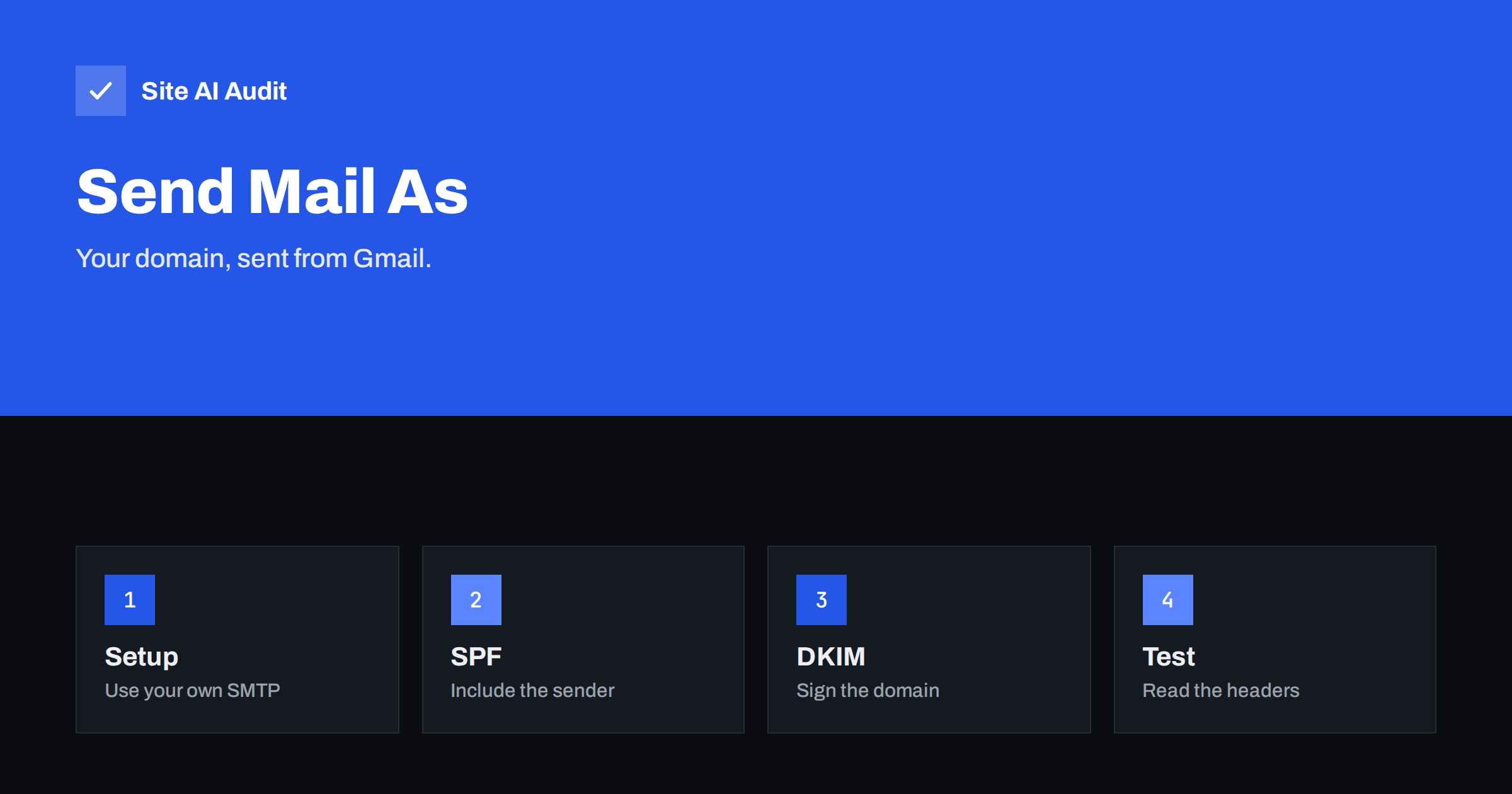
Short answer: Gmail’s Send mail as feature lets you write from an address on your own domain inside a Gmail account. To keep those messages out of spam, they must pass SPF, DKIM and DMARC for your domain. The most reliable setup is to send through your domain’s own mail server with a login, or to use a Google Workspace account where the domain is signed. Then send a test message to another mailbox and check the authentication results in the headers.
What Send mail as does
Many people keep one Gmail inbox for convenience and still want to appear as [email protected]. Gmail supports this with a setting called Send mail as. You add another address, prove you own it, and from then on you can choose it in the From field when you write a message. To the recipient, the message looks as if it came from your company address.
The convenience hides a technical problem. Mail servers check whether the system that sent a message is allowed to send for the domain in its From address. Your domain’s records say which systems are allowed. Gmail is not on that list unless you add it, so a message that looks like it came from your domain but left through a different system can be treated as suspicious. The three checks that matter are described in the article on SPF, DKIM and DMARC.
Two ways to send
When you add an address in Gmail, you normally choose between two routes:
- Send through Gmail. The message leaves through Google’s servers. It is simple and needs no password for the other mailbox, but the sending system is Google, not your domain’s mail server.
- Send through your own SMTP server. Gmail hands the message to the server of your domain, with a username and password, and that server sends it. The message then leaves through a system that your domain already authorises.
The second route is usually the safer one for authentication, because the message carries the signatures and the source address that your domain’s records expect. The first is acceptable only if your records are prepared for it, as described below.
How the checks work out for each route
SPF compares the system that delivered the message with the list in your domain’s SPF record, looking at the domain used in the technical return address. DKIM checks a digital signature that the sender adds, made with a key whose public part is in your DNS. DMARC then asks whether at least one of these checks passed for a domain that matches the visible From address. This matching is called alignment, and the article on DMARC alignment explains it in detail.
When you send through your own SMTP server, SPF is checked against your server, which is in your record, and your server can sign with your DKIM key. Both align with your domain, so DMARC passes. When you send through Gmail with a domain that Google does not sign for, SPF belongs to a Google domain and DKIM may carry a Google signature too. Neither matches your From address, so DMARC can fail. If your policy is none, the failure is only reported. If it is quarantine or reject, messages can land in spam or be refused.
Safe setups, step by step
Option A: your own SMTP server
- Create a mailbox for the address at your hosting or mail provider.
- In Gmail, open the settings, go to accounts and add another address you own.
- Enter the SMTP server name, port and the mailbox login that your provider gives. Use an encrypted port, see SMTP ports 25, 587 and 465.
- Confirm with the code that Gmail sends to the new address.
- Make sure the provider signs outgoing mail with DKIM for your domain and that SPF includes the provider.
Option B: Google Workspace
If your domain is hosted with Google Workspace, you do not need a workaround. Your addresses are real mailboxes, and you set up SPF, DKIM and DMARC once for the domain. The guide to Google Workspace SPF, DKIM and DMARC walks through it.
Option C: Gmail’s servers with a prepared domain
If you must send through Gmail, add Google’s sending systems to your SPF record using the include value Google documents, and enable DKIM signing for the domain if your account type supports it. Read the current documentation before you edit the record, and keep the total number of DNS lookups within the SPF limit, see SPF and the 10 lookup limit.
Common pitfalls
- A second SPF record. A domain can have only one SPF record. Merge new sources into it rather than adding a new line, as in multiple SPF records.
- Missing DKIM. Without a signature, SPF alone has to carry DMARC, which fails when the sending system is not yours.
- A strict policy too early. Moving to quarantine or reject before you know all your senders blocks real mail.
- Replies from another address. If Gmail replies from your Gmail address by default, the customer sees two different addresses. Set the reply behaviour to answer from the address the message was sent to.
- Forgotten senders. Newsletters, invoices and CRM tools also send as your domain. Each needs authentication, see authenticating third-party senders.
- The via label. Recipients may see a note that the message came via another domain when the signature does not match. The article on the Gmail “via” label explains it.
Keep a simple record of who sends mail as your domain. A short list is enough: the main mailboxes, the website contact form, the invoicing tool, the newsletter service and any person who uses Send mail as from a personal account. When someone leaves the company, remove their access to the sending mailbox and change its password, otherwise they can still send in your name. When a new tool is added, authenticate it first and only then switch it on. This habit turns a stressful guessing game into a ten-minute review each quarter.
It is also wise to decide who is allowed to use Send mail as at all. Giving every team member a way to send from the company address spreads your reputation across many accounts and devices. A single shared mailbox with clear rules is easier to protect than five personal Gmail accounts, each with its own password habits. If you do allow it, ask for two-step verification on every account that can send as the domain.
Test before you rely on it
- Send a message from the Send mail as address to a different mailbox, ideally a Gmail account you can open.
- Open the message, choose to show the original and find the lines for SPF, DKIM and DMARC.
- Look for “pass” on all three, and check that the domain in the DKIM signature and the SPF check is your domain.
- Repeat with a mailbox at another provider, since results can differ.
The article on reading email headers shows what each line means. If DMARC fails but the message still arrived, treat it as a warning and fix it before you tighten the policy. Also read the reports your domain receives, see DMARC aggregate reports, to discover other senders you forgot.
A worked example
A consultant uses a free Gmail account for daily work but sends invoices as [email protected]. Her domain has DMARC with a policy of reject. She sends through Gmail’s own servers. Her clients’ mail systems see a message from her domain, delivered by Google, with no matching signature. Two clients never receive the invoices. After reading the headers she sees DMARC failing. She changes the setup in Gmail to use the SMTP server of her hosting provider, enables DKIM signing for her domain there and adds the provider to her SPF record. The next test passes all three checks, and invoices arrive. The setup took about twenty minutes, and it saved her from chasing unpaid invoices that were never delivered.
Check your records
Before you change anything, see what your domain publishes today. Run a free check with Site AI Audit and review the e-mail section for SPF, DKIM, DMARC and MX findings.
Related reading
- DMARC Passes but Email Still Goes to Spam: Why It Happens
- SPF Record Explained: What It Does and How to Set It Up
- What Is DKIM and How to Set It Up for Your Domain
- Email Forwarding and Authentication: SPF, SRS and ARC Explained
The bottom line
Send mail as is convenient, but it only works well when the sending system is authorised for your domain. Prefer your own SMTP server or Google Workspace, keep one SPF record, sign with DKIM and test the headers of a real message.
FAQ
Why do my Send mail as messages go to spam?
Usually because SPF and DKIM do not match your domain, so DMARC fails. Send through your domain’s SMTP server and make sure it signs with DKIM.
Do I need Google Workspace?
No, but it is the simplest route for a business. A free Gmail account can still send as your domain through your own SMTP server.
Can I add Google to my SPF record?
Yes, with the include value Google documents, but only if you really send through Google. Keep a single SPF record and watch the lookup limit.
What DMARC policy should I use?
Start with none and read the reports. Move to quarantine or reject only after every legitimate sender passes.
How do I see if a message passed?
Open the message in Gmail, choose to show the original and read the SPF, DKIM and DMARC results at the top.