 ENEnglish
 LTLietuviškai
 DEDeutsch
 FRFrançais
 RUРусский
 ESEspañol
 PLPolski
 ITItaliano
 UKУкраїнська
 CSČeština
 PTPortuguês
 JA日本語
JA日本語 LVLatviešu valoda
 ETEesti
 HUMagyar
 IDBahasa Indonesia
 TRTürkçe
 HIहिन्दी
 ELΕλληνικά
 ARالعربية
 THไทย
THไทย VITiếng Việt
 RORomână
 MSBahasa Melayu
 BNবাংলা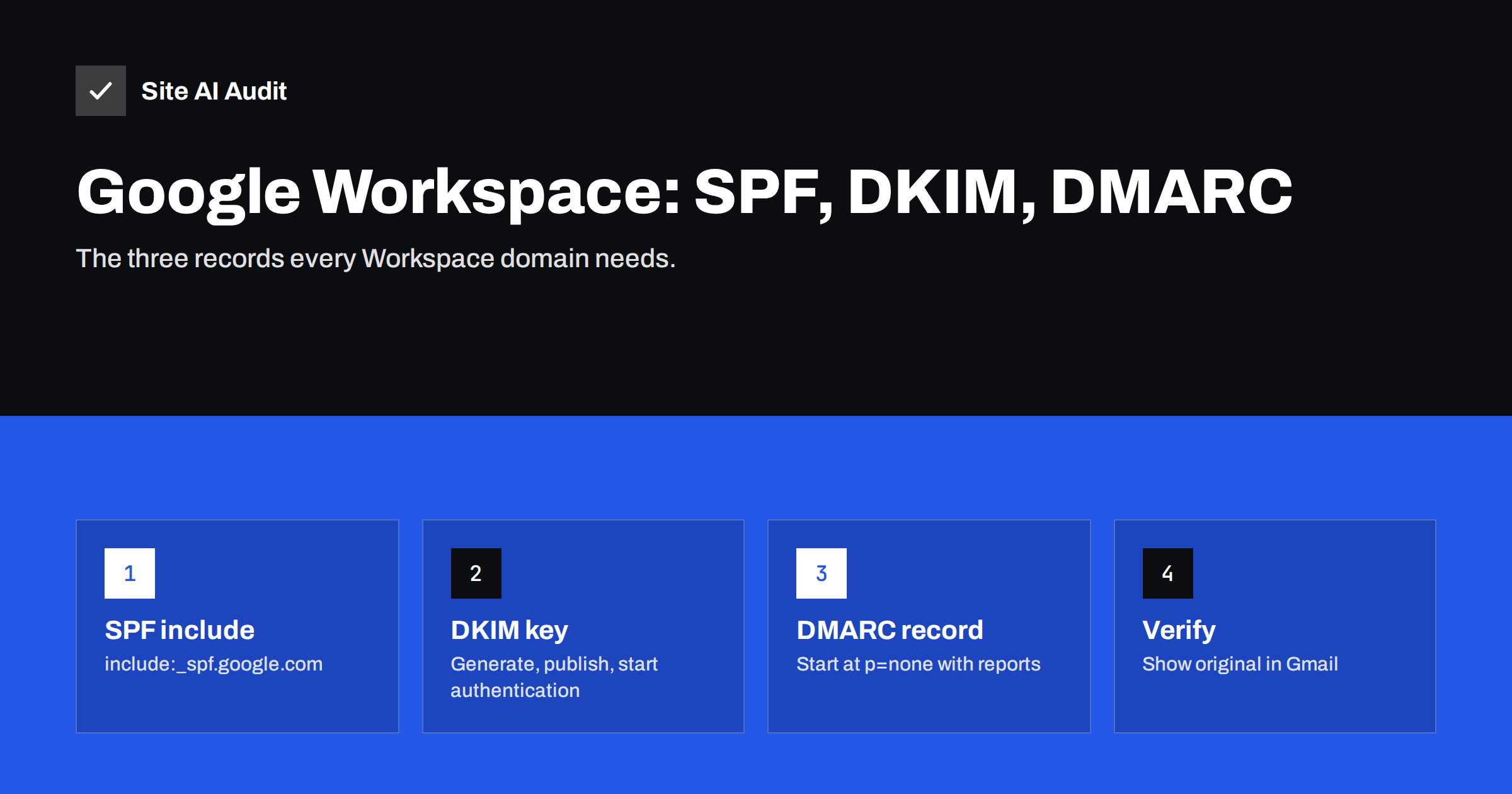
Short answer: For Google Workspace, publish one SPF record that contains include:_spf.google.com, generate a 2048-bit DKIM key in the Admin console (Apps, Google Workspace, Gmail, Authenticate email), publish it as a TXT record at google._domainkey and press “Start authentication”, then add a DMARC record at _dmarc starting with p=none and a report address. Confirm with “Show original” in Gmail that SPF, DKIM and DMARC all show PASS.
Why a Workspace domain still needs manual setup
Activating Gmail for your domain only requires MX records and domain verification. Mail flows immediately, so many businesses stop there. But without SPF, custom DKIM and DMARC, messages from your Workspace mailboxes are less trusted by other providers, and nothing stops criminals from sending mail that looks like it comes from your domain.
Until you set up your own DKIM key, Google signs your outgoing mail with a default key for a Google-owned domain. That signature passes DKIM, but it does not align with your From address, so DMARC relies entirely on SPF. When mail is forwarded, SPF breaks and DMARC fails. A custom DKIM key for your own domain fixes that and is the single most important step after activation.
The setup takes perhaps half an hour of work, spread over a day because of DNS propagation. You need access to two places: the Google Admin console with super administrator rights, and the DNS panel of your domain, which may be at your registrar, your hosting company or a DNS service.
Step 1: check the MX records
Before authentication, make sure incoming mail is routed to Google. Current Google documentation for new setups lists a single MX record: smtp.google.com with priority 1. Older setups use five records (ASPMX.L.GOOGLE.COM and its alternates), and Google continues to support them. Either set is fine; a mix with another provider’s records is not.
Look them up with dig MX yourdomain.com +short. If you see leftovers from a previous host, remove them, otherwise part of your incoming mail may go to a server nobody reads.
Step 2: publish the SPF record
If Workspace is the only service that sends mail for your domain, the SPF record is simply:
v=spf1 include:_spf.google.com ~all
Publish it as a TXT record at the root of the domain (@). If other services also send mail with your domain in the envelope sender, add their includes to the same record, for example:
v=spf1 include:_spf.google.com include:servers.example-newsletter.com ~all
Points to watch:
- Only one SPF record per domain. If your hosting company created one automatically, edit it instead of adding a second.
- Stay within ten DNS lookups in total. Google’s include uses a few lookups on its own.
- If your website sends mail through Gmail’s SMTP relay or through a Workspace mailbox, it is covered by Google’s include. If it sends directly from the web server, it is not.
Step 3: generate and publish the DKIM key
- In the Admin console, go to Apps > Google Workspace > Gmail > Authenticate email.
- Select your domain. If you have several domains, each needs its own key.
- Click Generate new record. Choose a key length of 2048 bits unless your DNS host cannot store long TXT records, in which case 1024 still works. Keep the default prefix selector
googleunless you already use that name. - Copy the host name (
google._domainkey) and the TXT value, which begins withv=DKIM1; k=rsa; p=. - In your DNS panel, create a TXT record with that host name and value. Enter only
google._domainkeyif the panel adds your domain automatically. - Wait until the record is visible. Check with
dig TXT google._domainkey.yourdomain.com +short. - Return to the Admin console and click Start authentication. The status should change to “Authenticating email with DKIM”.
The last step is the one most often forgotten. The key can sit in DNS for years while Google continues to sign with its default domain, because nobody pressed the button. If you see a message that the record cannot be found, wait longer for DNS; Google says it can take up to 48 hours, although it is usually much faster.
Step 4: add the DMARC record
Create a TXT record at the host _dmarc with a starting policy:
v=DMARC1; p=none; rua=mailto:[email protected]
Create the dmarc@ mailbox or a group first, or use a report-processing service’s address. With p=none nothing changes for delivery, but daily reports start arriving from Gmail, Yahoo, Microsoft and others. Use them to find any other service that sends with your domain and still needs authentication, then move to p=quarantine and eventually p=reject.
A tip for Workspace admins: a Google Group used as the DMARC report address can collect reports for several people without using a paid licence. Configure it to accept mail from external senders, or reports will be rejected.
Step 5: verify in Gmail
- From a Workspace mailbox, send a message to an external address, ideally a personal Gmail account and an Outlook.com account.
- In Gmail, open the message, click the three-dot menu and choose Show original.
- The summary at the top shows SPF, DKIM and DMARC. All three should read PASS, and DKIM should mention your domain, not a Google-owned one.
- In the raw headers,
Authentication-Resultsshould showdkim=pass [email protected],spf=passanddmarc=pass.
Repeat the test for every other system that sends as your domain: website forms, the shop, the CRM, the newsletter tool. Those are separate from Workspace and need their own DKIM configuration.
Website and device mail through Workspace
Many small businesses want their website contact form, online shop or office scanner to send mail through Google so that it inherits the same authentication. There are two common ways to do it:
- Authenticated SMTP with a mailbox. The website plugin or device logs in to
smtp.gmail.comwith a Workspace account. Use an app password or OAuth where the account has two-step verification. Mail is signed with your DKIM key and passes SPF through Google’s include. - The SMTP relay service. In the Admin console, Workspace offers an SMTP relay (
smtp-relay.gmail.com) that accepts mail from your servers by IP address or with authentication. It suits devices and applications that send on behalf of several addresses.
Either option is better than letting the web server send mail directly. Direct mail from a web host is not covered by Google’s SPF include and carries no DKIM signature for your domain, so it fails DMARC as soon as you enforce a policy. Keep an eye on Workspace’s sending limits for high-volume forms or shops; bulk notifications are better handled by a dedicated transactional mail service with its own DKIM key for your domain.
Common Workspace mistakes
| Mistake | What you see | Fix |
|---|---|---|
| DKIM key published but authentication not started | DKIM passes for a Google domain, DMARC depends on SPF | Press “Start authentication” in the Admin console |
| Two SPF records after adding a newsletter tool | spf=permerror | Merge both into one record |
| Domain appended twice to the DKIM host | Admin console cannot find the record | Enter only google._domainkey in the host field |
| Key truncated by the DNS panel | dkim=fail or permerror | Re-enter the full value; split into quoted strings if needed, or use 1024 bits |
| Secondary domains forgotten | Mail from alias domains fails DMARC | Generate a DKIM key and publish SPF and DMARC for each domain |
| Old MX records from previous host | Some incoming mail missing | Keep only Google’s MX records |
Beyond the basics
Once the three records are in place and your DMARC reports look clean, a few further steps are worth considering:
- Enforce DMARC. Move to
p=quarantine, thenp=reject, so spoofed mail using your domain is stopped. - Use Google Postmaster Tools if you send larger volumes to Gmail users, to see domain reputation and spam rate.
- Protect mailboxes with two-step verification. A compromised Workspace account sending spam damages the reputation you just built.
- Rotate the DKIM key occasionally. Generate a new key with a different selector, publish it, switch, then remove the old one.
- Look at MTA-STS if you want to require encrypted delivery of incoming mail.
Site AI Audit checks the published SPF (including its lookup limit), DKIM, DMARC and MX records for a domain from the outside, and explains every finding in plain words next to the website’s SEO, speed and SSL results. It is a quick way to confirm that the Workspace setup is really visible to the world, and paid plans keep checking so a record deleted during later DNS work is noticed. You can check your domain for free.
Related reading
- What Is DKIM and How to Set It Up for Your Domain
- DMARC Explained: Policies, Alignment and a Safe Rollout
- MX Records Explained: How Email Finds Your Mail Server
- SPF Record Explained: What It Does and How to Set It Up
The bottom line
Google Workspace needs three authentication records beyond MX: SPF with Google’s include, a custom DKIM key that is actually switched on, and a DMARC record with reports. Publish them, verify with “Show original”, and then use DMARC reports to bring every other sending service into line before you enforce the policy.
FAQ
What is the SPF record for Google Workspace?
The basic record is v=spf1 include:_spf.google.com ~all. If other services send mail for your domain, add their includes to the same record rather than creating a second one.
Where do I find the DKIM key in Google Workspace?
In the Admin console under Apps, Google Workspace, Gmail, Authenticate email. Select the domain, generate a new record, publish it in DNS and then click Start authentication.
Why does Gmail show DKIM pass with a different domain?
Because custom DKIM is not active yet, so Google signs with its default domain. Generate your own key, publish it and start authentication to sign with your domain.
Should I use a 2048-bit or 1024-bit DKIM key in Workspace?
Use 2048 bits if your DNS host supports long TXT records. If the host truncates the key, 1024 bits still works, but consider moving DNS to a provider that handles long records.
Does Google Workspace create a DMARC record automatically?
No. You must publish the DMARC TXT record at _dmarc yourself in your DNS panel. Start with p=none and a report address, then tighten the policy.
Do I need separate records for alias domains?
Yes. Each domain that appears in From addresses needs its own SPF record, its own DKIM key generated in the Admin console and its own DMARC record.


