ENEnglish
 LTLietuviškai
 DEDeutsch
 FRFrançais
 RUРусский
 ESEspañol
 PLPolski
 ITItaliano
 UKУкраїнська
 CSČeština
 PTPortuguês
 JA日本語
JA日本語 LVLatviešu valoda
 ETEesti
 HUMagyar
 IDBahasa Indonesia
 TRTürkçe
 HIहिन्दी
 ELΕλληνικά
 ARالعربية
 THไทย
THไทย VITiếng Việt
 RORomână
 MSBahasa Melayu
 BNবাংলা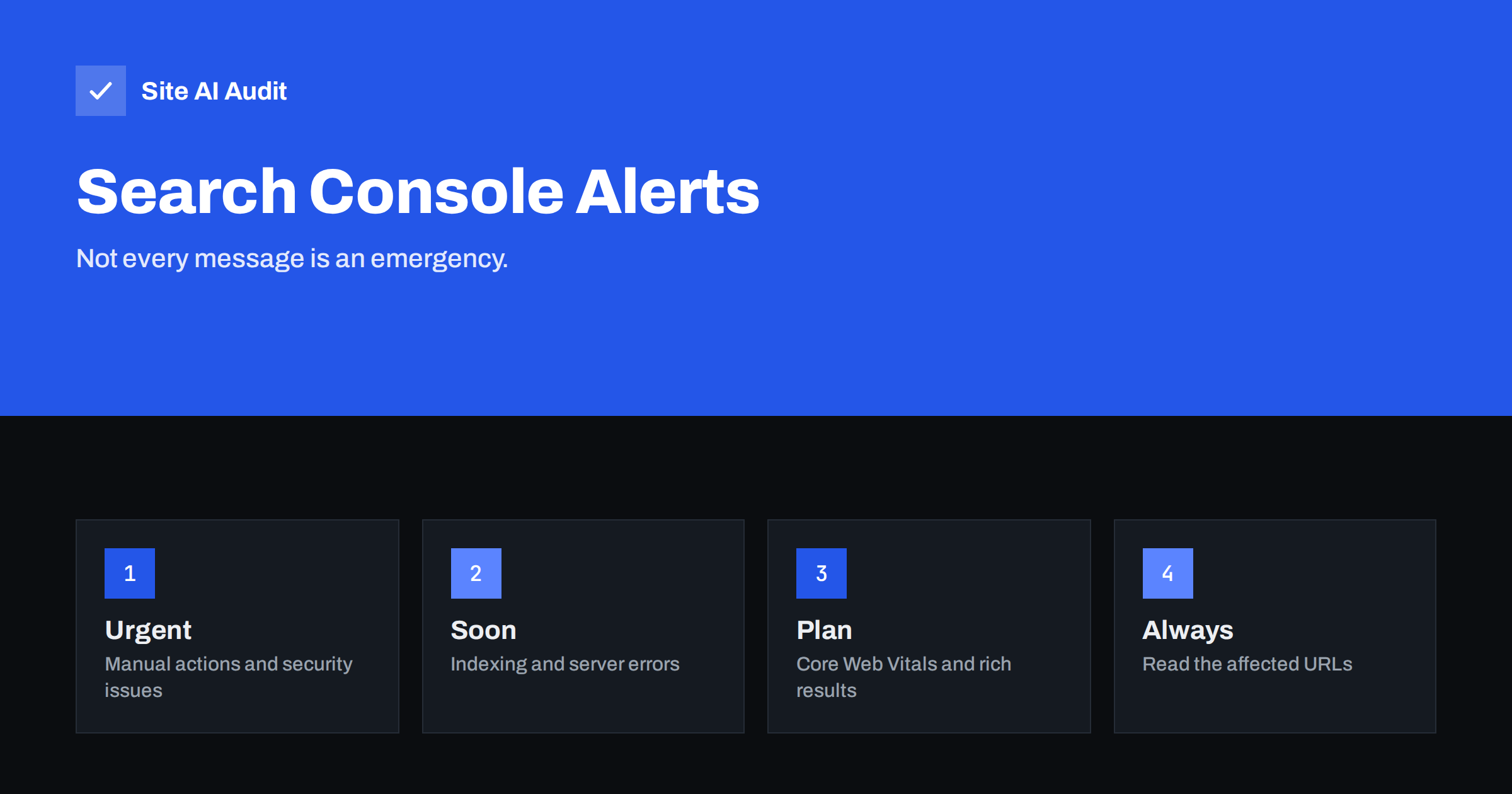
Short answer: Google Search Console sends messages, and e-mails to site owners, when it finds something it thinks you should know about: a manual action, a security issue, a new indexing problem, an error with structured data or a drop in page experience. Urgent ones, such as manual actions and security warnings, need action the same day. Most others are reminders to look at a report, and the right response is to check the affected pages before changing anything.
Where the messages appear
Messages live in two places. In Search Console, they appear in the messages area, usually shown by a bell icon at the top of the page. Google also sends an e-mail to the users and owners of the property who have notifications switched on. If nobody reads that mailbox, the warning goes unnoticed, which is how many problems stay unfixed for weeks.
It is therefore worth checking who is registered as owner and user of your site in Search Console and whether those addresses are still active. A message sent to a former employee or an old agency is the same as no message. If you have not set the property up yet, our guide to Google Search Console setup explains how to verify it and add users.
Sorting messages by urgency
The wording of a message can sound dramatic, so it helps to sort it into one of three groups before reacting.
- Act today. Manual actions and security issues can reduce visibility in search or show warnings to visitors. They deserve immediate attention.
- Act this week. New indexing problems, server errors and pages blocked from crawling affect how many of your pages appear in search. They are rarely a disaster in one day, but they can grow.
- Plan the work. Core Web Vitals, structured data warnings and similar reports describe improvements. Fix them in order of importance, not in a panic.
Manual actions and security issues
Manual actions
A manual action means that a person at Google reviewed your site and decided that it breaks the spam policies, for example through unnatural links, hidden text or thin content made to manipulate rankings. The message names the type of problem and often gives sample URLs. Part of the site or the whole site can be affected. The report Search Console manual actions explains the types and how a review request works.
What to do: read the exact description, fix the cause on all affected pages, not only the samples, and then submit a reconsideration request that explains what you changed. Wait for the answer, and do not submit repeated requests without new work.
Security issues
A security message says that Google found signs that the site was hacked, serves malware or tries to trick visitors. It may come with a warning in the browser or in search results. The cause is usually a compromised plugin, a stolen login or injected code.
What to do: treat it as a real incident. Follow the recovery steps in hacked website recovery steps, remove the malicious content, close the hole that let it in and then ask for a review. If browsers show a red warning page, see how to remove the Deceptive Site Ahead warning.
Indexing and server messages
Indexing messages
These messages say that a number of pages have a new indexing status, such as errors, pages blocked by robots.txt, pages marked noindex or pages that are crawled but not indexed. The wording often says “new issue detected” and links to a report with a list of URLs.
What to do: open the report and read the actual reason for each group. Some are expected. A login page or a thank-you page should not be indexed, and a message about it needs no action. Others are real: a key page that suddenly returns an error or a noindex tag added by mistake. Use the URL Inspection tool to look at one sample page before fixing the whole group, and see why a page is not indexed for the common causes.
Server, access and crawl messages
If Google cannot reach your site reliably, you may receive a message about server errors, a 403 or a failure to fetch robots.txt. These point to hosting or security settings, such as a firewall blocking Googlebot, an overloaded server or a misconfigured redirect.
What to do: check whether the site was down at the time, review the hosting logs and test a few pages. Articles on 5xx errors in Search Console and 403 errors in Search Console explain how to trace each cause. Once the pages respond correctly again, use the validation button in the report so that Google re-checks them.
Core Web Vitals and structured data messages
These messages describe quality problems rather than penalties. A Core Web Vitals message says that a group of pages is rated poor or needs improvement for loading, responsiveness or layout stability. A structured data message lists errors or warnings in markup, such as a missing required field for a product or a review.
What to do: do not panic and do not change a hundred pages at once. Look at the template or plugin that creates the pages in the group, since one fix often clears them all. The guides on the Core Web Vitals report and on structured data errors in Search Console show how to read the examples. Errors that block rich results matter more than warnings.
Messages that need little or no action
Some messages are informational. You may be told that a new user was added to the property, that ownership was verified or that a sitemap was processed. These are worth a glance, mainly to confirm that the change was made by someone you know. An unknown new owner is a reason to act at once, because an owner can change settings and see your data.
Indexing messages about pages that you never wanted in search are also fairly harmless. Internal search results, filter URLs, tag pages with little content and staging copies often appear in these lists. Decide whether you want them excluded on purpose, and if yes, leave them alone. The problem is not that pages are excluded, but that important pages are excluded by accident.
Getting the right people to see the messages
For a small business, the simplest approach is to give two people access: the owner of the business and whoever manages the website, whether that is an employee or an agency. Use a shared mailbox, such as a general web address, only if several people actually read it. Make sure the e-mail address is not filtered into spam, because mail from Google about a hacked site that lands in a junk folder defeats the purpose.
When you hire or change an agency, add the new people before removing the old ones, and make a note of who holds ownership. If you work with a developer who verified the site with their own account, make sure you are also an owner. Many businesses discover this problem only when they need access in an emergency.
A simple routine for any message
A repeatable routine keeps you calm and prevents wasted effort:
- Read the whole message and note the date, the property and the exact issue name.
- Open the linked report and look at the affected URLs, not only the number.
- Check a sample page with a live test to confirm that the problem is real and current.
- Find the common cause, such as a template, a plugin, a setting or a server change.
- Fix the cause, retest the sample and then use the validate option.
- Write one line in a shared note with the date and the fix, so the next person knows what happened.
How Site AI Audit helps
Site AI Audit crawls up to 50 pages on its free check and reports many of the problems that later turn into Search Console messages: broken links and redirects, titles, descriptions and headings, sitemap, robots.txt and noindex issues, as well as server response time and SSL problems. Each finding comes with a plain-language fix. It does not read your Search Console account, so it cannot tell you what Google has already flagged. The Monitor plan re-checks a website every week and sends e-mail alerts when something breaks. You can run a free check of your website or see the plans.
Related reading
- How to Read the Search Console Performance Report
- Crawled or Discovered, Currently Not Indexed: How to Fix It
- Sitemap Couldn’t Fetch in Search Console: Causes and Fixes
- Robots.txt Explained: A Beginner’s Guide With Safe Examples
The bottom line
Search Console messages are an early warning system, but only if somebody reads them. Make sure the right people receive them, sort each message by urgency, check the affected pages and fix the cause, not only the symptom. Most messages describe small, fixable problems, and the few serious ones are the reason it is worth watching.
BUJ
Why did I receive a Search Console e-mail about my site?
Google sends e-mails when it detects a new issue or a status change for a property you own or manage, such as an indexing problem, a manual action or a security warning.
Does a message mean my rankings will drop?
Not necessarily. Manual actions and security problems can affect visibility, while many indexing and enhancement messages only point to a report you should review.
How long does validation take after I fix an issue?
It can take several days or a few weeks, because Google re-checks affected pages over time. The report shows progress and tells you if some pages still fail.
Can I stop the e-mails?
You can adjust notification settings, but it is better to keep them on and send them to a mailbox that someone reads. They are often the first sign of a real problem.
What if I do not recognise the message?
Check that it comes from the Search Console interface by opening the messages area yourself, and never click links in unexpected e-mails that ask for passwords or payment.