ENEnglish
 LTLietuviškai
 DEDeutsch
 FRFrançais
 RUРусский
 ESEspañol
 PLPolski
 ITItaliano
 UKУкраїнська
 CSČeština
 PTPortuguês
 JA日本語
JA日本語 LVLatviešu valoda
 ETEesti
 HUMagyar
 IDBahasa Indonesia
 TRTürkçe
 HIहिन्दी
 ELΕλληνικά
 ARالعربية
 THไทย
THไทย VITiếng Việt
 RORomână
 MSBahasa Melayu
 BNবাংলা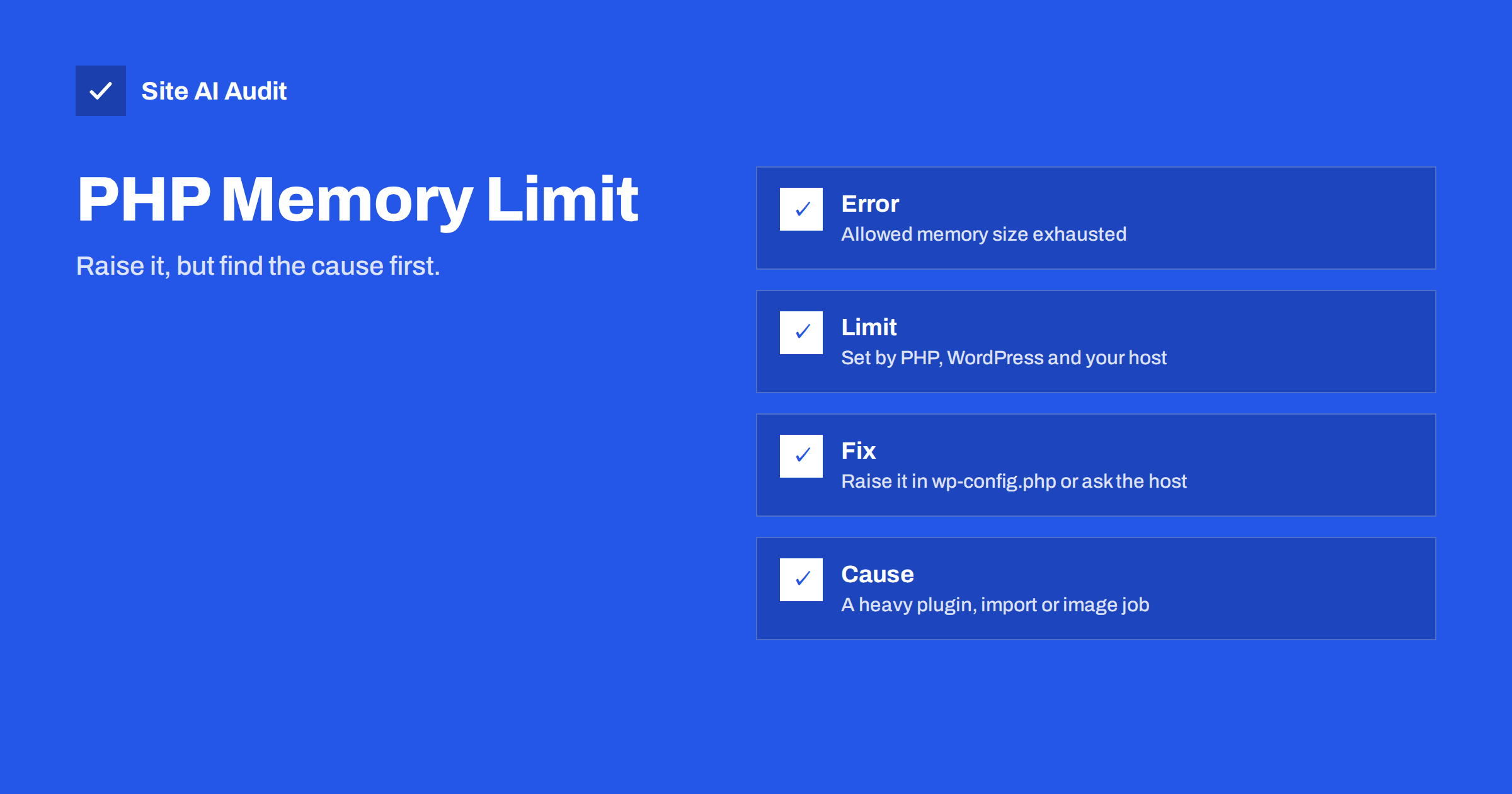
Short answer: The PHP memory limit is the maximum amount of memory a single PHP request may use. When WordPress needs more, for example during an import, an image upload or a heavy plugin task, PHP stops with an “allowed memory size exhausted” error. You can often raise the limit in wp-config.php or through your hosting panel, but a limit that keeps being hit usually points to a plugin or task that needs fixing, not just a bigger number.
What the memory limit is
Every time someone loads a page, the server starts a PHP process that builds that page. To protect the server, PHP gives each process a memory ceiling. If one request tried to use all the memory of the machine, it would slow down or crash every other site on it. The ceiling, set by the setting called memory_limit, keeps one misbehaving request from doing that.
The limit is not the same as the memory of your hosting plan. A server may have many gigabytes in total while each request is allowed only a few hundred megabytes. It is also not the same as disk space, which is where your files live. This confusion is behind many unnecessary support tickets.
How the error looks
The classic message reads something like “Fatal error: Allowed memory size of 268435456 bytes exhausted (tried to allocate 20480 bytes)”. The first number is the limit in bytes and the second is the amount PHP tried to add when it ran out. Depending on your settings, you might see:
- The full message on a white page, usually with a file path in a plugin or theme folder.
- A blank white page with no message at all, because error display is switched off.
- The generic “There has been a critical error on this website” notice from WordPress, with details sent to the administrator by e-mail.
- A broken admin screen, a failed update, or an upload that stops halfway.
The file path in the message is the most useful clue. It shows which code was running when memory ran out, though not always which code used the memory.
Where the limits come from
Several layers set limits, and the lowest one wins. This is why a change in one place sometimes appears to do nothing.
- PHP itself. The memory_limit value in the PHP configuration applies to every site on that PHP version unless overridden.
- WordPress. WordPress asks PHP for a certain amount using its own settings, called WP_MEMORY_LIMIT for the front end and WP_MAX_MEMORY_LIMIT for the admin area, which usually gets more room for heavy tasks. WordPress can only raise the limit up to what the host allows.
- The hosting plan. Many hosts cap memory per account, whatever your files say. On shared hosting, you may need to ask support or use a settings page in the control panel.
- Per-site or per-folder overrides. Files such as .htaccess, .user.ini or a pool configuration can set values for one site or folder.
How to raise the limit safely
If you only need a short increase, for example for a one-off import, try the simplest option first and move on if it does not work.
- Check the current value. The Site Health screen in WordPress shows the PHP memory limit under its server information. Note it before changing anything.
- Set it in wp-config.php. Add a line that defines WP_MEMORY_LIMIT with a larger value, such as 256M, above the line that says to stop editing. This works only if the host allows that much.
- Use the hosting control panel. Many panels have a PHP settings page where you can change memory_limit per site. This is often the cleanest option because the change lives in the right place.
- Ask the host. If neither option works, support can tell you the real limit of your plan and whether it can be raised or whether you need a larger plan.
Before editing wp-config.php, keep a copy of the original. A typing mistake in that file can take the whole site down. Our article on wp-config.php security hardening explains why the file deserves care in other ways too.
Avoid setting the limit to an extreme value to “fix it once and for all”. A very high limit hides runaway code, lets one request consume the resources shared with other visitors and may cause the server to kill the process anyway.
Finding the real cause
If the error returns after you raise the limit, treat that as information. Something is using far more memory than a normal page should. These are the usual suspects:
- A heavy or badly written plugin. Page builders, backup tools, security scanners and import tools are common, especially when they run on every request. Our guide to finding slow WordPress plugins shows how to isolate them.
- A large task in one request. Importing thousands of products, regenerating images or running a big search and replace tries to do everything at once.
- Very large images. Processing a huge photo to produce thumbnails can use many times the file size in memory. Resizing images before upload helps, and the article on WordPress image sizes explains the thumbnails involved.
- Bloated data. Large autoloaded options and old data loaded on every request add to memory use. See autoloaded options and WordPress database cleanup.
- A loop or a bug. Code that never finishes, or a theme function that repeats itself, grows until memory runs out. Turning plugins off one at a time on a staging copy usually finds it.
A safe way to test
Do not experiment on the live site if you can avoid it. Make a copy, or at least take a backup, and then repeat the action that triggers the error. Switch the theme to a default one and disable plugins in groups, repeating the action each time. When the error disappears, the last group you disabled contains the cause. Re-enable the plugins one by one to find the exact one, then check whether an update, a setting or an alternative solves it.
If the cause is a legitimate heavy task, such as a big import, see whether the tool can process data in smaller batches. Many import and backup plugins have a setting for this. Running the task outside business hours also lowers the chance that normal visitors are affected.
Signs you are close to the limit
Not every memory problem ends in a fatal error. A site that sits close to its limit often shows milder symptoms first. Updates fail now and then without a clear reason, a large upload works for small files but not big ones, and the admin area sometimes shows a white screen that goes away after a reload. Scheduled tasks may also stop running, because background jobs are subject to the same ceiling.
If you notice a pattern like this, check the server information in Site Health and the error log of your hosting account. Many hosts show the last fatal errors in the control panel. A few entries for the same plugin or task are a much better guide than guessing. Fixing the cause at this stage is easier and calmer than doing it in the middle of an outage.
Memory, speed and server errors
Memory problems rarely appear alone. A site that regularly runs near its limit often feels slow, because heavy requests take longer, and it may hit other limits too. If your host shows the “resource limit reached” message, read what a 508 error means. If only the admin area is slow, the guide to the slow WordPress dashboard is a better place to start. Using a current PHP version also helps, because newer versions are usually faster and more efficient, as explained in PHP version and performance.
How Site AI Audit helps
Site AI Audit does not read your PHP settings or measure memory use inside the server. It looks at the result from outside: the free check reports server response time, compression, page weight and the Google PageSpeed score with LCP, CLS and INP, each with a plain-language fix. A slow server response after a plugin change is a hint that something heavy is running on every request. The Monitor plan repeats the check every week and sends e-mail alerts when something breaks. You can run a free check of your website or see the plans.
Related reading
- How to Fix a Slow WordPress Site: A Step-by-Step Guide
- PHP OPcache: Faster PHP Without Changing Your Code
- WordPress Heartbeat API: Reduce Server Load Safely
- How to Choose a WordPress Caching Plugin for Your Hosting
The bottom line
An exhausted memory limit is a warning, not only an inconvenience. Raise the limit in a controlled way so that the task can finish, then find out which plugin, import or image job needed so much. A sensible limit, a current PHP version and a lean set of plugins give you a site that is both stable and fast.
BUJ
What is a good PHP memory limit for WordPress?
For most small sites 256M is enough, and 128M often works for simple sites. Stores and page builders may need more, but a higher limit should follow a real need.
Why does the limit I set not change anything?
Another layer, usually the host, may enforce a lower value, or an override in a control panel or configuration file may take priority. Check Site Health to see the value actually in use.
Can a memory error be caused by a hack?
Occasionally, because malicious scripts can use a lot of memory. If the error appears together with strange files, new users or unexpected redirects, check the site for compromise.
Will a bigger limit make my site faster?
Not by itself. It only prevents failures when a task needs more memory. Speed comes from efficient code, caching and a good server.
Do I need a new hosting plan to fix it?
Sometimes. If the host caps memory on your plan and your site genuinely needs more, a larger plan may be the cleanest answer, but check plugins and tasks first.