ENEnglish
 LTLietuviškai
 DEDeutsch
 FRFrançais
 RUРусский
 ESEspañol
 PLPolski
 ITItaliano
 UKУкраїнська
 CSČeština
 PTPortuguês
 JA日本語
JA日本語 LVLatviešu valoda
 ETEesti
 HUMagyar
 IDBahasa Indonesia
 TRTürkçe
 HIहिन्दी
 ELΕλληνικά
 ARالعربية
 THไทย
THไทย VITiếng Việt
 RORomână
 MSBahasa Melayu
 BNবাংলা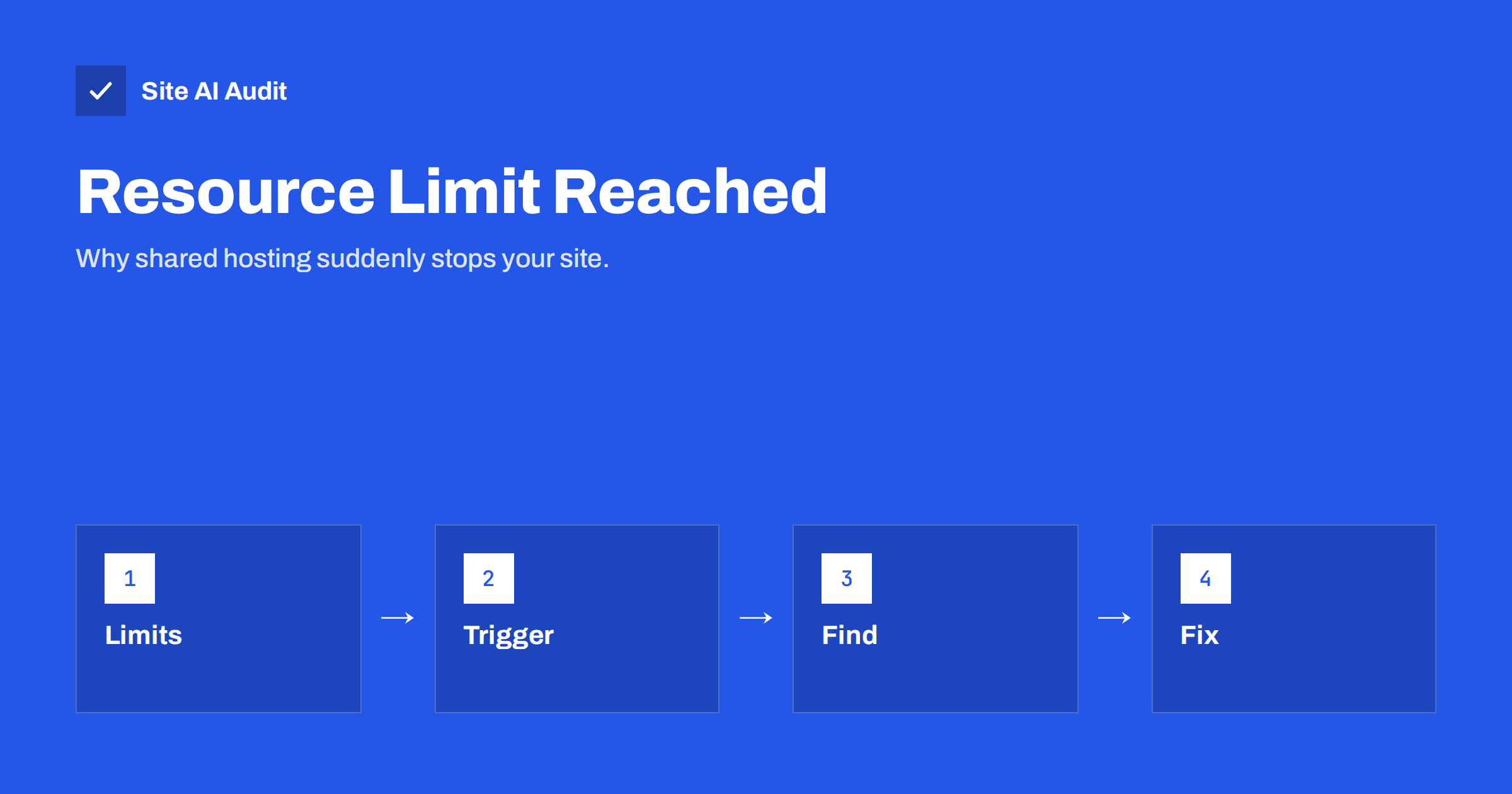
Short answer: “Resource Limit Is Reached” or a 508 error means your hosting account has used more than its allowed share of the server for a moment, so the host temporarily blocks requests. Common causes are traffic spikes, aggressive bots, heavy plugins and scheduled jobs. Check the usage page in your hosting panel, find the busiest URLs and visitors in the logs, then add caching, block bad traffic or move to a bigger plan.
What the error actually means
On shared hosting, many websites live on one physical server. To stop one site from slowing down all the others, the host sets limits on each account. When your site goes over a limit, the server refuses new requests for a short time, and visitors see a message such as “Resource Limit Is Reached” or an error page with the number 508.
The wording differs between hosts. The status code 508 officially means “loop detected”, but some hosting platforms use it for resource limits because no other code fits. Other hosts show a 503 page or a plain “temporarily unavailable” message. Whatever the label, the cause is the same: your account asked for more than it is allowed.
The error often comes and goes. The site works for a while, stops for a few minutes during a spike and then recovers. That pattern makes it hard to catch without looking at usage graphs.
Which limits you can hit
Hosting plans usually restrict several things at once. Names vary, but the main ones are:
- CPU. How much processing power your scripts may use. PHP pages that run slow queries or heavy plugins use it up quickly.
- Memory. The RAM available to your account. A script that needs more than the limit is stopped.
- Entry processes or concurrent connections. How many requests can run at the same moment. Slow pages keep processes busy and a queue builds up.
- Input and output speed. How fast your account may read and write the disk. Backups and large imports can cause spikes.
- Number of files. Often called inodes. A site with millions of cache or session files can hit this cap.
The key point is that slow pages make every limit worse. The longer a request takes, the longer it holds a process, memory and CPU. Faster pages fit under the same caps.
Common causes on WordPress sites
Most resource limit problems on WordPress come from a few repeating sources:
- Bots and crawlers. Aggressive scrapers and bad bots can send thousands of uncached requests. See bad bots and aggressive crawlers.
- Brute force against the login or XML-RPC. Every attempt runs PHP and database queries. Our guide on login brute force protection covers it.
- Background tasks. WordPress runs scheduled jobs when pages load. If many jobs pile up, they eat CPU. See WP-Cron performance.
- Admin and Ajax calls. Plugins that poll the server every few seconds keep processes busy. Read about high admin-ajax usage.
- Uncached pages. Without page caching, every visit runs PHP. A small traffic spike can then reach the limit.
- Backups and security scans. Running them in business hours adds load on top of visitors.
How to find out what is using your limits
Start with the usage page in your hosting panel. Many panels show graphs for CPU, memory, processes and input or output, and list the times when you hit a limit. Note the time of each spike.
Then open the access logs for those times. Look at the most requested URLs and the most active IP addresses. A single address with thousands of requests suggests a bot. A single URL that dominates the list, such as a search page or an Ajax endpoint, points to a heavy feature. The article on reading access logs to spot attacks shows what to look for.
Finally, compare the spikes with your own activity. If the problem appears at the same hour every day, a scheduled backup, import or scan is likely the cause. If it appears after you publish or send a newsletter, it may be a real traffic spike.
How to bring the site back under the limits
Work from the cheapest fixes to the most expensive:
- Turn on page caching. A cached page is served without running PHP, which reduces CPU and processes dramatically. Learn more in page caching explained.
- Block bad traffic. Use your host’s firewall or a CDN to stop abusive bots and brute force attempts before they reach PHP.
- Reduce background work. Slow down the WordPress heartbeat, move scheduled jobs to a real cron entry, and remove plugins that poll constantly.
- Move heavy jobs to quiet hours. Schedule backups, imports and scans at night.
- Clean up. Remove unused plugins, optimise slow database queries and delete old cache or session files.
- Upgrade the plan. If the site has grown, more resources may be the honest answer. Compare options in shared hosting versus VPS.
Talking to your hosting provider
Support teams can see details you cannot, such as which processes were killed and which scripts used the most CPU. When you contact them, give the exact time of the error, a screenshot of the message and the usage graph. Ask what limit was reached and which script or URL caused it. A precise question gets a precise answer and avoids a generic suggestion to upgrade.
Also ask whether the limit was hit by real traffic or by bots. Some hosts can add bot protection or rate limits at the server level, which solves the problem without a bigger plan.
How to prevent it from coming back
Resource problems return when the site changes or traffic grows. Make a habit of checking the usage graphs once a month. After installing a new plugin or running a campaign, look at the graphs again. Keep page caching on and review the list of plugins every few months. If you manage several sites for clients, put the usage check into your routine, as described in our guide on website speed monitoring.
Sudden traffic is not always a problem you can predict, but you can prepare. A cached site, a firewall in front and a plan with some spare room make spikes harmless. The article on sites that slow down during traffic spikes goes deeper into this.
A few extra habits help on shared hosting in particular. Keep the number of installed plugins low, because each active plugin adds code that runs on every request. Avoid running several heavy tasks at the same time, such as a full backup together with a malware scan and an image optimisation job. Compress and resize images before you upload them, so that the server does not have to process very large files. And if you run an online shop, test the checkout and the search pages under load, because these pages cannot be cached in the same way as ordinary articles.
When the limit is reached only during special events, such as a sale or a newsletter, plan for it. Warm the cache before the campaign starts, ask your host about temporary extra resources and avoid publishing big changes at the same time. A short test with a handful of simultaneous visitors, using any free load testing tool, shows whether the site holds up before real people arrive.
Finally, keep a record of what you changed and when. If the errors return, the list of recent changes is often the fastest way to the cause: a plugin update, a new integration or a new bot that found your site.
What Site AI Audit can and cannot tell you
Site AI Audit measures speed from the outside: Google PageSpeed score, loading metrics, server response time, compression and page weight. A slow server response is often the first sign that your hosting is under strain. It cannot see your hosting panel, your logs or your account limits, so it cannot say which limit was hit. You can run a free check of your website or look at the plans.
Related reading
- How to Reduce Server Response Time (TTFB) for Faster Pages
- WordPress Heartbeat API: Reduce Server Load Safely
- WordPress xmlrpc.php: What It Does and When to Disable It
- How to Fix a Slow WordPress Site: A Step-by-Step Guide
The bottom line
A resource limit error is your host protecting other customers from a burst of load on your account. Find the cause in usage graphs and logs, remove wasteful work, cache pages and block abusive traffic first. Upgrade only when a healthy, cached site still needs more room.
BUJ
Is a 508 error my fault?
Often it is a mix. Your site may have a heavy plugin or no caching, or bots may be hitting it. Either way, the limit belongs to your account, so the fix starts with your site and your settings.
Will the error go away by itself?
If it was a short spike, yes. If the cause is a repeating job, a bot or a heavy page, it will come back. Look for the pattern in the usage graphs.
Does the error hurt SEO?
Short outages are usually harmless. Repeated errors can slow how often search engines crawl your site, and long outages may lead to pages dropping out of results.
Should I move to a VPS right away?
Not before you cache pages and block abusive traffic. Many sites run well on shared hosting once wasteful load is removed. Move when a clean, cached site still reaches the limit.
What is the difference between 508 and 503?
A 503 means the service is temporarily unavailable for any reason. A 508 is used by some hosts to signal a resource limit. For visitors the effect is similar, so read the message on the page.