 ENEnglish
 LTLietuviškai
 DEDeutsch
 FRFrançais
 RUРусский
 ESEspañol
 PLPolski
 ITItaliano
 UKУкраїнська
 CSČeština
 PTPortuguês
 JA日本語
JA日本語 LVLatviešu valoda
 ETEesti
 HUMagyar
 IDBahasa Indonesia
 TRTürkçe
 HIहिन्दी
 ELΕλληνικά
 ARالعربية
 THไทย
THไทย VITiếng Việt
 RORomână
 MSBahasa Melayu
 BNবাংলা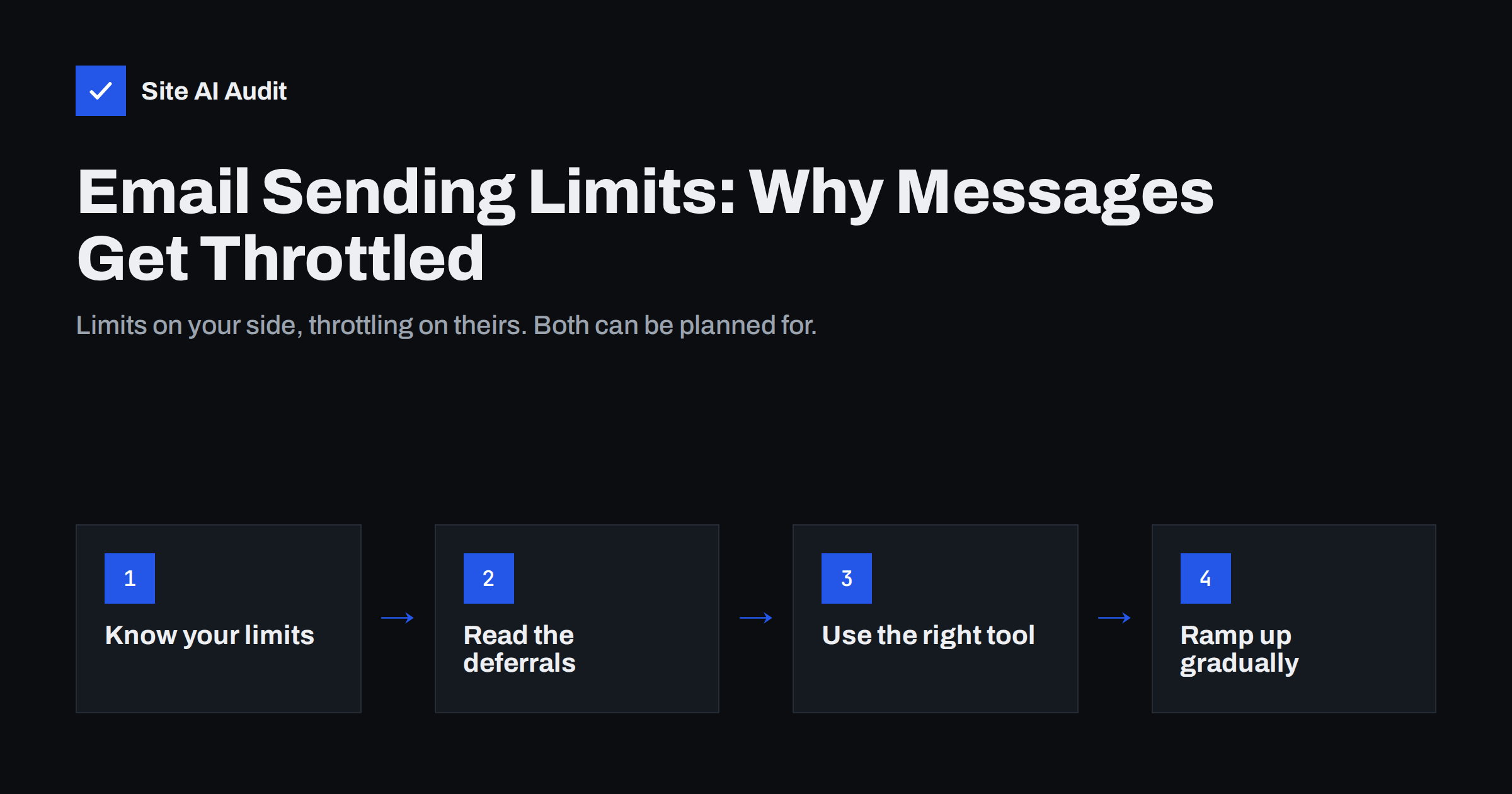
Short answer: Email gets limited in two places. Your own provider or host caps how many messages or recipients each account may send per minute, hour or day, and blocks sending when you exceed it. Receiving providers such as Gmail and Outlook throttle mail from senders they do not yet trust, answering with temporary 4xx errors that delay delivery. Send bulk mail through a dedicated e-mail platform instead of a normal mailbox, authenticate your domain, grow volume gradually and let your system retry deferred messages instead of resending.
Two different kinds of limits
People often use “sending limit” for two separate things, and the fixes are different:
| Outbound sending limits | Inbound throttling | |
|---|---|---|
| Who applies it | Your mail provider, host or e-mail platform | The recipient’s mailbox provider |
| Why | To stop abuse and protect shared infrastructure | To slow down senders with little or poor reputation |
| What you see | An error that you cannot send, or a suspended account | Delayed mail, temporary 4xx responses in logs, sometimes later bounces |
| Fix | Use the right sending tool or plan | Improve reputation and send at a steadier pace |
Both can happen at the same time. A business that sends a campaign from its normal mailbox can hit its provider’s daily cap and, for the messages that did go out, be throttled by receivers who see a sudden jump in volume from that domain. Understanding which limit is involved saves hours of guessing.
Outbound limits in business mailboxes
Business mailbox services are designed for people writing e-mails, not for campaigns. They set limits on how many messages or recipients one user can send in a day, and sometimes per minute. When the limit is reached, sending is blocked for a period, often up to 24 hours, which can stop invoices and replies too.
- Google Workspace publishes daily limits per user, including the number of messages and the number of recipients, in its Gmail sending limits documentation. Free Gmail accounts have lower limits than paid ones.
- Microsoft 365 documents recipient rate limits per day, recipients per message and messages per minute in its Exchange Online limits.
Limits change from time to time and differ by plan, so check the current figures for your account rather than relying on numbers quoted elsewhere. Also note that recipients usually count individually: one message to 200 people counts as 200 recipients.
Hitting these limits regularly is a sign that the mailbox is being used for something it was not designed for. Mass mailings sent with BCC, mail merges from a spreadsheet and automated reports to long distribution lists all belong in tools made for volume. Moving them out also protects the mailbox’s reputation for the everyday mail that matters most, such as quotes, invoices and replies to customers.
Outbound limits on web hosting
Shared hosting plans commonly limit how many e-mails a website or mailbox can send per hour. This is where many small businesses run into trouble without knowing it:
- A shop sends order confirmations, a newsletter plugin sends a campaign, and together they exceed the hourly cap. Everything after that is queued or dropped.
- A contact form abused by bots sends hundreds of notifications and uses up the limit.
- The host suspends outgoing mail after a spike, suspecting a compromised account.
Check your hosting plan’s limits and the mail logs in the control panel. The usual long-term fix is to send website mail through a transactional mail service or your business mail provider with authenticated SMTP, as explained in our guide on WordPress emails going to spam or not sending.
Inbound throttling by Gmail, Outlook and others
Receiving providers decide how much mail they accept from each sender and how fast. If a sending IP or domain has little history, has recently changed behaviour or has a mixed reputation, they accept a limited number of messages and answer the rest with a temporary failure. Typical responses start with 4, such as 421 or 450, and often include words like “rate limited”, “try again later” or “unusual rate of mail”.
A temporary failure is not a bounce. Properly configured mail servers and e-mail platforms keep the message in a queue and retry later, often several times over hours or days. If the throttling continues, the message eventually bounces. Our guide to email bounce codes explains how to read these responses.
Throttling is common when:
- A new domain or IP address starts sending in volume.
- Volume jumps suddenly, for example a first big campaign or a seasonal peak.
- The list contains many invalid or inactive addresses.
- Recipients complain or ignore the mail.
- Authentication is missing or does not align with the From domain.
How to tell which limit you hit
- You get an error while sending, or your account is blocked from sending: an outbound limit. Read the error message; it usually names the limit.
- Mail leaves your system but arrives hours late at one provider only: inbound throttling by that provider. Check the delivery logs of your platform or server for 4xx responses.
- Some messages never leave your website: check the host’s mail queue and hourly limits, and whether the form or plugin logs errors.
- Delivery reports show “deferred” status: the receiving side is slowing you down.
If you send to Gmail in volume, Google Postmaster Tools shows reputation and delivery errors for your domain, which helps confirm throttling.
Keep a note of when problems started and what changed around that time: a new sending tool, a larger campaign, an imported list or a change to DNS records. Throttling usually follows a change in behaviour, and finding that change is often the quickest way to the fix.
How to send volume safely
- Use the right tool. Newsletters and campaigns belong in an e-mail marketing platform; order confirmations and password resets in a transactional service. Keep personal mailboxes for people.
- Authenticate everything. SPF, DKIM and DMARC must pass and align for every service. Bulk senders to Gmail and Yahoo must also meet the requirements in our guide on bulk sender rules.
- Ramp up gradually. A new domain or IP should start with small daily volumes to engaged recipients and grow step by step, as described in how to warm up a new email domain.
- Spread large sends. Most platforms can send a campaign over hours rather than minutes, which looks more natural to receivers.
- Keep lists clean. Remove hard bounces immediately and stop mailing people who have not engaged for a long time.
- Let retries work. Do not resend throttled messages manually; duplicates make things worse.
Shared vs dedicated sending infrastructure
Most small senders use shared IP addresses at their e-mail platform, where the platform manages volume and reputation across many customers. A dedicated IP gives you your own reputation, but it needs steady, sufficient volume and careful warm-up, or it will be throttled more, not less. Our comparison of shared and dedicated IPs helps you decide. For most small businesses, a reputable platform with shared IPs and a well-authenticated domain is the better choice.
Common mistakes
- Sending a newsletter to hundreds of people from a normal mailbox using BCC, which hits limits and looks like spam.
- Running campaigns through the website’s own mail function on shared hosting.
- Importing an old list and sending to all of it at once.
- Buying a dedicated IP for low, irregular volume.
- Resending deferred messages instead of letting the queue retry.
- Ignoring the limits of transactional mail during peaks such as sales events.
Most of these mistakes come from treating e-mail as a single channel. In practice, personal mail, website notifications, transactional messages and marketing each have their own tool, limits and reputation, and planning them separately avoids most surprises.
How Site AI Audit helps
Site AI Audit checks the DNS records that decide whether receivers trust your mail enough to accept it at normal speed: SPF and its lookup limit, DKIM, the DMARC policy and MX records. Missing or broken authentication is one of the common reasons mail gets throttled or filtered, and each finding in the report comes with a plain explanation and the exact fix. You can check your domain for free.
Related reading
- Microsoft 365 Email Authentication: SPF, DKIM and DMARC Setup
- Google Workspace SPF, DKIM and DMARC Setup, Step by Step
- Email Deliverability vs Delivery Rate: What’s the Difference?
The bottom line
Sending limits protect providers from abuse, and throttling protects recipients from unknown senders. Know the limits of your mailbox and hosting plan, send bulk and transactional mail through services built for it, authenticate your domain, grow volume gradually and let temporary failures retry. Then limits become a planning detail instead of a surprise.
BUJ
What is email throttling?
It is when a receiving mail server accepts only part of your mail and temporarily rejects the rest with a 4xx response, asking you to try again later. It usually happens to new or poorly reputed senders.
How many emails can I send per day from Google Workspace or Microsoft 365?
Both publish daily limits per user and per recipient in their official documentation, and the figures differ by plan. Check the current limits for your account before planning larger sends.
Why are my emails delayed only for Gmail or Outlook recipients?
That provider is likely throttling your mail. Check your logs for 4xx responses, confirm authentication passes and review list quality and sending volume.
Can I send a newsletter from my normal business mailbox?
For more than a handful of people it is a bad idea. You will hit sending limits, lack unsubscribe handling and risk your mailbox reputation. Use an e-mail marketing platform.
Should I resend emails that were deferred?
No. Mail servers retry deferred messages automatically. Resending creates duplicates and can increase throttling.


