ENEnglish
 LTLietuviškai
 DEDeutsch
 FRFrançais
 RUРусский
 ESEspañol
 PLPolski
 ITItaliano
 UKУкраїнська
 CSČeština
 PTPortuguês
 JA日本語
JA日本語 LVLatviešu valoda
 ETEesti
 HUMagyar
 IDBahasa Indonesia
 TRTürkçe
 HIहिन्दी
 ELΕλληνικά
 ARالعربية
 THไทย
THไทย VITiếng Việt
 RORomână
 MSBahasa Melayu
 BNবাংলা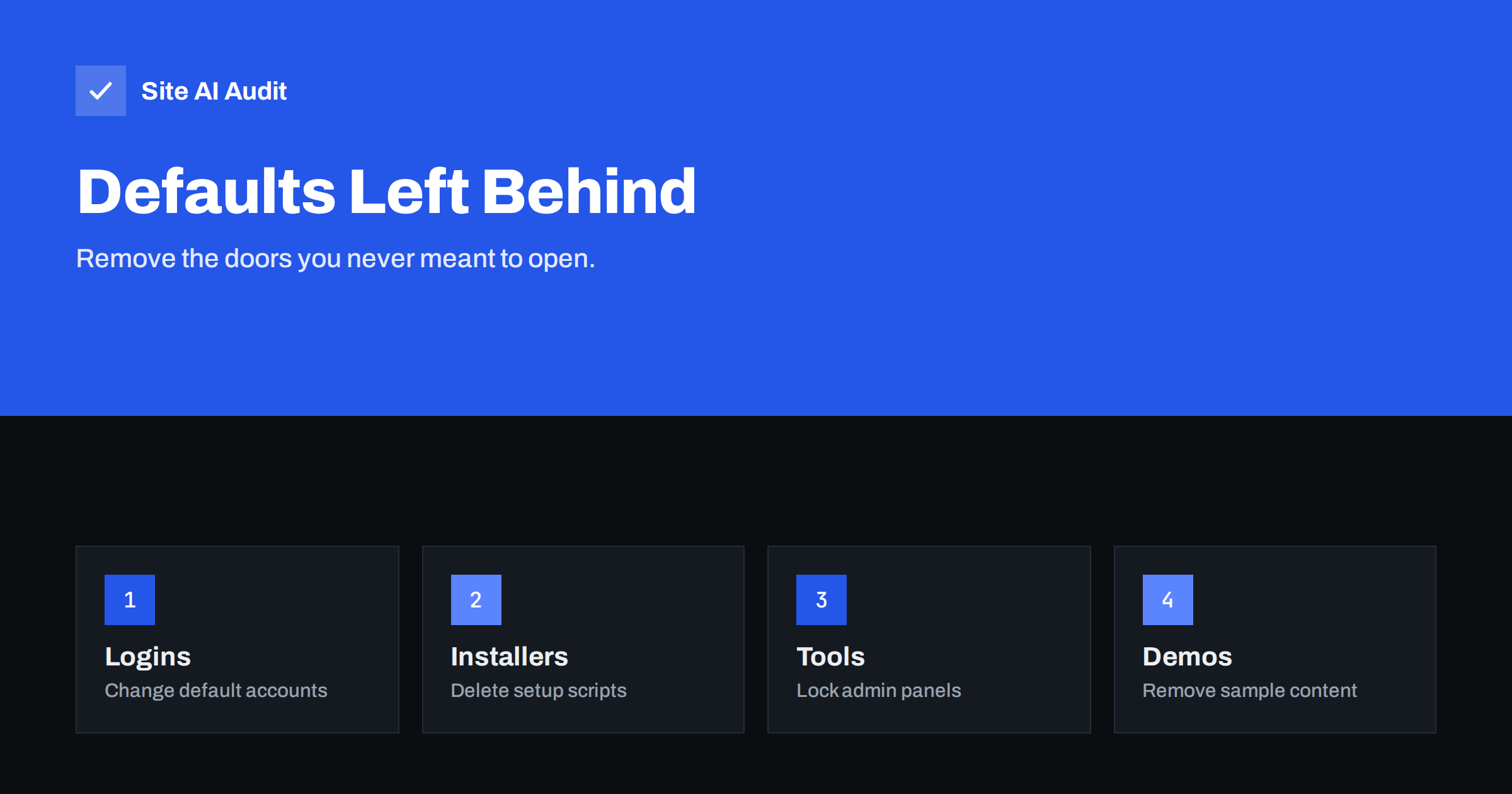
Short answer: Many websites are launched with the same defaults they were installed with: a standard admin account, a weak starter password, an installer script that still works, a test page or demo content. Attackers scan for these automatically. Before launch, change or delete every default login, remove installers and test files, restrict admin tools and check from outside that nothing is exposed.
Why defaults are dangerous
Software ships with defaults so that it is easy to start. The username is often admin, the first password may be printed in the documentation, and the setup scripts are designed to run once and then wait for you to remove them. When a site goes live without cleaning up, those defaults are published to the world, and so is the knowledge of what they are.
Attackers do not choose a specific victim for this kind of attack. They run automated scans against huge ranges of addresses, trying the well-known default login of each popular product, requesting known setup file names and recording what answers. A defaults problem is therefore found quickly, often within hours of a site becoming reachable.
The same applies to hosting accounts, databases, control panels, network devices, cameras and printers that your business connects to the internet. The principle is simple: anything that came with a known password or a known path is a target.
Default accounts and passwords
Start with accounts, because they give the most direct access.
- The first admin user. If your CMS created a user called admin, create a new administrator with a different name and a long, unique password, then delete or demote the original. Assign its content to the new user when asked.
- Starter passwords. A password given by a host, an agency or an installer is a temporary one. Replace it, and do not leave it in a ticket or an email. A password manager is the best place for the new one, as explained in our guide to password managers for website teams.
- Demo and test users. Delete users created for testing, training or screenshots. Check also for accounts created by plugins or by former contractors.
- Database accounts. A database user with an empty or easy password, or a root account that the website uses, is a serious risk. The website should use its own user with only the rights it needs.
- Hosting and control panels. Change the default passwords for the hosting panel, FTP or SFTP, email accounts and any server tools.
Turn on two-factor authentication where it is offered, as we describe in the article on two-factor authentication for website owners. Even a strong password is safer with a second step.
Installers and setup scripts
Many applications have an installation wizard. Once the site is installed it should be unreachable, or removed. If it is left in place, a visitor may be able to restart the installation, connect the site to their own database or reset the admin account.
Look for these examples, which vary with the platform:
- Install or setup directories and files such as install.php, setup.php or an install folder.
- Upgrade scripts that are no longer needed.
- Information pages created to check a server, such as phpinfo files, which reveal versions, paths and settings.
- Test files, quick experiments and “temp” pages that a developer uploaded.
- Old copies of the site in subfolders, such as a previous version or a staging copy. Our article on a staging site indexed by Google shows how they get discovered.
Remove files you do not need rather than renaming them. A renamed file that is still there, or a backup with a changed extension, can still be downloaded. For more on forgotten files, read how to find and block exposed .env, .git and backup files.
Admin tools and panels
Database managers, file managers, server dashboards and monitoring tools are useful, but they should not be open to everyone.
- Place them behind an IP restriction, a VPN or at least an additional login in front of the tool.
- Do not leave a database manager at its default address, and make sure it is updated.
- Remove tools that you no longer use. Every installed tool is a possible entry.
- Check that admin pages are not indexed by search engines and are not linked from public pages.
Changing the address of a login page can reduce noise from bots, but it is not a protection by itself. A strong password, two-factor authentication and rate limits are what actually keep attackers out. See our guide on protecting your website logins from brute-force attacks.
Demo content, readme files and version clues
Default content is less dangerous than a default password, but it tells attackers what you run, and it looks careless to visitors.
- Delete sample posts, sample pages, placeholder comments and unused demo plugins and themes.
- Remove readme and licence files from the web root if they reveal the name and version of the software.
- Turn off debug output and verbose error messages, which can expose paths and settings. See how to hide error messages and debug mode.
- Hide version information from headers and page source where you can, as covered in the article on exposed software versions.
- Replace the default web server welcome page if the domain still points to a fresh server.
Hiding versions is not a substitute for updating, but it removes the easy signal that tells a scanner which attack to try.
A launch checklist for defaults
- Accounts. List every user on the CMS, hosting, database, FTP and email, and remove or rename anything default, unused or shared.
- Passwords. Replace every starter and temporary password with a long unique one stored in a password manager.
- Two-factor authentication. Enable it on the CMS admin, hosting, registrar and email.
- Files. Delete installers, test files, backups and old copies from the public folders.
- Tools. Restrict or remove admin tools and update the ones you keep.
- Content. Delete sample content and unused themes and plugins.
- Configuration. Set production mode, switch off debug output, and change any default secret keys or salts that the application uses to sign sessions.
- Check from outside. Request the known default paths in a private browser window and confirm that they return a not found or an access denied response.
Repeat the checklist after a migration, a redesign or a change of host, because new environments bring new defaults. Our WordPress security checklist covers further steps for that platform.
Give the checklist an owner and a date. Defaults come back quietly: a new developer installs a test plugin, a colleague creates a shared account for a short project, or a host restores an old backup that still contains an installer folder. If one person is responsible for reviewing users, files and tools every quarter, these leftovers are found while they are still harmless. Keep the review short and written down, so that it is repeated in the same way each time, and store the results where the whole team can find them. It also helps to keep a list of everything that connects to the site, such as plugins, scripts and external services, so that nothing is forgotten when you clean up.
What Site AI Audit can and cannot tell you
Site AI Audit looks at your website from the outside. It checks the SSL certificate, the HTTP to HTTPS redirect, security headers and exposed software versions, which are the kind of clues that tell attackers what you run. It does not test your logins, look inside your server or scan for installer files, and it cannot tell whether a default password is still in place. Treat it as a quick outside view that complements the checklist above. You can run a free check of your website or see the plans.
Related reading
- Exposed .env, .git and Backup Files: How to Find and Block Them
- Exposed Software Versions: How to Hide Server and CMS Details
- Directory Listing Enabled? How to Disable It on Any Server
- Website Security Audit Checklist: What to Check and in What Order
The bottom line
A website can be built carefully and still be opened by a default that nobody removed. Before launch, replace starter passwords, delete default accounts, remove installers and test files, restrict admin tools and clear demo content. Then check from outside, and repeat the exercise whenever you move or rebuild the site.
BUJ
Is it enough to rename the admin user?
Renaming helps, because attackers often try the default name first, but it is not enough alone. Use a long, unique password and two-factor authentication on the new account, and delete the original default user or reduce its role.
Should I delete the installer files after setup?
Yes, unless the software explicitly needs them. An installer that can be run again may let someone take over the site or the database. Check the documentation of your platform, remove what is not needed and test that the old address no longer works.
What is the risk of a phpinfo or test page?
These pages reveal software versions, file paths, loaded modules and settings. An attacker can use that to choose a suitable exploit or find sensitive paths. Delete them after use, and never leave them on a live server.
Do default credentials matter for small websites?
Yes. Automated scanners do not care about the size of a site. They test default logins on huge numbers of addresses, and any account that works becomes a foothold for spam, malware or data theft.
How often should I check for leftover defaults?
Check at launch and after every migration, major update, redesign or change of hosting. Add a quick review to your regular maintenance routine, and review user lists at least twice a year or whenever a contractor finishes their work.