ENEnglish
 LTLietuviškai
 DEDeutsch
 FRFrançais
 RUРусский
 ESEspañol
 PLPolski
 ITItaliano
 UKУкраїнська
 CSČeština
 PTPortuguês
 JA日本語
JA日本語 LVLatviešu valoda
 ETEesti
 HUMagyar
 IDBahasa Indonesia
 TRTürkçe
 HIहिन्दी
 ELΕλληνικά
 ARالعربية
 THไทย
THไทย VITiếng Việt
 RORomână
 MSBahasa Melayu
 BNবাংলা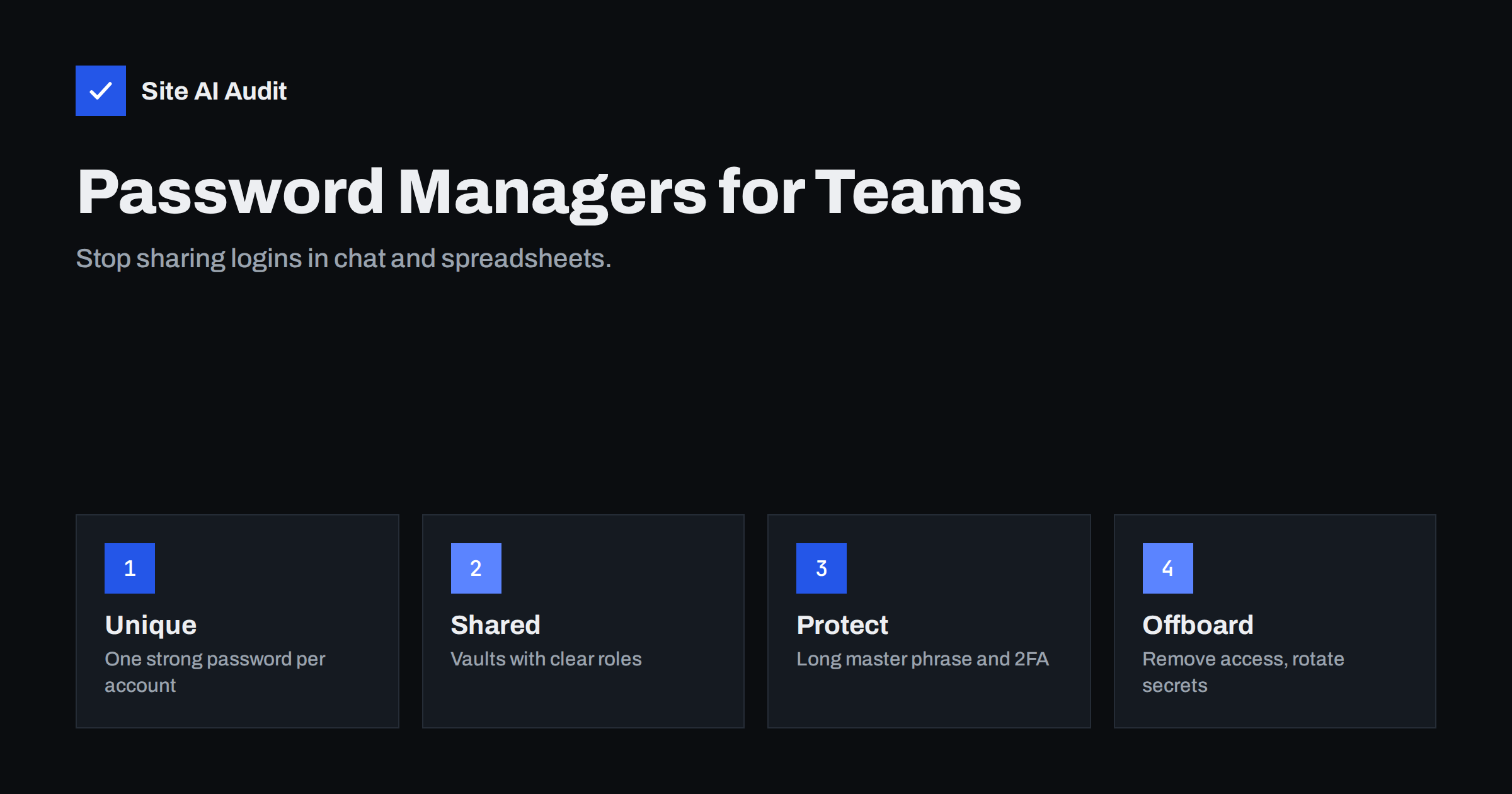
Short answer: A password manager creates a long, random, unique password for every account and stores them in an encrypted vault. For a website team, a shared vault replaces spreadsheets, sticky notes and chat messages with controlled access that you can change when someone leaves. Protect the vault with a long master passphrase and two-factor authentication, and keep the number of people with admin access small.
Why shared passwords go wrong
Most small websites have a handful of logins that matter: the hosting panel, the domain registrar, the CMS admin area, the email account that receives password resets, the analytics and search accounts, and perhaps a CDN or payment provider. In a typical small business these logins live in a spreadsheet, an old email thread or a chat channel. Everyone who ever joined that channel can still see them.
The problems repeat in almost every company:
- Reuse. One password is used on several services, so a leak at one place opens the others.
- Weak choices. People pick something they can remember, which usually means something an attacker can guess or find in a leaked list.
- No history. Nobody knows who has a copy, so nobody knows who to remove when a freelancer finishes a project.
- Insecure channels. A password sent by email or chat stays in the history of that service and in every backup of it.
- Browser sprawl. Passwords saved on personal laptops and phones leave your control completely when a device is lost or sold.
Attackers know this. Stolen or reused passwords are one of the simplest ways into a website, and our guide on brute-force login attacks shows how quickly automated tools try them at scale.
What a password manager actually does
A password manager is an encrypted database of your logins. You unlock it with one strong secret, and it fills in the right password on the right site. The useful features for a website owner are:
- Generation. It can create a long random password, for example twenty characters or more, for each new account. You never need to remember it.
- Autofill with domain checking. The manager fills the password only on the address it was saved for. On a look-alike phishing page the field stays empty, which is a warning sign in itself.
- Sharing. Teams can keep a shared vault or folder for the hosting account, the registrar and the CMS, with permission levels for each person.
- Notes and recovery data. Backup codes, security questions and licence keys can be stored beside the login.
- Breach and reuse reports. Many tools tell you when a saved password appears in a known leak or is used twice.
There are many products, from browser built-in managers to dedicated business tools. The right one depends on team size and budget. What matters more than the brand is that everyone uses the same system consistently.
Sharing access without sharing the password
The safest habit is to separate personal accounts from shared service accounts. A person who edits articles should have their own CMS user with the lowest role that does the job, as we explain in the article about least privilege for admins and staff. Shared logins should be the exception, for services that do not support several users.
When you do need to share a login, use a shared vault rather than copying the text. The advantages are practical:
- You decide who sees which items, for example only the developer sees the server login.
- You can revoke access in one click, without asking anyone to forget something.
- Many tools keep an activity log, so you can see when an item was viewed or changed.
- Some tools let a colleague use the login without ever seeing the password in plain text.
For one-time handovers, such as giving an agency a temporary login, use a time-limited share or create a separate user that you delete afterwards. Never send the password and the username in the same email.
Protect the vault itself
Putting all your passwords in one place makes that place valuable, so protect it carefully.
- Use a long master passphrase. Four or five unrelated words are easier to remember than a short, complicated string and are much stronger. Do not use it anywhere else.
- Turn on two-factor authentication for the vault. An authenticator app or a hardware key is better than text messages. We cover the wider picture in our guide to two-factor authentication for website owners.
- Store recovery information safely. Print the emergency kit or recovery key if the product offers one and keep it somewhere locked, not in the same vault.
- Lock devices. Use a screen lock on every phone and laptop that has the manager installed, and keep the app updated.
- Do not stop at passwords. Turn on two-factor authentication on the accounts inside the vault, especially the email address used for password resets, the registrar and the hosting panel.
Current guidance from standards bodies such as NIST favours length over complexity rules and advises against forcing people to change passwords on a fixed schedule unless there is a sign of compromise. A manager makes that approach realistic, because nobody has to remember the result.
Setting it up for a small team
- List the accounts. Write down every service that touches the website: domain, DNS, hosting, CMS, email, analytics, search console, CDN, payments and social accounts that publish content.
- Pick one tool. Choose a manager that supports shared vaults, two-factor authentication and an activity log. Make it a company decision, not a personal one.
- Create the structure. One vault for infrastructure with a small group, one for marketing accounts, and personal vaults for each person.
- Import and clean. Move the existing logins in, then delete the spreadsheet and the chat messages that held them.
- Replace weak passwords. Start with the most critical accounts: registrar, email, hosting and CMS admin. Generate a new random password for each one.
- Turn on 2FA everywhere it is offered. Save backup codes in the vault entry.
- Write a short rule. For example: no passwords in chat or email, no reuse, no shared accounts when a personal user is possible.
Treat the move as a small project with a deadline. Habits change when the old method disappears, not when a new one is merely offered.
Offboarding and rotation
A password manager helps most on the day someone leaves. Remove the person from the vaults, then change the passwords of every shared item they could view. Because the manager knows which items were shared, the list is short and clear. Our article on removing ex-developers safely covers the other steps: user accounts, API keys, SSH keys and third-party tools.
Rotate secrets also after a suspected incident, such as a lost laptop, a phishing message that someone answered or a plugin compromise. If you suspect the site was hacked, change the passwords from a clean device, not from the one that may be infected.
Common mistakes to avoid
- Keeping the master passphrase in the vault or a note. If you must write it down, keep it on paper in a safe place.
- Letting the browser save work passwords on personal profiles. Those copies are outside your vault and your offboarding process.
- Using the same email for everything. If the mailbox that receives resets is weak, every account behind it is weak.
- Sharing one admin account for the whole team. You lose accountability and cannot remove one person without changing it for everyone.
- Skipping the old accounts. A forgotten staging site or test tool with an old password is a favourite entry point.
What Site AI Audit can and cannot tell you
Site AI Audit looks at your website from the outside: the SSL certificate, the redirect to HTTPS, security headers, exposed software versions, and your email records such as SPF, DKIM and DMARC. It cannot see how your team stores passwords or whether a vault is protected, and it does not test logins. What it does give you is a list of external weaknesses to fix, so that strong passwords are not the only thing standing between an attacker and your site. You can run a free check of your website or see the plans if you want repeated checks.
Related reading
- Two-Factor Authentication for Website Owners: What to Protect
- Website User Accounts: Least Privilege for Admins and Staff
- WordPress Security Checklist: 20 Steps That Actually Matter
- Compromised Email Account Sending Spam: What to Do Right Now
The bottom line
Strong passwords are only useful if people can actually use them. A password manager makes unique, random passwords normal, replaces risky spreadsheets with shared vaults and makes offboarding a short, clear task. Protect the vault with a long passphrase and two-factor authentication, keep admin access limited, and rotate shared secrets whenever someone leaves.
BUJ
Is it safe to keep all passwords in one place?
For most teams it is far safer than the alternative. Reused and weak passwords are the usual cause of account takeovers, and a manager removes both. Protect the vault with a long master passphrase and two-factor authentication, and the single place becomes a strength rather than a weakness.
Can we use the password manager built into the browser?
It is better than reusing passwords, but it is weak for teams. Browser stores are tied to personal profiles, have limited sharing controls and stay behind when someone leaves. A dedicated tool with shared vaults and an activity log gives you the control that a business needs.
How long should a website password be?
Length matters more than tricks. Let the manager generate random passwords of twenty characters or more for services, and use a passphrase of several unrelated words for the vault itself. Avoid personal details, keyboard patterns and anything you have used before.
What should we do when a team member leaves?
Remove them from all shared vaults, then change the passwords for every item they could see, starting with email, registrar, hosting and the CMS. Also remove their personal user accounts, API keys and any access they had to third-party tools.
Do we still need two-factor authentication if we use a manager?
Yes. The manager protects the passwords, while two-factor authentication protects the accounts if a password is ever stolen or guessed. Use both, and turn on two-factor authentication for the vault as well as for the key accounts inside it.