ENEnglish
 LTLietuviškai
 DEDeutsch
 FRFrançais
 RUРусский
 ESEspañol
 PLPolski
 ITItaliano
 UKУкраїнська
 CSČeština
 PTPortuguês
 JA日本語
 LVLatviešu valoda
 ETEesti
 HUMagyar
 IDBahasa Indonesia
 TRTürkçe
 HIहिन्दी
 ELΕλληνικά
 ARالعربية
 THไทย
 VITiếng Việt
 RORomână
 MSBahasa Melayu
 BNবাংলা
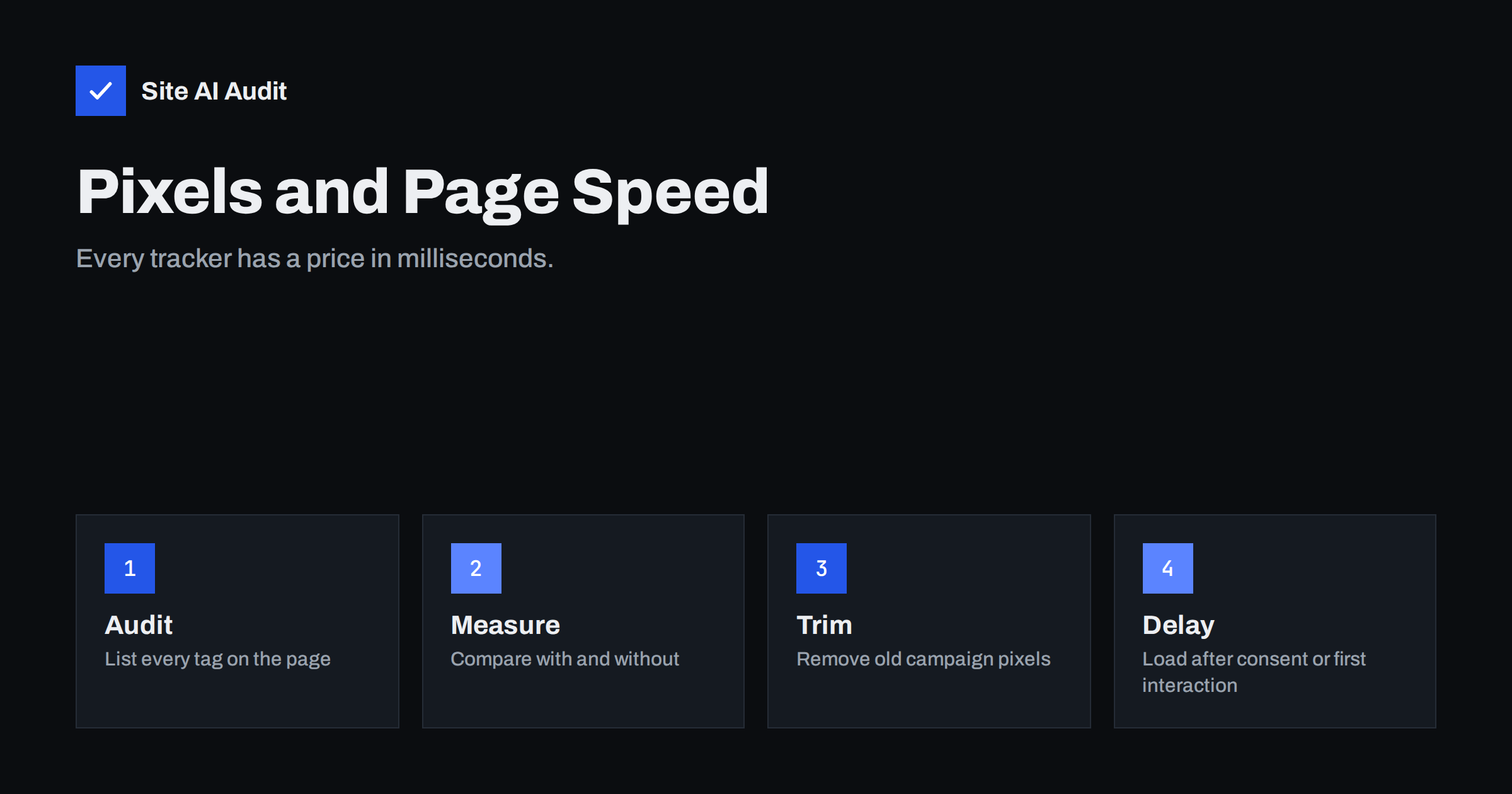
Short answer: Marketing pixels are small scripts from advertising and analytics services that record visits and actions. Each one downloads code from another server, runs it in the visitor’s browser and sends data back. A few are cheap, but a stack of them can delay content and make pages feel sluggish. List what you have, remove what is unused, load the rest after consent or after the page is usable, and measure the result.
What a marketing pixel is
A pixel, also called a tag, is a piece of code that you add to your pages so that a service can recognise visitors and record what they do. It might count page views, track purchases, build audiences for advertising or show you recordings of how people use the site. The name comes from the early days, when many trackers were literally one-pixel images. Today most are scripts.
Typical examples are the tags of social networks, advertising platforms, e-mail marketing tools, chat services, heat-map tools and analytics products. Many sites also receive extra tags from plugins that were installed to try something and never removed.
Why they slow pages down
- Extra connections. Each service lives on its own domain. The browser must look up the address, open a secure connection and download the script before it can use it.
- Script work on the main thread. The code has to be read and run. While it runs, the browser may not respond to taps and scrolling, which affects the measurements described in the articles on Total Blocking Time and Interaction to Next Paint.
- Chains of requests. Many tags load further scripts, which load more. A single line that you added can lead to a dozen downloads.
- Layout and flicker. Some tools change the page after it loads, for example for testing different designs, and may cause visible jumps.
- Things that you do not control. The provider can change its script at any time, and a slow response from its server can delay yours. The wider topic is covered in the guide to how third-party scripts slow down your website.
Measure before you change anything
- List the tags. Open the page in a browser with developer tools and look at the network tab, or view the source and the settings of your tag manager. Write down every external domain that loads.
- Find the owner of each. For every tag, name the person or team who asked for it and what they use it for. A tag without an owner is a candidate for removal.
- Test with and without. Run a speed test on a key page, then run it again with a tag disabled, using a staging copy or a tag manager preview. Compare the load time, the blocking time and the page weight.
- Test on a phone. Script cost grows on slower devices. A page that feels fine on a laptop can be slow on a mid-range phone.
- Repeat after every change. Note the numbers with dates, so that you can see whether a new tag harms the page.
The method for reading these tests is in the article on the waterfall chart, and the effect of tag managers is discussed in the guide to Google Tag Manager and page speed.
Remove what you do not need
The fastest tag is the one that is not there. Look for these common leftovers.
- Pixels of campaigns that ended months or years ago.
- Two tools that do the same job, such as two analytics products or two heat-map services.
- Tags from agencies that no longer work for you.
- Test installations of tools that were never adopted.
- Duplicate tags, where the same pixel is added both by a plugin and by a tag manager. They can also double-count your conversions.
Before you delete a tag, ask the people who use the data. If nobody has opened the reports for six months, you probably do not need it. Keep a record of what you removed, in case someone asks later.
Load the rest more sensibly
- Wait for consent. In many regions, advertising and analytics tags may not run before the visitor agrees. Loading them only after consent is both a legal safeguard and a speed gain for people who decline. See the article on cookie consent banners and page speed.
- Delay until the page is usable. Load non-essential tags after the main content, or after the first interaction, such as a scroll or a tap. Conversion tags on thank-you pages can still fire at the right moment.
- Use async or defer. Scripts that are not needed to draw the page should not block it, as explained in the guide to defer and async.
- Limit tags by page. A purchase pixel is needed on the order confirmation, not on every article. Fire each tag only where its data is used.
- Consider server-side tagging. Some setups send events from your own server to the advertising platforms, which reduces scripts in the browser. It needs technical work, so check that the benefit is worth the effort.
- Use resource hints sparingly. Connecting early to a domain can help a tag that must run quickly, but too many hints waste resources, as covered in the article on preload, preconnect and prefetch.
Paid landing pages need extra care
A page that receives paid traffic is both the most tracked and the most sensitive to speed. Visitors who click an advert expect an immediate response, and each second of delay can reduce conversions and raise the cost of each lead. Keep these pages light: only the tags that are required for measuring the campaign, no widgets that are not needed and a quick server. The article on landing page speed for paid ads explains the budget side of the problem.
A tag cleanup plan for one afternoon
You do not need a long project to see results. A focused session of a few hours can remove most of the waste.
- Hour one: inventory. Export the list of tags from your tag manager and from any plugin that adds scripts. Add the external domains seen in the network tab. Put everything in one table with the owner and the purpose.
- Hour two: decide. Mark each line as keep, delay, merge or remove. Ask the owners quickly by message and set a short deadline for answers.
- Hour three: change. Apply the changes in a preview or staging environment. Remove the unused tags, set the remaining ones to fire only on the pages that need them and add consent rules.
- Hour four: test and publish. Compare speed before and after, confirm that conversions are still recorded by completing a test purchase or form, and publish the new container.
- Afterwards: watch. Check your campaign reports for a week. A sudden drop in recorded conversions points to a tag that was removed or delayed too far.
Repeat the exercise every quarter. Tags accumulate quietly, and a regular review keeps the page light without a large effort each time. Add a rule to your process that every new tag needs an owner, a purpose and a date for review, and the list will stay short.
Common mistakes
- Adding tags without a review. Marketing and development often work separately, and the page collects tags quietly.
- Relying only on a speed score. A tool can score well in a lab test while real visitors on phones feel delays. Look at field data too.
- Removing a tag that feeds a campaign. Confirm with the campaign owners before you remove anything, and check conversions after the change.
- Believing that a tag manager makes tags free. It makes them easier to manage, but they still load and run.
- Not setting a budget. Agree on a limit for third-party weight and blocking time, like the one in the guide to performance budgets.
How Site AI Audit helps
Site AI Audit does not list your tracking tags. It shows the effect on visitors: the Google PageSpeed result, loading metrics such as LCP, CLS and INP, server response time, compression and page weight, together with SEO, security and e-mail checks. Use it to see whether pages are heavy before and after a cleanup. The first check is free, covers up to 50 pages and needs no sign-up. You can run a free check of your website or see the plans for weekly monitoring and alerts.
Related reading
- How Third-Party Scripts Slow Down Your Website (and Fixes)
- Moving Third-Party Scripts Off the Main Thread
- Long Tasks and Main-Thread Work: How to Find and Fix Them
- How Website Speed Affects Sales, Leads and Conversions
The bottom line
Tracking is useful, but it is not free. Know every tag on your pages, remove what nobody uses, wait for consent and load the rest after the content. Measure the page before and after, and keep a limit on third-party weight.
DUK
How many tracking pixels is too many?
There is no fixed number. Judge by their measured cost on a phone. If a tag has no clear owner or purpose, remove it.
Do pixels affect Core Web Vitals?
They can, mainly by blocking the main thread and delaying interactions, which affects responsiveness. Heavy tags can also delay the main content.
Is server-side tagging worth it?
It can reduce browser scripts and give more control, but it needs setup and hosting. For small sites, cleaning up tags usually gives most of the benefit.
Can I load a pixel only after the visitor clicks accept?
Yes. Most consent tools and tag managers can hold tags until consent is given, which also helps meet privacy rules.
Will removing a pixel break my ads?
It can if the campaign uses it for conversions or audiences. Check with the campaign owner and compare results after the change.