 ENEnglish
 LTLietuviškai
 DEDeutsch
 FRFrançais
 RUРусский
 ESEspañol
 PLPolski
 ITItaliano
 UKУкраїнська
 CSČeština
 PTPortuguês
 JA日本語
JA日本語 LVLatviešu valoda
 ETEesti
 HUMagyar
 IDBahasa Indonesia
 TRTürkçe
 HIहिन्दी
 ELΕλληνικά
 ARالعربية
 THไทย
THไทย VITiếng Việt
 RORomână
 MSBahasa Melayu
 BNবাংলা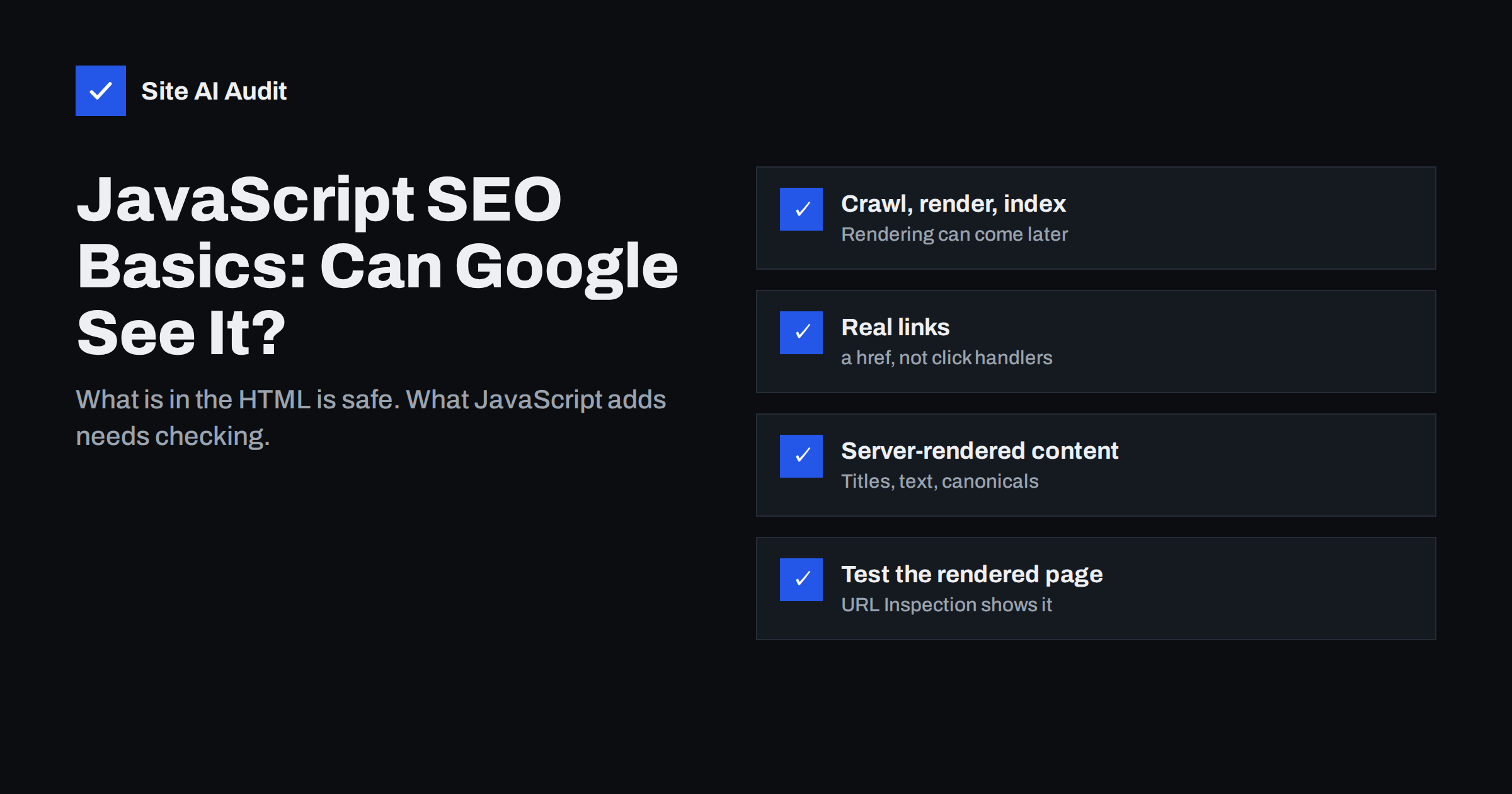
Short answer: Google can run JavaScript and index content that scripts add to a page, but rendering happens in a separate step, can be delayed and fails when scripts are blocked, broken or depend on user actions. Many other crawlers and link preview tools do not run JavaScript at all. To be safe, put important content, titles, meta descriptions, canonical tags and links in the HTML the server sends, use real <a href> links, return correct status codes and check the rendered page with Google Search Console’s URL Inspection tool.
How Google processes JavaScript pages
Google’s documentation on JavaScript SEO basics describes three phases:
- Crawling. Googlebot requests the URL and receives the HTML the server sends. It reads links and directives, such as robots meta tags, from that HTML.
- Rendering. Pages are queued for rendering in a recent version of Chromium, which runs the JavaScript and produces the final page. This can happen soon after crawling or later, depending on resources.
- Indexing. Google uses the rendered HTML to understand the content and find more links.
So JavaScript content can be indexed, but it depends on an extra step that has more ways to go wrong. Content in the initial HTML is available immediately, without waiting for rendering.
Rendering also has practical limits. The renderer does not wait forever for slow scripts or API calls, it does not keep cookies or local storage between page loads the way a returning visitor’s browser does, and it does not grant permissions such as location access. Content that appears only after a long delay, a login, a consent click or a permission prompt is effectively invisible to search. A page that looks complete to you on a fast laptop can therefore look quite different to the renderer.
Client-side vs server-side rendering
How your site builds pages decides how much depends on JavaScript:
| Approach | What the server sends | SEO risk |
|---|---|---|
| Traditional server-rendered site (most CMS sites) | Complete HTML with content and links | Low; scripts only add interactivity |
| Static site generation | Prebuilt complete HTML files | Low |
| Server-side rendering with hydration | Complete HTML, then JavaScript takes over | Low, if server and client output match |
| Client-side rendering (single-page app) | An almost empty HTML shell; content comes from JavaScript | Higher; everything depends on rendering |
Most WordPress, Shopify and similar sites send complete HTML, so JavaScript SEO matters mainly for specific features: filters, tabs, reviews widgets, infinite scroll and content loaded from APIs. Sites built as single-page applications with frameworks such as React, Vue or Angular should use server-side rendering or static generation for pages that need to be found in search.
Other crawlers may not run JavaScript
Google is not the only visitor that matters. Many other crawlers, including some search engines, many AI assistants’ crawlers, SEO tools and the preview generators used by social networks and messaging apps, read only the HTML the server sends, or render JavaScript only partly. If your title, description and Open Graph tags are added by JavaScript, links shared on social media may show the wrong title or no image. Our guide to Open Graph tags covers what those previews need. Server-rendered content is readable by all of them.
This matters more than it used to. People increasingly find businesses through tools that summarise the web, and those tools can only use what they can read. A service page whose description, prices or opening hours are injected by a script may simply be missing from their view of your site.
Use real links
Crawlers discover pages by following links, and they only follow real ones: an <a> element with an href attribute containing a URL. They do not click buttons or run click handlers.
- Good:
<a href="/services/roof-repair/">Roof repair</a> - Not crawlable: a
<span>or<div>with an onclick handler, a button that changes the page with JavaScript, or<a href="javascript:void(0)">. - Avoid hash-based routes such as
/#/servicesfor content pages; search engines generally ignore everything after the#, so all such pages look like one URL.
Menus, pagination and “load more” features built without real links often leave whole sections undiscovered. Our guides on internal linking and pagination explain how to keep them crawlable.
Content that depends on interaction
Google renders the page but does not scroll endlessly, click tabs, fill in forms or wait for user actions. What matters is whether the content is in the rendered page:
- Tabs and accordions are usually fine if their content is in the HTML and only visually hidden.
- Content fetched when a user clicks, such as a “read more” button that loads text from an API, is often not seen.
- Infinite scroll should be backed by paginated URLs with real links, so each batch of content has its own address.
- Lazy-loaded content should load when it enters the viewport, not only after scroll events, because the renderer uses a tall viewport rather than scrolling.
Meta tags, canonicals and status codes
Signals in the page head and the HTTP response tell search engines how to treat a URL. They are the elements most worth keeping out of JavaScript’s hands, because a mistake here affects the whole page rather than one paragraph.
Titles, meta tags and canonicals
Put the title, meta description, robots meta tag and canonical link in the server HTML whenever possible. If JavaScript changes them, Google may use the rendered version, but conflicts create uncertainty. Two cases need particular care:
- Noindex added or removed by JavaScript. If the initial HTML contains noindex, Google may not render the page at all, so removing it with JavaScript does not work.
- Canonical tags that change after rendering. Keep the canonical the same in the initial and the rendered HTML; see our guide to canonical tags.
Status codes in JavaScript applications
Single-page applications often return 200 OK for every URL, including pages that do not exist, and show a “not found” message with JavaScript. Search engines then see many thin pages with the same content and report them as soft 404 errors. Configure the server or framework to return a real 404 for unknown routes. If that is impossible, add a noindex robots meta tag to the error view. Similarly, use server-side 301 redirects for moved pages rather than JavaScript redirects where you can.
Do not block scripts and styles
Google needs to download your JavaScript and CSS to render pages. If robots.txt blocks folders that contain them, the renderer sees a broken page. Check your file with our robots.txt guide and make sure asset folders such as theme and plugin directories are not disallowed. Also keep an eye on errors: a script that fails because an API is slow or unavailable can leave the rendered page empty.
Scripts loaded from other domains follow that domain’s robots.txt, not yours. If an important script comes from a third-party host that blocks crawlers, the renderer cannot use it either, which is one more reason to keep content-critical code on your own domain.
How to check what Google sees
- Compare the source and the rendered page. “View page source” in the browser shows the server HTML; the Elements panel in developer tools shows the rendered DOM. Content that appears only in the second depends on JavaScript.
- Turn JavaScript off. Disable JavaScript in the browser and reload. Whatever disappears depends on rendering.
- Use URL Inspection. In Google Search Console, run a live test and view the tested page’s HTML and screenshot. Look for your main text, links and structured data.
- Search for a unique sentence. Put a distinctive phrase from JavaScript-loaded content in quotes into Google search, limited to your site with
site:. If it is not found weeks after publishing, investigate. - Watch the page indexing report for pages stuck in crawled or discovered, currently not indexed, which can indicate rendering problems.
How Site AI Audit helps
Site AI Audit crawls your pages and checks the SEO basics search engines rely on: titles and descriptions, headings and alt texts, broken links and redirects, the sitemap, robots.txt and noindex rules. Each finding is explained in plain words with the affected pages and how to fix it. Missing titles or links in its crawl are a useful signal to check whether those elements depend on JavaScript. You can run a free check of your website.
Related reading
- How to Reduce Unused JavaScript and Speed Up Your Pages
- Mobile-First Indexing Explained: What Your Site Needs
- Technical SEO vs On-Page SEO vs Off-Page SEO: The Differences
The bottom line
Google can index JavaScript content, but rendering is an extra step that can be delayed or fail, and many other crawlers skip it entirely. Send important content, links, titles and canonicals in the server HTML, use real links, return correct status codes, keep scripts crawlable and verify with URL Inspection. Then JavaScript adds features without hiding your pages.
DUK
Can Google index JavaScript content?
Yes. Google renders pages with a recent Chromium browser and indexes content added by JavaScript. Rendering can be delayed or fail, so important content is safer in the server HTML.
Is client-side rendering bad for SEO?
It is riskier, because everything depends on rendering and other crawlers may not run JavaScript. Server-side rendering or static generation is the safer choice for pages that must rank.
Does Google click buttons or scroll pages?
No. It does not click, scroll endlessly or fill in forms. Content must be in the rendered page or reachable through real links.
How can I see what Google renders?
Use the URL Inspection tool in Google Search Console, run a live test and view the rendered HTML and screenshot of the page.
Should I block JavaScript files in robots.txt?
No. Google needs your JavaScript and CSS files to render pages correctly. Blocking them can make pages look empty or broken to the renderer.


