 ENEnglish
 LTLietuviškai
 DEDeutsch
 FRFrançais
 RUРусский
 ESEspañol
 PLPolski
 ITItaliano
 UKУкраїнська
 CSČeština
 PTPortuguês
 JA日本語
JA日本語 LVLatviešu valoda
 ETEesti
 HUMagyar
 IDBahasa Indonesia
 TRTürkçe
 HIहिन्दी
 ELΕλληνικά
 ARالعربية
 THไทย
THไทย VITiếng Việt
 RORomână
 MSBahasa Melayu
 BNবাংলা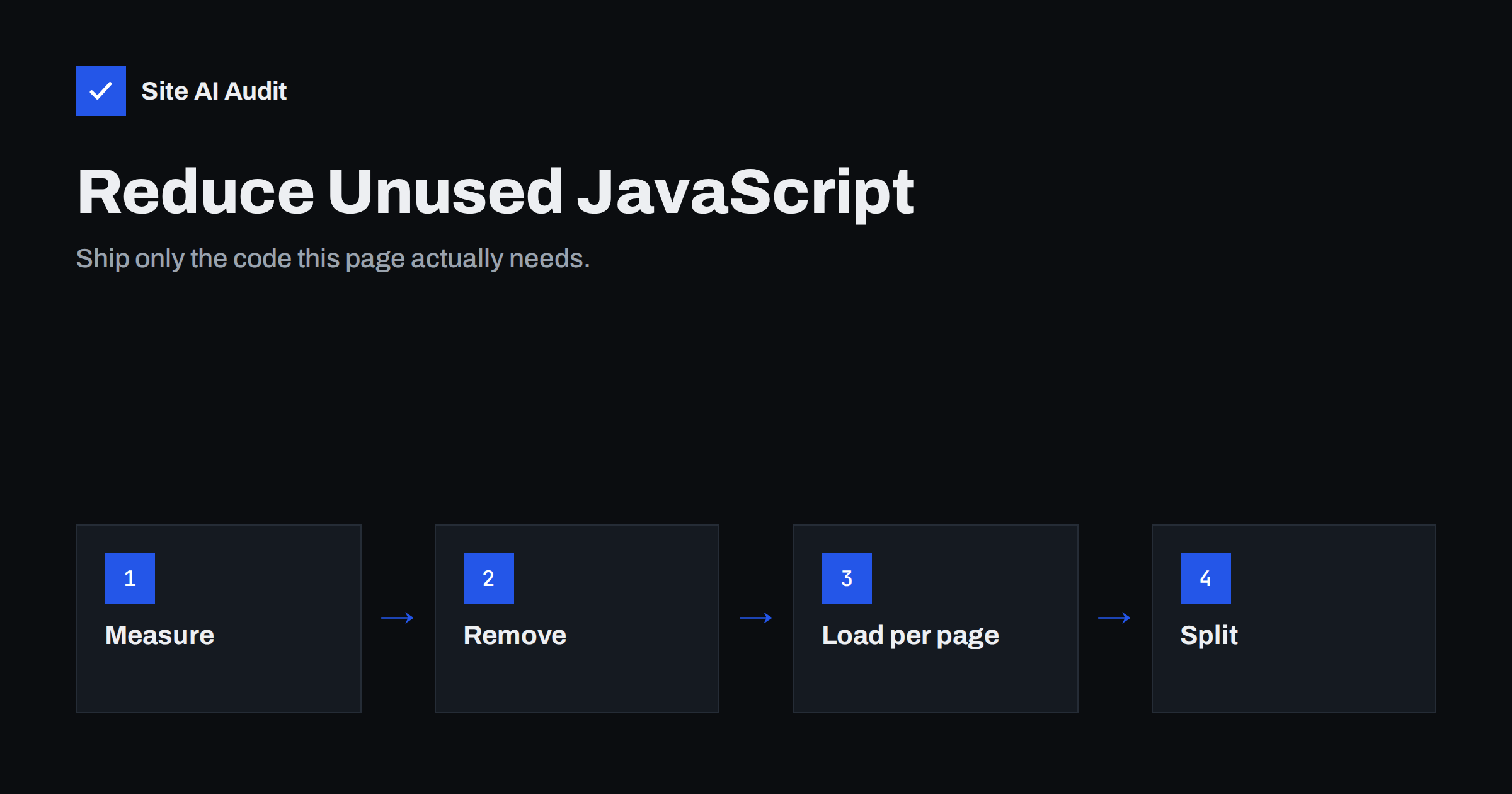
Short answer: Unused JavaScript is code that a page downloads but does not run during the visit. To reduce it, first measure it with the Coverage tab in Chrome DevTools or the “Reduce unused JavaScript” audit in PageSpeed Insights, then remove scripts nobody needs, load plugin and widget scripts only on pages that use them, delay non-essential third-party tools, and split large bundles so each page loads only its own code. Less JavaScript means faster loading and better responsiveness, especially on phones.
JavaScript is the most expensive kind of resource a page can load, byte for byte. An image only needs to be downloaded and decoded. A script has to be downloaded, parsed, compiled and executed, all on the browser’s main thread, which is also responsible for responding to taps and clicks. On a mid-range phone, the processing cost of a large bundle can easily exceed its download time. That is why speed tools single out unused JavaScript: it is pure cost with no benefit on the page where it loads.
Where unused JavaScript comes from
Hardly anyone writes unused code on purpose. It accumulates:
- Themes that bundle everything. Multipurpose themes include scripts for sliders, parallax effects, lightboxes, animations and mega menus, whether your site uses them or not.
- Page builders. Builders load the scripts for their widget library broadly, and some load them on every page.
- Plugins loading globally. A form, booking, gallery or map plugin loads its scripts site-wide, although the feature appears on one or two pages.
- Libraries included for one small feature. A large utility or animation library pulled in for a single effect.
- Third-party tags. Analytics, advertising pixels, heatmaps, A/B testing, chat and review widgets each bring their own code, often much more than the page needs.
- Old experiments. Tags from past campaigns and tools the company no longer uses, still firing on every page.
- Polyfills for old browsers that modern visitors do not need.
How to measure unused JavaScript
- PageSpeed Insights / Lighthouse. The “Reduce unused JavaScript” audit lists files with the most unused bytes and an estimated saving. It also shows whether a file belongs to your domain or a third party.
- Chrome DevTools Coverage tab. Open the Command Menu, choose “Show Coverage”, start recording and reload. Each file shows total bytes and unused bytes; red bars mark unused code. Interact with the page to see how much of the “unused” code is actually needed for menus or forms.
- Network panel filtered by JS. Sort by size to see the heaviest scripts and their origins. Group by domain to see how much comes from third parties.
- Performance panel. Record a load on a throttled CPU and look at “Scripting” time and long tasks, which shows the processing cost, not just the download.
Keep in mind that “unused during load” does not always mean useless. Code for a checkout button or a modal may run only after a click. Coverage is a guide for finding candidates, not a list of code to delete blindly.
Step 1: Remove what nobody needs
The most effective step is also the simplest: remove scripts that serve no current purpose.
- List every plugin, integration and tag, with an owner and a reason. If nobody can name the reason, it is a candidate for removal.
- Check the tag manager container for duplicate analytics, retired ad pixels and one-off campaign tags.
- Disable theme features you do not use, if the theme offers switches for animations, sliders or icon libraries.
- Replace plugins that add heavy scripts for a small feature with a lighter alternative or a few lines of CSS.
Step 2: Load scripts only where they are used
Many scripts are needed somewhere, just not everywhere.
- Conditional loading. Load the contact form script on the contact page, the map on the location page, the gallery script on gallery pages. In WordPress, this can be done in theme code or with asset-management plugins that let you disable scripts per page or post type.
- Shop scripts on shop pages. E-commerce plugins often load cart-related scripts on blog posts and informational pages where no cart interaction happens.
- Test after each change. Some scripts are used in unexpected places, such as a popup triggered site-wide or a form in the footer.
Step 3: Delay non-essential scripts
Some tools are needed on every page but not during the first seconds: chat widgets, feedback tools, some analytics and marketing scripts.
- Load them after the page has finished loading, after a short delay, or on the first user interaction.
- Use a facade for embedded tools: a static button or preview that loads the real widget only when clicked.
- Be careful with “delay all JavaScript” features. If everything waits for the first interaction, that first tap may trigger a large burst of work and feel slow. Exclude scripts that power menus and buttons.
- Respect consent requirements: marketing scripts that need consent should not load before it anyway, which also helps speed.
Step 4: Split and trim your own bundles
If your site uses a build process (common for custom themes, headless sites and web applications), the build can do a lot of the work:
- Code splitting. Break one large bundle into smaller chunks per page or per feature, loaded when needed with dynamic
import(). - Tree shaking. Modern bundlers remove unused exports from libraries when the code uses ES modules and imports only what it needs.
- Replace heavy libraries. Many features that once needed a large library are now available natively in browsers, such as selectors, fetch requests, date formatting and smooth scrolling.
- Serve modern code to modern browsers. Avoid shipping large polyfill bundles to browsers that do not need them.
- Analyse the bundle. Bundle analyser tools show which dependencies take up the most space, which often reveals surprises.
Unused JavaScript and Core Web Vitals
| Metric | How excess JavaScript affects it |
|---|---|
| Largest Contentful Paint | Blocking scripts delay rendering; downloads compete with the main image for bandwidth |
| Interaction to Next Paint | Parsing and executing code keeps the main thread busy, so taps wait |
| Cumulative Layout Shift | Scripts that inject content late can move the layout |
| Total Blocking Time (lab) | Long tasks from script execution add directly to it |
In practice, reducing JavaScript is the most reliable way to improve INP and Total Blocking Time, and it often helps LCP on mobile as well.
A simple JavaScript budget
Once you have cleaned up, the challenge is keeping it that way. Every new plugin, widget or marketing tool adds code, and nobody notices until the site feels slow again. A lightweight budget helps. Record the total JavaScript transferred and the Total Blocking Time for your home page and one typical content page today. Agree that any new tool must justify its cost, and check both numbers after each addition. Agencies can include the same numbers in monthly reports, so clients see the effect of the tools they ask for. The budget does not need to be strict; its value is that someone looks at the numbers before, not months after, a heavy script goes live.
What you usually cannot fix
Some unused JavaScript is out of your control. Payment providers, consent tools, and embedded services ship their own bundles, and you cannot trim them. What you can control is where and when they load. A payment script belongs on checkout, not on the home page. A video player belongs behind a click, not on page load. Speed tools will still list these files; judge them by whether the page needs them, not by the warning alone.
How Site AI Audit helps
Site AI Audit runs Google PageSpeed for mobile as part of every check and reports Core Web Vitals, page weight, compression and server response time. Heavy or unnecessary scripts show up in the speed findings through their effect on INP and page weight, with a plain-language explanation of what to change first. Paid plans include re-checks and weekly monitoring, so you notice when a new tag quietly slows the site down; see the plans.
Related reading
- How to Eliminate Render-Blocking Resources on Your Website
- Interaction to Next Paint (INP): How to Fix Slow Interactions
- How to Fix a Slow WordPress Site: A Step-by-Step Guide
The bottom line
Unused JavaScript is the most expensive kind of waste on a web page. Measure it, then remove what nobody needs, load the rest only on pages that use it, delay what can wait and split your own bundles. Test interactive features after every change and measure again on a slow phone profile, where the improvement is most visible.
DUK
What does “reduce unused JavaScript” mean?
It means the page downloads JavaScript that is not executed during loading. That code costs download and processing time without contributing to the page. The recommendation is to remove it, load it only where needed or delay it.
Is all unused JavaScript safe to remove?
No. Some code only runs after user actions, such as opening a menu or submitting a form, so it appears unused during load. Use the Coverage report as a list of candidates and test interactions before removing anything.
How much JavaScript is too much?
There is no single limit, but many sites load far more than they need. Watch the effect rather than the number: high Total Blocking Time, poor INP or long scripting time on a throttled phone profile indicate too much JavaScript for that page.
Can I reduce unused JavaScript from Google Analytics or other third parties?
You cannot change their code, but you can decide whether you need each tool, remove duplicates, and control where and when it loads. Removing one unnecessary third-party tag often saves more than any optimisation of your own code.
Do WordPress plugins cause unused JavaScript?
Often, because many plugins load their scripts on every page regardless of whether the feature is used there. Asset-management tools or small code changes can restrict them to relevant pages. Choosing plugins that load assets conditionally also helps.


