ENEnglish
 LTLietuviškai
 DEDeutsch
 FRFrançais
 RUРусский
 ESEspañol
 PLPolski
 ITItaliano
 UKУкраїнська
 CSČeština
 PTPortuguês
 JA日本語
 LVLatviešu valoda
 ETEesti
 HUMagyar
 IDBahasa Indonesia
 TRTürkçe
 HIहिन्दी
 ELΕλληνικά
 ARالعربية
 THไทย
 VITiếng Việt
 RORomână
 MSBahasa Melayu
 BNবাংলা
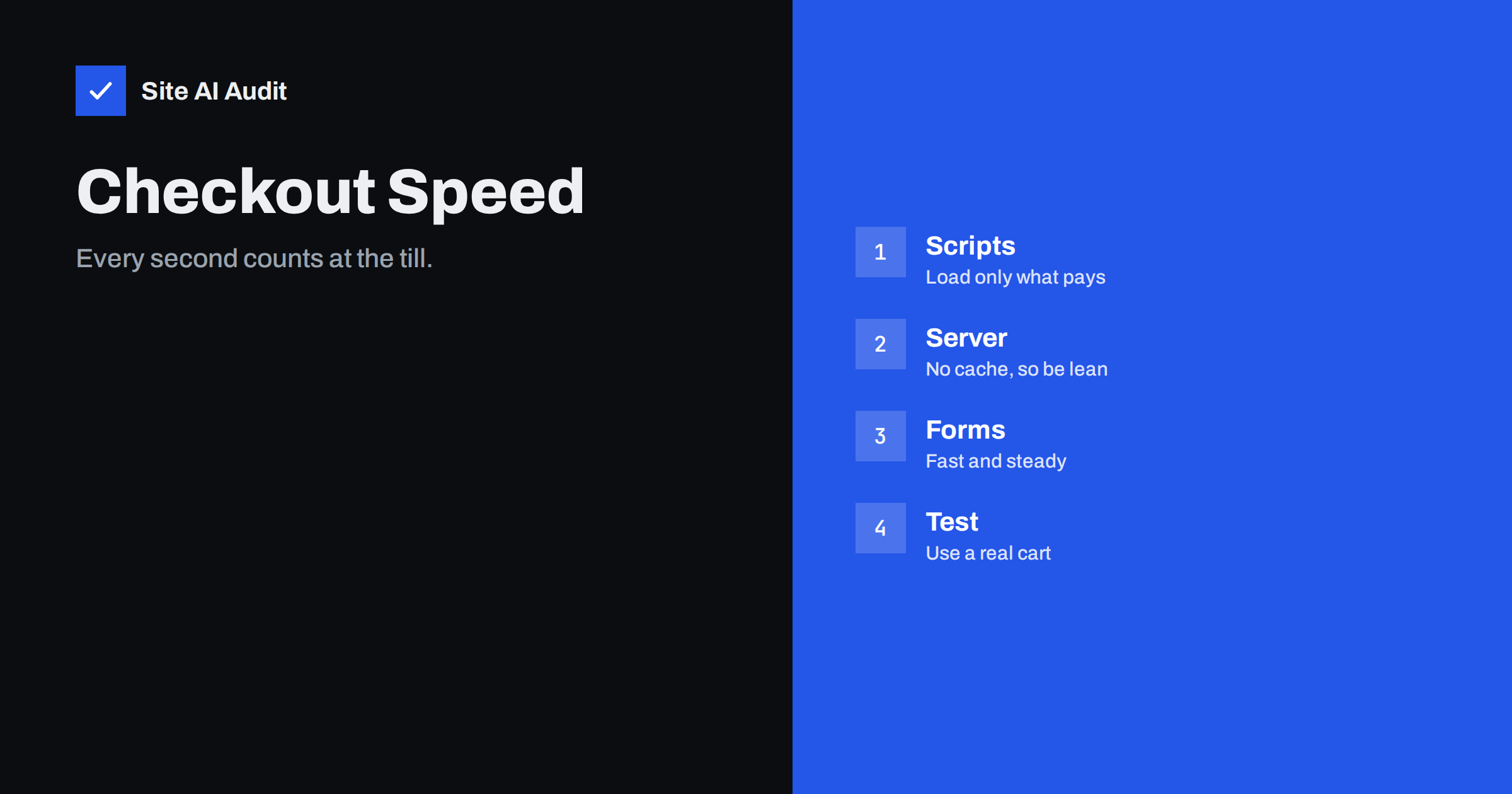
Short answer: The checkout is the page where speed matters most and is hardest to achieve, because it cannot be fully cached and must run payment, tax and shipping logic. Keep it lean: load only the scripts that the payment needs, remove chat, pop-ups and extra tracking, reduce server work, make forms respond at once and test with a real cart on a real phone.
Why checkout speed matters
A visitor who reaches the checkout has already decided to buy. Delays now cost more than anywhere else, because the buyer is close to paying and is easily distracted or worried. A page that freezes after a tap, jumps while the buyer types, or shows a spinner for several seconds creates doubt about whether the payment is safe. Studies from various retailers connect slower pages with lower conversion, though the size of the effect varies by shop and should be measured on yours. The overview in how website speed affects sales explains the general link.
The checkout also differs from the rest of the shop. It is personal, with a cart and a session, so it is excluded from page caching. Each load runs code on your server. It includes third-party payment forms, fraud checks and address tools, and it needs to feel instant on a phone. That is why it is slow so often.
What makes a checkout heavy
- Payment scripts. Each payment method, such as cards, wallets and bank buttons, loads its own code and sometimes a hidden frame.
- Tracking and advertising tags. Pixels, tag managers and analytics add scripts and requests. See marketing pixels and page speed and Google Tag Manager and page speed.
- Chat widgets and pop-ups. Helpful on product pages, but distracting and heavy in the checkout. See live chat widgets and pop-ups and modals.
- Cookie banners. Often they load late and shift the page. See cookie banners and speed.
- Address autocomplete and validation services. They call outside servers while the buyer types.
- Cart and session requests. Repeated background requests that refresh the cart. In WooCommerce this includes the issue described in cart fragments.
- Heavy themes and plugins. Scripts for sliders, animations and extra widgets that load on every page, including the checkout. See loading assets only where needed.
- Slow server calls. Shipping rates, tax lookup and stock checks that depend on external services. See slow external API calls.
Step 1: Remove everything that does not help buyers pay
Start by listing every script, style and frame that loads on the checkout. Browser developer tools show them in the network panel. For each one, ask whether a buyer needs it at this moment.
- Remove chat, pop-ups, newsletter forms, review widgets, sliders and social buttons from the checkout and cart pages.
- Keep only the analytics and conversion events that you really use, and fire them after the page is usable.
- Limit payment methods to those that your customers use. Every extra method adds code.
- Use rules in your theme or a plugin to stop scripts from loading outside the pages where they are needed.
The risk of skipping this step is also a security one. Every extra script on a payment page is code that could be tampered with, as the article on card skimming on checkout pages explains. Fewer scripts means a smaller target.
Step 2: Make the server fast without caching the page
Because the checkout page cannot be cached for everyone, the server must do the work quickly each time.
- Measure server response time on the checkout for a logged-out buyer with items in the cart. See reducing server response time.
- Use object caching for repeated database lookups, so that the page does not repeat them. See object caching with Redis.
- Keep PHP up to date and enable the code cache. See PHP OPcache.
- Have enough workers. During a sale, all buyers ask for uncached pages at once, so the worker pool can fill up. Read about PHP workers.
- Tidy the database. Old sessions, orders data and options slow queries. Check autoloaded options.
- Cache what can be cached. Static files, images and fonts should come from a CDN with long lifetimes, even if the page itself is dynamic.
- Cache external lookups, where the rules allow it, such as shipping zones and tax tables that rarely change.
Step 3: Prepare the connections to payment services
The payment form usually comes from another domain, and the browser has to find that domain, connect to it and download its code. Tell the browser early. A hint that opens the connection while the page is still loading can save a noticeable amount of time. Use it only for the few domains that every buyer needs. The guide to preload, preconnect and prefetch explains the right use. Do not overuse hints, because each one competes for the same limited bandwidth.
Check also that the payment code loads without blocking the rest of the page, in line with defer and async loading. The buyer should see the order summary and the form fields before the payment frame is complete.
Step 4: Make the form quick and steady
- Respond to taps at once. Heavy scripts make buttons feel dead. The metric that measures this is explained in the guide to Interaction to Next Paint.
- Avoid layout jumps. Error messages, address suggestions and loading frames that push fields down cause mistaken taps. See fixing layout shift, and reserve space for payment frames.
- Reduce the fields. Ask only what you need. Fewer fields also speed up completion, and they shorten the time that scripts have to run.
- Offer guest checkout and saved details, so that buyers can finish with little typing.
- Use the right keyboards. Number keypads for phone and card fields, and autofill attributes, make mobile entry faster.
- Update the totals with small requests. A change of shipping method should not reload the whole page.
Step 5: Test the real buying path
Testing the home page tells you little about the checkout. Test the path a buyer takes.
- Add a product to the cart in a clean browser session, and go through the checkout up to the payment step. Use a test mode of the payment service, and not real money.
- Measure with developer tools, on a throttled mobile profile. See testing on slow connections and real phones.
- Test logged-in and guest buyers. The methods in speed testing dynamic pages apply.
- Record the results. Note the time until the form is usable, the number of requests, the page weight and any layout jumps.
- Change one thing at a time and measure again.
- Collect real user data. Field measurements show how buyers on real phones experience the page, as described in real user monitoring and synthetic tests.
Run the whole test again after each plugin update, theme change or new payment method. The checkout is where a small change can quietly add seconds.
Do not break the payment
Speed work on a checkout carries real risk. A script removed in error can stop payments or tracking, and a hint that conflicts with the payment provider’s code can cause failures. Work on a staging copy, keep a rollback plan and place a test order after every change. Monitor orders and error rates for a few days afterward, and pay attention to differences between payment methods and devices. If completed orders fall after a change, undo it first and investigate later.
How Site AI Audit helps
Site AI Audit does not log in, fill a cart or go through a payment, so it cannot test your real checkout path. It does measure the pages that lead to it: the Google PageSpeed score, Core Web Vitals, server response time, compression and page weight, along with security headers and the SSL certificate that buyers expect to be correct. Slow product and cart pages often share causes with the checkout. The free check covers up to 50 pages and needs no sign-up. You can run a free check of your website or see the plans for weekly monitoring and alerts.
Related reading
- How to Speed Up a Slow WooCommerce Store Without Breaking It
- How Third-Party Scripts Slow Down Your Website (and Fixes)
- Card Skimming on Checkout Pages: How to Protect Your Shop
- How Website Speed Affects Sales, Leads and Conversions
The bottom line
A fast checkout comes from removing weight, keeping the server quick for uncached pages and making the form respond at once. Remove every script that does not help buyers pay, prepare the payment connections, keep the layout steady and test with a real cart on a real phone. Change one thing at a time, and watch orders after each change.
DUK
Why can’t I cache the checkout page?
It shows a personal cart and uses a session, so a cached copy could show one buyer’s data to another. Only static files and shared parts can be cached.
Should I remove tracking from the checkout?
Keep the events that you need for sales reporting and remove the rest. Load them after the page is usable and make sure that consent settings are respected.
Does a faster checkout increase sales?
Often, but the effect differs by shop. Measure conversion before and after your changes to see the result for your own customers.
Are payment provider scripts slow?
They add weight, but they are necessary and usually well optimised. Load them in the recommended way, and avoid adding payment methods that few buyers use.
How do I test without real payments?
Use the test mode that your payment provider offers, with test cards, on a staging copy of the shop when possible.