ENEnglish
 LTLietuviškai
 DEDeutsch
 FRFrançais
 RUРусский
 ESEspañol
 PLPolski
 ITItaliano
 UKУкраїнська
 CSČeština
 PTPortuguês
 JA日本語
JA日本語 LVLatviešu valoda
 ETEesti
 HUMagyar
 IDBahasa Indonesia
 TRTürkçe
 HIहिन्दी
 ELΕλληνικά
 ARالعربية
 THไทย
THไทย VITiếng Việt
 RORomână
 MSBahasa Melayu
 BNবাংলা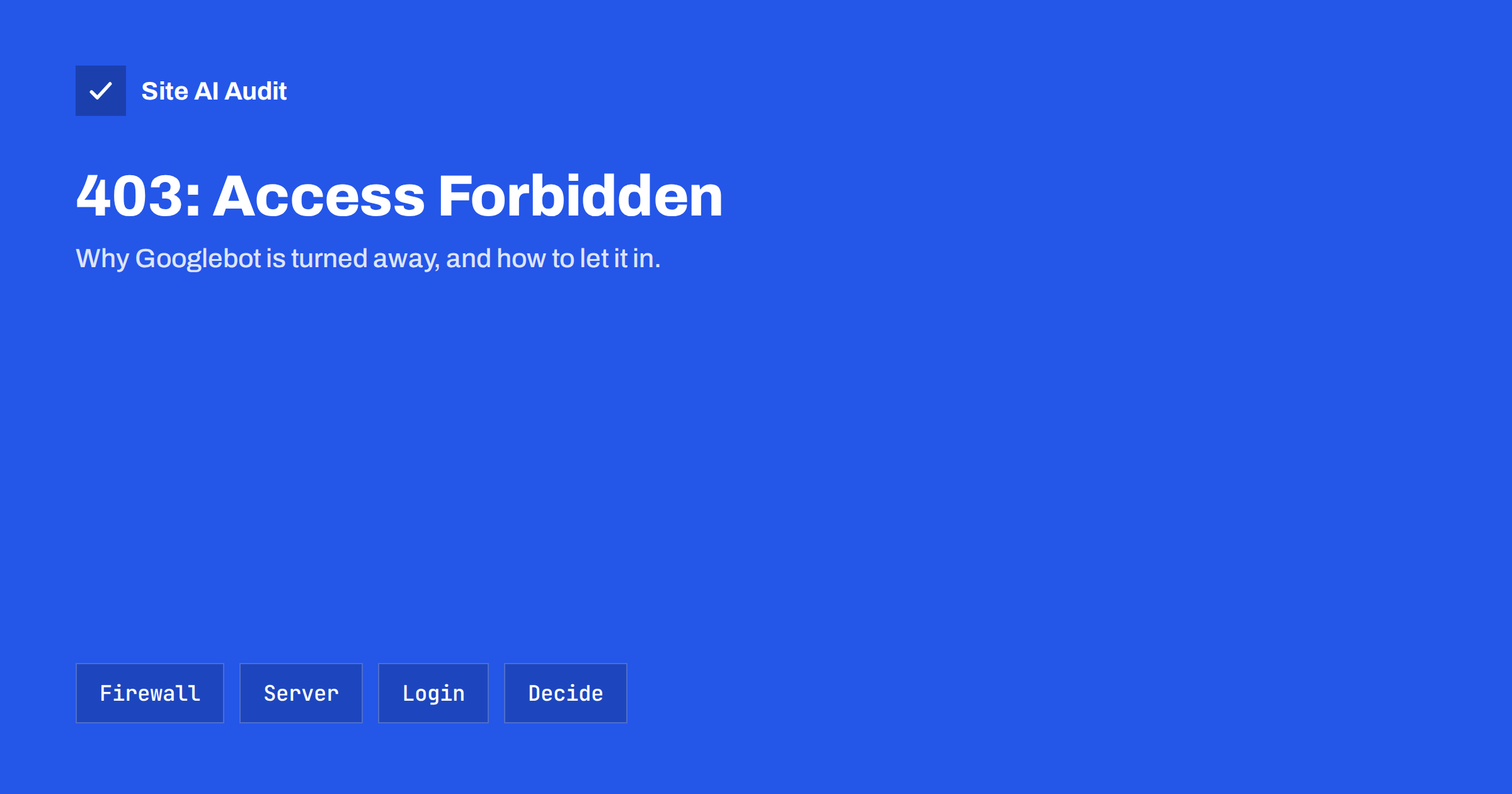
Short answer: “Blocked due to access forbidden (403)” in the Search Console Pages report means Googlebot requested a URL and your server answered with HTTP 403 Forbidden, so Google cannot index it. That is correct for private areas such as admin and account pages. If the affected pages should appear in search, something is blocking Googlebot: usually a firewall, CDN bot protection, security plugin, country block, server rule or wrong file permissions. Find which layer returns the 403, allow verified search engine crawlers, and validate the fix in Search Console.
What the 403 status means
HTTP status 403 means “the server understood the request but refuses to fulfil it”. Unlike 401, it does not ask for a login; it simply says no. Googlebot does not log in and cannot pass challenges meant for people, so whenever a URL returns 403 to Googlebot, Google treats the page as not available and does not index it. Pages that were indexed before drop out after repeated 403 responses.
The status sits next to related reasons in the same report:
- Blocked due to unauthorized request (401): the server asked for authentication, typically a password-protected area.
- Blocked due to other 4xx issue: another client error, such as 410 or 451.
- Server error (5xx): the server failed. Our guide to 5xx errors in Search Console covers that case.
For a quick overview of what each code means for search, see HTTP status codes and SEO.
First decide: should these pages be indexed?
Open the report, click the reason and look at the example URLs. Sort them into two groups.
Pages that should stay private. Admin areas, account and order pages, internal tools, staging copies and files behind a login. A 403 is a perfectly good answer here, and the report entry is simply information. If many such URLs appear, find out how Google discovered them: internal links, a sitemap, or links in emails and documents. Remove them from your sitemap and stop linking to them publicly.
Pages that should be in search. Product, service, category, article and landing pages, and the images and files they need. If any of these return 403 to Googlebot, you are losing search visibility and must fix it.
A quick test separates the cases: open the URL in a private browser window. If you, as an anonymous visitor, see the page, but Google gets a 403, then something treats Googlebot differently from people.
Common causes of 403 for Googlebot
- Firewall and CDN bot protection. Rules that block or challenge “bots”, unusual user agents or high request rates can hit Googlebot. Challenge pages often return 403. Our article on bad bots and aggressive crawlers explains how to control bots without blocking search engines.
- Security plugins and web application firewalls. A rule triggered by a URL parameter, a long query string or a request pattern returns 403. See web application firewalls explained.
- Country or IP blocks. Googlebot crawls mostly from IP addresses in the United States. Blocking that country, or blocking large cloud and data-centre networks, also blocks Google.
- Server rules. A
Deny from allorRequire all deniedline in Apache configuration or .htaccess, or adenyrule in Nginx, left over from maintenance or copied from a guide. - File and folder permissions. If the web server cannot read a file or enter a folder, it returns 403. This often follows a migration or a restore from backup. See file permissions for web servers.
- Folders without an index file. When directory listing is disabled, as it should be, a request for a folder without an index page returns 403. That is correct behaviour; just make sure you do not link to such folders. See disabling directory listing.
- Hotlink protection that is too strict, blocking image requests that do not carry your own domain as referrer, including requests from Google’s image crawler.
How to find which layer returns the 403
- Run a live test in URL Inspection. Paste an affected URL and click “Test live URL”. If the live test now succeeds, the block may have been temporary, such as a rate limit during a busy period. If it fails with 403, the problem is current.
- Look at the response headers. In “View tested page”, check the HTTP response. Headers often reveal who answered: a CDN or firewall usually adds its own headers and a branded error page, while a plain server error page points to the origin.
- Check firewall and security logs. Search for blocked requests to the URL with a Googlebot user agent. The log shows the rule that matched.
- Check server logs. If the origin server logged the request with status 403, the block is in the server configuration, the application or the file permissions. If the request never reached the origin, the block is in front of it.
- Verify the crawler. Requests that claim to be Googlebot are not always genuine. Confirm with a reverse DNS lookup that the IP belongs to Google, followed by a forward lookup that returns the same IP. Blocking fake Googlebots is fine; blocking the real one is not.
How to fix it
- Allow verified search engine crawlers in your firewall, CDN or security plugin. Most offer a setting or a ready-made rule for known good bots. Do not allow every request with “Googlebot” in the user agent, because anyone can fake it.
- Narrow overly broad rules. Apply challenges and strict rate limits to sensitive paths such as login, checkout and search, not to every public page.
- Review country blocks. If you must block countries, make an exception for verified search engine crawlers.
- Fix permissions. Files typically need to be readable by the web server and folders accessible, without making anything writable for everyone.
- Remove leftover deny rules from server configuration and .htaccess after maintenance.
- Clean up discovery. For private pages that correctly return 403, remove them from sitemaps and public links so they stop appearing in the report.
After the fix, run the live test again, then click “Validate fix” in the report. Google recrawls the affected URLs over the following days and updates the status as it goes.
When a 403 is the right answer
Not every entry needs action. A 403 is appropriate for admin areas, private files, internal tools and staging environments. In those cases, keep the block and do not try to make Google index the pages. If a staging site leaked into search, our guide to staging sites indexed by Google explains how to clean up.
Also note what 403 is not: it is not a way to remove a public page from search while keeping it available to visitors. For that, use a noindex tag; for removing content completely, return 404 or 410. Using 403 to hide pages from Google while showing them to people is unreliable and confusing to maintain.
Prevent it from coming back
- After any change to firewall, CDN, hosting or security plugins, test a few key URLs with URL Inspection’s live test.
- Watch the Pages report weekly for new 403 entries on important templates.
- Keep a short note of which bot rules exist and why, so nobody tightens them without considering search engines.
- Include the check in migrations, alongside the steps in our site migration SEO checklist.
Hosting and CDN settings to review
Most 403 problems for search engines start with a security setting that was switched on with good intentions. These are the settings worth reviewing first:
- “Bot fight” or “under attack” modes in CDNs, which challenge all automated clients. Use them during an actual attack and switch them off afterwards, or limit them to sensitive paths.
- Managed rule sets in web application firewalls that block requests with unusual parameters. If a rule hits normal public URLs, add an exception for that rule and path instead of disabling protection entirely.
- Rate limits that are tight enough to stop Googlebot during a busy crawl. Googlebot slows down when your server responds slowly or with errors, so moderate limits on public pages are rarely needed for it.
- Login walls on whole sites, such as maintenance plugins or password protection left from development.
How Site AI Audit helps
Site AI Audit crawls your site from outside as SiteAuditBot, following robots.txt at about three requests per second. It reports broken internal links, pages that did not respond, pages hidden with noindex, a robots.txt that blocks the whole site, missing sitemaps and missing pages that return “200 OK” instead of 404. If your firewall blocks its crawler too, that shows up in the report as pages it could not reach, which is a useful hint to check how search engine crawlers are treated. You can run a free check; the pricing page lists plans with re-checks.
Related reading
- Why Is My Page Not on Google? A Step-by-Step Checklist
- Page With Redirect in Search Console: When to Worry and Fix It
- Robots.txt vs Noindex: Which One Should You Use?
The bottom line
A 403 in Search Console means Google was refused access. For private pages that is fine; for pages you want in search, find the layer that returns the 403, usually a firewall, security rule, country block or permission problem, allow verified crawlers, and validate the fix. Test key URLs after every security or hosting change.
DUK
Will a 403 error remove my page from Google?
Yes, if it persists. Google cannot index content it is not allowed to fetch, so pages that keep returning 403 to Googlebot drop out of the index.
Why can I see the page when Google gets a 403?
Because something treats Googlebot differently from you, usually bot protection, a firewall rule, a country or network block, or a security plugin. Check the logs to see which rule matched.
Should I allow all requests that say they are Googlebot?
No. The user agent is easy to fake. Allow verified crawlers, confirmed by reverse and forward DNS lookups or by your CDN’s verified bot feature.
Is a 403 status bad for my admin pages?
No. A 403 for admin, account and private areas is correct. Just remove those URLs from sitemaps and public links so Google stops trying them.
How long does it take for fixed pages to return to the index?
After you fix the block and start validation, Google recrawls the affected URLs over days to a few weeks, depending on how often it normally crawls your site.