ENEnglish
 LTLietuviškai
 DEDeutsch
 FRFrançais
 RUРусский
 ESEspañol
 PLPolski
 ITItaliano
 UKУкраїнська
 CSČeština
 PTPortuguês
 JA日本語
JA日本語 LVLatviešu valoda
 ETEesti
 HUMagyar
 IDBahasa Indonesia
 TRTürkçe
 HIहिन्दी
 ELΕλληνικά
 ARالعربية
 THไทย
THไทย VITiếng Việt
 RORomână
 MSBahasa Melayu
 BNবাংলা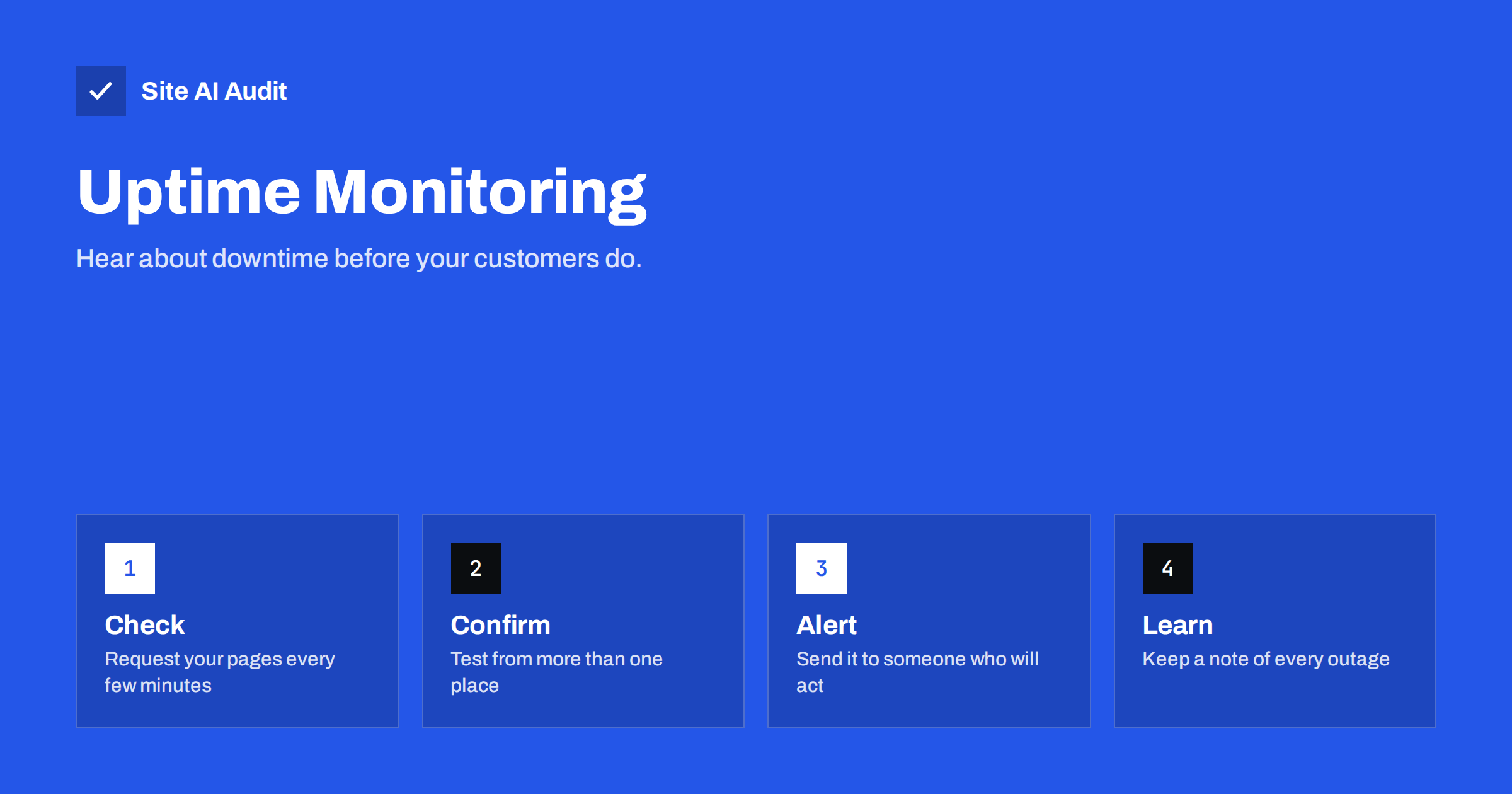
Short answer: Uptime monitoring means that a service requests your website at regular intervals from outside and alerts you when the answer is wrong or missing. It lets you learn about an outage within minutes, not from an angry customer hours later. A good setup checks your key pages, not only the home page, confirms a failure from more than one location, and sends alerts to a person who can act.
What uptime really measures
Uptime is the share of time that your website works for visitors, usually written as a percentage over a month or a year. It sounds precise, but the number depends heavily on what counts as “working”. A server that answers with an error page is up in a technical sense but useless to the visitor. A page that loads in thirty seconds is technically available and practically lost.
The percentages are worth translating into time, because they look closer than they are. In a 30-day month, 99 percent uptime allows roughly seven hours of downtime. 99.9 percent allows about 43 minutes, and 99.99 percent allows about four minutes. When a hosting company advertises a figure, check what it covers, how it is measured and what you receive if it is missed.
Why you need to monitor from the outside
Your own checks are not enough. When you open the site on your laptop, you may be served from a cache, logged in as an administrator or connected over a route that works while others fail. The hosting panel may show the server as running when the site is broken by a bad update, a database error or an expired certificate.
An outside monitor behaves like a visitor. It requests the page from the public internet, follows redirects, and checks the response. That makes it a good way to detect problems that you would never find from inside, such as a DNS fault that affects only some regions or a firewall rule that blocks visitors but not you.
What a good monitor checks
Think of the monitor as a very patient visitor who repeats the same few tasks all day. The more closely those tasks resemble what your real customers do, the more useful the alerts become.
The simplest check asks for a page and looks at the HTTP status code. A response in the 200 range means the server answered normally. Codes in the 500 range mean the server failed, and 404 means the page is gone. The article on 5xx server errors explains what the common ones indicate. A better monitor also checks more than the status:
- A keyword on the page. The monitor looks for a phrase that must appear, such as your business name. This catches pages that return a 200 status with an error message or a blank template.
- More than the home page. Monitor a contact page, a product page or a booking page, and a form or checkout step if you depend on it.
- The SSL certificate. An expired certificate makes browsers block visitors. See SSL certificate monitoring and how to fix an expired certificate.
- Response time. A page that responds slowly is a warning before it becomes an outage. The topic of speed trends is covered in website speed monitoring.
- The domain and DNS. A lapsed domain registration or a broken DNS record takes down the site and the e-mail together, as described in domain name expiry.
How often to check
The interval decides how long an outage can pass before you know. A check every five minutes can detect a failure within five to ten minutes, while a check every hour can leave an outage unnoticed for most of that hour. For a shop, a booking site or any business that earns money from the site, a few minutes is a sensible interval. For a small brochure site, ten or fifteen minutes is often enough.
More frequent checks are not always better. Very short intervals create more false alarms and more data to read, and they add small but real load on a weak server. Choose the interval that matches how much an hour of downtime would cost you.
Avoiding false alarms
An alert that is wrong half the time soon gets ignored, so noise is a bigger risk than it seems. Several habits keep the signal clear.
- Confirm from two places. A failure seen from only one location may be a problem on the network between that location and you. Good services re-test from another place before sending an alert.
- Require two failures in a row. A single timeout can be a hiccup. Two or three failed checks in a row are a real signal.
- Set sensible timeouts. If the limit is too short, a slow but working page counts as down.
- Do not block the monitor. Security tools sometimes treat repeated requests as an attack. If you use a firewall or bot protection, allow the monitoring service, as discussed in DDoS protection for small websites.
- Plan for maintenance. When you update the site on purpose, pause alerts or put the site into a proper maintenance state. Our article on maintenance mode and 503 responses explains the right status code to send.
Who should receive the alert
Alerts that go to one overloaded inbox are the most common reason an outage lasts longer than it should.
An alert is only useful if a person sees it and acts. E-mail alone is easy to miss at night or at a weekend. Consider a second channel, such as a text message or a chat notification, and always name a backup person. Write down in a few lines who does what: who confirms the problem, who contacts the host and who tells customers if the outage is long.
For a business with no technical staff, the plan can be as simple as a phone number of the hosting support and a developer who has agreed to respond. The important point is that this is decided before the outage, not during it.
What to do when the alert arrives
Resist the urge to change things at random. A short checklist saves time:
- Confirm that the site is really down by loading it from a phone on mobile data.
- Check your hosting status page and the control panel for known incidents or resource limits. A message such as the one described in the 508 resource limit error points to the cause.
- Look at what changed recently: an update, a new plugin, a DNS change or a certificate renewal.
- Check for a traffic spike or an attack, using the notes in why a website is slow during traffic spikes.
- Roll back the last change if it is the likely cause, and contact the host if the server is at fault.
- When the site is back, note the time, the cause and the fix.
Learning from outages
Over a few months the log also becomes a useful argument. If the same host has had four outages of an hour each in a quarter, you have facts to bring to the discussion, not only a feeling. It can justify a move to a better plan, a different host or a stronger caching setup. It also shows the opposite: if the site has been stable for a year, you can stop worrying and spend the effort elsewhere.
Every outage is information. A log of dates, durations and causes shows patterns, such as a failure every time a backup runs or a slowdown at the same hour each week. Share the log with your host when you discuss a plan upgrade, and use it to judge whether the hosting is good enough. The habits in logging and monitoring for small sites help you keep the evidence you need.
How Site AI Audit helps
Site AI Audit is not a minute-by-minute uptime monitor, and it does not replace one. It checks the health of a website in a scheduled run: SSL certificate and expiry, the HTTP to HTTPS redirect, security headers, server response time, broken links and e-mail authentication records. The Monitor plan repeats the check every week and sends e-mail alerts when something breaks, for example an expiring certificate or a broken page, and the Business plan adds daily SSL and e-mail checks. The free check needs no sign-up. You can run a free check of your website or see the plans.
Related reading
- Website Speed Checklist: 30 Checks Before and After Launch
- Website Security for Small Businesses: Where to Start
- Website Backup Strategy: How to Back Up So You Can Restore
- Shared Hosting vs VPS: Which Is Faster for Your Website?
The bottom line
Do not let customers be your monitoring system. Check your key pages from outside every few minutes, confirm failures before alerting, send alerts to people who can act and write down what you learn from each outage. A simple setup with a clear plan is worth far more than an advanced tool that nobody reads.
GYIK
Is free uptime monitoring good enough for a small site?
Often yes. Free tools usually check less often and offer fewer alert options, but they still catch most outages. Upgrade when downtime becomes expensive.
What uptime percentage should I expect from hosting?
Many hosts advertise 99.9 percent, which allows about 43 minutes of downtime per month. Check how the figure is measured and what compensation applies.
Should I monitor only the home page?
No. A home page can work while the contact form, checkout or login is broken. Add a few pages that matter to your business.
Can monitoring slow my site down?
The effect is tiny. A request every few minutes is far less than ordinary visitor traffic, unless the server is already near its limits.
What is the difference between uptime and speed monitoring?
Uptime checks whether the site responds correctly at all. Speed monitoring tracks how fast it responds. Both matter, because a very slow site feels like a broken one.