ENEnglish
 LTLietuviškai
 DEDeutsch
 FRFrançais
 RUРусский
 ESEspañol
 PLPolski
 ITItaliano
 UKУкраїнська
 CSČeština
 PTPortuguês
 JA日本語
 LVLatviešu valoda
 ETEesti
 HUMagyar
 IDBahasa Indonesia
 TRTürkçe
 HIहिन्दी
 ELΕλληνικά
 ARالعربية
 THไทย
 VITiếng Việt
 RORomână
 MSBahasa Melayu
 BNবাংলা
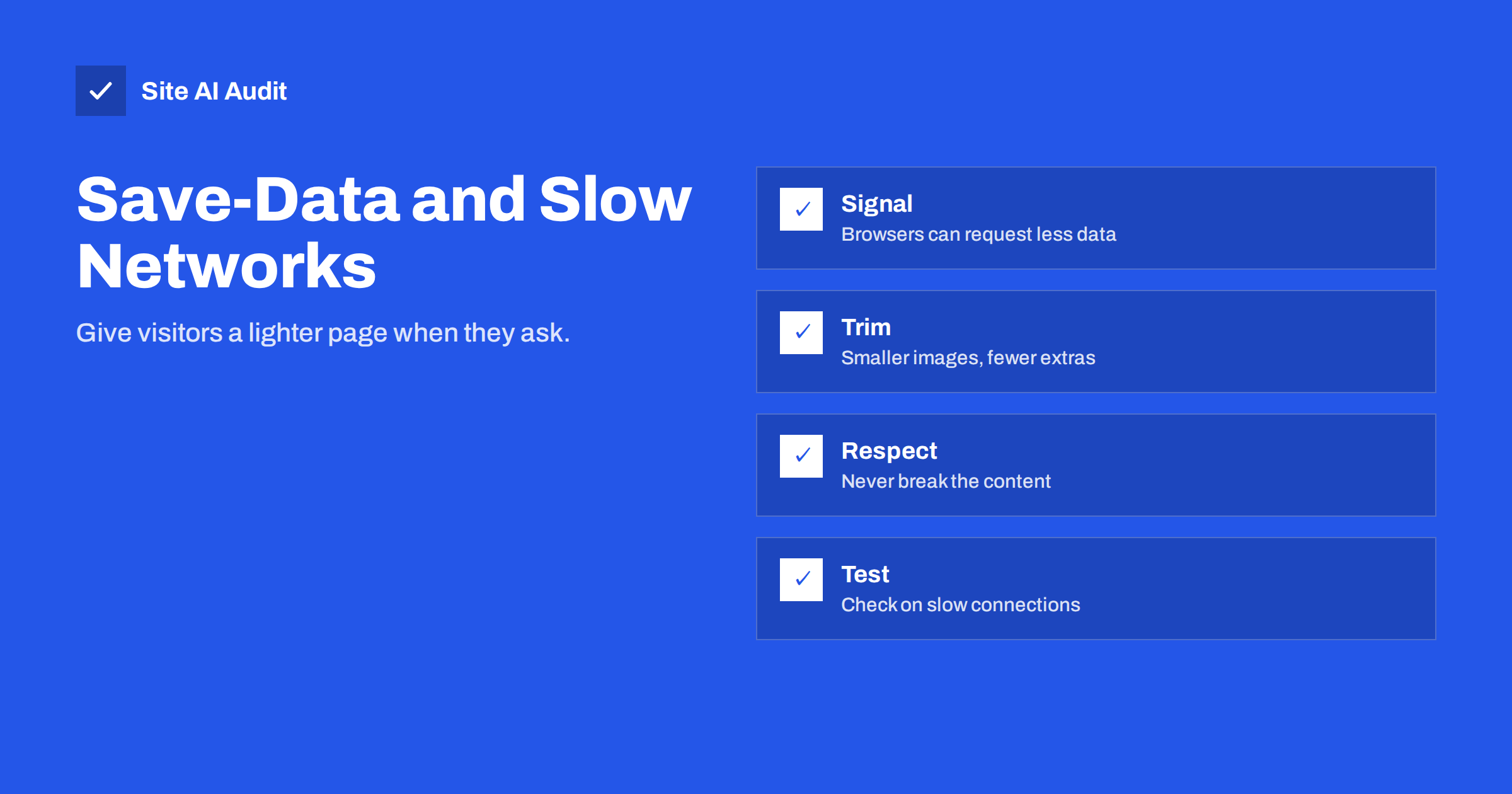
Short answer: Save-Data is a request header that some browsers send when the visitor has turned on a data-saving mode. It tells your server that the person would like a lighter version of the page. You can respond by serving smaller images, skipping autoplay video and delaying optional scripts, while keeping all the content. It is a helpful extra for people on slow or expensive connections, and it should never replace good basic performance.
What the Save-Data signal is
Many people browse on mobile connections that are slow, unreliable or limited by a monthly allowance. To help them, some browsers offer a data-saving mode. When it is on, the browser can add a small header to its requests, called Save-Data, with the value on. The browser can also expose the same setting to scripts on the page, so that code can react to it.
The signal is a preference, not an order. It says that the visitor would rather receive fewer bytes. What you do with that information is up to you. Support is not universal, and it varies between browsers and versions, so you should treat it as a bonus for those who send it, not as something that every visitor will use.
Who benefits
- Visitors with limited data plans. Every megabyte saved is money saved.
- Visitors on slow networks. In many places, the connection is weak for much of the day, and lighter pages load faster there.
- Travellers and roaming users. Data abroad is often costly or limited.
- People with older phones. Fewer and smaller files also mean less work for the device.
If your visitors come from a wide range of countries and devices, a lighter option can make the difference between a page that opens and one that is abandoned. Test your own pages, as the guide to testing speed on slow connections and phones explains, before assuming that your audience has fast networks.
What you can trim safely
The rule is simple: change the weight, not the meaning. Visitors should still be able to read, buy and contact you.
- Image quality and size. Serve a smaller or more compressed version, or skip decorative images altogether. See the guides to image optimization and to responsive images.
- Autoplay and background video. Replace them with a still image and let visitors choose to play. The article on background video and hero speed shows how heavy they can be.
- Web fonts. Fall back to system fonts, or load fewer weights. See web font loading.
- Optional scripts. Delay or skip chat widgets, social buttons, heat maps and similar extras, as discussed in third-party scripts and performance.
- Prefetching. Do not load pages in advance for visitors who want to save data. The advice on preload, preconnect and prefetch applies.
- Large embeds. Show a placeholder for maps and videos, and load the real thing when tapped.
What not to trim
- Text, prices, instructions and anything that carries meaning.
- Images that are the content, such as product photos, charts and diagrams. Use a smaller version, but do not remove them.
- Accessibility features, such as alt text and focus styles.
- Legal notices and consent controls.
- Forms and checkout steps. A lighter page must still work.
How to respond on the server
When the header arrives, your server or CDN can choose a lighter variant of a response. The usual approach is to look for the header and change what the page includes. For example, a template could use a smaller image size or leave out a video. There is one important rule: if the response differs depending on the header, tell caches about it. Add a Vary header that includes Save-Data, or make the cache key aware of it. Without this, a lighter page could be stored and served to everyone, or a heavy page to those who asked for less. The guide to caching HTML at the CDN edge explains why caches need to know about variations, and browser caching and Cache-Control covers the headers involved.
Be careful that each variation reduces your cache hit rate. If only a small share of visitors send the header, it may still be worth it, but measure the effect.
How to respond in the browser
Scripts can read the setting from the network information interface, where the browser supports it, and adjust behaviour on the page. A script might decide not to load a heavy carousel, or to choose a smaller image. Keep such code small, because it adds weight of its own. Use feature detection, so that nothing breaks in browsers without support. A related media feature, called prefers-reduced-data, was proposed for stylesheets, but support has been limited, so do not rely on it. Where it is available, it can switch off large background images or fonts for visitors who asked for less data.
Start with the basics instead
Before building special modes, make the default page light. A page that is already lean works well for everyone, and it avoids the extra code, the extra cache variations and the extra testing that Save-Data brings. The most valuable steps are usually the same ones that help all visitors:
- Compress and resize images, and use modern formats, as in WebP, AVIF and JPEG compared.
- Turn on compression for text files, as explained in Gzip and Brotli.
- Remove scripts and styles that the page does not use, and keep an eye on the total weight, as in how to reduce page weight.
- Use lazy loading for images below the fold.
- Set a budget, as described in performance budgets.
Only when the base is healthy does it make sense to add a data-saving variant for the visitors who request it.
Test it properly
- Use the developer tools to add the header, or to throttle the network to a slow profile, and compare the page weight with and without the header.
- Check that the lighter page still shows all of the essential content and that no layout breaks.
- Test through your CDN, not only the origin, to verify the cache behaviour.
- Check on a real phone with data saver turned on, in a place with a poor signal.
- Look at real-user data afterwards to see whether it helped the visitors who use the mode.
A short word on measuring success. Compare the weight and the load time of a few key pages with and without the header, and keep a record. If the saving is small, such as a few percent, the effort may be better spent on the standard page. If it is large, for example because a hero video or large slider disappears, it is a strong sign that the standard page should be lighter too, and you can apply some of those changes to everyone. Many teams discover that the Save-Data variant is simply a preview of the page that all visitors would have preferred.
Finally, think about fairness. Visitors who save data are often those with the fewest resources, and they deserve a page that is complete and respectful. Do not use the signal to show fewer features or to hide information that other visitors can see. Treat it as an invitation to be efficient, and keep the experience honest, readable and quick.
If your site has a mobile app or a progressive web app, apply the same thinking there: let people choose lower image quality, offer downloads over Wi-Fi only and avoid background syncing on metered connections.
How Site AI Audit helps
Site AI Audit does not test the Save-Data setting directly. It shows how heavy and how fast your pages are for a typical mobile visitor. The report uses Google PageSpeed data for mobile speed and Core Web Vitals, and it checks server response time, compression and page weight, together with SEO, SSL, security headers and e-mail authentication. The first check is free, covers up to 50 pages and needs no sign-up. You can run a free check of your website or see the plans for re-checks and weekly monitoring.
Related reading
- Why Your Website Is Slow on Mobile and How to Fix It
- Page Weight: How Heavy Is Too Heavy and How to Trim It
- Lazy Loading Images: When It Helps and When It Hurts
- Image CDNs Explained: Automatic Resizing and Modern Formats
The bottom line
Save-Data lets visitors ask for less, and you can answer politely with lighter images, fewer extras and no wasted prefetching. Keep the content intact, tell caches about the variation and test on slow networks. First of all, make the standard page lean, because the best data saver is a site that does not waste data in the first place.
GYIK
Which browsers send the Save-Data header?
Support varies by browser and version, and it is mostly found in some mobile browsers. Treat it as an optional signal and never depend on it.
Will using Save-Data hurt my SEO?
Not if the content stays the same. Search crawlers do not normally send the header, so they see the standard page. Do not hide content from visitors who send it.
Do I need a special version of my site?
No. A few adjustments to images, video and optional scripts are enough. A separate site would be costly and hard to keep in step.
What is the difference between the header and the media query?
The header reaches the server with each request, while the prefers-reduced-data media query works in stylesheets. Support for the query has been limited so far.
Should I remove images for these visitors?
Prefer smaller versions to removal. Remove only decorative images, and keep the pictures that carry information, with proper alternative text.