ENEnglish
 LTLietuviškai
 DEDeutsch
 FRFrançais
 RUРусский
 ESEspañol
 PLPolski
 ITItaliano
 UKУкраїнська
 CSČeština
 PTPortuguês
 JA日本語
JA日本語 LVLatviešu valoda
 ETEesti
 HUMagyar
 IDBahasa Indonesia
 TRTürkçe
 HIहिन्दी
 ELΕλληνικά
 ARالعربية
 THไทย
THไทย VITiếng Việt
 RORomână
 MSBahasa Melayu
 BNবাংলা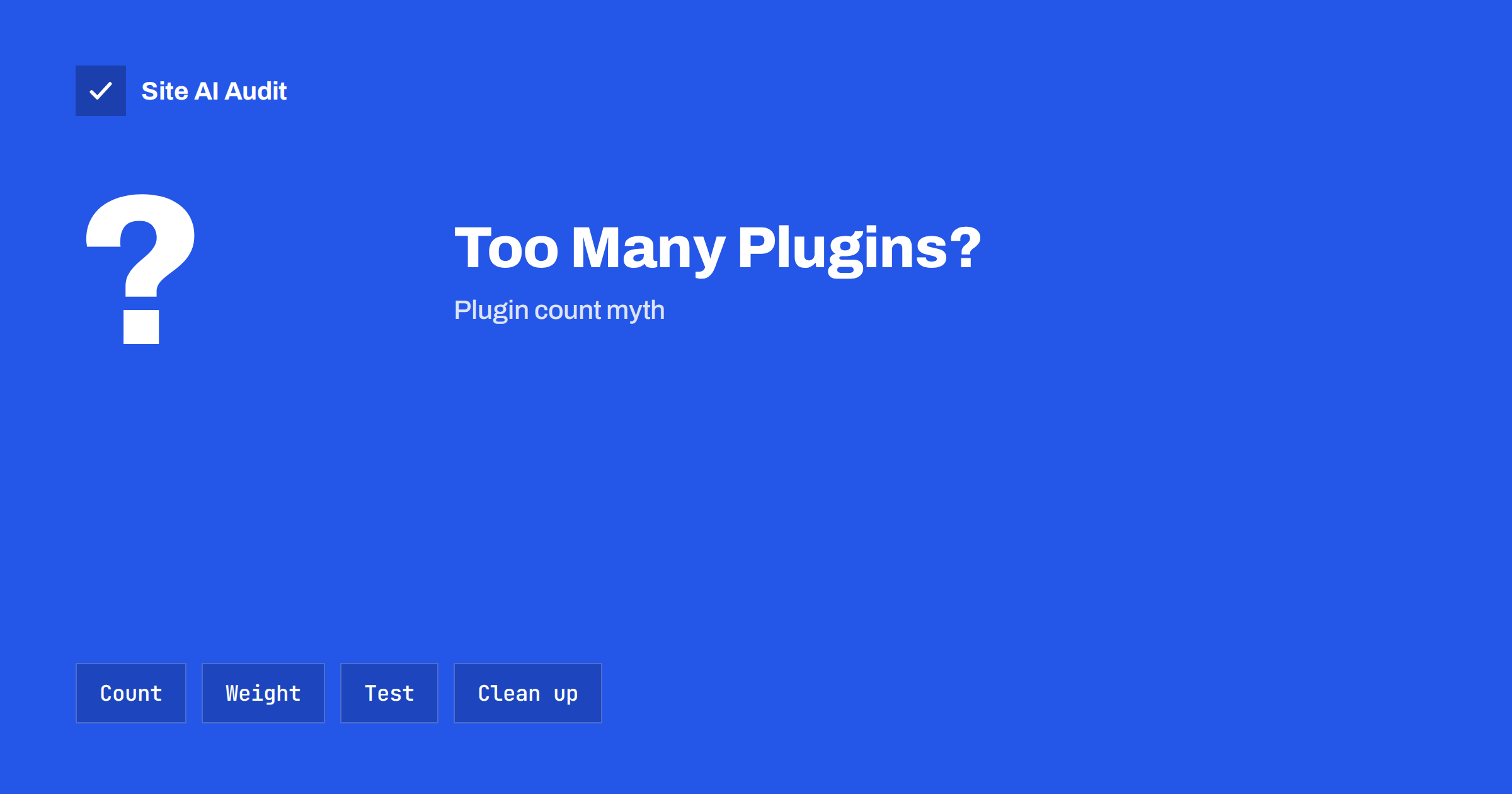
Short answer: There is no safe or unsafe number of WordPress plugins. A site with 40 well-written plugins can be faster than a site with five heavy ones. What slows a site is the work each plugin does: the scripts and styles it loads on every page, the database queries it runs and the remote requests it makes. Instead of counting plugins, measure their effect, remove the ones you do not use and replace the ones that cost the most.
Where the plugin count myth comes from
Advice such as “keep plugins under 20” is repeated in many forums, and it contains a grain of truth. Each plugin adds code that WordPress must load, and each can add problems with updates and security. A site with a hundred plugins is harder to maintain than a site with ten.
But speed does not depend on the number. A plugin that only adds a rarely used setting in the admin area costs almost nothing for visitors. A single page builder add-on that loads five scripts and three stylesheets on every page can cost more than twenty small utilities together. This is why counting is a poor guide, and measuring is a good one.
What a plugin can cost
When you look at a plugin as a possible speed problem, ask what kind of work it does. The main costs fall into four groups.
- Front-end files. Scripts and stylesheets loaded on every page, even where the feature is not used. Sliders, form builders, icon packs and social share buttons are common examples. They increase page weight and can block rendering, as discussed in our guide to render-blocking resources.
- Database work. Plugins that run heavy queries on each request, store large amounts of data in options or keep logs without cleaning them. See our articles on slow database queries and autoloaded options.
- External requests. Plugins that contact other servers on page load, for licence checks, fonts, analytics or feeds. A slow remote server becomes your slow page.
- Background tasks. Scheduled jobs, backups and scans that run on the same server as your visitors. Our guide to WP-Cron performance explains why these can cause spikes.
How to find the heavy plugins
The most reliable method is a before and after comparison. You do not need advanced tools to start.
- Record a baseline. Test two or three important pages, such as the home page, a blog post and a product or service page, with a speed tool and note the load time, page weight and number of requests.
- Look at the waterfall. The file names in a request list usually include the plugin folder, for example /wp-content/plugins/name/. Sort by size and time to see which plugin contributes the most. Our guide on how to read a waterfall chart helps with this step.
- Use a profiling plugin on a staging copy. Some free tools show queries and time per plugin. Run them on a copy of the site, not on the live one, and remove them afterwards.
- Disable one suspect at a time on the staging copy and test again. If the numbers improve noticeably, you have found a candidate.
Our article on how to find slow WordPress plugins goes through the process in more detail. Keep notes, because the result for one site does not apply to another.
What to do with what you find
Once you know which plugins cost the most, you have several options, from the simplest to the most work.
- Delete plugins you do not use. Deactivated plugins do not slow the site, but they still need updates and can be a security risk. Delete them, do not just switch them off.
- Merge functions. If three plugins each add a small feature, one well-built plugin may replace them all.
- Limit where assets load. Many plugins load scripts everywhere. A tool or a small snippet can restrict them to the pages that really need them. Our article on unneeded WordPress scripts shows common examples.
- Replace with a lighter option. A heavy slider can often be replaced by a static image, which also helps visitors, as described in our guide to sliders and carousels.
- Move features to the server. Caching, image optimisation and security rules can sometimes be handled by the host or a content delivery network, with no plugin at all.
When many plugins are fine
A site with many plugins can still be fast if they are chosen carefully. Signs of a healthy setup include plugins that load their files only where needed, regular updates from active developers, a good caching setup and a server that is not overloaded. Small plugins that change behaviour through code, such as adding a field or a shortcode, often cost nothing measurable.
The better question is not “how many?” but “which ones, and what do they do on every page?”. Also consider maintenance. Every plugin is a dependency that must be updated, tested and trusted. The more plugins you have, the more time you must set aside for updates, and the more likely it is that one is abandoned. Our guide to abandoned WordPress plugins explains how to spot that problem.
A realistic example
Imagine a small business site with 28 plugins and a mobile load time of five seconds. The owner assumes the number is the problem and removes eight plugins at random. The load time improves by a few hundred milliseconds, but a feature on the contact page stops working. A more careful review would have started with the request list. It would have shown that one form plugin loads four scripts and two stylesheets on every page, including the blog, where no form exists, and that a social feed plugin waits for a remote server for more than a second.
Limiting the form scripts to the contact page and replacing the live feed with a static link to the social profiles cuts the load time by more than a second, with only two changes and no lost function. That is the pattern you should look for: a small number of expensive items, hidden among many cheap ones.
Do not forget the server side
Sometimes the plugins are blamed for a problem that lives elsewhere. A slow hosting plan, an old PHP version or a missing cache can make even a lean site feel heavy. Before you remove useful features, check the basics: the server response time, the PHP version and whether page caching is active. If the server takes more than a second to answer before a single plugin file is sent, fixing the hosting setup will help more than any plugin cleanup. Our guide to PHP versions and performance is a good starting point.
Habits that keep the plugin list healthy
A healthy site is not the result of a single cleanup but of a routine. Set a regular date, for example once a quarter, to review the list. For each plugin ask whether the feature is still used, whether a newer or lighter alternative exists and whether the developer still releases updates. Keep a simple document that records why each plugin was installed and who asked for it. When a feature is needed only for a campaign, note the end date and remove the plugin when it passes.
Before installing something new, read its description for the words “lightweight” and “loads only when needed”, but do not rely on them alone. Test the plugin on a staging copy, compare speed before and after, and keep the change only if the benefit justifies the cost. Test plugins one at a time, so you always know which change caused which effect. Over a year, this discipline keeps a site fast without any dramatic rebuild.
What Site AI Audit can and cannot tell you
Site AI Audit’s speed results include the Google PageSpeed score, LCP, CLS and INP, server response time and the compression and weight of your pages. It does not list your plugins or say which one is responsible for a slow page. What it does show is whether your pages are heavy or slow to respond, which tells you whether a plugin review is worth the time. After you clean up, a new check shows whether the numbers moved. You can run a free check of your website or see the plans.
Related reading
- How to Find Which WordPress Plugin Is Slowing Your Site
- Are Page Builders Slowing Down Your WordPress Website?
- How to Fix a Slow WordPress Site: A Step-by-Step Guide
- Remove Unneeded WordPress Scripts: Emoji, Embeds and More
The bottom line
Stop counting plugins and start measuring them. Test key pages, find the plugins that add the most weight, queries or external requests, delete what you do not use and replace the heaviest with lighter options. A lean, well-maintained set of plugins will serve visitors faster than a small set of heavy ones.
GYIK
Is 30 plugins too many for WordPress?
Not by itself. If they are lightweight and load only where needed, 30 can be fine. If a few of them load heavy files on every page, even 10 can be too many.
Do deactivated plugins slow down my site?
Not in a noticeable way, because their code does not run. They still take space and need security updates, so delete the ones you will not use again.
Does removing a plugin always make the site faster?
No. Removing a plugin that does little changes little. Measure before and after to see whether the change was worth it.
Which types of plugins usually cost the most?
Page builders and their add-ons, sliders, social feeds, form builders with many features and plugins that run frequent scans or log large amounts of data.
Should I test changes on the live site?
It is safer to use a staging copy. Disabling a plugin can break a page or a checkout, so always take a backup first.