ENEnglish
 LTLietuviškai
 DEDeutsch
 FRFrançais
 RUРусский
 ESEspañol
 PLPolski
 ITItaliano
 UKУкраїнська
 CSČeština
 PTPortuguês
 JA日本語
JA日本語 LVLatviešu valoda
 ETEesti
 HUMagyar
 IDBahasa Indonesia
 TRTürkçe
 HIहिन्दी
 ELΕλληνικά
 ARالعربية
 THไทย
THไทย VITiếng Việt
 RORomână
 MSBahasa Melayu
 BNবাংলা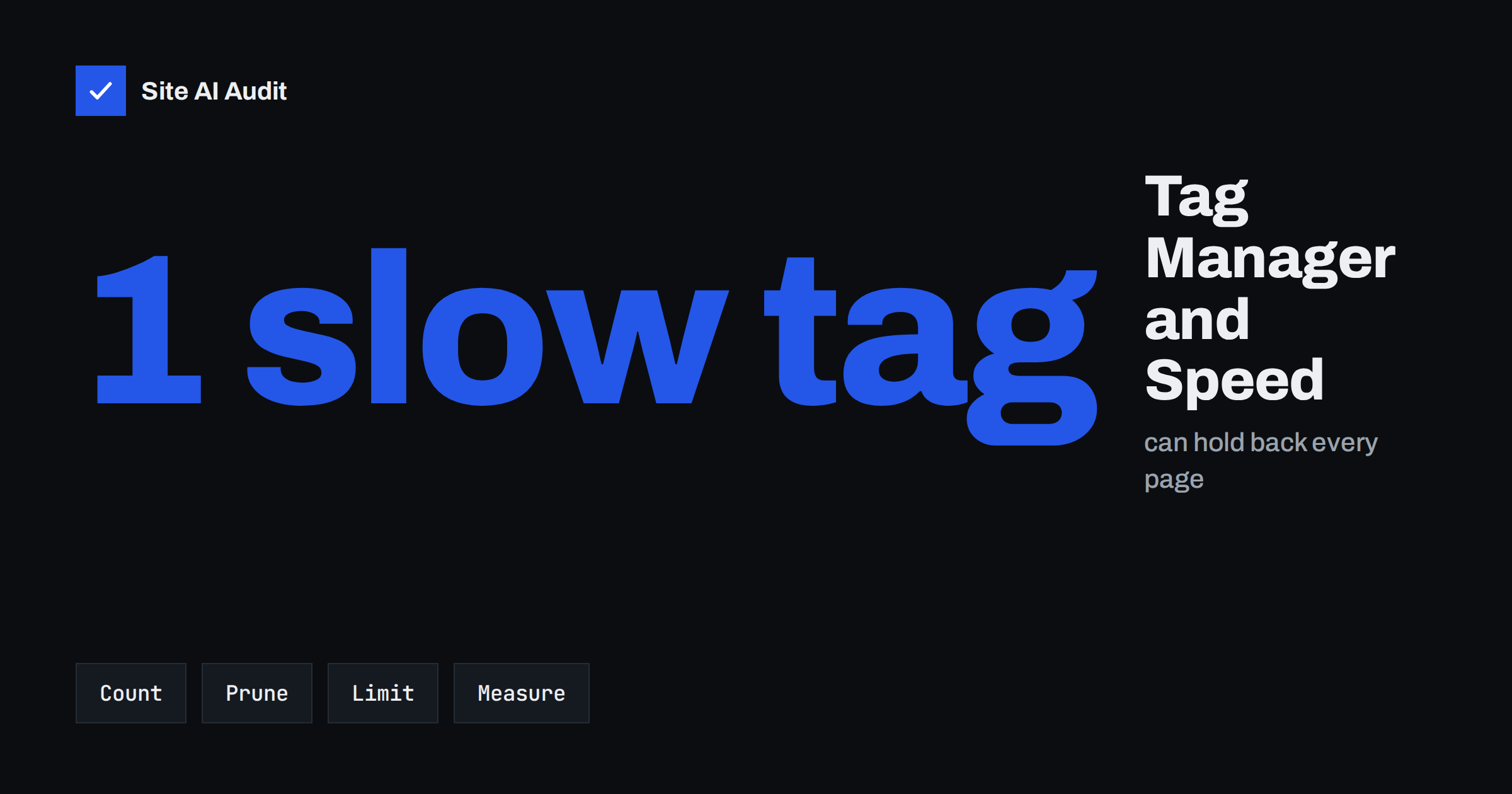
Short answer: Google Tag Manager itself is a small loader, but it can bring in many other scripts: analytics, advertising pixels, heatmaps, chat widgets and more. Each of them uses bandwidth and processor time on the visitor’s device. To keep your site fast, list every tag and what it is for, delete the ones nobody uses, make the rest fire only on the pages and after the events where they are needed, respect consent choices, and measure speed before and after each change.
What Tag Manager does
Google Tag Manager, often called GTM, lets you add and change tracking and marketing code without editing the website every time. You place one snippet on your pages. That snippet loads a “container”, and the container holds the tags you configured: web analytics, conversion tracking for advertising, social media pixels, surveys and so on. Triggers decide when each tag runs, for example on every page view, on a click or after a form is sent.
The convenience is also the risk. Because adding a tag takes only a few minutes and needs no developer, containers grow over the years. People add tags for campaigns that ended long ago, test scripts that nobody removed, and duplicates of tags that already exist elsewhere. Each one is still sent to every visitor.
How tags slow a page
A tag can hurt performance in several ways:
- Download size. Each script must be fetched, and many fetch further files of their own.
- Processor time. Scripts must be parsed and run. On a mid-range phone this can block the main thread and delay the moment a page responds to taps, which affects Total Blocking Time and Interaction to Next Paint. See our guides on Total Blocking Time and Interaction to Next Paint.
- Extra connections. Every new third-party domain needs its own lookup and secure connection setup.
- Layout shifts. Widgets that insert banners, pop-ups or chat buttons late can push content around.
- Dependency on other servers. If a vendor’s server is slow, your page waits or behaves strangely.
The GTM container is normally loaded asynchronously, so it does not block the page by itself. The tags inside are what costs you. Our article on third-party scripts and performance explains the general problem.
Step 1: make an inventory
Open the container and list every tag. For each one, write down:
- what it does and which tool or vendor receives the data;
- who asked for it and who owns it;
- on which pages and events it fires;
- whether anyone still looks at its reports.
Use Preview mode to see which tags fire on a typical page, and compare that with the list. You will often find tags that fire on every page although they were meant for one landing page, and tags for services that you no longer pay for.
Step 2: remove what you do not need
Pause a tag first and watch for a few days if you are unsure. If nobody notices, delete it. Common candidates for removal are:
- old advertising and remarketing pixels for finished campaigns;
- tags from tools you stopped using;
- duplicate tags, such as an analytics tag that is both in GTM and hard-coded in the theme, which counts every visit twice;
- heatmap and recording scripts that nobody opens;
- test tags and custom scripts from former employees or agencies.
Keep a version history in GTM and add a clear name and note when you publish, so you can undo a change quickly. Names such as “Test 3” make clean-up impossible later.
Step 3: limit when tags fire
A tag that needs to run only after a purchase should not run on every page view. Check the triggers of every tag:
- Use page-specific triggers, such as a particular address or a form-sent event, instead of “All pages”.
- Use event triggers for conversions instead of loading the whole script early.
- For tools that are not needed immediately, such as heatmaps, surveys and chat, fire them after the page has loaded or after the first user interaction rather than at the first moment.
- Keep one analytics tag per property and avoid firing the same tag twice.
A live chat widget is a good example of a script that can wait; see live chat widgets and page speed. Heavy marketing scripts on landing pages for advertising deserve the same discipline, as described in landing page speed for paid ads.
A quick example shows the scale. Suppose a container holds twelve tags, and eight of them fire on all pages. If two belong to finished campaigns, one is a duplicate analytics tag and one is a heatmap nobody has opened for a year, four of the eight can go without losing any information. The visitor’s phone does a third less third-party work on every page, and nobody misses anything. This kind of clean-up usually takes an afternoon.
Step 4: respect consent
If you serve visitors who must give consent for analytics and advertising cookies, tags that need consent should not run before the choice is made. Google Tag Manager supports consent settings so that tags wait for the visitor’s decision. That is good for privacy and also for speed, since visitors who decline do not download those scripts. The banner itself must be light, as we describe in cookie consent banners and page speed. Your legal obligations depend on your country and business, so check them with a qualified adviser.
Step 5: avoid risky custom code
Custom HTML tags let anyone paste in any script. Treat them with care:
- Do not paste code you do not understand or that comes from an unknown source. A malicious script in your container runs on every page and can steal data.
- Limit who can publish changes, and use the approval features of your account if available.
- Prefer built-in tag templates from reputable vendors when they exist.
- Avoid scripts that write to the page in blocking ways.
Security headers and integrity checks can also help; see the Content Security Policy guide and subresource integrity for third-party scripts.
How to measure the effect
Run a speed test before you start, note the main values, and repeat after each change. Look at the third-party section of the report and at the main-thread work. Our guide on reading a PageSpeed Insights report shows where to look. Remember that single tests vary, so repeat the run a few times, and consider real-user data over time. If you want to follow the trend, see website speed monitoring. A faster site also tends to convert better, as discussed in how website speed affects conversions.
Keep the container tidy. Set a regular review, for example every quarter. Delete old drafts, rename tags clearly, group them into folders, and document the owner of each tag. Before a new tag goes live, ask whether the data will really be used. A smaller container is faster, easier to trust and simpler to hand over to a new colleague.
It also helps to agree on rules with everyone who uses the account. For example, require a short request that names the purpose, the owner and an end date for every new marketing tag. Campaign tags then carry their own expiry, and the person who reviews the container each quarter knows what can go. Without such rules, containers behave like attics: everything goes in, and nothing comes out. When an agency or freelancer finishes a project, remove their access and ask for a list of what they added. A short written handover takes ten minutes and saves hours of detective work later, when a page is slow and nobody knows which of forty tags is responsible.
What Site AI Audit checks
Site AI Audit measures the speed of your pages with Google PageSpeed and reports Core Web Vitals such as LCP, CLS and INP, along with server response time, compression and page weight. If tags are making your site slower, those values show it. It does not open your Tag Manager account, so it cannot tell you which tag is to blame; use the GTM preview and your browser’s developer tools for that. Run a free check of your website before and after the clean-up, and see the plans if you want unlimited re-checks.
Related reading
- How to Reduce Unused JavaScript and Speed Up Your Pages
- Defer vs Async: How to Load JavaScript Without Slowing Pages
- Performance Budgets: How to Keep a Fast Website Fast
The bottom line
Tag Manager is a useful tool, but it makes it easy to add weight without noticing. List your tags, delete the ones nobody needs, fire the rest only where and when they matter, respect consent and test the speed after every change. A tidy container is a quick win for page speed.
GYIK
Does Google Tag Manager slow down my website?
The container loader is small and loads asynchronously. The tags that it brings in can slow your site, depending on their size and what they do. The more tags you run, the greater the effect.
How many tags are too many?
There is no fixed number. What matters is the total weight and processor time, and whether each tag has a clear use. Remove tags nobody uses and measure the result.
Is it better to hard-code tags than to use GTM?
Not necessarily. Hard-coded scripts load the same way and cost the same. GTM gives control and a record of changes. Avoid loading the same tag in both places.
Can I delay tags until the user interacts?
Yes, for tools that are not needed at once, such as chat, surveys and heatmaps. Use triggers that fire after the page has loaded or after the first interaction, and test that nothing important is lost.
Who should have publish access to the container?
Only a few trusted people. A single unsafe script can affect every page, so use roles, review changes and keep the version history.