 ENEnglish
 LTLietuviškai
 DEDeutsch
 FRFrançais
 RUРусский
 ESEspañol
 PLPolski
 ITItaliano
 UKУкраїнська
 CSČeština
 PTPortuguês
 JA日本語
JA日本語 LVLatviešu valoda
 ETEesti
 HUMagyar
 IDBahasa Indonesia
 TRTürkçe
 HIहिन्दी
 ELΕλληνικά
 ARالعربية
 THไทย
THไทย VITiếng Việt
 RORomână
 MSBahasa Melayu
 BNবাংলা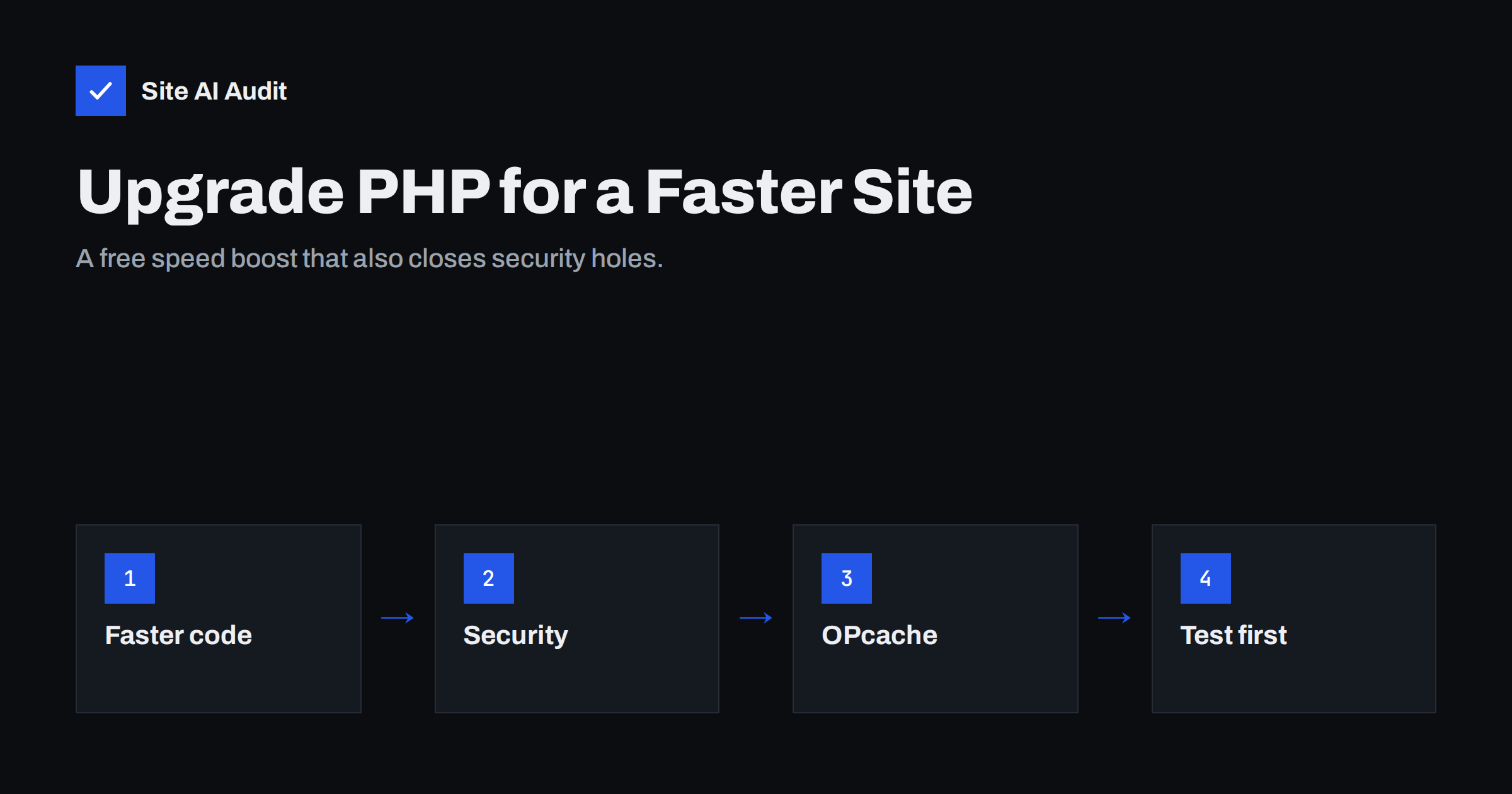
Short answer: Upgrading to a currently supported PHP version usually makes a PHP-based website such as WordPress faster, because newer PHP releases execute the same code more efficiently, and it keeps the server on a version that still receives security fixes. The gain shows up in server response time for uncached pages, the admin area, carts and checkouts. Check your current version in your hosting panel or WordPress Site Health, test the new version on a staging copy, fix any plugin or theme incompatibilities, and then switch.
Most small-business websites run on PHP, including every WordPress, WooCommerce, Drupal and Joomla site. PHP is the language that builds each page on the server before it is sent to the browser. Many sites run for years on whatever PHP version the host set up when the site was created, because nobody thinks about it. That is a missed opportunity: a PHP upgrade is one of the few speed improvements that requires no change to design or content, and it comes with important security benefits.
How PHP affects your website’s speed
Every time a visitor requests a page that is not served from a cache, the server runs PHP code: WordPress core, the theme and every active plugin. It queries the database, processes the results and produces HTML. The time this takes is a large part of Time to First Byte for uncached requests.
Newer PHP versions have repeatedly improved how fast they run the same code. The PHP 7 series brought a major rewrite of the engine that roughly doubled performance for many applications compared with PHP 5.6, and releases since then have continued to improve efficiency and memory usage, with PHP 8 adding a just-in-time compiler that helps some computational workloads. For typical content sites, the gains between recent versions are smaller than the jump from PHP 5 to 7, but they are real and cost nothing.
Where the improvement shows:
- Uncached pages such as search results, filtered product lists and first visits after a cache purge.
- Logged-in users, including the WordPress admin, editors and customers in account areas.
- Carts and checkouts, which can never be page-cached.
- Background tasks like imports, scheduled jobs and API requests.
- Capacity under load, because each request takes less CPU time, so the same server can serve more visitors.
Pages served from a full-page cache do not run PHP at all, so their speed does not change. That is why a PHP upgrade complements caching rather than replacing it.
Security: the other reason to upgrade
Each PHP release branch receives active support for about two years and security fixes for a limited period after that. Once a version reaches end of life, newly discovered vulnerabilities are no longer fixed by the PHP project. Running an unsupported version means relying on your host to backport fixes, which many do not. The official PHP website publishes the list of supported versions and their end-of-life dates; checking it once a year is a good habit. WordPress itself also recommends a currently supported PHP version for new installations.
How to check your PHP version
- WordPress: go to Tools, Site Health, Info, and open the Server section. Site Health also warns if your PHP version is outdated.
- Hosting control panel: most panels show and let you change the PHP version per domain.
- Response headers: some servers reveal the version in an
X-Powered-Byheader. Exposing it is not recommended for security reasons, so do not rely on it, and consider switching it off. - Ask your host if you cannot find it.
How to upgrade PHP safely
- Back up files and database, and confirm the backup can be restored.
- Update everything first. WordPress core, themes and plugins should be on current versions, because developers fix compatibility with new PHP versions in updates.
- Create a staging copy and switch it to the new PHP version.
- Enable error logging on staging (not displayed to visitors) and browse the site: home, posts, forms, search, shop, cart, checkout, account, admin screens.
- Check the log for fatal errors, warnings and deprecation notices. Deprecations are warnings about future problems; fatal errors must be fixed before switching.
- Fix or replace incompatible plugins and themes. Abandoned plugins that have not been updated in years are the usual source of trouble.
- Switch production at a quiet time, then test the key journeys again and watch the error log for a day or two.
- Know how to roll back. Most control panels let you switch the version back in seconds if something breaks.
OPcache and other PHP settings that matter
The PHP version is not the only setting that affects speed:
| Setting | What it does | What to check |
|---|---|---|
| OPcache | Keeps compiled PHP code in memory, so files are not recompiled on every request | Enabled, with enough memory for all your code |
| PHP workers / processes | How many requests can be processed at the same time | Enough for peak traffic; too few causes queues |
| Memory limit | Maximum memory per request | Adequate for your plugins; errors appear if too low |
| Handler (PHP-FPM, LSAPI) | How the web server runs PHP | Modern handlers are faster than old CGI setups |
| Object cache extension | Connects PHP to Redis or Memcached | Available if you use object caching |
OPcache is standard and enabled on good hosts, but it is worth confirming, because a disabled or undersized OPcache can make PHP dramatically slower than it should be.
Common problems after a PHP upgrade
- White screen or “critical error”. A plugin or theme uses code removed in the new version. Check the error log, update or replace the component.
- Contact forms or payment gateways failing. Older integrations may depend on removed functions. Test every form and payment method.
- Warnings in the admin. Deprecation notices do not break the site but indicate code that needs updating. Keep display of errors off in production.
- Custom code. Snippets in the theme’s functions file written years ago may need small changes.
Who is responsible for the upgrade?
On shared and managed hosting, the host controls which PHP versions are available and sometimes upgrades sites automatically when an old version is retired. Automatic upgrades are convenient but can surprise site owners with an incompatible plugin on a Monday morning. It is better to plan the switch yourself, on your schedule, before the host forces it. On a VPS or dedicated server, the upgrade is entirely your responsibility or your developer’s, including installing the new version, its extensions and OPcache configuration. Agencies that maintain many client sites benefit from a simple overview of which PHP version each site runs and when that version reaches end of life, so upgrades can be batched and tested in a predictable way instead of handled one emergency at a time.
Whoever does it, make sure someone owns it. PHP upgrades rarely fail because they are difficult; they fail because everyone assumed someone else was keeping track.
How often to upgrade
A sensible routine is to review your PHP version once or twice a year and move to a newer supported version when your themes and plugins are compatible, well before your current version reaches end of life. Waiting until the last moment turns a routine update into an urgent one, often with several major versions to jump at once, which is where compatibility problems accumulate.
How Site AI Audit helps
Site AI Audit measures server response time as part of every check and flags exposed software versions in its security section, which can reveal an outdated PHP version to anyone who looks. Together with the Google PageSpeed mobile results, the report shows whether the server side deserves attention and explains fixes in plain words. Check your site for free to see what your server gives away.
Related reading
- How to Reduce Server Response Time (TTFB) for Faster Pages
- Shared Hosting vs VPS: Which Is Faster for Your Website?
- How to Find Which WordPress Plugin Is Slowing Your Site
- HTTP Security Headers Explained: What Each One Does
The bottom line
A PHP upgrade is a free speed improvement for everything your cache cannot cover, and it keeps your server on a version that still gets security fixes. Check your version, update plugins and themes, test on staging with error logging, and switch at a quiet time. Confirm OPcache is enabled while you are at it, and repeat the review every year.
FAQ
Does a newer PHP version really make WordPress faster?
Yes, for requests that run PHP, such as uncached pages, the admin area and checkouts. Newer versions execute the same code more efficiently. Cached pages are not affected because they do not run PHP.
Which PHP version should I use?
Use a version that is currently supported by the PHP project and compatible with your themes and plugins. The official PHP website lists supported versions and their end-of-life dates. WordPress also publishes its recommended version.
Can upgrading PHP break my website?
It can if a plugin, theme or custom code uses features removed in the new version. Updating everything first and testing on a staging copy with error logging enabled catches most problems. Keep the option to switch back quickly.
How do I find my current PHP version in WordPress?
Go to Tools, Site Health, Info and open the Server section. Your hosting control panel also shows the version and usually lets you change it.
What is OPcache and do I need it?
OPcache stores compiled PHP code in memory so it does not have to be recompiled for each request. It is a standard part of PHP and should be enabled on any production site. Ask your host to confirm it is active and adequately sized.


