 ENEnglish
 LTLietuviškai
 DEDeutsch
 FRFrançais
 RUРусский
 ESEspañol
 PLPolski
 ITItaliano
 UKУкраїнська
 CSČeština
 PTPortuguês
 JA日本語
JA日本語 LVLatviešu valoda
 ETEesti
 HUMagyar
 IDBahasa Indonesia
 TRTürkçe
 HIहिन्दी
 ELΕλληνικά
 ARالعربية
 THไทย
THไทย VITiếng Việt
 RORomână
 MSBahasa Melayu
 BNবাংলা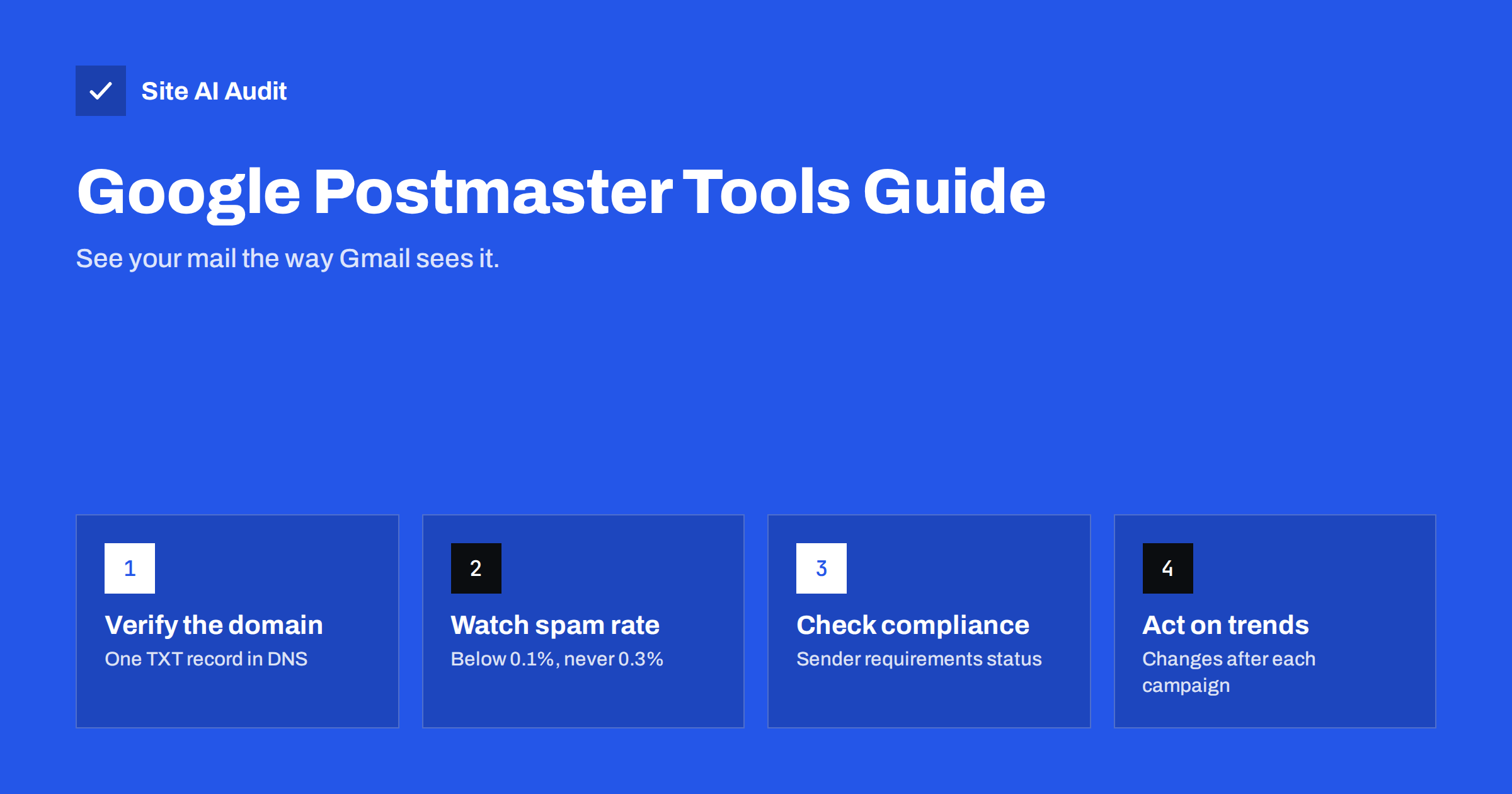
Short answer: Google Postmaster Tools is a free service that shows how Gmail evaluates mail from your domain: the user-reported spam rate, authentication and encryption results, delivery errors and whether you meet Google’s sender requirements. You add your domain, verify it with a TXT record in DNS and, once you send enough daily volume to personal Gmail accounts, the dashboards fill with data. The spam rate is the number to watch most closely: keep it below 0.1% and never let it reach 0.3%.
What Postmaster Tools is for
Gmail hosts a very large share of personal mailboxes, so its view of your mail matters for almost any business that e-mails consumers. Unlike your sending platform, which can only report whether Gmail accepted a message, Postmaster Tools shows Gmail’s own data: how many recipients marked your messages as spam, whether your mail passed SPF, DKIM and DMARC, whether it arrived over an encrypted connection, and which errors caused rejections.
It is not a deliverability test or an inbox placement tool. It does not tell you where an individual message landed, and it only covers Gmail. But as an early warning system for complaint problems and authentication failures, it is hard to beat, and it costs nothing.
Postmaster Tools is especially important for bulk senders, because Google’s bulk sender requirements refer to the spam rate “reported in Postmaster Tools”. If you send marketing mail to Gmail users at any meaningful volume, this is the number Google uses to judge you.
Setting it up
- Go to Google Postmaster Tools and sign in with a Google account. It does not need to be a Google Workspace account.
- Add your domain. Use the domain that appears in your From address or DKIM signature; Google groups data by the authenticated domain.
- Google shows a TXT verification record. Add it to your domain’s DNS at the root, alongside existing records. It does not replace SPF or anything else.
- Return to Postmaster Tools and verify. If it fails, wait for DNS to update and try again.
- Optionally, add other people as users, so your marketing team or agency can see the data without sharing your account.
If you send from subdomains, such as news.yourdomain.com, data may appear under the subdomain or the parent domain, depending on how your mail is authenticated. Adding and verifying both is a common practice.
Why you might see no data
New users often find empty dashboards. That is normal: Google shows data only when a domain sends a substantial daily volume to personal Gmail accounts, so that the numbers are statistically meaningful and do not reveal individual recipients. Small senders may see data only on days after a newsletter goes out, or not at all.
Also check that you verified the domain that actually signs your mail. If your newsletter platform still signs with its own domain rather than yours, Gmail attributes the reputation to the platform’s domain, and your dashboards stay empty. Setting up custom DKIM fixes both problems at once.
The spam rate: the number that matters most
The spam rate dashboard shows the percentage of messages delivered to the inbox that recipients marked as spam, per day. Google’s guidance for senders is to keep it below 0.1% and to avoid ever reaching 0.3%. At 0.3% and above, the bulk sender requirements are not met, and Google has said that senders above that level are not eligible for mitigation when deliverability problems occur.
Some points to keep in mind:
- The rate is calculated on inbox-delivered mail. Messages already in spam cannot be reported as spam, so a low rate does not prove good placement.
- Spikes follow campaigns. Compare the date of a spike with what you sent that day and to whom.
- Typical causes of high rates: sending to old or inactive contacts, contacts added without clear consent, too-frequent mailings, misleading subject lines and hard-to-find unsubscribe links.
- The fix is list and content practice, not DNS. Authentication problems show up in other dashboards.
Other dashboards and what they tell you
| Dashboard | What it shows | What to do if it looks bad |
|---|---|---|
| Authentication | Share of mail passing SPF, DKIM and DMARC | Find the platform that fails and fix its SPF or DKIM alignment |
| Encryption | Share of inbound and outbound mail using TLS | Make sure your sending servers support TLS |
| Delivery errors | Rejected or temporarily failed messages, with reasons | Match the error type to its cause: rate limiting, bad reputation, authentication |
| Feedback loop | Spam reports by campaign identifier, for senders who set the Feedback-ID header | Identify which campaign or stream generates complaints |
| Compliance status | Whether the domain meets Google’s sender requirements | Address each requirement marked as not compliant |
Google has updated Postmaster Tools over time, adding a compliance view for the sender requirements and changing or retiring older reputation dashboards. The exact set of pages you see may therefore differ from older tutorials. The principles are the same: complaints, authentication and errors.
Using the Feedback-ID header
The spam rate dashboard tells you that complaints happened, but not which mail caused them. If you send several kinds of mail from one domain, such as newsletters, product announcements and account notifications, a Feedback-ID header lets you see complaints per stream.
The header is added by your sending platform or application and contains up to four identifiers separated by colons, for example a campaign ID, a customer ID, the mail type and a fixed sender ID. Gmail’s feedback loop then reports spam rates for identifiers that receive enough complaints. Many large e-mail service providers add this header automatically for their customers; if you run your own sending system, you can add it yourself.
Keep identifiers stable and meaningful. A campaign name that changes with every send spreads data too thinly to be useful, while an identifier per mail type, such as “newsletter” or “abandoned-cart”, quickly shows which stream annoys recipients.
Postmaster Tools for agencies and several domains
Agencies and companies with several brands can add many domains to one Postmaster Tools account, and domain owners can grant access to other Google accounts. A few habits make this manageable:
- Verify each domain with its own TXT record, placed by whoever controls the client’s DNS.
- Give access to named people rather than shared accounts, and remove access when a contract ends.
- Record in your client documentation which domain signs which mail stream, so that empty dashboards are not mistaken for “no problems”.
- Review each domain after every major campaign rather than only when a client complains.
Turning the data into action
A simple weekly routine is enough for most businesses:
- Check the spam rate for each day you sent a campaign. Note anything above 0.1%.
- For each spike, identify the campaign and segment. Was it an old list, a new source of sign-ups or an unusual offer?
- Check authentication. Anything below nearly 100% means a platform or stream is not aligned.
- Check compliance status after any DNS change or new tool.
- Review delivery errors if your sending platform reports deferrals or bounces from Gmail.
- Write down what you changed, so you can see whether the numbers improve over the next weeks.
Improvements take time to show. Reputation reflects weeks of behaviour, so a single good week after a bad one does not reset it. Consistency is what moves the numbers.
What Postmaster Tools cannot tell you
- Other providers. Outlook.com, Yahoo and corporate mail systems have their own data. Microsoft offers its SNDS programme for IP-level data; other providers offer feedback loops for complaints.
- Individual messages. You cannot look up a specific recipient or message.
- Low-volume senders. Below the volume threshold, there is simply no data.
- Your DNS configuration. The authentication dashboard shows results, not the records themselves or why a record is wrong.
For the last point, an outside check of the published records helps. Site AI Audit checks SPF and its lookup limit, DKIM, DMARC and MX records for your domain and explains each problem in plain words, next to the website’s SSL, speed and SEO findings. When the authentication dashboard dips, a free check quickly shows whether a record changed; paid plans monitor the records and alert you automatically.
Related reading
- Gmail and Yahoo Bulk Sender Requirements: A Practical Guide
- How to Warm Up a New Email Domain or IP Address Safely
- Why Are My Emails Going to Spam? 12 Causes and Fixes
The bottom line
Google Postmaster Tools is the most direct view of how Gmail treats your mail. Verify your domain with a TXT record, watch the spam rate after every campaign, keep authentication near 100% and use the compliance view to confirm you meet the sender requirements. If there is no data, either your volume is low or your mail is authenticated under someone else’s domain.
FAQ
Is Google Postmaster Tools free?
Yes. It only requires a Google account and verification of your domain with a DNS TXT record.
Why is my Postmaster Tools dashboard empty?
Data appears only when you send a substantial daily volume to personal Gmail accounts. Also check that your mail is DKIM-signed with the domain you verified, not with your platform’s domain.
What spam rate is acceptable in Gmail?
Google advises keeping it below 0.1% and never reaching 0.3%. At 0.3% or more, bulk senders do not meet Google’s requirements.
Does Postmaster Tools show inbox placement?
No. It shows spam complaints, authentication, encryption, delivery errors and compliance, but not whether individual messages landed in the inbox or spam folder.
Should I verify subdomains separately?
If you send from subdomains, verifying them as well as the main domain is a good idea, because data may be grouped under the authenticated subdomain.
Does Microsoft have a similar tool?
Microsoft offers Smart Network Data Services (SNDS), which provides data about IP addresses sending to Outlook.com, along with a junk mail reporting programme. It works per IP rather than per domain.


