ENEnglish
 LTLietuviškai
 DEDeutsch
 FRFrançais
 RUРусский
 ESEspañol
 PLPolski
 ITItaliano
 UKУкраїнська
 CSČeština
 PTPortuguês
 JA日本語
JA日本語 LVLatviešu valoda
 ETEesti
 HUMagyar
 IDBahasa Indonesia
 TRTürkçe
 HIहिन्दी
 ELΕλληνικά
 ARالعربية
 THไทย
THไทย VITiếng Việt
 RORomână
 MSBahasa Melayu
 BNবাংলা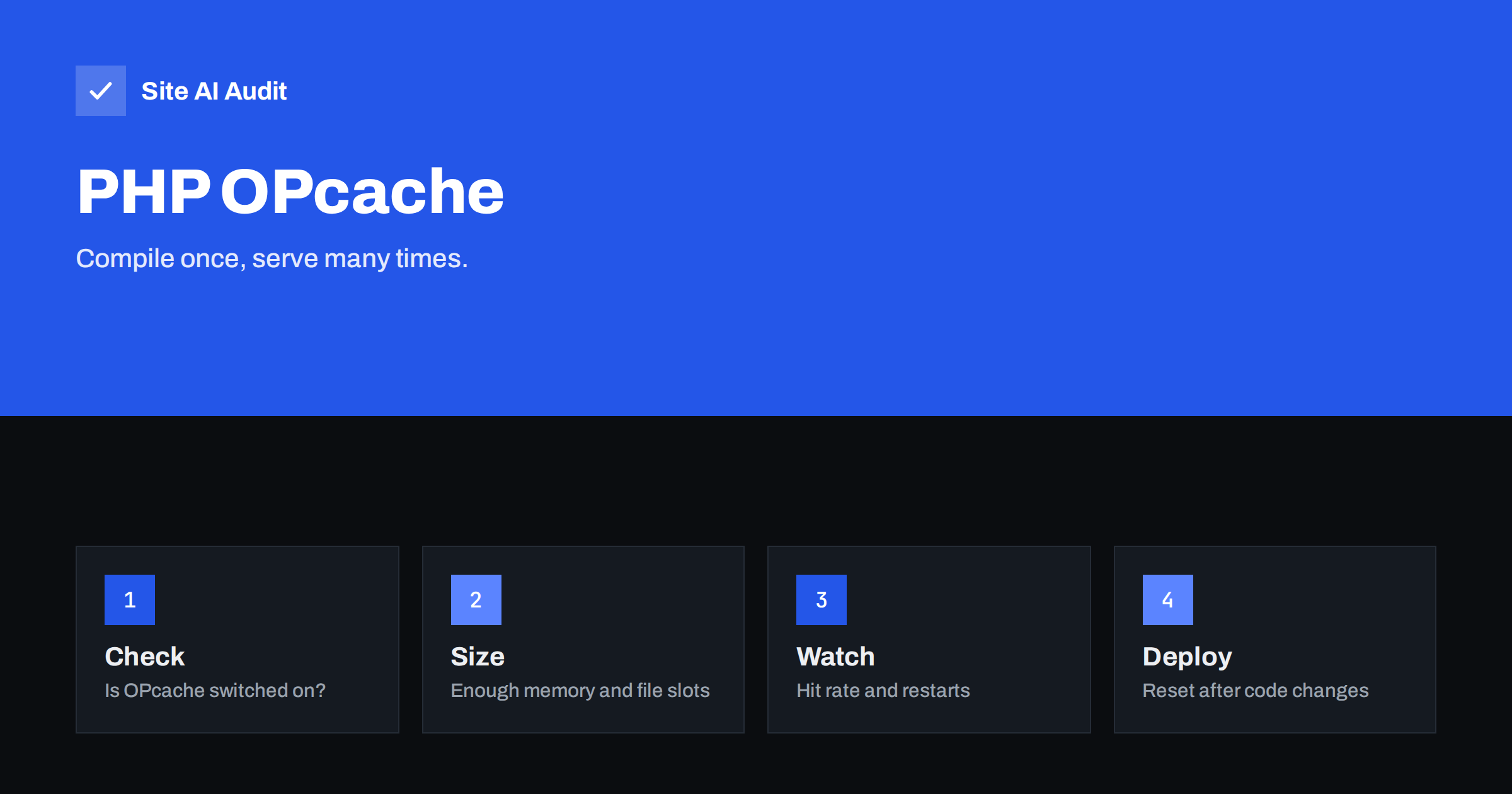
Short answer: OPcache is a PHP feature that stores compiled scripts in shared memory, so the server does not have to read and compile the same files on every visit. On a typical WordPress or WooCommerce site this reduces server response time without any change to your code. Most good hosts enable it already, but the default size is often too small for a large site, so it is worth checking.
What OPcache does
PHP is an interpreted language. When a visitor requests a page, the server does not run your files directly. It first reads each PHP file, checks the syntax, turns the code into an internal set of instructions, and only then runs it. A WordPress page can involve hundreds of files: the core, the theme and every active plugin. Without help, all of that reading and compiling happens again on every request.
OPcache removes the repeated work. After a file is compiled once, the instructions are kept in shared memory. The next request, even from another visitor, uses the stored version at once. The result is less processor time, faster responses and room for more visitors on the same server.
It is important not to confuse OPcache with other caches. A page cache stores the finished HTML of a page, and an object cache stores database results. OPcache stores compiled code. They work at different layers and complement each other, as we describe in our guides to page caching and object caching with Redis.
Is it already on?
OPcache has been included with PHP since version 5.5, and in modern PHP versions it is switched on by default for web requests. Many hosting accounts also configure it. Still, you should confirm it, because a few hosts disable it on cheap plans or have settings that are too small.
There are several ways to check:
- The hosting panel. Many panels show PHP extensions and settings, including OPcache, in a section for PHP configuration.
- A PHP information page. Create a temporary file that calls
phpinfo(), open it in the browser, look for the “Zend OPcache” section and delete the file immediately afterwards. The page reveals a lot about your server, so never leave it online. - The command line. If you have shell access,
php -i | grep opcache.enableshows the setting. Remember that the command line can have different settings from the web server, so a result there does not always match what visitors get. - Your host. If none of the above is possible, ask the support team whether OPcache is enabled for your plan and which limits apply.
If OPcache is off and you control the server, switching it on is one of the cheapest speed improvements you can make.
The settings that matter
OPcache has many options, but a handful decide whether it works well. These are the PHP defaults at the time of writing, and the usual reason to change them:
- opcache.memory_consumption. The amount of shared memory for compiled code, 128 MB by default. A site with many plugins, a page builder or WooCommerce can fill it. When it is full, new files are not cached, or the cache restarts. Values of 192 or 256 MB are common for larger sites.
- opcache.max_accelerated_files. The number of files that can be stored, 10,000 by default. A big WordPress installation can have more PHP files than that. If you are near the limit, raise it, for example to 20,000.
- opcache.interned_strings_buffer. Memory for repeated text strings, 8 MB by default. Raise it if the status shows that it is full.
- opcache.validate_timestamps. Whether PHP checks if files have changed. On by default, which is convenient because changes appear automatically.
- opcache.revalidate_freq. How often those checks happen, 2 seconds by default.
These names go in the php.ini file or a pool configuration. On shared hosting you may be able to change only some of them, or none, in which case you should ask your provider.
How to see whether it works well
PHP offers a function, opcache_get_status(), that returns the state of the cache. Several free admin tools and some hosting dashboards show the same numbers in a readable chart. Look at these values:
- Hit rate. The share of requests answered from the cache. On a stable site it should be above 99 percent. A low rate means the cache is too small or keeps restarting.
- Memory used and free. If free memory is close to zero, increase the memory size.
- Cached scripts compared with the maximum. If the numbers are close, raise the file limit.
- Out-of-memory and hash restarts. Any restarts caused by lack of memory or a full file table are a sign that the limits are too low.
Check after a day of normal traffic, not just after a restart, because the cache fills gradually.
Deployments and the stale code problem
The default behaviour is safe: PHP notices when a file changes and compiles it again. Some performance guides recommend switching timestamp validation off, which saves a small amount of work on every request. If you do this, PHP will keep serving the old compiled code until the cache is cleared, so every deployment must include a reset. That can be a restart of PHP-FPM, a graceful reload, or a call to opcache_reset() from a secure script.
For most small business sites the gain from turning validation off is tiny, and forgetting to clear the cache causes confusing bugs, such as changes that seem not to apply. Keep the default unless you have an automated deployment process that handles the reset.
Also be careful with the setting that removes comments from stored code. Some frameworks and plugins read comments in the code as configuration, so leaving comments in the cache is safer.
OPcache, JIT and PHP versions
PHP 8 added a just-in-time compiler that works together with OPcache. It helps with heavy calculations, but a typical content site spends its time waiting for the database and reading files, so the effect on WordPress is usually small. Do not expect it to replace the basics.
The biggest and simplest gain is still a current PHP version, because each release is faster than the one before and keeps receiving security fixes. Our article on why upgrading PHP makes your website faster explains how to check your version and plan the change. Test your plugins on a staging copy before switching.
Where OPcache fits in a speed plan
If your pages respond slowly, work from the server outward. Measure the server response time first, as described in how to reduce server response time. Then confirm that PHP is current and OPcache is working, add a page cache for visitors who are not logged in, and an object cache if the database is a bottleneck. Finally, look for slow plugins using the method in how to find which plugin is slowing your site.
Remember that OPcache helps only with PHP work. It cannot make a huge image smaller or a slow third-party script faster, so use it as one layer in a complete plan.
A short checklist
- Confirm that OPcache is enabled for the web server, not only for the command line.
- Check the memory and file limits against the status numbers after a normal day of traffic.
- Keep timestamp validation on unless you have a deployment process that clears the cache.
- Run a current, supported PHP version.
- Measure the server response time before and after any change, so you know whether it helped.
If you do not manage the server yourself, send this list to your hosting provider and ask for the answers in writing. Good providers can reply in a few minutes.
What Site AI Audit can and cannot tell you
Site AI Audit measures the speed of your pages with Google’s data from real phones, including LCP, CLS and INP, and reports server response time, compression and page weight. If the server response time is high, it is a signal to look at PHP, caching and hosting. It cannot see inside your server, so it cannot tell you whether OPcache is on or how full it is. Check your site for free, change one thing, then run it again, or see the plans for unlimited re-checks.
Related reading
- How to Fix a Slow WordPress Site: A Step-by-Step Guide
- Shared Hosting vs VPS: Which Is Faster for Your Website?
- WP-Cron Explained: Why It Slows WordPress and How to Replace It
The bottom line
OPcache saves PHP from compiling the same code again and again. Check that it is enabled, give it enough memory and file slots for your site, watch the hit rate, and make sure deployments do not leave stale code behind. Combine it with a current PHP version and a page cache for the best result.
KKK
Is OPcache the same as a caching plugin?
No. A caching plugin usually stores finished pages or database results. OPcache stores compiled PHP code at the server level. A well-tuned site normally uses both.
Does OPcache work on shared hosting?
Often yes, because many hosts enable it for every account. You may not be able to change its limits, so ask your host about the memory size and the number of files if your site is large.
How much memory should I give OPcache?
The default is 128 MB, which suits small sites. Larger sites with many plugins often use 192 or 256 MB. Check the status after a day of traffic, and raise the value if free memory is close to zero.
Why do my code changes not appear?
If timestamp validation is off, PHP keeps using the old compiled files. Clear the cache by restarting PHP or calling the reset function, or switch validation back on.
Will OPcache make my site secure or fix a slow database?
No. It reduces the cost of loading PHP code only. Security depends on updates and configuration, and a slow database needs separate work such as cleaning data or adding an object cache.