 ENEnglish
 LTLietuviškai
 DEDeutsch
 FRFrançais
 RUРусский
 ESEspañol
 PLPolski
 ITItaliano
 UKУкраїнська
 CSČeština
 PTPortuguês
 JA日本語
JA日本語 LVLatviešu valoda
 ETEesti
 HUMagyar
 IDBahasa Indonesia
 TRTürkçe
 HIहिन्दी
 ELΕλληνικά
 ARالعربية
 THไทย
THไทย VITiếng Việt
 RORomână
 MSBahasa Melayu
 BNবাংলা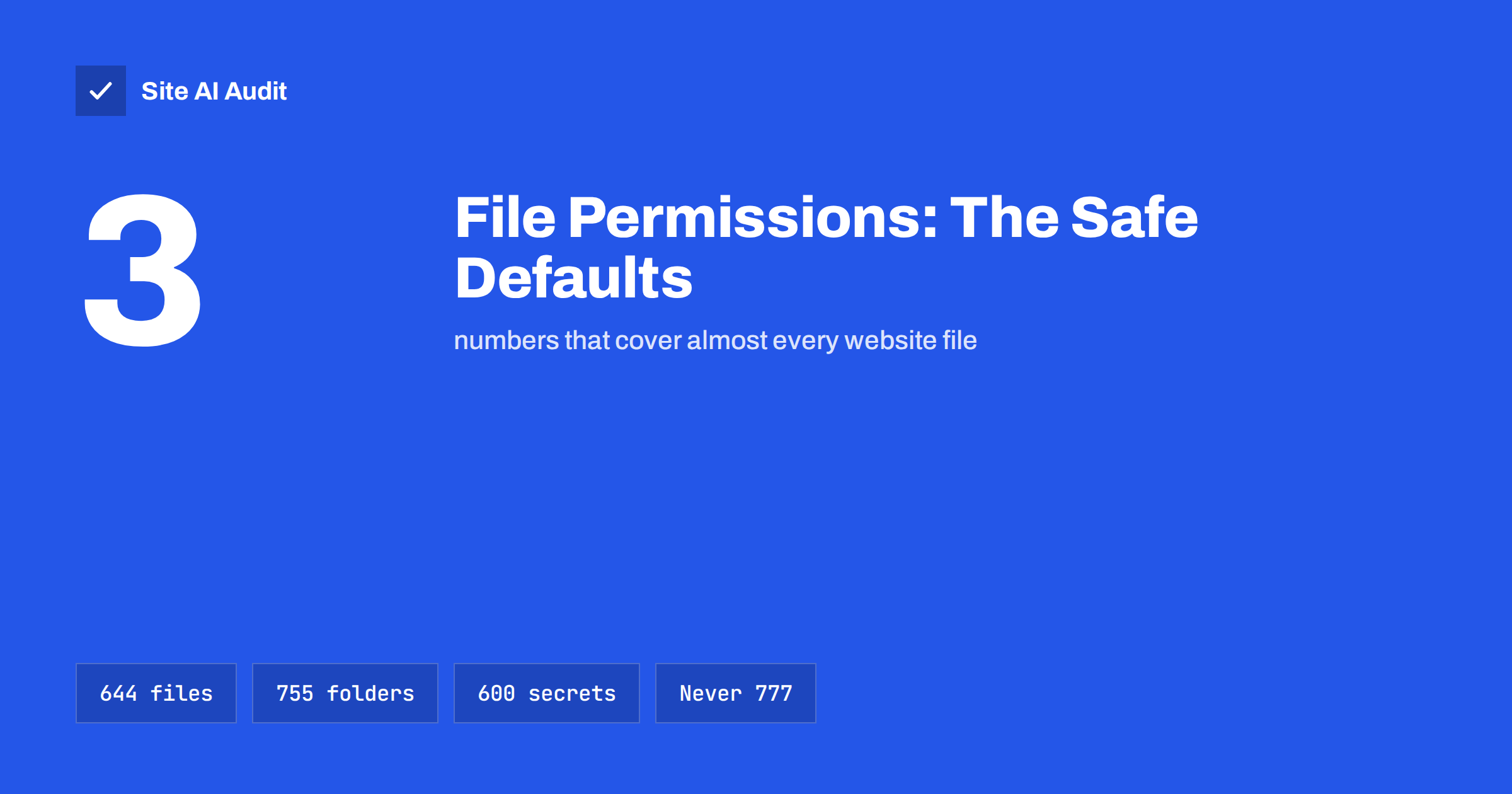
Short answer: On most Linux web servers, safe defaults are 644 for files, 755 for directories and 600 or 640 for files containing secrets, such as configuration files with database passwords. Files should be owned by the site’s own user account, and the web server should be able to write only to the folders that genuinely need it, such as uploads and cache. Never use 777: it lets any process on the server change your files and usually hides an ownership problem that should be fixed instead.
Why file permissions matter
A website is a collection of files on a server: application code, themes, plugins, configuration, uploaded images and cache. Permissions decide which users and processes may read, change or run each file. They are one of the quiet foundations of website security:
- If the web server can overwrite your code, a single vulnerability in a plugin can be turned into a permanent backdoor.
- If configuration files are readable by other accounts on a shared server, database passwords can leak.
- If uploaded files can be executed as scripts, an attacker who uploads a disguised PHP file gains control of the site.
Correct permissions do not stop every attack, but they limit how far an attacker gets. Many clean-ups after a hack, as described in the website recovery plan, end with resetting permissions for exactly this reason.
How Linux permissions work
Every file and directory has an owner, a group and three sets of permissions:
- Owner: the user account that owns the file.
- Group: users who belong to the file’s group.
- Others: everyone else on the system, including other processes.
For each of these, three rights can be granted: read (r = 4), write (w = 2) and execute (x = 1). Adding the numbers gives one digit per set, so three digits describe the whole permission. For directories, “execute” means the right to enter the directory and access files inside it.
| Value | Owner | Group | Others | Typical use |
|---|---|---|---|---|
| 644 | read, write | read | read | Normal files: PHP, HTML, CSS, JS, images |
| 755 | read, write, enter | read, enter | read, enter | Normal directories |
| 640 | read, write | read | none | Config files when the web server reads via group |
| 600 | read, write | none | none | Config files and secrets read by the owner only |
| 400 / 440 | read | none / read | none | Extra-strict config files that rarely change |
| 777 | everything | everything | everything | Never on a live website |
Ownership matters as much as permissions
The numbers only make sense together with ownership. There are two common hosting set-ups:
- The site runs as its own user. Most shared hosting and many managed platforms run PHP under the account’s own user. Files owned by that user with 644 and 755 are readable and writable by the site, and other accounts on the server cannot change them.
- The web server runs as a shared user such as
www-data, while files are owned by a separate deploy user. Code is then read-only for the web server, and only specific directories, such as uploads and cache, are owned by or writable for the web server user.
The second model is stricter: even if an attacker runs code through the website, they cannot change the application files. The trade-off is that updates must be done by the deploy user, not through the CMS admin panel.
The most common mistake is fixing an “unable to write” error by setting 777 instead of correcting ownership. The error almost always means the file belongs to the wrong user, for example after files were uploaded as root or copied from another server.
Recommended settings for a typical CMS
For WordPress and similar PHP applications, a sensible baseline is:
- All directories: 755.
- All files: 644.
- Main configuration file (for WordPress,
wp-config.php): 600 or 640, depending on whether the web server reads it as the owner or through the group. WordPress’s own hardening guide discusses these options. - Uploads and cache directories: writable by the user PHP runs as, but with script execution disabled in the uploads folder.
- .htaccess: 644, or 444 if nothing should ever change it automatically.
- Environment files, keys and backups: outside the public web root if at all possible, readable only by the owner.
Files that should not be publicly reachable at all, such as .env files, database dumps and old archives, are a separate risk. See exposed .env, .git and backup files for how to find and block them.
How to check and fix permissions
Most hosting control panels show permissions in their file manager, and FTP or SFTP clients display them as a column you can change. With SSH access, you can list permissions with ls -l and reset them in bulk from the site’s root directory:
find . -type d -exec chmod 755 {} \;
find . -type f -exec chmod 644 {} \;
chmod 600 wp-config.php
Before running bulk commands:
- Take a backup and make sure you can restore it. The website backup strategy explains how.
- Run the commands in the right directory. Running them in the wrong place, especially as root, can break the server.
- Check ownership first with
ls -l. If files belong to root or another account, fix ownership with your host’s help, or withchownif you manage the server. - Test the site afterwards: front end, admin login, image uploads, plugin updates and any caching.
Stop scripts running from the uploads folder
Upload folders are the classic hiding place for malicious scripts, because they must be writable. Blocking script execution there removes most of the danger even if someone manages to upload a PHP file.
- On Apache, a small
.htaccessfile in the uploads directory can deny access to files ending in.phpand other script extensions. - On Nginx, a location rule can refuse to pass requests for PHP files in the uploads path to PHP.
- Many security plugins and managed hosts offer this as a single setting.
Combine this with disabling directory listing, so nobody can browse your folders; see how to disable directory listing.
Common mistakes and how to avoid them
- Using 777 “just to make it work”. A plugin cannot write its cache, so someone opens the folder to everyone. The real cause, usually wrong ownership, remains, and a permanent hole is added. Fix the owner instead.
- Uploading files as root. Copying a site with an administrator account over SSH leaves files owned by root, which the site cannot update. Upload and deploy as the site’s own user.
- Making everything read-only. Locking every file with 444 feels safe, but it breaks updates, which then get postponed. Outdated code is a bigger risk than correctly set 644 files. A safe update strategy needs writable code or a proper deployment process.
- Forgetting backup and export files. Database dumps and ZIP archives left in the web root with 644 are readable by anyone who guesses the name.
- Changing permissions after a hack and stopping there. Resetting permissions does not remove malicious code already planted. Clean the site first, then harden it.
- Applying server-wide commands on shared hosting. On shared plans, the host controls how PHP runs. Ask their support which permissions they recommend before changing many files at once.
Warning signs of permission problems
- Plugins or updates asking for FTP credentials, which often means PHP cannot write where it expects to.
- Files or folders set to 777 anywhere in the site.
- Files owned by root inside the website directory.
- PHP files in the uploads folder, especially with random names.
- Recently modified core files that nobody changed, which can indicate a compromise; see signs your website has been hacked.
Where Site AI Audit fits
File permissions are set inside your server, so no outside scan can read them directly. What Site AI Audit checks from the outside are related symptoms visitors and attackers can see: exposed software versions, missing security headers, the SSL certificate and the HTTPS redirect. It explains each finding in plain words, and if you prefer not to touch the server yourself, the report’s “Fix it for me” option lets you request an estimate from Internet Solutions. You can run a free check first.
Related reading
- WordPress Security Checklist: 20 Steps That Actually Matter
- Exposed Software Versions: How to Hide Server and CMS Details
- Website Security Audit Checklist: What to Check and in What Order
The bottom line
Use 644 for files, 755 for directories and 600 or 640 for configuration secrets, with files owned by the site’s own user. Let the web server write only where it must, block script execution in uploads, and never use 777. When something cannot write, fix ownership, not permissions.
KKK
What are the correct file permissions for a website?
For most Linux hosting, 644 for files and 755 for directories, with configuration files containing passwords set to 600 or 640. Ownership should belong to the site’s own user account.
Why is chmod 777 dangerous?
It gives every user and process on the server permission to change the file or folder. Attackers who get any foothold can then modify your code, and on shared servers other accounts may be able to as well.
What permissions should wp-config.php have?
Usually 600 or 640, depending on how the server runs PHP. Some hosts use 400 or 440 for extra safety. It should never be readable by other accounts on the server.
Why does WordPress ask for FTP details when updating plugins?
It usually means PHP cannot write to the plugin folders, often because files are owned by a different user. Fixing ownership is better than loosening permissions.
Can wrong permissions get my website hacked?
They rarely cause the first break-in, but they decide how much damage follows. Writable code folders and executable uploads let attackers plant backdoors that survive updates.


