 ENEnglish
 LTLietuviškai
 DEDeutsch
 FRFrançais
 RUРусский
 ESEspañol
 PLPolski
 ITItaliano
 UKУкраїнська
 CSČeština
 PTPortuguês
 JA日本語
JA日本語 LVLatviešu valoda
 ETEesti
 HUMagyar
 IDBahasa Indonesia
 TRTürkçe
 HIहिन्दी
 ELΕλληνικά
 ARالعربية
 THไทย
THไทย VITiếng Việt
 RORomână
 MSBahasa Melayu
 BNবাংলা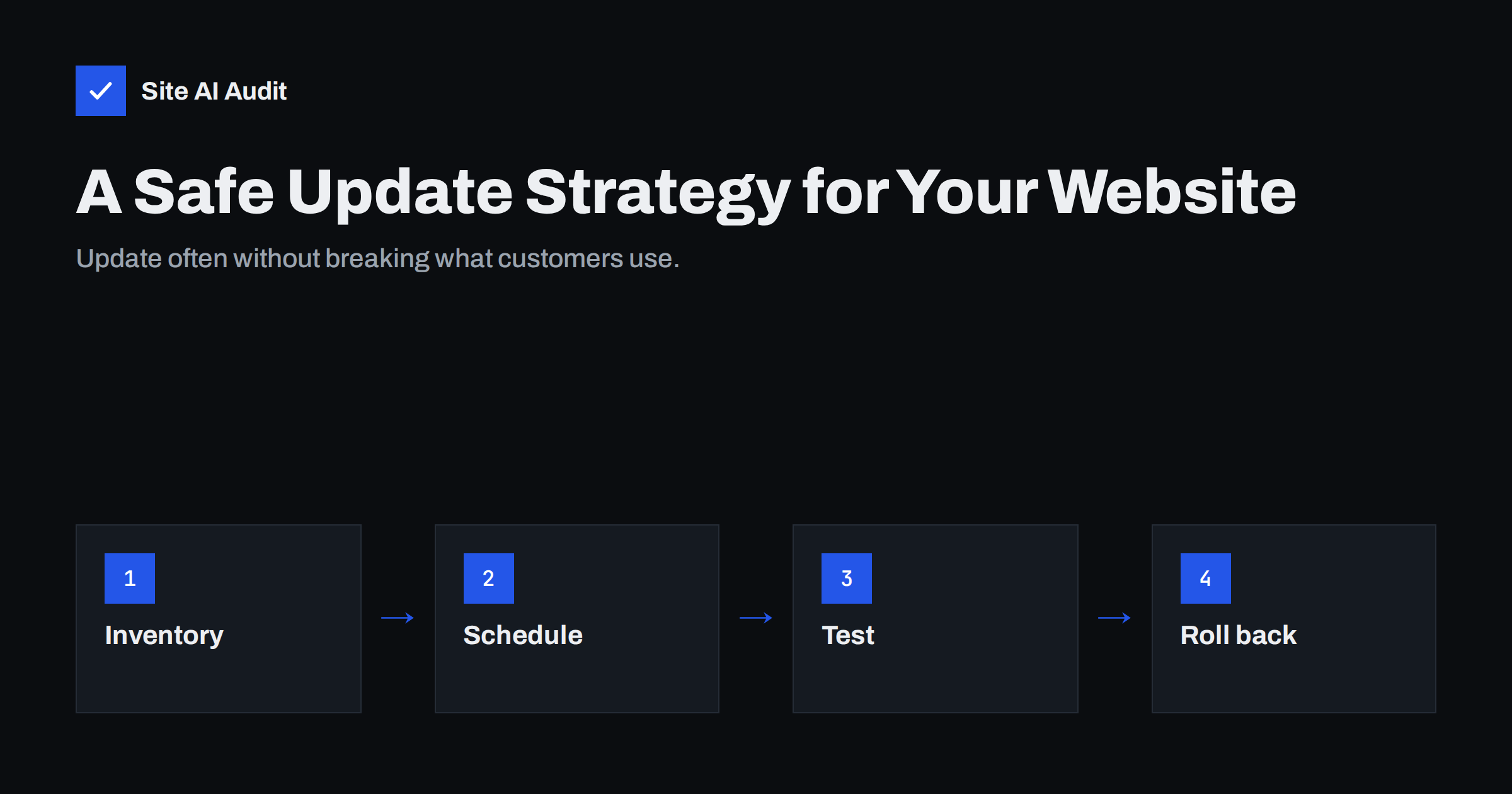
Short answer: Outdated software – CMS core, plugins, themes, PHP and server packages – is the most common technical entry point for website compromises, because attackers scan for versions with published vulnerabilities. A safe update strategy has five parts: an inventory of every component, a regular schedule (weekly for most sites, faster for security releases), a backup before each update, a quick test of key functions afterwards (on staging for complex sites), and a plan for replacing abandoned components. Automatic updates are a good default for minor and security releases on well-maintained software.
Many site owners postpone updates for understandable reasons: an update once broke the layout, the developer who built the site is no longer around, or everything seems to work fine. Meanwhile, vulnerability reports for popular plugins are published every week, and automated attacks often start soon after a fix is released – because the fix itself shows attackers where the weakness was. This guide describes a practical routine that keeps your site current without turning every update into a gamble.
Why outdated software is such a big risk
When a vulnerability is discovered in a widely used plugin, theme or CMS, the developer releases a fixed version and the issue is usually published in vulnerability databases. From that moment, the difference between the old and new code is public. Attackers build exploits and scan the web for sites still running the vulnerable version – a cheap, automated process. Sites that update within days are rarely affected; sites that update every few months are exposed for weeks.
The risk also grows with the number of components. A typical CMS site may run dozens of plugins, each maintained by a different developer with different security practices. Every one of them is part of your attack surface, whether it is active, inactive or long forgotten.
Staying informed about vulnerabilities
A schedule covers routine updates, but serious vulnerabilities sometimes need action within a day. You do not have to read security news all day to catch them. Practical sources:
- Your CMS dashboard and update e-mails, which flag security releases for core and many extensions.
- Security plugin or hosting notices: many security plugins and managed hosts warn when an installed plugin has a known vulnerability.
- Vulnerability databases for your platform: several organisations publish searchable lists of plugin and theme vulnerabilities, often with e-mail alerts for the components you use.
- Vendor newsletters for the premium plugins and themes you rely on.
When an alert concerns a component you use, check three things: whether your version is affected, whether a fixed version exists, and whether the flaw is being actively exploited. If it is, update immediately; if no fix exists yet, deactivate the component or restrict access to the affected feature until one does.
Step 1: Know what you run
Keep a simple inventory of your site’s components:
- CMS name and version;
- every plugin or extension, with version, whether it is active, and why it is installed;
- themes, including parent and child themes;
- PHP version and, if you manage the server, operating system and web server versions;
- external libraries loaded from CDNs;
- premium components with licences that must be renewed to receive updates.
The last point matters: a premium plugin or theme with an expired licence often stops receiving updates silently. Note renewal dates alongside the inventory.
Store the inventory where the whole team can find it – a shared document or the maintenance notes – and update it whenever someone installs or removes a component. When a vulnerability announcement arrives, the inventory answers the first question, “do we use this?”, in seconds instead of requiring someone to log in to every site and check.
Step 2: Reduce what you have to update
The easiest update is the one you no longer need. Review the inventory and:
- delete inactive plugins and unused themes – deactivated code can still be vulnerable;
- replace several small plugins with one well-maintained one where possible;
- replace components that have not been updated in a year or more, or have been removed from official directories;
- remove old staging copies and test installations from the server.
Fewer components mean fewer updates, fewer conflicts and a smaller attack surface.
Step 3: Set a schedule
| Update type | Suggested timing | Approach |
|---|---|---|
| Security releases (CMS, plugins, themes) | Within days of release | Automatic where possible, otherwise prioritised manual update |
| Minor releases | Weekly routine | Automatic for trusted components, or batched manually |
| Major CMS or plugin versions | Within a few weeks | Test on staging first, read release notes |
| PHP version upgrades | Before the current branch loses security support | Test on staging, check plugin compatibility |
| Server operating system packages | Security updates automatically; others monthly | Host or administrator responsibility |
PHP deserves special attention because each version branch has a fixed end of security support, published on the official PHP supported versions page. Plan upgrades well before that date.
Step 4: Update safely
- Back up files and database immediately before updating, even if nightly backups exist.
- Read the changelog for major versions and for plugins that handle payments, forms or page building.
- Update in small groups rather than everything at once, so that if something breaks you know which update caused it.
- Test key functions afterwards: home page, a typical content page, navigation, contact form, search, login, and for shops the cart, checkout and payment confirmation.
- Check the error log and browser console for new warnings.
- Roll back from the backup or reinstall the previous version if something important breaks, then investigate calmly.
For business-critical sites, perform major updates on a staging copy first and repeat them on production only after testing. Many hosts offer one-click staging environments.
Step 5: Use automatic updates wisely
Automatic updates remove the biggest cause of delay – people. A balanced setup for most CMS sites:
- enable automatic minor and security updates for the CMS core;
- enable automatic updates for small, well-maintained plugins with a good track record;
- update complex components – page builders, shop extensions, membership plugins – manually after a quick review;
- make sure update notification e-mails reach someone who reads them.
Combine automatic updates with monitoring, so if an update does break something, you find out from an alert rather than from a customer.
A 20-minute weekly routine
For a typical small business site, the whole process fits into a short weekly slot:
- Log in and check the list of pending updates, noting any marked as security releases.
- Confirm last night’s backup exists, or take a fresh one.
- Apply minor updates in two or three small groups, checking the home page after each group.
- Test the contact form, search and, for shops, add a product to the cart and view the checkout.
- Glance at the error log for new warnings.
- Note anything postponed – a major version, a plugin that needs a licence renewal – with a date for dealing with it.
Doing this every week keeps each session small and predictable. Sites that update monthly or less face larger jumps between versions, which is exactly when updates are most likely to break something – and the cycle of postponing continues.
When updates are blocked
Sometimes a site cannot be updated easily: a heavily customised theme would be overwritten, a plugin is incompatible with a newer PHP version, or the original developer is gone. Do not let this become a permanent state. Options include moving customisations into a child theme or a small custom plugin, replacing the incompatible component, or planning a rebuild if the site has drifted too far. In the meantime, reduce risk with a web application firewall, strict access controls and closer monitoring – but treat these as temporary measures, not a solution.
How Site AI Audit helps
Site AI Audit checks your site from outside and reports exposed software versions, missing security headers, the state of your SSL certificate and HTTPS redirect, and other findings in plain words with fixes. After updates, a re-check on paid plans confirms nothing regressed, and weekly or daily monitoring alerts you when a page breaks or a certificate problem appears. Run a free check.
Related reading
- WordPress Security Checklist: 20 Steps That Actually Matter
- Exposed Software Versions: How to Hide Server and CMS Details
- Website Backup Strategy: How to Back Up So You Can Restore
The bottom line
Keeping software current is the single most effective technical security habit for a website. Know what you run, remove what you do not need, update on a schedule with security releases first, back up and test around each update, and automate where the risk of breakage is low. When updates are blocked, fix the reason rather than living with outdated code.
KKK
How often should I update my website plugins?
Check at least weekly and apply security releases within days. Many sites combine automatic updates for simple plugins with a weekly manual review for complex ones.
Can updating plugins break my website?
Occasionally, especially with major versions or conflicting plugins. A backup before updating, updates in small groups and a quick test of key functions make problems rare and easy to reverse.
Is it safe to enable automatic updates?
For the CMS core’s minor releases and well-maintained plugins, the security benefit usually outweighs the small risk of breakage. Keep complex plugins on manual updates and use monitoring to catch issues quickly.
What should I do with a plugin that is no longer maintained?
Replace it with a maintained alternative or remove the functionality. Abandoned plugins will not receive security fixes, so every newly discovered vulnerability stays open permanently.
Does my host update my website for me?
Hosts usually update the server and sometimes PHP, but the CMS, plugins and themes are normally your responsibility unless you have a managed hosting or maintenance plan that explicitly includes them.


