 ENEnglish
 LTLietuviškai
 DEDeutsch
 FRFrançais
 RUРусский
 ESEspañol
 PLPolski
 ITItaliano
 UKУкраїнська
 CSČeština
 PTPortuguês
 JA日本語
JA日本語 LVLatviešu valoda
 ETEesti
 HUMagyar
 IDBahasa Indonesia
 TRTürkçe
 HIहिन्दी
 ELΕλληνικά
 ARالعربية
 THไทย
THไทย VITiếng Việt
 RORomână
 MSBahasa Melayu
 BNবাংলা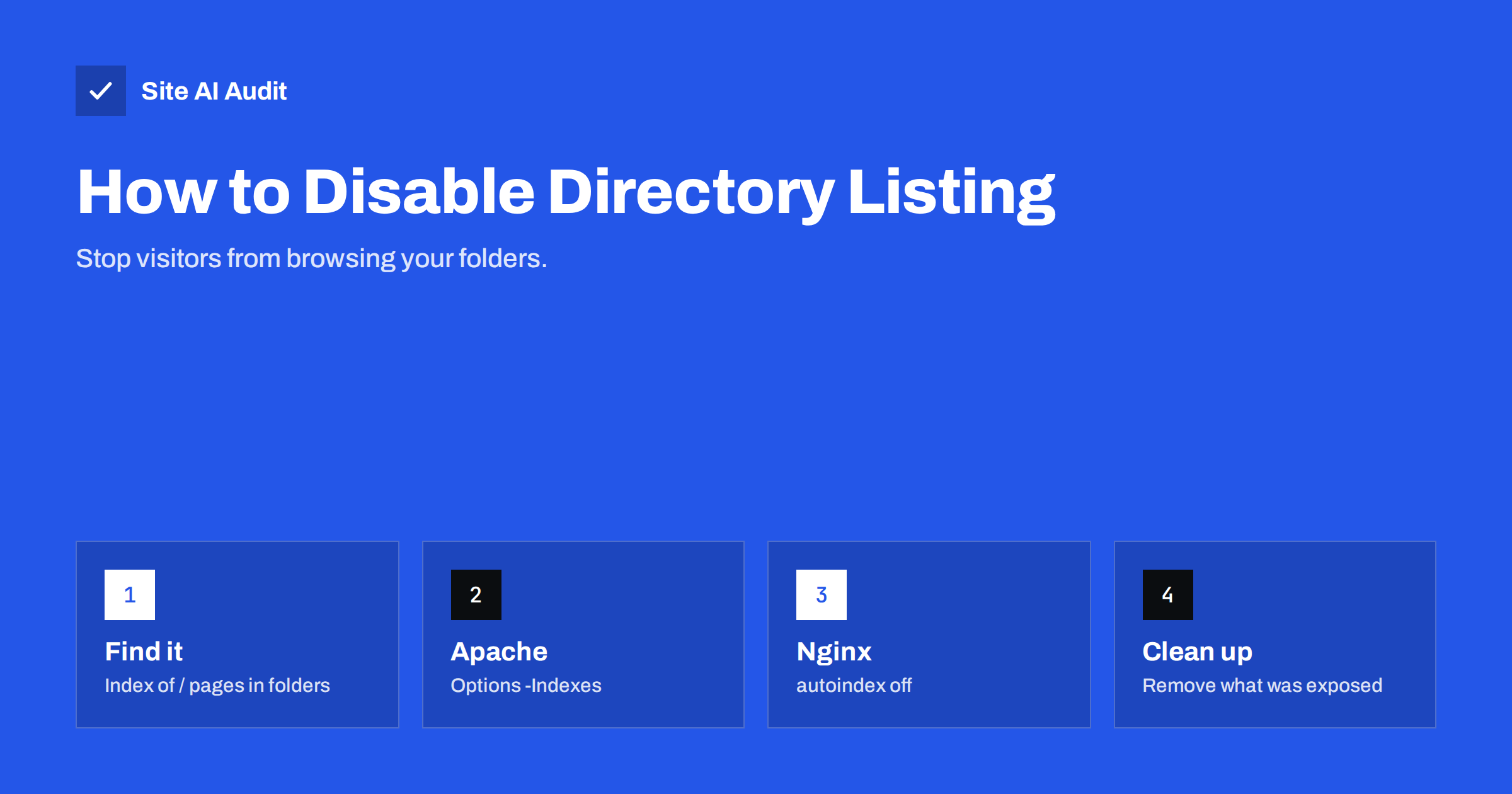
Short answer: Directory listing (also called directory browsing or autoindex) is a web server feature that shows a clickable list of files when a folder has no index page – the familiar “Index of /” page. On a public website it lets anyone browse uploads, backups, logs and plugin folders. Disable it with Options -Indexes in Apache, autoindex off; in Nginx, or the directory browsing setting in IIS or your hosting panel, then check which files were exposed and remove anything sensitive.
Directory listing is one of those settings that nobody enables on purpose but many sites have. It often comes from a default server configuration, a hosting template or an old .htaccess file. On its own it does not break into anything. What it does is hand an attacker – or a curious visitor, or a search engine – a map of your files, including those you assumed nobody would ever find because nothing linked to them. This guide explains the risk, how to check, and how to switch it off on the most common servers.
What directory listing looks like
When a browser requests a folder, such as https://example.com/wp-content/uploads/2024/, the server looks for an index file (index.html, index.php and similar). If none exists and directory listing is enabled, the server generates a page titled “Index of /wp-content/uploads/2024” with every file and subfolder, their sizes and modification dates. If directory listing is disabled, the server returns 403 Forbidden or 404 Not Found instead.
Why it is a risk
- Exposure of files that were never meant to be public. Backups, database dumps, exported customer lists, invoices, draft documents and log files are often stored in folders without links to them. A listing makes them discoverable in seconds.
- Reconnaissance for attackers. Listings of plugin, theme or library folders reveal exact software and versions, which can be matched against known vulnerabilities.
- Privacy and data protection. Upload folders on shops, booking systems or form plugins may contain personal documents, CVs or ID scans submitted by customers. Exposing them can be a data breach.
- Search engine indexing. Crawlers follow links in listings and may index files that you never intended to publish, making them findable through search.
- Scraping of content and media. Competitors or bots can download all your images and files in bulk.
How to check your site
- Open a few folders directly in the browser, especially ones that usually contain files but no index page:
/wp-content/uploads/,/wp-content/plugins/,/images/,/files/,/downloads/,/backup/,/assets/,/media/. - Look for pages titled “Index of” or file listings. A 403 or 404 response means listing is disabled for that folder.
- Search for
site:example.com intitle:"index of"to see whether search engines have already indexed any listings. - On the server, check the configuration for
Options Indexes(Apache) orautoindex on(Nginx), including in.htaccessfiles and included configuration snippets.
Remember that the setting can differ per folder. One folder with an old .htaccess or a special location block can still expose a listing even when the rest of the site is protected.
How to disable directory listing
How to disable it on Apache
In the virtual host configuration or the main configuration, set:
<Directory /var/www/example>
    Options -Indexes
</Directory>
On shared hosting, add this line to the .htaccess file in your web root:
Options -IndexesThe minus sign removes the Indexes option while keeping other options unchanged. If the server does not allow overriding Options in .htaccess, you will see a 500 error; in that case, ask your host or use the control panel setting. After the change, requesting a folder without an index file should return 403 Forbidden.
How to disable it on Nginx
Nginx disables directory listing by default, but it is often switched on for a specific location, for example a downloads folder. Search the configuration for autoindex and set it to off:
location / {
    autoindex off;
}
Remove any autoindex on; lines that are not deliberately needed, run nginx -t and reload.
IIS, hosting panels and other platforms
- IIS: in IIS Manager, open the site or folder, select Directory Browsing and click Disable. In configuration files this is
<directoryBrowse enabled="false" />. - cPanel and similar panels: look for “Index Manager” or “Directory Privacy/Indexes” and choose “No Indexing” for the web root.
- LiteSpeed: honours Apache’s
.htaccessdirective, soOptions -Indexesworks. - Static hosting and CDNs: most do not generate listings; object storage buckets used for files, however, can allow public listing of their contents and should be checked in the storage settings.
Cloud storage buckets: the modern directory listing
Many websites no longer store uploads on the web server itself. Images, downloads and backups live in cloud object storage, served directly or through a CDN. These storage services have their own version of directory listing: a bucket or container configured for public listing returns an XML or JSON index of every object in it when someone requests the bucket’s root address. Publicly listable buckets have been behind a long series of well-publicised data leaks, because the same bucket often holds both public images and private exports.
If your site uses object storage, check three things in the storage settings:
- Listing permission: public read access to individual objects is sometimes needed; public permission to list the bucket almost never is.
- Separation: keep public assets and private files, such as backups, invoices and exports, in different buckets with different access policies.
- Account-level safeguards: many providers offer a setting that blocks public access for all buckets unless explicitly allowed. Enable it and make exceptions deliberately.
Test by opening the bucket’s base URL in a private window. You should see an access denied message, not a list of files.
The “empty index file” workaround
A common old trick is placing an empty index.html or index.php in each folder, which WordPress does in some of its folders. It works, but only for folders where someone remembered to add the file. New upload folders created each month, plugin folders and backup folders are easily missed. Use the server setting as the real fix, and treat index files only as an extra layer.
After disabling: clean up what was exposed
Turning off listings hides the map, but files remain reachable by their direct URLs, and some may already have been downloaded or indexed. Follow up:
- Review what was visible in the listings, especially upload, backup and export folders.
- Move backups, exports and logs out of the web root, and delete temporary files.
- If personal data or secrets were exposed, assess the impact, change any credentials and check your notification obligations.
- Remove indexed listing pages and sensitive files from search results – make them return 404 or 410 and use the search console removal tool for urgent cases.
- Protect folders that must hold private files with authentication or serve them through the application with access checks rather than as public files.
When a listing is intentional
Some sites deliberately publish file listings, for example a public software mirror or an open-data folder. That is fine when every file in the folder is meant to be public. Limit listing to that specific folder, never to the web root, and make sure nothing else is ever stored there. Consider a proper download page instead – it gives you control over descriptions, ordering and what is shown.
Quick reference
| Server | Setting to disable listings | Where |
|---|---|---|
| Apache / LiteSpeed | Options -Indexes | Virtual host, Directory block or .htaccess |
| Nginx | autoindex off; | server or location block |
| IIS | directoryBrowse enabled=”false” | IIS Manager or web.config |
| Hosting panel | Index Manager: No Indexing | Per folder or whole site |
How Site AI Audit helps
Site AI Audit checks your website from outside, the way visitors, search engines and scanners see it, and reports security findings such as the SSL certificate, HTTPS redirect, security headers and exposed software versions with a plain-language fix for each. Regular re-checks and monitoring on paid plans help you catch configuration changes after server moves or updates, which is when forgotten settings tend to return. Check your site for free.
Related reading
- Exposed .env, .git and Backup Files: How to Find and Block Them
- Exposed Software Versions: How to Hide Server and CMS Details
- WordPress Security Checklist: 20 Steps That Actually Matter
The bottom line
Directory listing turns every folder without an index page into a public file browser. Disable it at the server level – Options -Indexes on Apache, autoindex off on Nginx, the matching setting in IIS or your panel – check a few folders to confirm, and then clean up whatever was exposed. It is a five-minute fix that removes an easy source of leaks and reconnaissance.
KKK
Is directory listing a vulnerability?
It is a misconfiguration rather than a vulnerability in the software, but it can directly expose sensitive files and helps attackers find weaknesses. Security audits usually rate it as a medium-risk finding, higher if sensitive files are visible.
Will disabling directory listing break my website?
Normally not. Pages and files are still served by their direct URLs; only the automatically generated folder listings disappear. If some feature relied on a listing, replace it with a proper download page.
Does WordPress disable directory listing by itself?
WordPress adds empty index files to some folders, but not to all of them, and it cannot change server settings. Disabling listings in the server configuration or .htaccess is the reliable method.
Why do I get a 500 error after adding Options -Indexes?
Your host does not allow changing Options in .htaccess. Remove the line and disable listings through the hosting control panel or ask the host to do it in the server configuration.
Are files still accessible after I disable listing?
Yes, anyone who knows the exact URL can still open them. Move sensitive files out of the public folder or protect them with access controls, rather than relying on hidden locations.


