ENEnglish
 LTLietuviškai
 DEDeutsch
 FRFrançais
 RUРусский
 ESEspañol
 PLPolski
 ITItaliano
 UKУкраїнська
 CSČeština
 PTPortuguês
 JA日本語
JA日本語 LVLatviešu valoda
 ETEesti
 HUMagyar
 IDBahasa Indonesia
 TRTürkçe
 HIहिन्दी
 ELΕλληνικά
 ARالعربية
 THไทย
THไทย VITiếng Việt
 RORomână
 MSBahasa Melayu
 BNবাংলা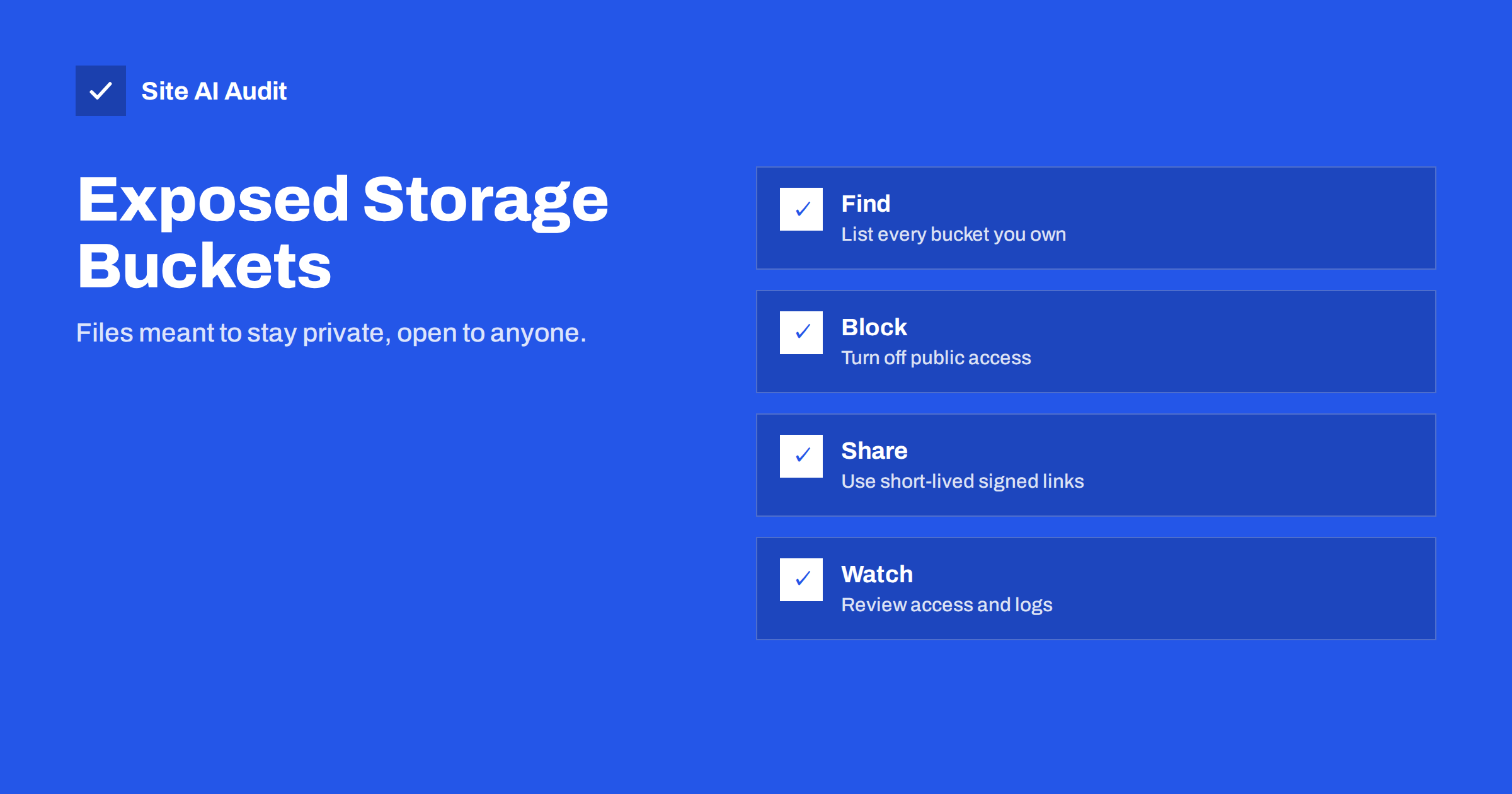
Short answer: A storage bucket is a folder in a cloud service where websites keep images, uploads, exports and backups. If it is set to public, anyone who knows or guesses its address can read the files, and in the worst case list and change them. Leaks happen through simple misconfiguration, not clever hacking. Fix it by finding every bucket, blocking public access by default, sharing private files with short-lived links and reviewing who can reach what.
What a storage bucket is
Cloud providers offer object storage, a service that stores files at scale and serves them over the internet. Amazon calls its containers buckets, Microsoft uses the word containers inside storage accounts, and Google also uses buckets. Websites use them for product photos, user uploads, downloadable documents, log files, database dumps and backups. A content delivery network or a website plugin may use one on your behalf without you ever opening the storage console.
Each bucket has access rules that decide who can list the contents, who can read files, and who can write or delete. These rules are powerful and can be set at several levels, including account-wide settings, bucket policies, access lists on single files and temporary links. The more layers there are, the easier it is to leave a door open by accident.
How buckets end up exposed
- Public by choice, then forgotten. Someone makes a bucket public to serve images quickly, and the same bucket later receives private files such as invoices or exports.
- A broad permission copied from an example. Tutorials sometimes grant access to everyone to get a demo working, and the setting stays after launch.
- Listing enabled. Even when files need an exact address, an open listing lets anyone see every file name and pick the interesting ones.
- Predictable names. Names such as company-backups or site-uploads are easy to guess, and attackers use tools that try thousands of such names.
- Tools that open access silently. A plugin, a deployment script or a migration may change a setting without any visible notice.
- Old buckets. A bucket created for a test or a former developer is still there, still public and no longer monitored.
Major providers have made new buckets safer in recent years by blocking public access by default, but older buckets keep their old settings, and someone can still switch protections off deliberately. Do not assume that you are safe just because you use a big provider.
What attackers do with an open bucket
The damage depends on what is inside and what the permissions allow. Readable files can expose customer data, contracts, invoices, personal documents, configuration files with passwords, and full database backups. Our article on exposed environment, Git and backup files describes the same type of leak on ordinary web servers.
If the bucket is also writable, the risks grow: an attacker can replace a file that your website loads, for example a script or an image, so your own pages serve malicious content to visitors. They can delete data, upload illegal files under your name, or run up storage and transfer costs. A writable public bucket that serves a script to your site is effectively a back door into every page that uses it. Our guide to subresource integrity shows one way to detect changed scripts.
There is also a risk that goes the other way. If a website still points to a bucket name that was deleted, someone else can register the same name and serve their own files at your address. The same family of problem is described in our article on subdomain takeover prevention.
How to find your buckets
You cannot protect what you do not know about, so begin with an inventory.
- List every cloud account your business uses, including old ones created by agencies or former staff.
- List the buckets or containers in each account, with their region and creation date.
- Look at your website’s source and settings. Search page source, stylesheets and plugin settings for storage and content delivery addresses. Images and downloads often reveal where files really live.
- Check your DNS records for names that point to storage services, since each is a bucket that is in use or was in the past.
- Ask your developers and agencies which services they set up. Shadow buckets are common.
For each bucket, write down what it contains, who needs access, and whether any of it is meant to be public.
How to lock them down
- Turn on the account-wide block on public access, offered by the major providers, and make exceptions only for buckets that are intentionally public.
- Separate public and private content. Keep public images in one bucket and private documents or backups in another, so a mistake in one does not expose the other.
- Disable listing on any public bucket, so people can only fetch files whose exact address they know.
- Use least privilege. Give each application only the access it needs, such as read-only access to one bucket, and never an all-powerful account key. Our guide to least-privilege user roles explains the idea for people and the same principle applies to services.
- Share private files with signed, expiring links. A signed link grants access to one file for a short time, which is far safer than a public bucket. See also our article on how to protect private downloads in WordPress.
- Keep keys out of the browser. Storage keys inside front-end code are visible to everyone, as explained in our article on API keys exposed in front-end JavaScript.
- Encrypt sensitive data and enable versioning, so an accidental overwrite or deletion can be reversed. Make sure your backups are separate from the live data, as described in our backup strategy guide.
Monitoring and review
Turn on access logs for buckets that hold anything important, and send alerts for changes in access settings. A change from private to public should never go unnoticed. Our guide to security logging and monitoring covers what a small business should record and review.
Review all permissions at regular intervals, and each time someone leaves the team or an agency finishes a project. Remove access keys that nobody uses, rotate the ones that remain, and delete buckets that are no longer needed once you have confirmed that nothing refers to them. Our article on developer access offboarding includes a practical list.
Finally, test from the outside. Try to open a file address in a private browser window, and try the bucket’s listing address without logging in. If something opens that should not, fix it first and then work out how long it was open, because exposed data may need to be reported to customers or authorities depending on where you operate.
A realistic small-business case
A small online shop hires a freelancer to speed up the website. The freelancer moves product images to a storage bucket and sets it to public so that the images load quickly. That is a reasonable choice. A year later, a different developer adds an order export that writes a spreadsheet with names, addresses and phone numbers to the same bucket, because it is already configured and working. Nobody notices that the folder is public, because the export is never linked from any page.
Automated tools that scan for open buckets find it within days, and the spreadsheet is downloaded. The shop learns about it only when a customer receives a scam message that quotes a recent order. The fix would have taken minutes: a separate private bucket for exports, a block on public access for it, and a signed link for the staff who need the file. The lesson is that a safe setting at the start does not stay safe on its own, because every new use of a shared resource changes the risk.
Put a simple rule in place: before anyone stores a new kind of file in a bucket, they check whether that bucket is public and whether the file should be. It takes a minute and prevents most leaks of this kind.
How Site AI Audit helps
Site AI Audit checks the visible basics of security on your website: the SSL certificate, HTTP to HTTPS redirects, security headers and exposed software versions. It does not log in to your cloud accounts or inspect your buckets, so use the cloud provider’s console and your own inventory for those. You can run a free check of your website or see the plans.
Related reading
- Website Security Audit Checklist: What to Check and in What Order
- IDOR Vulnerability Explained: Broken Access Control Basics
- Unrestricted File Upload Vulnerabilities and How to Block Them
- Website Security for Small Businesses: Where to Start
The bottom line
Exposed buckets are a quiet, avoidable way to leak data. Know every bucket you own, block public access by default, keep private and public files apart, use signed links and least privilege, and watch for changes. A short review today is much cheaper than an incident later.
FAQ
Is a public bucket always a problem?
No. A bucket that serves public images can be public on purpose. The problem is private data in a public bucket, or a public bucket that anyone can write to or list.
How can I tell if my bucket is public?
Check the provider’s console for public access settings and policies, and test a file address in a private browser window without logging in.
Are signed links safe?
They are much safer than public access when they expire quickly and cover one file. Treat them like passwords while they are valid, and do not post them publicly.
Does my WordPress site use cloud storage?
Possibly. Some media, backup and caching plugins store files in cloud buckets. Check the plugin settings and your cloud accounts.
What should I do if I find exposed data?
Block access immediately, check the logs to see what was accessed, change any exposed keys or passwords, and take advice on whether you must inform customers.