ENEnglish
 LTLietuviškai
 DEDeutsch
 FRFrançais
 RUРусский
 ESEspañol
 PLPolski
 ITItaliano
 UKУкраїнська
 CSČeština
 PTPortuguês
 JA日本語
JA日本語 LVLatviešu valoda
 ETEesti
 HUMagyar
 IDBahasa Indonesia
 TRTürkçe
 HIहिन्दी
 ELΕλληνικά
 ARالعربية
 THไทย
THไทย VITiếng Việt
 RORomână
 MSBahasa Melayu
 BNবাংলা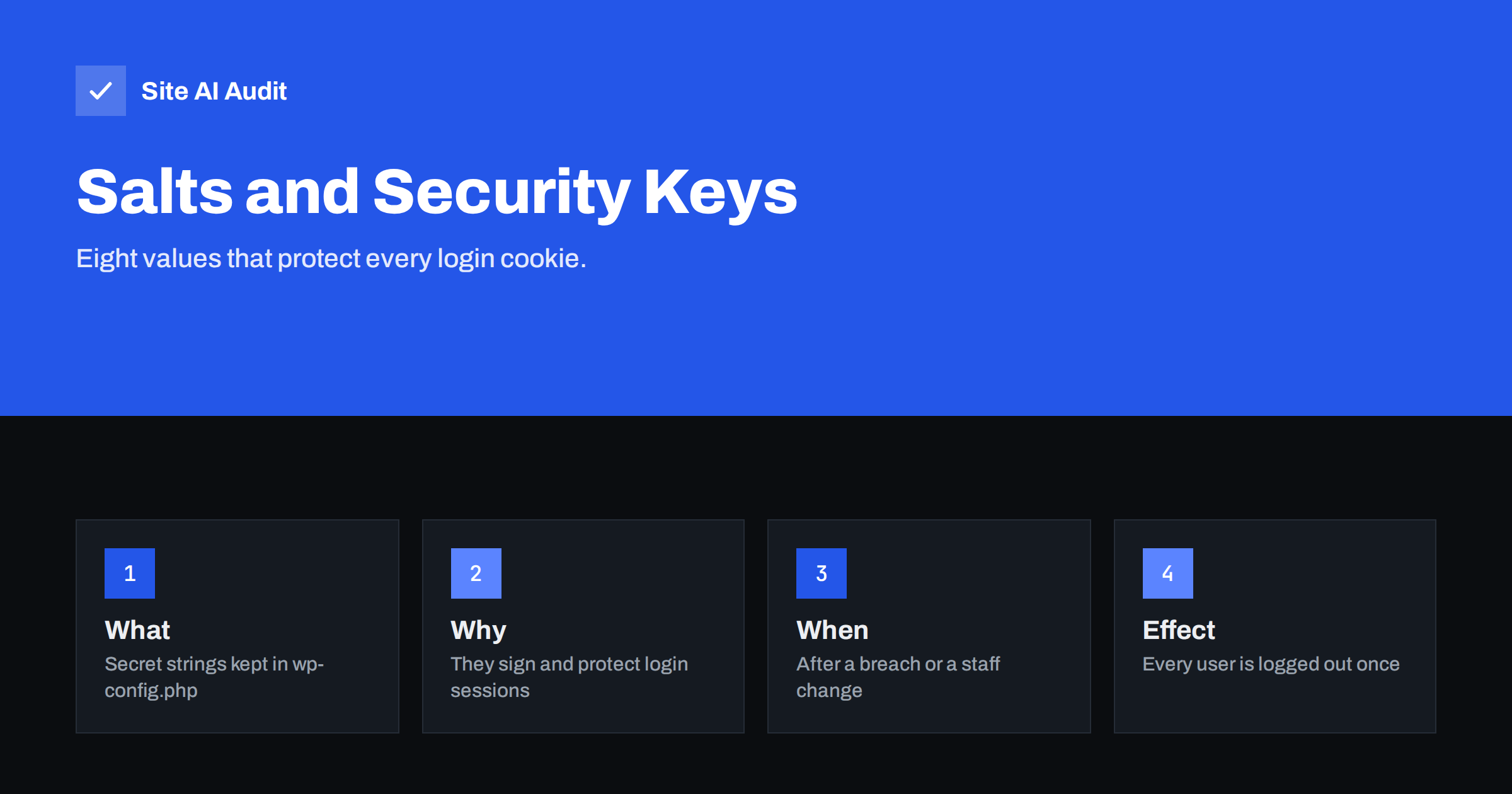
Short answer: WordPress security keys and salts are eight long random strings in the wp-config.php file. WordPress uses them to protect the cookies that keep people logged in, so a stolen or forged cookie is harder to use. Replace them after a suspected breach, when someone with file access leaves, or when you find that the file was ever exposed. Changing them logs every user out once, but it does not change passwords and it does not break the site.
What the keys and salts are
If you open the wp-config.php file of a WordPress site, you will see eight lines that look like this: AUTH_KEY, SECURE_AUTH_KEY, LOGGED_IN_KEY and NONCE_KEY, followed by AUTH_SALT, SECURE_AUTH_SALT, LOGGED_IN_SALT and NONCE_SALT. Each has a long, random value.
They are secret ingredients that WordPress mixes into the data it stores in a visitor’s browser, such as the login cookie, and into short-lived tokens called nonces that protect forms and actions. Because only your site knows the secret, a cookie that someone invents or copies from another site does not pass the check.
The file that holds them is one of the most sensitive on the server, which is why the guide to wp-config.php security recommends strict permissions and keeping it out of reach of the web.
What they do and what they do not do
It helps to be precise, because the keys are often misunderstood.
- They protect sessions. They make login cookies hard to forge. If an attacker only has a username, the keys stop them from creating a valid session.
- They protect nonces. Nonces help defend admin actions against forged requests, a topic explained in how cross-site request forgery works.
- They do not store passwords. User passwords are hashed separately in the database. Changing the keys does not reset or reveal any password.
- They do not stop a stolen cookie by themselves. If an attacker has copied a valid cookie, it works until it expires or the keys change. That is exactly why rotation is useful after an incident. The risks are described in session hijacking and fixation.
- They are not a firewall. They add one layer, and you still need updates, strong passwords and two-step login.
When you should change them
There is no need to rotate them every week, but there are clear moments when it is the right call.
- After a breach or suspected hack. If anyone could have read the configuration file or copied a login cookie, change the keys as part of the cleanup. The full process is in a step-by-step recovery plan for a hacked website.
- When a developer or employee with file access leaves. Combine it with the steps in removing ex-developers safely.
- If the file was ever exposed. A backup copy in a public folder, a configuration file posted in a support forum or an open repository all count. Check for such leftovers as described in exposed .env, .git and backup files.
- When the values are missing or obviously default. Some installation scripts leave placeholders such as “put your unique phrase here”. Those are not secret at all.
- After you moved or cloned a site. A staging copy shares its keys with the live site until you change them. Give each environment its own set.
- As a periodic habit. A few times a year is sensible for sites with many editors. It limits how long an old, silently stolen session could survive.
What happens when you change them
The effect is simple and harmless. All existing login cookies become invalid, so every logged-in user, including you, has to log in again. Shop customers may lose a logged-in state, though their stored data stays. Nonces in pages that are already open also stop working, so a form that was loaded before the change may report that the link expired.
Plan the change for a quiet time, tell the editors in advance and do not do it while someone is in the middle of writing a long article without saving. Otherwise, there is no downtime and no data loss. If you have cached pages with forms in them, clear the cache after the change so visitors do not receive pages with old nonces.
How to change them safely
The process takes only a few minutes. Work carefully because the file is sensitive and a typing error can stop the site from loading.
- Make a backup of wp-config.php and keep it outside the web folder.
- Generate new values. WordPress provides an official generator service that returns the eight lines ready to paste. You can also create long random strings with a password manager. Each value should be unique and at least sixty characters long.
- Replace the eight lines in wp-config.php with the new ones. Keep the quotation marks and semicolons exactly as they were.
- Save and upload the file, then reload the login page. You should be asked to log in again.
- Log in and check the front page, the admin area and a form.
- Store the new values in your password manager or secure notes, never in an e-mail or a shared document.
Some managed hosts and security plugins offer a button for this. That is fine, but check that it really replaced all eight values and that it did not store them somewhere readable.
Combine it with other steps after an incident
Changing the keys alone does not fix a break-in. An attacker who created a hidden administrator account or planted a backdoor will return with new cookies, so treat the keys as one item on a checklist:
- Look for accounts you do not recognise, as shown in how to find hidden admin users.
- Change the passwords for WordPress administrators, the database, the hosting panel and FTP or SSH.
- Update WordPress core, themes and plugins, and remove what you do not use.
- Scan for injected code and replace modified files with clean copies.
- Turn on two-step login for every administrator, following two-factor authentication for website owners.
Rotating the keys first is useful because it cuts off any session the attacker holds while you clean up.
Strengthen the rest of the login
The keys protect a session once it exists. The login itself needs protection too. Use limits on failed attempts, as described in how to protect against brute-force login attacks, and make sure cookies carry the right flags, explained in secure cookies explained. Store the passwords of your team in a manager, using the advice in password managers for website teams.
Protect the file that holds them
Keys are only useful while they stay secret, so the place where they live deserves care. Set the permissions of wp-config.php so that only the account that runs the site can read it. On many servers a restrictive setting such as 640 or 600 is suitable, but check with your host, because the correct value depends on how the server runs PHP. The rules in file permissions on a web server explain the options.
Never publish the file, even with the values removed by hand, in a support request or a repository. If you must show it to a helper, hide the keys, the database password and any other secret first. Keep backups of the file outside the web folder, because a backup that sits in a public directory can be downloaded by anyone who guesses its name. Finally, make sure error messages and debug mode are switched off on the live site, since leaked paths and settings make an attack easier, as covered in exposed error messages and debug mode.
One more point concerns multisite and shared setups. If several WordPress sites share one wp-config.php or one hosting account, a leak in one place affects the others, so give each installation its own file and its own set of values. The same applies to agencies who copy a starter configuration for each client: the copy must never keep the original strings.
How Site AI Audit helps
Site AI Audit cannot read your wp-config.php file or tell you whether your keys are strong. It checks from the outside the signals that suggest weak protection: SSL certificate and expiry, the HTTP to HTTPS redirect, security headers and exposed software versions, along with SEO, speed and e-mail authentication. The first check is free and needs no sign-up. You can run a free check of your website or compare the plans for weekly monitoring.
Related reading
- WordPress Security Checklist: 20 Steps That Actually Matter
- WordPress User Enumeration: What It Reveals and How to Stop It
- WordPress xmlrpc.php: What It Does and When to Disable It
- Website User Accounts: Least Privilege for Admins and Staff
The bottom line
Keys and salts are cheap protection that most owners forget. Make sure they are unique and secret, replace them after any incident or departure and treat the change as one step in a wider cleanup. The only price is one more login for everyone.
FAQ
Will changing the keys reset user passwords?
No. Passwords are stored as hashes in the database and are separate from the keys. Users only need to log in again.
How often should I rotate them?
There is no required schedule. Rotate after an incident, a staff change or a possible exposure, and consider doing it a few times a year on busy sites.
Can I use the same keys on my staging and live sites?
You should not. Each environment needs its own values, so a cookie from one cannot be used on the other.
My site shows an error after I edited wp-config.php. What now?
Restore the backup you made. The usual cause is a missing quotation mark or semicolon on one of the lines.
Do I need a plugin for this?
No. Editing the file takes a few minutes. A plugin can help if you are not comfortable with file access, but check what it does.