ENEnglish
 LTLietuviškai
 DEDeutsch
 FRFrançais
 RUРусский
 ESEspañol
 PLPolski
 ITItaliano
 UKУкраїнська
 CSČeština
 PTPortuguês
 JA日本語
JA日本語 LVLatviešu valoda
 ETEesti
 HUMagyar
 IDBahasa Indonesia
 TRTürkçe
 HIहिन्दी
 ELΕλληνικά
 ARالعربية
 THไทย
THไทย VITiếng Việt
 RORomână
 MSBahasa Melayu
 BNবাংলা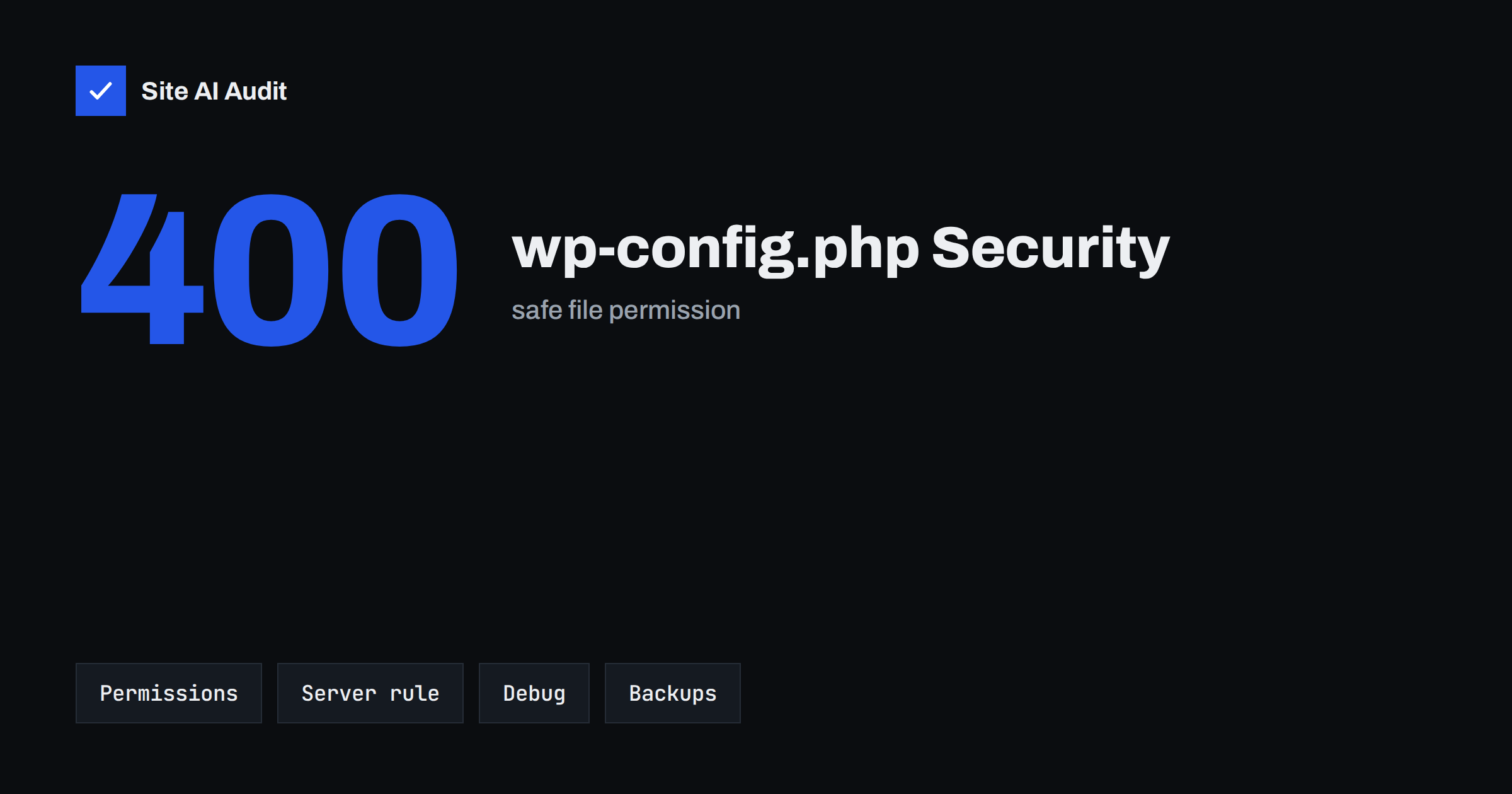
Short answer: The wp-config.php file contains your database password and the keys that protect logins, so anyone who can read it can often take over the site. Protect it with strict file permissions, a server rule that refuses web access, a location above the public folder where possible, debug mode turned off, and no stray backup copies. Then change the keys and passwords if you suspect that it was exposed.
Why this file matters
Every WordPress site has a configuration file called wp-config.php. WordPress reads it first when a page is requested. It tells the software where the database is and how to sign in to it, which security keys and salts to use for login cookies, which prefix the database tables have, and whether debugging is on.
An attacker who obtains the database details can read or change every post, user and setting, as long as the database accepts connections from where they are. The keys and salts are used to protect sessions, so exposing them weakens the login system. That is why the file deserves more care than any theme or plugin file.
Normally the file cannot be read from outside: when a visitor requests it, the server runs the PHP and returns nothing. The danger comes from mistakes around it, such as a copy that is saved under a different name, a server fault that shows the source code, or another site on the same account that can read the file.
Set strict file permissions
File permissions decide who on the server can read or change a file. For wp-config.php, the usual advice is the strictest setting that still lets the site work: permission 400 or 440 on Linux. With 400 only the owner can read it, and nobody can write to it. With 440 the owner and the group can read it, which is needed on some hosts where the web server runs under a group.
Some hosts require 600 or 640 for the site to run, and that is acceptable. What matters is that the file is not writable by everyone and not readable by other accounts. Never use 777 or 666 on any file. Our guide to safe file permissions on a web server explains the numbers and the matching settings for folders.
Also check who owns the file. If it belongs to the wrong user, or if other accounts share the same user on the server, the permissions may not protect you as expected. On shared hosting, ask your provider how accounts are separated.
Block web access to the file
Add a second layer on the web server so that, even if the PHP processing fails, the file is never returned. On Apache, you can use a rule in the .htaccess file that denies access to files with that name. On Nginx, add a location block for the file that denies the request. The exact syntax depends on the server version, so use the documentation of your host or server, and test afterwards by requesting the address of the file in the browser. You should see a refusal or an error, never a blank page that might be hiding source code.
Many managed hosts already apply such a rule. Test anyway, because the result can differ between the main site and other hostnames or folders on the same account.
Move it above the public folder
WordPress can find the configuration file one folder above the folder where it is installed, as long as that upper folder does not contain another WordPress installation. If your host gives you a folder outside the public web root, move the file there. Then no web request can reach it, even if the server rules are wrong.
This works on most standard setups, but not on all of them. After moving the file, open the site and the dashboard to check that everything loads. Keep a copy of the original until you are sure that it works, and delete the copy afterwards, because a leftover copy defeats the purpose.
Change the keys and salts
The configuration file contains eight values: four keys and four salts. They are used to sign the cookies that keep you logged in. If someone has stolen a login cookie, or if you suspect that the file has been exposed, replacing these values logs out every user at once and makes old cookies useless.
The official WordPress site offers a generator that produces fresh random values. Replace the old lines with the new ones, save and sign in again. Do this after any hack, after a staff member with access leaves, and from time to time as a precaution. Our recovery plan for a hacked website includes this step along with changing passwords.
Settings worth adding
A few constants make the site safer. Add them above the line that says to stop editing:
- DISALLOW_FILE_EDIT. Removes the theme and plugin code editor from the dashboard. An attacker who steals an administrator login can no longer change code there.
- FORCE_SSL_ADMIN. Requires HTTPS for the login and dashboard, which protects the cookie. Make sure your site works over HTTPS first; see how to redirect HTTP to HTTPS the right way.
- WP_ENVIRONMENT_TYPE. Tells WordPress and plugins whether this is a production, staging or development site, so that development features are not enabled by mistake.
- DISALLOW_FILE_MODS. Blocks all plugin and theme installs and updates from the dashboard. Use it only if you manage updates in another way, because it also stops security updates from the dashboard.
Changing the database table prefix from the default is sometimes recommended. It is a minor measure that makes some automatic attacks fail, but it does not replace updates and strong passwords, and changing it on an existing site requires careful work in the database. Treat it as optional.
Turn debug mode off in production
The constant WP_DEBUG shows errors and warnings, which helps developers but gives attackers information about paths, plugins and code. On a live site it should be false. If you need to find a problem, enable logging to a file instead of displaying errors on the page, and disable it again afterwards.
Be careful with the debug log. By default, WordPress writes it inside the content folder, where it can sometimes be opened with a browser. You can set a different location outside the public folder, or block access to the file. Our article on exposed error messages and debug mode shows what leaks and how to hide it.
Watch for backup copies and exposure
A very common cause of leaked credentials is a copy of the file, left by a developer or an editor. Names like wp-config.php.bak, wp-config.old, wp-config.php~ and wp-config.txt are not processed as PHP, so the server returns the content as plain text, including the password. Search your site folder for such files and delete or move them away from the web folder. The article about exposed .env, .git and backup files shows how attackers look for them and how to block them.
Also avoid putting the file in a public repository or sending it by email. If it has been shared, treat the secrets as compromised and change them.
Finally, give the database user only the permissions it needs, and, if your host allows it, restrict connections to the local server. Then a stolen password is less useful.
What Site AI Audit can and cannot tell you
Site AI Audit looks at your website from the outside, the way a visitor does. It checks the SSL certificate, the redirect from HTTP to HTTPS, security headers and exposed software versions, along with speed, SEO and email authentication. It does not log in to your server, so it cannot read file permissions or see the content of wp-config.php, and it will not tell you whether a backup copy of the file exists. It does show whether the outside basics are in place. Run a free check or see the plans if you manage several sites.
Related reading
- WordPress Security Checklist: 20 Steps That Actually Matter
- Two-Factor Authentication for Website Owners: What to Protect
- Uploads Folder Security: How to Block PHP Execution
The bottom line
Treat wp-config.php as the key to the whole site. Give it strict permissions, refuse web access, move it above the public folder if you can, renew the keys after any incident, switch off debug display and remove every stray copy. These steps take less than an hour and close some of the most common routes to a stolen database login.
FAQ
What permissions should wp-config.php have?
400 or 440 is the strictest sensible setting, and 600 or 640 also works on some hosts. Avoid anything that makes the file writable or readable by everyone, and check that the site still works after the change.
Is it safe to move wp-config.php out of the public folder?
Yes, WordPress supports one level above the installation folder, provided no other WordPress site is there. Test the site and the dashboard afterwards, and remove the old copy.
How often should I change the keys and salts?
There is no fixed schedule. Change them after a hack, after someone with access leaves, or if you think the file was exposed. Changing them signs every user out, so choose a quiet moment.
Can someone read wp-config.php from the browser?
Not normally, because the server processes the file and returns nothing. It can become readable through a backup copy with another extension, a server fault, or another account on the same server, so add the protections described above.
Does changing the table prefix make WordPress secure?
No. It can stop a few automatic attacks, but updates, strong passwords, two-factor authentication and careful permissions matter far more.