ENEnglish
 LTLietuviškai
 DEDeutsch
 FRFrançais
 RUРусский
 ESEspañol
 PLPolski
 ITItaliano
 UKУкраїнська
 CSČeština
 PTPortuguês
 JA日本語
JA日本語 LVLatviešu valoda
 ETEesti
 HUMagyar
 IDBahasa Indonesia
 TRTürkçe
 HIहिन्दी
 ELΕλληνικά
 ARالعربية
 THไทย
THไทย VITiếng Việt
 RORomână
 MSBahasa Melayu
 BNবাংলা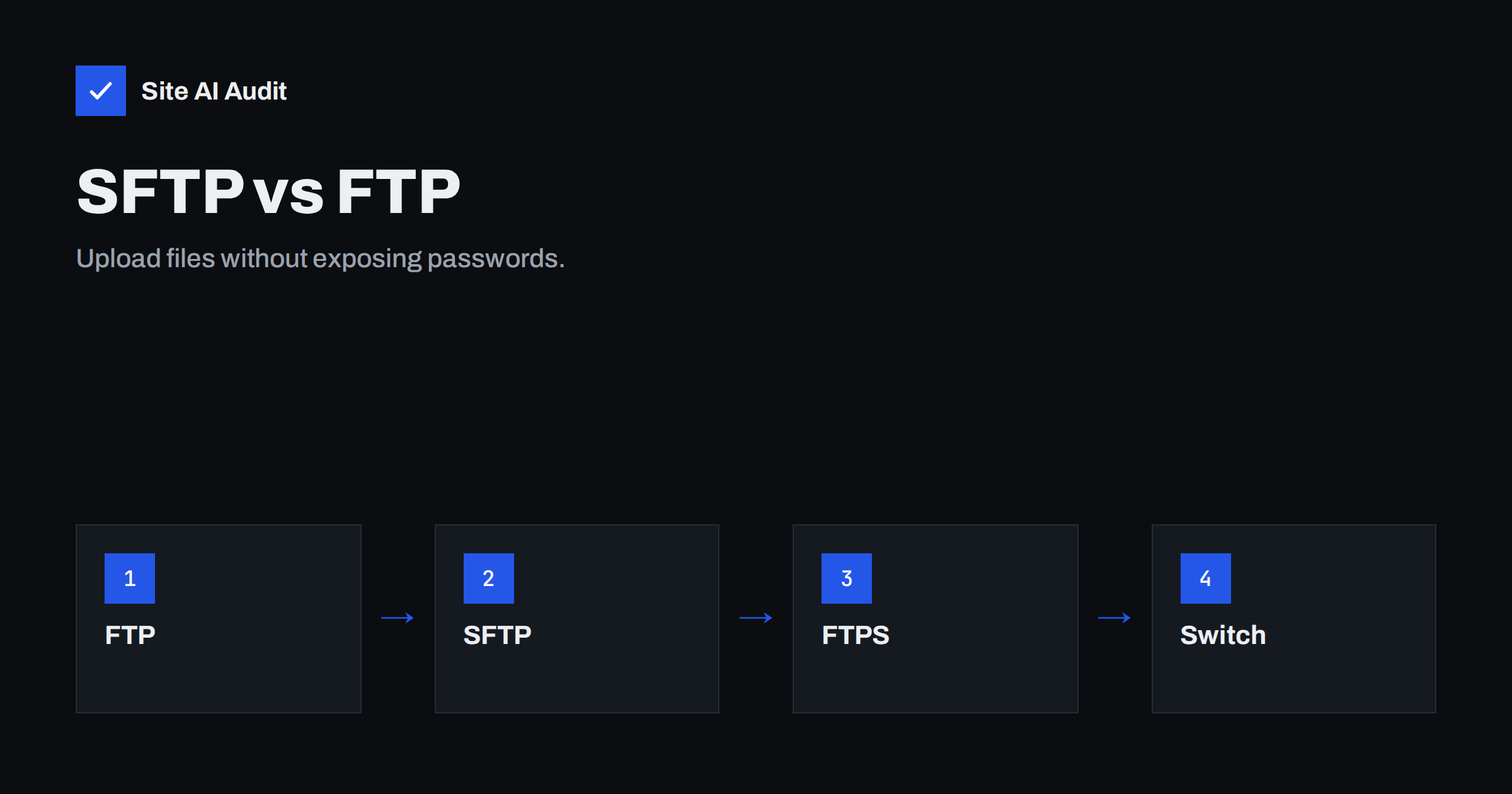
Short answer: Plain FTP sends your user name, password and files across the network without encryption, so anyone who can see the traffic can read them. SFTP, which runs over SSH, and FTPS, which adds TLS to FTP, both encrypt the connection. For website uploads, choose SFTP when your host offers it, use keys or strong passwords, and switch plain FTP off.
What FTP is and why it is a problem
File Transfer Protocol is one of the oldest ways to move files between your computer and a web server. For decades, web designers have used it to upload pages, images and plugins. It was designed in a time when networks were smaller and trusted, so it has no built-in protection. Everything is sent in the clear: the commands, the login details and the contents of the files.
On a modern network that is a serious weakness. Public wireless networks, shared offices, infected computers and compromised routers all give someone a place to watch traffic. A captured FTP password gives the watcher the same access as you, including the ability to upload malware to your site. Many hacked websites are traced back to stolen FTP credentials, not to weaknesses in the software itself.
What SFTP is
SFTP stands for SSH File Transfer Protocol. Despite the similar name, it is not FTP with a coat of paint. It is a different protocol that runs inside an SSH connection, the same secure channel that administrators use for remote command access. All of the traffic is encrypted, and the server proves its identity to your client with a key that you can check.
- One port. SFTP normally uses a single port, usually 22, which makes firewalls simple.
- Strong authentication. It supports passwords and also key pairs, which are much harder to guess or steal.
- Server identity. Your client remembers the server’s fingerprint and warns you if it changes.
- Wide support. Most desktop clients and code editors can use it, and many hosts provide it by default.
What FTPS is
FTPS is the old FTP protocol with TLS encryption added, in the same way that HTTPS is HTTP with TLS. It encrypts the login and the data, using certificates. It is secure when set up correctly, but it is more complicated than SFTP. FTP uses separate connections for commands and for data, and firewalls need to allow a range of extra ports. Misconfiguration may cause failed transfers or fall back to plain, unprotected mode. If your host offers both, SFTP is usually simpler and more reliable. The article on the difference between SSL and TLS explains the encryption that FTPS borrows.
Comparing the three
| Feature | FTP | FTPS | SFTP |
|---|---|---|---|
| Encrypted login | No | Yes | Yes |
| Encrypted files | No | Yes | Yes |
| Runs on | FTP | FTP with TLS | SSH |
| Typical port | 21 | 21 or 990 | 22 |
| Firewall friendliness | Complex | Complex | Simple |
| Key-based login | No | Client certificates only | Yes |
How to switch
- Check what your host offers. Look in the hosting panel or documentation for SFTP or SSH access. Some shared plans enable it, others need a request.
- Create a separate account. Give each person or tool their own user, restricted to the folders they need. Do not share one master login.
- Change your client settings. In a file transfer program, choose the SFTP protocol, enter the host name, the port and the user, and accept the server fingerprint after checking it with your host.
- Test an upload. Upload and delete a harmless file to confirm that everything works.
- Turn off plain FTP. Once everyone has switched, disable the old service, so that nobody falls back to it by habit.
- Change the password. If the old password has ever been sent over plain FTP, treat it as exposed and replace it.
Use keys, not only passwords
An SSH key pair has a private part that stays on your computer and a public part that you give to the server. Logging in proves that you hold the private key, without sending a secret over the network. Protect the private key with a passphrase, store it only on devices you control and remove the public key from the server when a person leaves. This is the same principle as in the advice on developer access and offboarding. If a host only supports passwords, use a long unique password from a password manager, and add two-step protection to the hosting account itself.
Other habits for safer uploads
- Use the least access needed. A contractor who updates one theme does not need access to the whole account. See user roles and least privilege.
- Set sensible file permissions. Uploaded files should not be writable by everyone. The guide to file permissions on a web server explains the usual values.
- Do not leave tools behind. Remove backup archives, test scripts and old installers from the web folders after the work is done. The article on exposed environment, Git and backup files shows how often they are found.
- Review the logs. Check who connected and when, and look for logins at strange hours or from unfamiliar places.
- Prefer deployment tools for bigger sites. Automated deployments through a version control system reduce manual uploads and leave a record of each change.
- Keep your computer clean. A secure protocol does not help if the machine that stores the keys carries malware.
Common mistakes
- Saving FTP passwords in a client on a shared or unlocked computer.
- Choosing the FTP option labelled “plain” because it connects faster.
- Accepting a changed server fingerprint without asking the host why it changed.
- Using the same password for the hosting panel, the mailbox and the file transfer account.
- Leaving the old FTP account active after migrating to SFTP.
If you already suspect that credentials have leaked, follow the steps in the guide to recovering a hacked website: change all passwords, check recent changes to files and look for hidden accounts.
If you manage a website for a client, put the access method in your handover notes. Write down which protocol is used, which accounts exist, who owns the keys and where the credentials are stored. When the project ends, remove your own access and ask the client to change any shared password. This small piece of paperwork prevents the common case in which a former contractor still holds a working login years later, and it makes later security reviews far easier.
It is also worth asking your host about the surrounding controls. Can access be limited to certain addresses? Is there a log of file transfers? Can the account be locked quickly in an emergency? Hosts that offer these features make it easier to respond when something looks wrong. Even on a basic plan, you can usually enable two-step login for the control panel and set an alert for new logins. These measures, together with encrypted transfer, turn file access from the weakest link in the chain into a well-guarded door.
Finally, remember backups. A secure upload method protects against theft of credentials, but it does not protect against a mistake. Keep recent copies of your files and database somewhere separate from the web server, and test that you can restore them, as described in the guide to a website backup strategy.
One last tip is to test from the point of view of a stranger. Ask a colleague to connect with the new settings from a different network, and confirm that the old plain FTP connection no longer works. If it still does, the switch is not finished, and the old door remains open for anyone who knows the address.
How Site AI Audit helps
Site AI Audit does not test your hosting login or your upload settings. It checks the public side of your site’s security: the SSL certificate and its expiry, the redirect from HTTP to HTTPS, security headers and exposed software versions. It also reviews SEO, speed and e-mail authentication. The first check is free, covers up to 50 pages and needs no sign-up. You can run a free check of your website or see the plans for weekly monitoring and alerts when something breaks.
Related reading
- Website Security Audit Checklist: What to Check and in What Order
- 9 Signs Your Website Has Been Hacked (and How to Check)
- Open Ports on Your Web Server: Which Ones to Close
- Website Security for Small Businesses: Where to Start
The bottom line
Plain FTP exposes your password and your files to anyone who can watch the connection. SFTP and FTPS fix that by encrypting the transfer, and SFTP is usually the simpler choice. Switch your clients, give each person their own limited account, prefer keys, and turn plain FTP off for good. The change takes an afternoon and closes one of the most common doors into small websites.
FAQ
Is SFTP the same as FTP over SSL?
No. SFTP runs inside an SSH connection, while FTP over SSL, called FTPS, is FTP with TLS added. Both are encrypted, but they are different protocols.
Which is more secure, SFTP or FTPS?
Both are secure when configured properly. SFTP is easier to set up and to protect with keys, so it is the usual recommendation for website owners.
Does my hosting plan support SFTP?
Many do, but some basic plans offer only FTP or FTPS. Check the hosting panel or ask support, and consider moving if a host offers no secure option.
Do I need to change my password after switching?
Yes, if it was ever used over plain FTP. Anyone who captured it can still use it, so replace it with a new, strong one.
Can I use SFTP from WordPress?
Yes. Most desktop clients and editors support it, and updates inside WordPress can run without FTP at all when file permissions are set correctly.