 ENEnglish
 LTLietuviškai
 DEDeutsch
 FRFrançais
 RUРусский
 ESEspañol
 PLPolski
 ITItaliano
 UKУкраїнська
 CSČeština
 PTPortuguês
 JA日本語
JA日本語 LVLatviešu valoda
 ETEesti
 HUMagyar
 IDBahasa Indonesia
 TRTürkçe
 HIहिन्दी
 ELΕλληνικά
 ARالعربية
 THไทย
THไทย VITiếng Việt
 RORomână
 MSBahasa Melayu
 BNবাংলা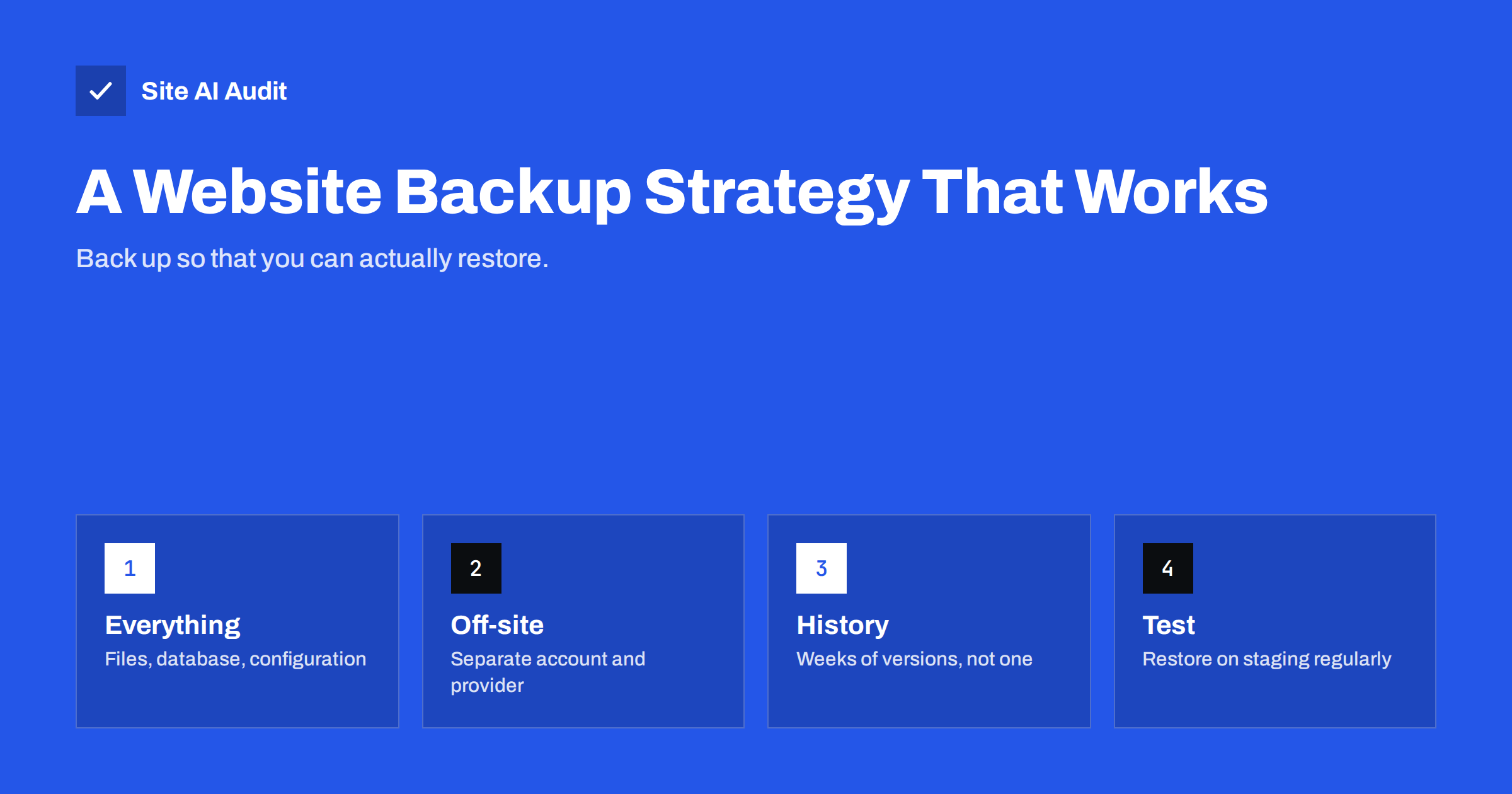
Short answer: A good website backup strategy covers files, database and configuration; runs automatically as often as your content changes (daily for most active sites); keeps several versions going back weeks; stores copies away from the web server, in a separate account or provider; and is tested by actually restoring it from time to time. A common rule of thumb is 3-2-1: three copies of your data, on two different types of storage, with one copy off-site. Backups are your last line of defence against hacks, failed updates, hosting problems and human error – but only if a restore works when you need it.
Almost every website owner believes they have backups. Far fewer have ever restored one. The gap between those two groups becomes visible on the worst possible day: after a hack, a broken update, a deleted page or a hosting provider closing an account. Then it turns out the backup only contained files and not the database, or was stored on the same server that failed, or was overwritten by a copy taken after the infection. This guide explains how to build a backup routine that actually gets you back online.
Why backups belong in website security
Security measures reduce the chance of an incident; backups reduce the damage when one happens anyway. They protect you against:
- Hacks and malware, where a clean copy from before the compromise is often the fastest route back.
- Ransomware on the server or hosting account, which encrypts or deletes everything it can reach.
- Failed updates of the CMS, plugins, themes or PHP versions.
- Human error: deleted pages, overwritten settings, a wrong database query.
- Hosting failures and disputes: hardware problems, a provider going out of business, a suspended account, an unpaid invoice.
Two questions that set your backup needs
Professionals describe backup requirements with two simple questions, and they work just as well for a small business:
- How much data can you afford to lose? If the site broke right now, how many hours or days of changes – new orders, bookings, blog posts, form submissions – could you live without re-creating? That determines how often you must back up. (Specialists call it the recovery point objective.)
- How long can the site be down? An hour, a day, a week? That determines how quick and practised the restore process must be, and whether you need a ready-to-use staging server or documented steps someone can follow. (The recovery time objective.)
A shop taking orders all day may answer “one hour” and “two hours”; a brochure site might answer “a week” and “a day”. Write your answers down and check that the backup schedule and restore process actually meet them.
What to back up
A complete backup lets you rebuild the site on a new server. For most websites that means:
- Database: content, users, orders, settings. For CMS sites this is the most important and most frequently changing part.
- Files: uploads (images, documents), themes, plugins or modules, custom code.
- Configuration: files such as
wp-config.phpor.env,.htaccessor Nginx configuration, cron jobs, PHP settings. - Everything outside the web root that the site depends on: private file storage, custom scripts, SSL and DNS settings (at least documented).
- E-Mail, if it is hosted on the same server – often forgotten and often valuable.
Also keep a written record of the setup: hosting details, PHP version, DNS records, external services connected to the site. A backup without the knowledge of how to use it is only half a backup.
How often, and how far back
| Site type | Suggested frequency | Suggested history |
|---|---|---|
| Brochure site, rarely updated | Weekly, plus before every update | At least 4–8 weeks |
| Blog or news site | Täglich | At least 30 days |
| Online shop, booking or membership site | Daily or more often for the database | 30–90 days |
| High-volume transactional site | Continuous or hourly database backups | Per business and legal needs |
History matters as much as frequency. Many compromises are discovered weeks after they happen; if you only keep the last three daily backups, every one of them may already contain the backdoor. Keep a mix of daily, weekly and monthly versions so you can go back far enough.
Where to store backups
The most common mistake is storing backups on the same server or in the same hosting account as the website. If the server fails, the account is suspended or an attacker gains access, the backups disappear with the site. Better practice:
- Keep at least one copy off-site, with a different provider or at least a different account.
- Use separate credentials for the backup storage, protected with two-factor authentication. If attackers get your hosting password, they should not also get your backups.
- Prefer storage with versioning or immutability – settings that prevent backups from being deleted or overwritten for a period. This protects against ransomware and malicious deletion.
- Never store backups in the public web folder, where they can be downloaded by anyone who guesses the file name.
- Encrypt backups that contain personal data, and keep the key somewhere safe outside the backup itself.
Choosing a backup method
Hosting provider backups
Many hosts include automatic backups. They are a useful first layer, but check how often they run, how long they are kept, whether you can restore individual files or databases yourself, and whether they are stored outside the server. Do not rely on them as your only copy.
CMS backup plugins
Plugins can back up files and database on a schedule and send them to external storage. They are convenient on shared hosting. Their weakness is that they run inside the site: if the site is broken or compromised, the plugin may be too.
Server-level and managed backup services
Snapshots, scripts or dedicated backup services running outside the CMS are more robust and can include configuration and e-mail. They usually require more technical setup or a managed service.
A combination – host backups plus an independent off-site copy – covers most scenarios.
Test your restores
A backup that has never been restored is a hope, not a plan. Several times a year, and after any change to the backup setup:
- Restore a recent backup to a staging environment or a temporary subdomain.
- Check that pages, images, forms, logins and, for shops, orders and products all work.
- Note how long the restore took and which steps were unclear.
- Write or update a short restore guide, so someone else could do it if you are unavailable.
Testing often reveals missing parts – a database that was not included, uploads stored elsewhere, a configuration file with outdated credentials – while there is still time to fix them.
Common backup mistakes
- Only files, no database – or the other way round – so the restored site is incomplete.
- Backups on the same server, lost together with the site.
- Too short a history, so every available copy already contains the problem.
- Silent failures: the backup job stopped months ago because storage filled up or credentials changed, and nobody was notified.
- Backups in the public web folder, downloadable by anyone.
- No one knows how to restore, because the person who set it up has left.
Most of these are fixed by one monthly habit: check that the latest backup exists, is complete and is stored where it should be.
Backups before risky changes and after incidents
Take a manual backup before every major update, plugin installation, theme change, migration or bulk content edit. It turns a failed change into a five-minute rollback. After a security incident, be careful which backup you restore: identify roughly when the compromise began, restore from before that point, and then close the entry point and change passwords before bringing the site back. Keep a copy of the compromised state as well, because it can help investigate how the attack happened.
How Site AI Audit helps
Backups are the safety net; monitoring tells you when you need it. Site AI Audit checks your site from outside – SSL certificate, HTTPS redirect, security headers, exposed software versions, broken pages and redirects – and paid plans monitor it weekly or daily with alerts when something breaks. Finding a problem early means restoring from a recent, clean backup rather than one from weeks ago. Run a free check.
Related reading
- Website Hacked? A Step-by-Step Recovery Plan for Owners
- Exposed .env, .git and Backup Files: How to Find and Block Them
- WordPress Security Checklist: 20 Steps That Actually Matter
The bottom line
A reliable backup strategy is simple to describe: back up everything the site needs, automatically and often enough, keep weeks of history, store copies off the server with separate credentials, and test restores regularly. The moment you need a backup is the worst moment to discover it does not work – so find out now, on a calm day, with a test restore.
FAQ
Are my hosting provider’s backups enough?
They are a good first layer, but they usually live with the same provider and may be kept only for a short time. Keep at least one independent copy off-site, under separate credentials.
How often should I back up my website?
As often as you would be unhappy to lose changes. Daily suits most active sites, weekly suits rarely updated brochure sites, and shops with frequent orders may need several database backups per day.
What is the 3-2-1 backup rule?
Keep three copies of your data, on two different types of storage, with one copy off-site. It ensures that a single failure, mistake or attack cannot destroy every copy at once.
How do I know my backups work?
Only by restoring one. Restore to a staging site several times a year and check that pages, forms, logins and orders work, then fix any gaps you find.
Should backups be encrypted?
Yes, if they contain personal data or secrets, which most website backups do. Encrypt them in storage and keep the decryption key safely outside the backup itself.


