ENEnglish
 LTLietuviškai
 DEDeutsch
 FRFrançais
 RUРусский
 ESEspañol
 PLPolski
 ITItaliano
 UKУкраїнська
 CSČeština
 PTPortuguês
 JA日本語
 LVLatviešu valoda
 ETEesti
 HUMagyar
 IDBahasa Indonesia
 TRTürkçe
 HIहिन्दी
 ELΕλληνικά
 ARالعربية
 THไทย
 VITiếng Việt
 RORomână
 MSBahasa Melayu
 BNবাংলা
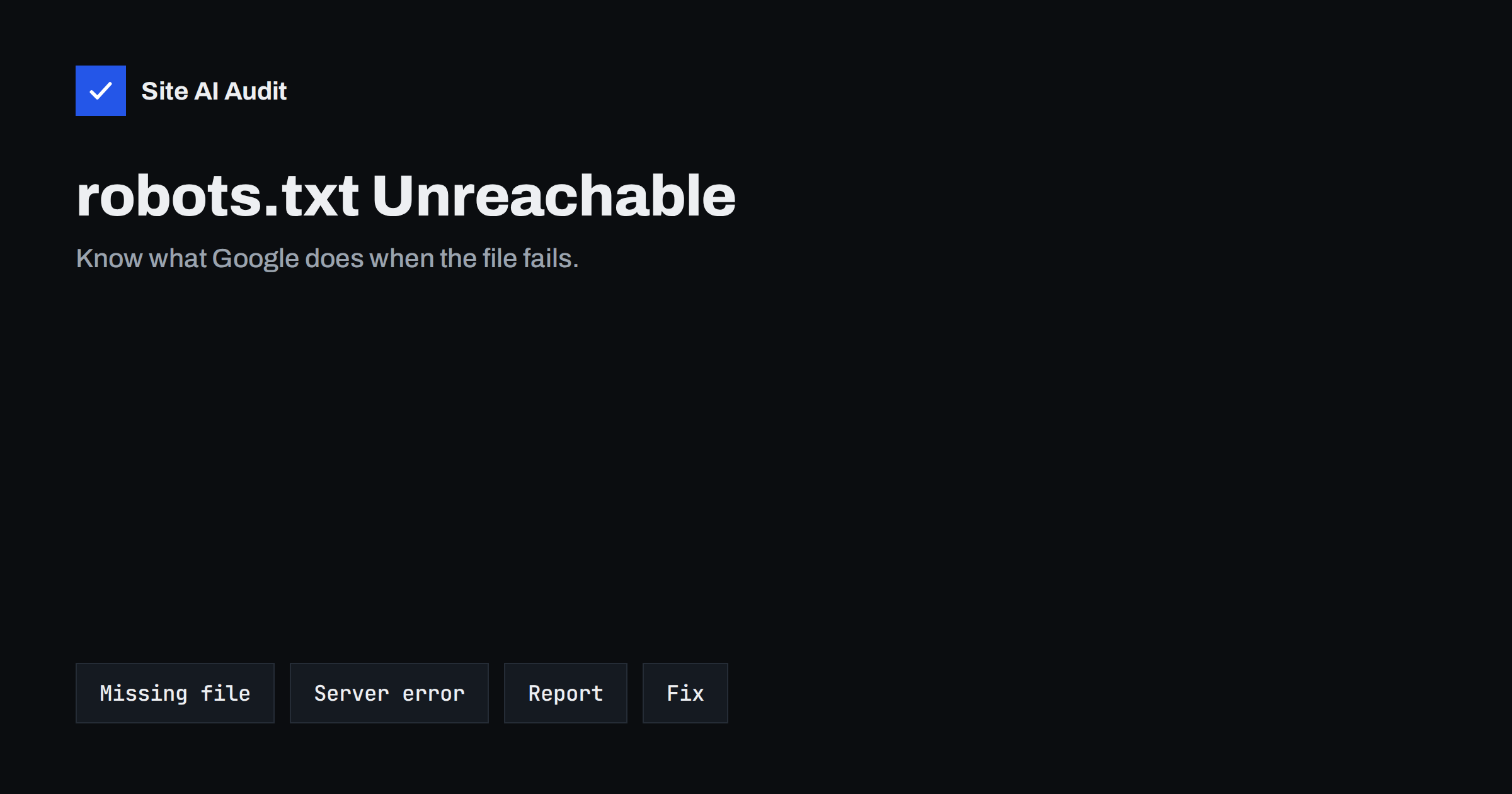
Short answer: Before crawling a site, Google asks for its robots.txt file. If the file does not exist and the server answers with a not-found error, Google treats it as if there were no restrictions. If the server is down or returns errors, Google may pause crawling for a time, use an older copy it saved, and later behave as if there were no file. Keep the file available with a quick, successful response.
Why Google asks for robots.txt first
The robots.txt file tells crawlers which parts of a site they may visit. Google checks it before it crawls, and it refreshes its copy regularly. Because a mistake could lead it to crawl pages that the owner wanted private, Google behaves cautiously when it cannot be sure what the file says. That caution is the reason why a simple server problem with one small text file can affect how much of your site is crawled.
If you are new to the file, the robots.txt guide explains the basic rules, and the article on robots.txt and noindex explains why the file controls crawling and not indexing.
What Google does in each situation
The behaviour is described in Google’s documentation, and it is worth knowing in outline, although the details can change.
- Success (200). Google reads the rules and follows them.
- Not found (404 or similar client error). Google treats the situation as if no robots.txt exists, so everything may be crawled. This is normal for sites without the file.
- Redirects. Google follows a limited number of redirects. A long chain or a loop counts as a failure.
- Server error (5xx) or timeout. Google cannot know the rules. It usually stops crawling the site for a period, and it may keep using the last good copy that it has stored. If the problem lasts for weeks, it may eventually act as though there is no file, as long as the rest of the site works.
- Blocked or forbidden (401 or 403). These are client errors, and Google generally treats them like a missing file. They can still signal a security rule that blocks crawlers by accident.
- Very large file. Google reads only up to a size limit and ignores the rest, so rules at the end may be skipped.
The key point is that a 5xx error is much riskier than a 404. A site that has no file is crawled normally. A site whose file fails can see crawling slow down or stop.
Signs that you have a problem
- A drop in crawl activity. The crawl stats report in Search Console shows fewer requests. See the guide to the Crawl Stats report.
- Messages in Search Console. The robots.txt report can show that the file could not be fetched or that the last fetch failed.
- New pages not appearing. Fresh content takes longer than usual to be discovered.
- Warnings in the sitemap report. Problems fetching the sitemap can come from the same cause. See sitemap could not be fetched.
- Server error logs. Requests for /robots.txt with 5xx status codes in your access logs are the clearest evidence. The guide to reading access logs shows how to find them.
Common causes
- Server overload or downtime. The whole site fails, and robots.txt fails with it.
- A firewall or security plugin. A rule blocks crawlers or rate-limits them, and returns 403 or 429 responses. See blocked 403 errors in Search Console and bad bots and aggressive crawlers.
- A CDN or caching setting. A misconfigured rule serves an error page for the file or fails to reach the origin.
- A redirect problem. The file redirects to a login page, to another domain or into a loop. A move from HTTP to HTTPS, or between www and non-www, may leave a bad path. See redirect chains and loops.
- A dynamic file that breaks. Some platforms generate robots.txt with code, and an error in a plugin makes it fail.
- DNS or certificate trouble. If the host name does not resolve or the certificate is invalid, nothing can be fetched, as described in expired certificate fixes.
- Maintenance mode. A 503 response is correct for short maintenance, but if it also applies to robots.txt for long, it causes the problems above. See maintenance mode and SEO.
How to diagnose it
- Open the file in a browser at the root of every host name you use, such as the main address and any subdomains. Each host has its own file.
- Check the response status and headers with a tool that shows them. You want a 200 status, a plain text content type and a quick answer.
- Test from different networks and, if possible, with a crawler user agent, since firewalls sometimes treat them differently.
- Look at the robots.txt report and the URL Inspection tool in Search Console, as covered in URL Inspection.
- Read your server and CDN logs for the time of the reported failure.
- Check whether the failure is regular, such as at certain hours when a backup or a heavy job runs.
How to fix it
- Restore a stable server. If the whole site is slow or down, fix that first, starting with the advice in server errors in Search Console.
- Allow legitimate crawlers through the firewall, and verify them correctly instead of blocking by guesswork.
- Serve the file as a static text file where possible. It is faster and less likely to break than a generated one.
- Remove unnecessary redirects, so that the file answers directly with a 200 status.
- Keep the content valid and short. A broken line can change the meaning of the rules.
- Exclude the file from maintenance pages and from security rules that ask for a login.
- After the fix, request a new fetch in the Search Console report, and watch the crawl stats recover.
Prevent it from happening again
Add the file to your uptime monitoring, with a check on the status code and not just on the home page. Set an alert for any response other than 200. Keep a copy of the correct file in your backups and in your version control. Review security and caching rules after changes. If you run several host names, test each one. The guide to website uptime monitoring describes what to watch.
It also helps to understand how this relates to your sitemap and to indexing. Google can still discover pages through links and through your sitemap when robots.txt is slow, but a site-wide pause means fewer pages are visited, and fresh content or fixes take longer to be noticed. For a news site or a shop with changing prices, a pause of even a day can matter. For a small brochure site that rarely changes, the effect may go unnoticed. Either way, the cost of prevention is tiny compared with the cost of a long crawl gap, so a monitoring check on this one file is among the cheapest forms of insurance you can buy.
When you recover, be patient. After the file starts answering correctly again, Google does not return to full speed at once. It increases the crawl rate gradually as it sees that the server responds well. Watch the crawl stats over the following days, avoid making large unrelated changes at the same time, and keep the server healthy. If the crawl rate stays low for weeks after a clean fix, look for other problems such as slow responses, errors on important pages or a flood of low-value URLs that use up the available crawling.
Finally, record what you learned. Write down the cause, the fix and the date, and add the check to your release routine. Many robots.txt incidents come back after a hosting move, a plugin change or a new firewall rule, and a short note makes it much faster to diagnose the next one.
How Site AI Audit helps
Site AI Audit checks robots.txt and the sitemap on every run, together with noindex rules, titles, descriptions, headings, broken links and redirects. It also reviews server response time, speed, SSL, security headers and e-mail authentication. The first check is free, covers up to 50 pages and needs no sign-up. You can run a free check of your website or look at the plans for weekly monitoring, which helps you notice when something starts failing.
Related reading
- Indexed, Though Blocked by robots.txt: What It Means and Fixes
- Crawl Budget Explained: Does It Matter for Your Website?
- Server Error (5xx) in Search Console: Find and Fix the Cause
- Website Uptime Monitoring: How to Know Your Site Is Down First
The bottom line
A missing robots.txt is harmless, but a broken one can slow crawling for a while. Keep the file fast, simple and always answering with a 200 status, make sure that security and caching rules let crawlers through, and monitor it as you would your home page. Then a small file will never become a large problem.
الأسئلة الشائعة
Do I need a robots.txt file?
No. If the file is missing and the server returns a not-found response, crawlers treat the site as open. Add one only if you need rules or a sitemap line.
How long does Google wait before it crawls again?
It depends on the error and on your site. Google retries and may use a saved copy for some time, so recovery can take days after the fix.
Is a 403 on robots.txt harmful?
Google generally treats it like a missing file, but it usually means that a firewall is blocking crawlers, which can also affect your pages. Investigate it.
Does each subdomain need its own file?
Yes. Rules apply per host name and protocol, so check the main site and every subdomain you want crawled or protected.
Can a CDN break robots.txt?
Yes. Wrong cache rules, error pages or blocked origins can return failures for the file. Test it directly through the CDN, not only on the origin.