ENEnglish
 LTLietuviškai
 DEDeutsch
 FRFrançais
 RUРусский
 ESEspañol
 PLPolski
 ITItaliano
 UKУкраїнська
 CSČeština
 PTPortuguês
 JA日本語
 LVLatviešu valoda
 ETEesti
 HUMagyar
 IDBahasa Indonesia
 TRTürkçe
 HIहिन्दी
 ELΕλληνικά
 ARالعربية
 THไทย
 VITiếng Việt
 RORomână
 MSBahasa Melayu
 BNবাংলা
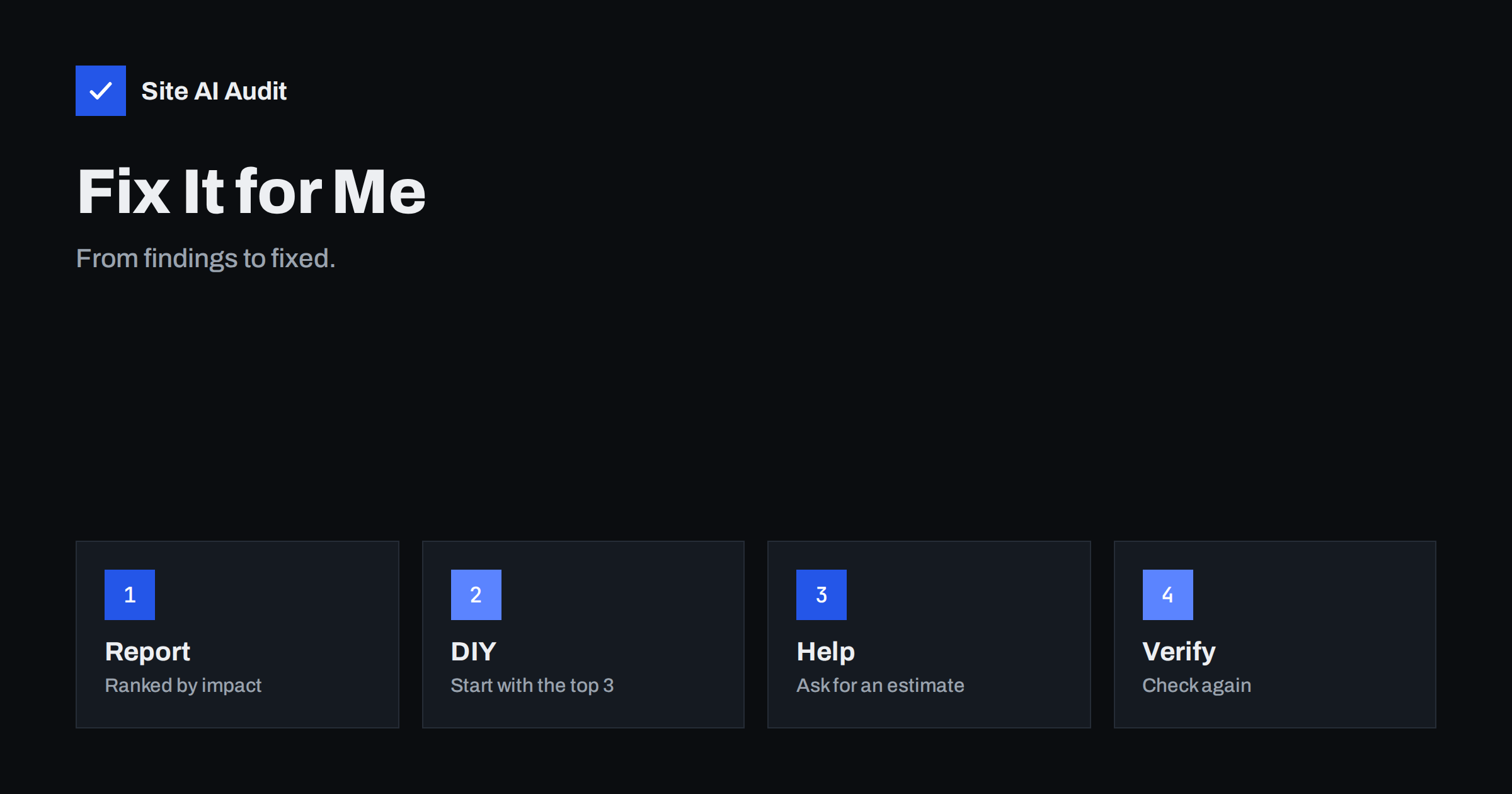
Short answer: A Site AI Audit report tells you what to fix and how. Many findings, such as a missing description or an image without a text alternative, are quick to do yourself. For jobs that need server access, DNS changes or development skills, you can press “Fix it for me” in your report and Internet Solutions will send you an estimate. Whichever way you go, check again afterwards to confirm that the findings are gone.
What the report gives you
An audit is useful only if it leads to action. Site AI Audit checks SEO, speed, security and e-mail authentication in one run, then presents a score out of 100 and a list of findings ranked by impact. Every finding is explained in plain words and comes with a how-to-fix text. On the free check you see every finding and get full instructions for the three most important ones. On paid plans you get every finding explained in full, with the exact pages affected. The article on reading your report shows what the score and the four areas mean.
The step that most people skip is the one after the report: deciding who does the work. Some owners fix everything themselves, some hand everything to a developer, and many do a mixture. All three are reasonable, as long as the decision is made on purpose.
The “Fix it for me” button
The product’s FAQ states it plainly. Internet Solutions has built and maintained websites, servers and e-mail since 2011. If you press “Fix it for me” in your report, the team sends you an estimate for the work. That is the whole process described on the site, and it is worth knowing what it is not: pressing the button is a request for an estimate, not a purchase. Read what the estimate covers before you agree to anything, and ask questions if something is unclear. Internet Solutions also builds websites, e-shops and custom systems, so the people reading your report are the kind who can carry out the work.
What you can usually fix yourself
Many findings need no special skill, only access to your content system and some patience:
- Page titles and descriptions. Write a unique title of about 50 to 60 characters for each page, with the main topic first. See title tags and meta descriptions.
- Image text alternatives. Describe each meaningful image in a short phrase, see alt text.
- Headings. One main heading per page and a sensible order below it, see heading tags.
- Broken links. Edit or remove the links that lead to missing pages, see finding and fixing broken links.
- Oversized images. Resize and compress images before you upload them, see image optimisation.
Start with the findings at the top of the list, because the ranking is by impact. Fix a group of similar items together, since one habit change, such as always writing a description, prevents the problem from returning.
What is better handed to someone else
Some findings touch the parts of a site that can break things if handled carelessly. Consider asking for help when the fix involves:
- Server settings, such as compression, caching, redirects from HTTP to HTTPS or security headers. A mistake can take the site offline.
- DNS records for e-mail, such as SPF, DKIM and DMARC. A wrong record can send your mail to spam or block it, see how the three differ.
- SSL certificate problems, including expiry and chain errors, covered in fixing an expired certificate.
- Theme or plugin code, where a change may need a developer and a test copy of the site.
- Speed problems that come from the structure of the site, such as heavy scripts and slow hosting.
The rule of thumb is simple. If you can undo a change in one click, do it yourself. If an error could make the site unreachable or lose mail, take a backup first or ask for help.
It also helps to separate urgent from important. An expiring certificate or a broken contact form is urgent, because customers notice at once. A set of missing image descriptions is important for the long run, but nobody is harmed tomorrow if it waits a week. Sort the findings into three piles: fix today, fix this month and fix when convenient. Put anything that can stop visitors from reaching you or trusting you in the first pile. This simple sorting gives you a realistic plan, and it makes any estimate easier to compare, because you know which parts you truly need.
Think about who will keep the improvements in place afterwards. Fixes are not permanent by themselves. A new plugin, a redesign or a change of host can bring problems back. If you work with someone else, ask how they will make sure that the same findings do not return, for example by checking again after major changes. If you work alone, add a short monthly reminder to run a check and compare the score with the previous one.
How to prepare before you ask
- Save your report. Your reports stay in your account. Note the date and the score, so there is a clear starting point.
- Decide the priority. Is the goal to rescue e-mail delivery, remove a security warning, speed up the shop or improve search visibility? A clear goal makes an estimate more useful.
- Make a backup. Whoever does the work, a recent copy of the site is a sensible precaution. See website backup strategy.
- List what you control. Know who has access to hosting, the domain and DNS, and the content system. Delays often come from not knowing who holds the login.
- Ask about scope. Check which findings the estimate includes, what it excludes and whether it covers a re-check.
After the fixes: check again
Never assume that a fix worked. A change in one place can cause a problem in another, and some changes take time to appear. Run the audit again and compare the new score and the list of findings with the first report. On paid plans, re-checks are unlimited, so you can confirm each batch of fixes, and the weekly or daily monitoring warns you when a problem returns. The guide to monitoring and alerts explains what is watched. On the free plan, the saved report remains available, so you can still compare, but a new full check needs a paid plan.
A few warnings from experience help here. Do not change many things at once, because if something breaks you will not know the cause. Make one group of changes, check the site, then move to the next. Keep a note of what you changed and when, since that note is valuable for whoever helps you later. And do not chase a perfect score at any cost: a site that scores in the nineties and works well is better than one that scores a hundred but has lost a feature your customers liked. The score is a guide to health, and the goal is a site that serves visitors reliably.
A worked example
A physiotherapy clinic runs the free check and gets a score of 61 with fourteen findings. The owner reads the top three: the certificate expires in twelve days, there is no DMARC record and the home page image is 4 MB. She renews the certificate through her host with a few clicks, as the instructions suggest, and she compresses the image herself. The DMARC record is a DNS change, and she is not sure which services send mail for the clinic, so she presses “Fix it for me” and receives an estimate that includes the e-mail records. In the meantime, she works through the descriptions and image texts from the full list. A re-check a few weeks later shows a score in the high 80s. She has spent her time on the content tasks she understands and paid only for the part where a mistake would have hurt.
Start with your own report
The best way to decide is to see your findings. Run a free check of your website, read the three most important issues and mark each as “mine” or “ask for help”. Compare the plans on the pricing page if you want re-checks and monitoring.
If you are unsure which pile a finding belongs in, read its explanation in the report first. It states why the problem matters and what the fix involves, which is usually enough to judge the effort and the risk.
Related reading
- How to Prioritise SEO Audit Findings: What to Fix First
- How to Run a Free Website Check With Site AI Audit
- Outdated Plugins and CMS Versions: A Safe Update Strategy
- Website Security Audit Checklist: What to Check and in What Order
The bottom line
Use the report as a to-do list. Fix the simple content items yourself, hand over the risky technical ones, and press “Fix it for me” when you want an estimate from the Internet Solutions team. Then re-check to prove that the findings are gone.
الأسئلة الشائعة
What happens when I press “Fix it for me”?
According to the product’s FAQ, the Internet Solutions team sends you an estimate for the work in your report. Review it before you decide.
Can I fix everything myself?
Many findings, especially content ones, are within reach. Server, DNS and code changes are riskier, so get a backup or help for those.
Does the free check include fix instructions?
Yes, for the three most important findings. Paid plans explain every finding in full and show the pages affected.
How do I know the fixes worked?
Run the audit again and compare it with your first report. Paid plans include unlimited re-checks.
Who is behind Site AI Audit?
Internet Solutions, which has built and maintained websites, servers and e-mail since 2011.