 ENEnglish
 LTLietuviškai
 DEDeutsch
 FRFrançais
 RUРусский
 ESEspañol
 PLPolski
 ITItaliano
 UKУкраїнська
 CSČeština
 PTPortuguês
 JA日本語
JA日本語 LVLatviešu valoda
 ETEesti
 HUMagyar
 IDBahasa Indonesia
 TRTürkçe
 HIहिन्दी
 ELΕλληνικά
 ARالعربية
 THไทย
THไทย VITiếng Việt
 RORomână
 MSBahasa Melayu
 BNবাংলা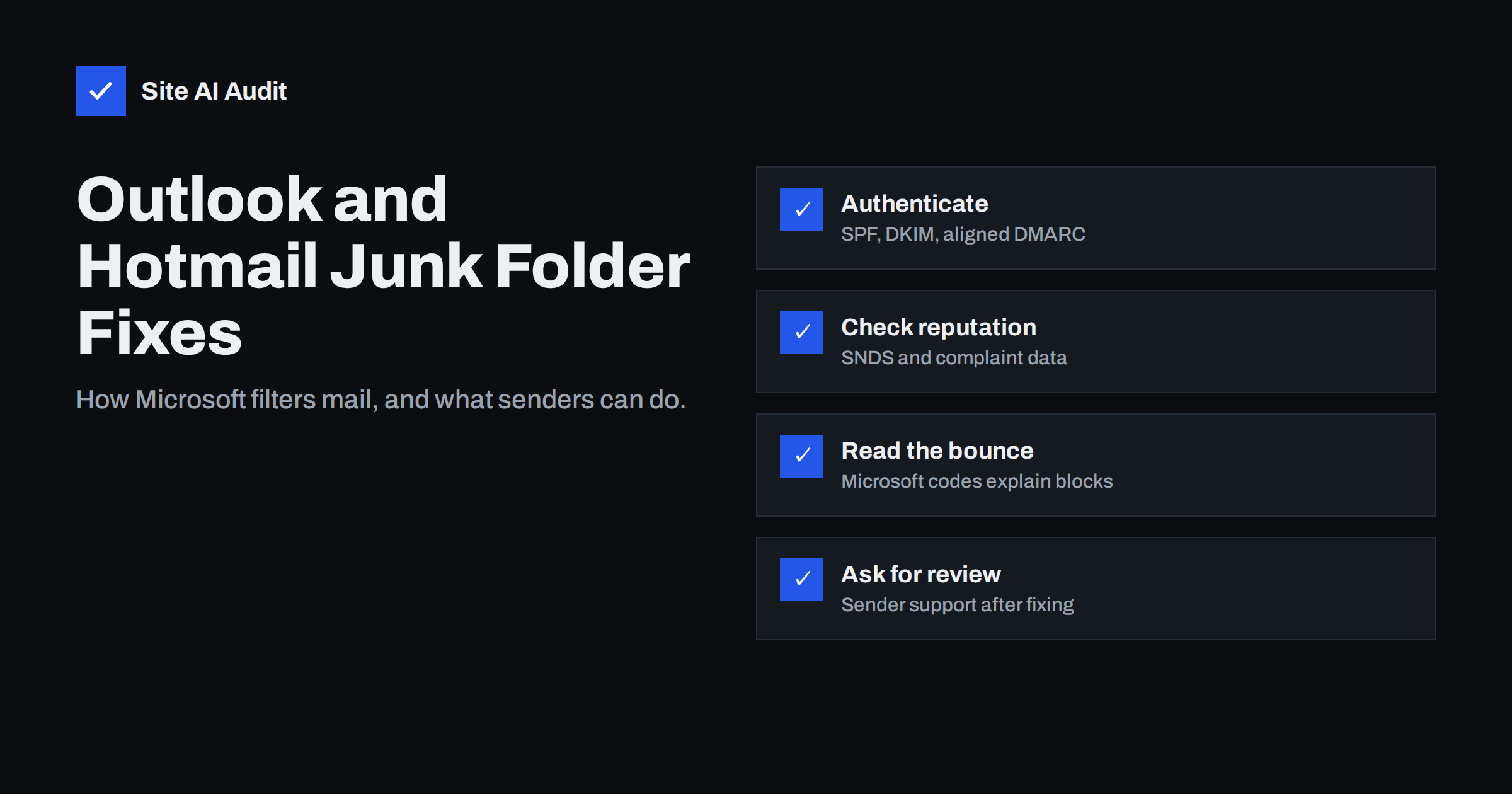
Short answer: Microsoft’s consumer mail services (Outlook.com, Hotmail, Live and MSN) filter mail using authentication, sender reputation, recipient feedback and content. If your mail lands in junk there, first confirm SPF, DKIM and aligned DMARC in a test message’s headers, then check your IP reputation with Microsoft’s Smart Network Data Services (SNDS) and your complaint rates, clean your list, and only after fixing the cause ask Microsoft’s sender support to review a block. High-volume senders must also meet Microsoft’s authentication requirements announced in 2025.
Consumer Outlook vs business Microsoft 365
Microsoft’s consumer services host a very large number of personal mailboxes, so junk placement there can quietly cost a business a meaningful share of its audience. Because the filtering systems differ from Gmail’s, a sender can look healthy at one provider and struggle at the other.
“Outlook” can mean two different things, and it matters for troubleshooting:
- Consumer mailboxes at
outlook.com,hotmail.com,live.comandmsn.com, used by individuals. Microsoft runs the filtering and decides what goes to junk. - Business mailboxes on Microsoft 365, using a company’s own domain. Filtering is also based on Microsoft’s systems, but the recipient organisation’s administrators can change policies, allow or block senders and quarantine messages.
If your mail goes to junk for Hotmail users, you are dealing with Microsoft’s consumer filtering. If it goes to junk or quarantine at one particular company that uses Microsoft 365, that company’s settings may be involved, and its IT team can see the reason in their message trace.
Step 1: confirm authentication
Send a test message to an Outlook.com or Hotmail address you control. Open it and view the message details or source. In the Authentication-Results header, look for:
spf=passwithsmtp.mailfromon your domain or a subdomain;dkim=passwithheader.don your domain;dmarc=pass;compauth=pass, Microsoft’s composite authentication result. Acompauth=failorsoftpasswith a reason code explains why Microsoft was not satisfied.
In 2025 Microsoft announced requirements for domains sending more than 5,000 messages a day to its consumer services: SPF must pass, DKIM must pass, and a DMARC record of at least p=none must be published and aligned with SPF or DKIM. Non-compliant mail was to be routed to junk first, with rejection to follow. Smaller senders benefit from the same setup.
Step 2: check the infrastructure
- Reverse DNS: sending IPs should have a PTR record that resolves back to the same address.
- Website mail: forms and shop notifications should not be sent directly from a web server; route them through an authenticated service.
- IPv6: if your server sends over IPv6, it needs reverse DNS and authentication for that address too.
- TLS: make sure your sending servers support encrypted connections.
Step 3: look at reputation with SNDS and JMRP
Microsoft offers two free programmes for senders who operate their own IP addresses:
- Smart Network Data Services (SNDS) shows data for IP addresses you register and prove you control: volume, complaint rates, spam trap hits and a colour-coded filter result. It is the closest Microsoft equivalent to Google Postmaster Tools, but it works per IP, not per domain.
- Junk Mail Reporting Program (JMRP) sends you a copy of messages that Outlook.com users mark as junk, so you can identify complainers and the campaigns that annoy them.
If you send through an e-mail service provider on shared IPs, you usually cannot register those IPs. The provider monitors them and processes complaint feedback for you, typically by suppressing complainers automatically. Ask your provider about any Microsoft-specific problems they see.
Step 4: read bounce and block messages
When Microsoft blocks rather than filters, you get a bounce. Its text usually explains the reason and often includes a code and a pointer to Microsoft’s sender support pages. Typical categories:
| Bounce indicates | Likely cause | What to do |
|---|---|---|
| IP on Microsoft’s block list | Reputation damage from complaints, traps or compromise | Fix the cause, then request delisting through sender support |
| Authentication failure | SPF, DKIM or DMARC not passing or not aligned | Fix records and platform configuration |
| Rate limiting or deferral | Sudden volume or unknown sender | Slow down; warm up gradually |
| Recipient does not exist | Old or mistyped address | Remove from list |
Microsoft’s sender support form lets you request a review of a blocked IP. Submit it only after you have fixed the underlying problem, and describe what you changed. Requests for IPs with ongoing issues are unlikely to succeed.
If you use a hosted provider such as Microsoft 365 or Google Workspace for outgoing mail and a bounce mentions a blocked IP, the IP belongs to the provider. Contact their support rather than Microsoft’s consumer sender support, and check whether your own account is sending unusual volumes, which could indicate a compromised mailbox.
Step 5: improve list and content practices
Recipient behaviour weighs heavily in Microsoft’s filtering, as with other providers:
- Remove inactive Hotmail and Outlook.com addresses. Old consumer accounts are sometimes abandoned; mailing them repeatedly hurts reputation.
- Use confirmed opt-in, which keeps typos and traps out.
- Make unsubscribing easy with List-Unsubscribe headers and a visible link.
- Send consistently rather than in large, irregular bursts.
- Keep content honest and recognisable, with a stable From name and links to your own HTTPS domain.
Ask engaged subscribers who use Outlook.com to add you to their contacts or safe senders, and to use “Not junk” if a message lands in junk. This helps for those recipients and adds positive signals, but it is not a substitute for fixing root causes.
A troubleshooting order that saves time
When a customer or colleague reports that your mail reaches their Outlook.com junk folder, work through the causes from cheapest to most expensive to check:
- Ask for the header of one affected message, or reproduce it with your own Outlook.com test account. Authentication problems show up immediately.
- Identify which system sent the message. Staff mailboxes, the newsletter tool and website forms often behave differently, and only one of them may be affected.
- Check whether the problem is specific to Microsoft. If Gmail recipients see the same issue, the cause is probably general: authentication, list quality or a blocklist. If only Microsoft is affected, focus on Microsoft’s reputation data and feedback.
- Look at recent changes. A new sending platform, a DNS migration, a campaign to an old segment or a sudden increase in volume often precedes junk placement by a few days.
- Review complaint data from your sending platform for Microsoft domains specifically.
- Fix, then wait and measure. Reputation improves over days to weeks of consistent sending; resist the urge to change several things at once.
Document what you found and changed. If you later need to contact Microsoft’s sender support, a short, factual history of the problem and the fixes makes the request much more credible.
When only one company’s Outlook marks you as junk
If the problem affects a single business recipient on Microsoft 365, their own configuration may be involved: custom spam policies, transport rules, a third-party gateway in front of Microsoft 365, or a tenant block list. Ask the recipient’s IT team to run a message trace for one of your messages. It shows the verdict and the policy that caused it. They can add your domain to an allow list if appropriate, but you should still fix any authentication failures they report, because other companies will see the same problem.
Checking the domain side
Authentication problems are the easiest to confirm and fix. Site AI Audit checks SPF with its lookup limit, DKIM, DMARC and MX records and explains each finding in plain words, next to the website’s SSL, speed and SEO results. A free check shows whether the domain meets the technical basics; paid plans on the pricing page monitor the records and alert you when something changes.
Related reading
- Microsoft 365 Email Authentication: SPF, DKIM and DMARC Setup
- Why Are My Emails Going to Spam? 12 Causes and Fixes
- Email Blocklists: How to Check Your Domain and Get Delisted
- How to Reduce Spam Complaints and Keep Your Spam Rate Low
The bottom line
Mail lands in Outlook.com and Hotmail junk folders for the same core reasons as elsewhere: missing or unaligned authentication, weak reputation and unwanted mail. Verify SPF, DKIM, DMARC and compauth in real headers, use SNDS and JMRP if you run your own IPs, read bounce texts carefully, clean your list, and ask Microsoft for a review only after fixing the cause.
FAQ
Why do my e-mails go to junk in Hotmail but not Gmail?
Each provider has its own filtering and reputation data. Check Microsoft-specific signals: compauth results in headers, SNDS data for your IPs, and complaint feedback through JMRP or your sending platform.
What is Microsoft SNDS?
Smart Network Data Services is a free Microsoft programme that shows data about IP addresses you control sending to Outlook.com, including volume, complaints, trap hits and filtering results.
What does compauth mean in Outlook headers?
It is Microsoft’s composite authentication result, combining SPF, DKIM, DMARC and other signals. A fail or softpass with a reason code explains why Microsoft did not fully trust the message.
How do I get my IP removed from Microsoft’s block list?
Fix the cause first, then submit a request through Microsoft’s sender support form, describing the problem and the changes you made.
Do Microsoft’s 2025 sender requirements apply to me?
They were announced for domains sending more than 5,000 messages a day to Microsoft consumer addresses. Meeting them is good practice for every sender.
Can recipients fix junk placement themselves?
They can mark messages as “Not junk” and add you to safe senders, which helps for them. Wider placement problems require fixing authentication, reputation and list practices.


