 ENEnglish
 LTLietuviškai
 DEDeutsch
 FRFrançais
 RUРусский
 ESEspañol
 PLPolski
 ITItaliano
 UKУкраїнська
 CSČeština
 PTPortuguês
 JA日本語
JA日本語 LVLatviešu valoda
 ETEesti
 HUMagyar
 IDBahasa Indonesia
 TRTürkçe
 HIहिन्दी
 ELΕλληνικά
 ARالعربية
 THไทย
THไทย VITiếng Việt
 RORomână
 MSBahasa Melayu
 BNবাংলা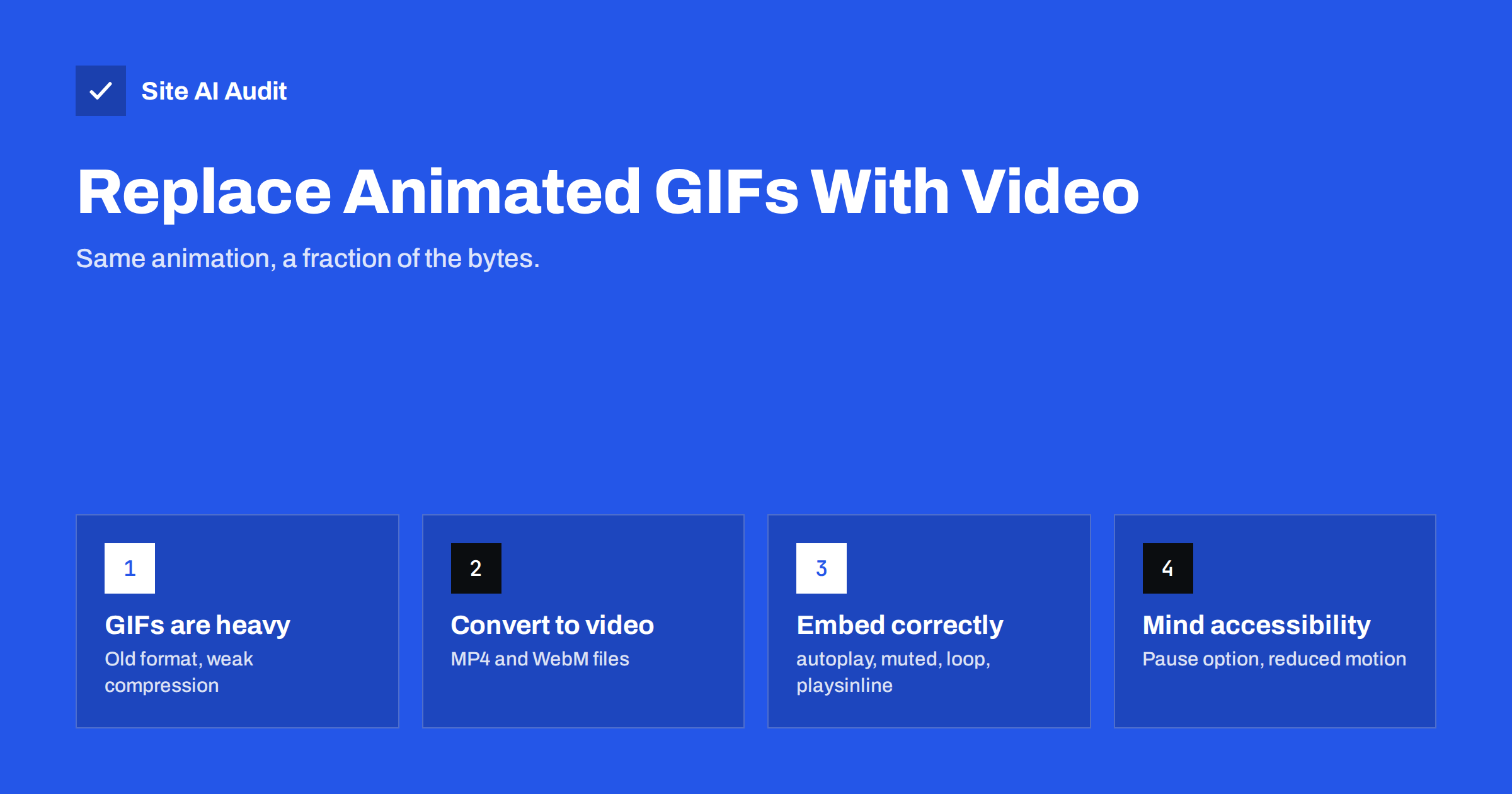
Short answer: Animated GIFs use a format from the late 1980s with weak compression and a 256-colour limit per frame, so a few seconds of animation can weigh several megabytes. The same clip saved as MP4 or WebM video is typically a small fraction of that size and often looks better. Convert GIFs with a tool such as ffmpeg, embed them with a <video> element set to autoplay, loop, muted and playsinline, add width, height and a poster image, and give visitors a way to pause.
Why animated GIFs are so heavy
GIF was designed for simple graphics on slow connections decades ago. It was never meant for video-like content, yet it became the default way to show short animations: product demos, screen recordings, tutorials, reactions and decorative loops.
The format has several built-in inefficiencies:
- Limited colours. Each frame can use at most 256 colours, so photographic or gradient content needs dithering, which makes it harder to compress and often looks grainy.
- Weak compression. GIF compresses each frame largely on its own. Modern video codecs store mostly the differences between frames, which is far more efficient for motion.
- No quality control. You cannot trade a little quality for a much smaller file the way you can with video.
The result is that a ten-second screen recording as a GIF can easily be several megabytes, while the same recording as MP4 might be a few hundred kilobytes. On a phone with a mobile connection, that difference is felt directly as a slow page and used data.
How GIFs affect page speed and Core Web Vitals
A large GIF hurts in more than one way:
- Page weight. It is often the heaviest single file on the page, competing for bandwidth with the content visitors came for. Our guide to page weight explains why total size matters on mobile.
- Largest Contentful Paint. If the GIF is near the top of the page, it may be the LCP element, and its LCP time depends on downloading a multi-megabyte file.
- Decoding work. Large animated images take processor time to decode frame after frame, which can make scrolling less smooth on low-end devices.
- Layout shift. GIFs inserted without width and height attributes push content down when they load.
PageSpeed Insights and Lighthouse flag this with a diagnostic called “Use video formats for animated content”, along with an estimate of the possible savings.
To find GIFs on your own site, open your browser’s developer tools on a few key pages, go to the Network panel, filter by “Img” and sort by size. Animated GIFs usually stand out immediately near the top of the list. On a CMS such as WordPress, you can also search the media library for GIF files, and ask whoever writes your blog posts or help articles whether they add screen recordings as GIFs. Help centres, documentation and product pages are the most common places where large animations accumulate over time, one article at a time, without anyone noticing the total weight.
GIF vs video vs animated WebP
| Format | Typical file size | Quality | How it is embedded |
|---|---|---|---|
| Animated GIF | Largest | 256 colours per frame | <img> |
| MP4 (H.264) | Much smaller | Full colour, adjustable | <video> |
| WebM (VP9 or AV1) | Often smallest | Full colour, adjustable | <video> |
| Animated WebP or AVIF | Smaller than GIF, usually larger than video | Full colour | <img> |
Video is usually the best choice for anything longer than a couple of seconds or with real-world footage. Animated WebP or AVIF can be convenient when your system only accepts images, and is still a large improvement over GIF. The WebP vs AVIF vs JPEG comparison covers these image formats in more detail.
How to convert a GIF to video
The free command-line tool ffmpeg converts GIFs reliably. Two typical commands:
ffmpeg -i animation.gif -movflags +faststart -pix_fmt yuv420p \
  -vf "scale=trunc(iw/2)*2:trunc(ih/2)*2" animation.mp4

ffmpeg -i animation.gif -c:v libvpx-vp9 -b:v 0 -crf 40 animation.webm
The first creates an MP4 that plays in every modern browser. The yuv420p pixel format and even dimensions are needed for broad compatibility, and +faststart lets playback begin before the whole file downloads. The second creates a WebM file, usually even smaller; a higher crf value means smaller files and lower quality.
If you do not use the command line, many image editors, screen recording tools and online converters can export MP4 directly. Better still, record screen demos as video from the start instead of converting to GIF and back.
Also export a still image of the first frame to use as a poster, so something meaningful appears immediately.
Check the result before replacing the GIF everywhere. Compare file sizes, watch the video at full size to make sure text in screen recordings is still sharp, and adjust the quality setting if needed. For screen recordings, reducing the frame rate to 10–15 frames per second and cropping away unused parts of the screen often cut the size further with no visible loss. Keep the original recordings, so you can re-export later if a better format or setting becomes available.
How to embed the video like a GIF
To make a video behave like a silent looping GIF, use these attributes:
<video autoplay loop muted playsinline width="800" height="450"
       poster="animation-poster.jpg">
  <source src="animation.webm" type="video/webm">
  <source src="animation.mp4" type="video/mp4">
</video>autoplayandmuted: browsers allow automatic playback only for muted videos.loop: repeats like a GIF.playsinline: keeps iPhones from opening the video full screen.widthandheight: reserve space to avoid layout shift; see fixing Cumulative Layout Shift.poster: shows a still frame while the video loads.- List WebM first and MP4 second; each browser uses the first format it supports.
Host these clips on your own site or CDN. Embedding a third-party video player for a short silent loop adds far more weight than it saves; the guide on embedding videos without slowing your site explains when a player is appropriate.
Load animations only when needed
An animation further down the page does not need to download before the visitor gets there. For videos below the first screen, set preload="none" and start playback with a small script using the Intersection Observer API when the video scrolls into view, or remove autoplay and let visitors press play. For animated images kept as <img>, native lazy loading works; see lazy loading images.
Avoid placing a heavy animation as the main hero element. If an animation must be at the top, keep it short and small, give it a poster, and make sure the page’s headline is real text that appears immediately.
Accessibility and reduced motion
Constant motion can distract and, for some people, cause discomfort. Accessibility guidelines ask that moving content lasting more than five seconds can be paused, stopped or hidden. With a video element, you can add visible controls or a simple pause button. Respect the prefers-reduced-motion setting by not autoplaying for visitors who have asked for less motion, as discussed in our article on web animations and speed.
If the animation conveys information, such as steps in a tutorial, add a short text description or caption so the content is available to people who cannot see it.
Where GIFs still make sense
- E-mail. Most e-mail clients do not play video, so a small GIF remains the practical way to add animation to a newsletter. Keep it short and light, and make sure the first frame works on its own, because some clients show only that.
- Tiny, simple animations such as a small loading indicator, where the file is a few kilobytes anyway. CSS or SVG animation is often better still.
- Platforms that accept only images, where animated WebP is a better choice if supported.
How Site AI Audit helps
Site AI Audit runs a Google PageSpeed measurement of your mobile speed and Core Web Vitals and checks page weight, compression and server response time, together with SEO, SSL, security headers and e-mail authentication. Heavy animated images tend to show up as poor LCP and high page weight, and the report ranks such findings by impact. You can try it with a free website check.
Related reading
- Image Optimization for Faster Websites: A Practical Guide
- How to Improve Largest Contentful Paint (LCP) on Any Website
- How to Read a PageSpeed Insights Report Without Guesswork
The bottom line
Animated GIFs are an outdated, heavy way to show motion on the web. Convert them to MP4 and WebM, embed them as muted, looping, inline videos with dimensions and a poster, load them only when they come into view, and let visitors pause them. Your pages get lighter, your animations look better, and Core Web Vitals usually improve with them.
FAQ
Why are animated GIFs so large?
GIF is an old format with weak compression and a 256-colour limit per frame. It stores animation inefficiently compared with modern video codecs, which save mainly the changes between frames.
How much smaller is MP4 than GIF?
It depends on the content, but the MP4 version is typically a small fraction of the GIF’s size, especially for screen recordings and real-world footage.
Will a video autoplay like a GIF?
Yes, if it is muted. Use the autoplay, muted, loop and playsinline attributes. Browsers block autoplay for videos with sound.
Should I use animated WebP instead of video?
Animated WebP is much lighter than GIF and works in an img tag, which is convenient. For longer clips, MP4 or WebM video is usually smaller still.
Can I use video instead of GIFs in e-mails?
Generally no. Most e-mail clients do not play embedded video, so small, lightweight GIFs remain the practical choice for animation in e-mail.


