ENEnglish
 LTLietuviškai
 DEDeutsch
 FRFrançais
 RUРусский
 ESEspañol
 PLPolski
 ITItaliano
 UKУкраїнська
 CSČeština
 PTPortuguês
 JA日本語
JA日本語 LVLatviešu valoda
 ETEesti
 HUMagyar
 IDBahasa Indonesia
 TRTürkçe
 HIहिन्दी
 ELΕλληνικά
 ARالعربية
 THไทย
THไทย VITiếng Việt
 RORomână
 MSBahasa Melayu
 BNবাংলা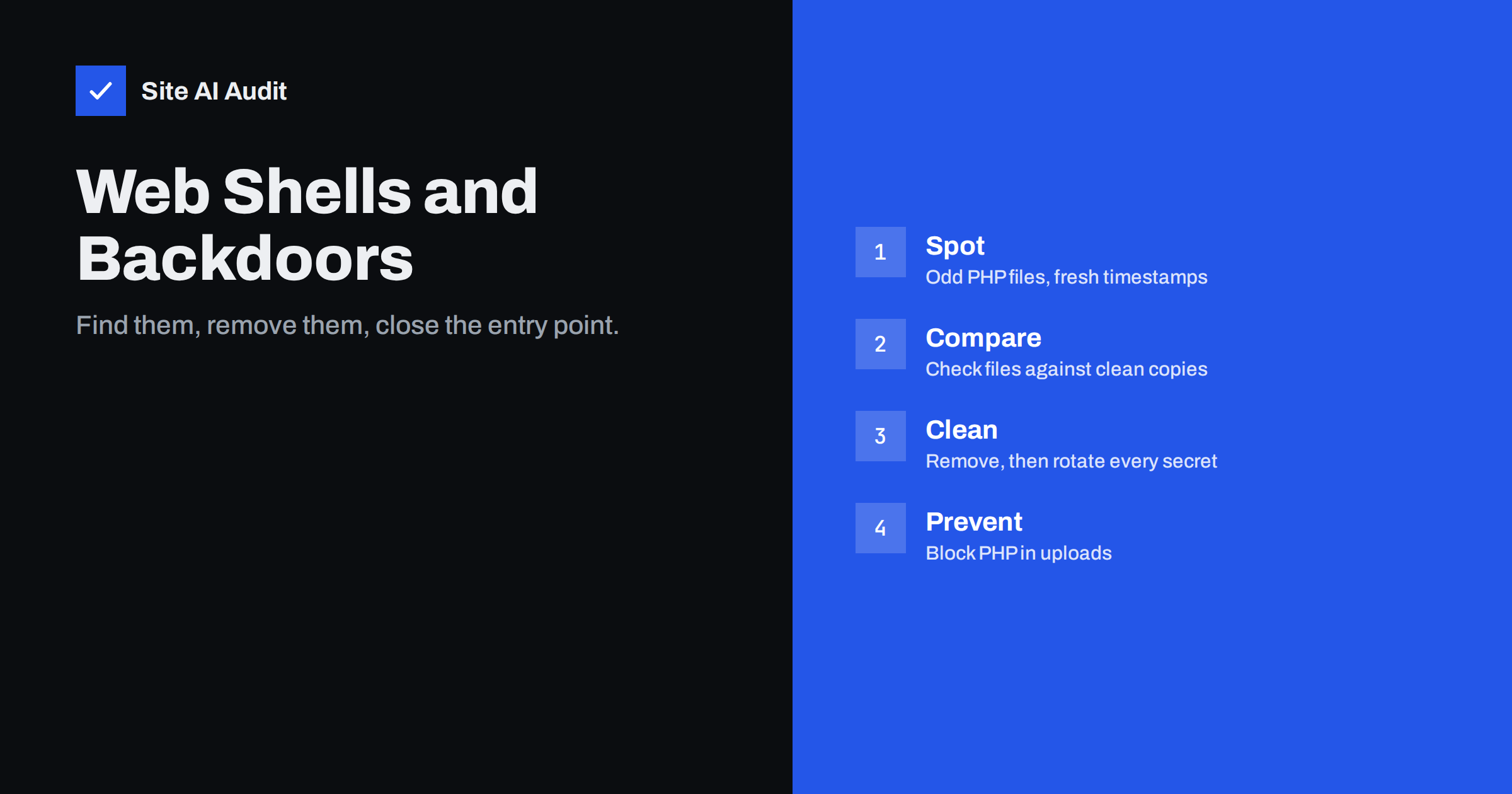
Short answer: A web shell is a small script that an attacker places on your server to control it from a browser. It is usually hidden among normal files and is often the reason a “cleaned” site gets hacked again. To remove one, find every suspicious file, compare your files with clean originals, locate and fix the way the attacker got in, and then change every password and key. Deleting a single file is not enough.
What a web shell is
A web shell is a script, most often written in PHP on WordPress and similar sites, that accepts commands from the person who knows its address or password. With it, an attacker can browse files, upload more files, read your database settings, send email from your server and run programs. It does not need to break in again, because the script itself is the open door.
A backdoor is the wider idea: any hidden way back into a system. A web shell is the most common kind on websites, but a backdoor can also be a secret admin account, a changed setting, a scheduled task or a few lines of code added to a legitimate file. When we talk about cleaning a hacked site, we have to look for all of these, not only for one file.
Web shells are popular with attackers because they are small, easy to hide and survive many cleanups. Some are just a few lines. Others look like full file managers with a login page. Most of them are uploaded automatically by a bot after it finds a weak plugin, rather than by a person who is looking at your site in particular.
How web shells get onto a site
The shell has to arrive somehow, and the way it arrived tells you what to fix. The common routes are:
- A vulnerable plugin or theme. A flaw in the code lets a visitor upload a file or run commands. Old and abandoned components are the main source, as we discuss in abandoned WordPress plugins.
- Stolen or weak passwords. An attacker who signs in to the dashboard, FTP or hosting panel can upload anything.
- Nulled themes and plugins. Pirated copies of paid products often contain a backdoor from the start.
- Weak file permissions. On a shared server, another hacked site on the same account can write into yours.
- An earlier hack. A shell that was left behind after a previous cleanup keeps working until it is found.
Signs that a shell may be present
You may not see anything on the pages themselves. Look instead for the signs below:
- PHP files in folders that should hold only pictures and uploads, for example inside
wp-content/uploads. - Files with names that imitate core files, such as a slightly different spelling of a real WordPress file, or random letters.
- Files whose modification date is very recent, when you did not change anything, or odd dates such as an exact match across many files.
- Code that uses functions like
eval,base64_decode,gzinflate,shell_exec,systemorpassthru, especially with long unreadable strings. - Requests in your access log that send data with POST to a strange PHP file, repeatedly, from one address.
- Unexpected spam email leaving your server, sudden traffic spikes, or a hosting warning about malware.
- New administrator accounts, or changed settings, that nobody on your team made.
Our guide to the signs that a website has been hacked lists more symptoms, and the article on reading access logs shows how to spot suspicious requests.
How to look for a shell
Work on a copy or a backup if you can, and take a full backup before you change anything, so you can study what happened afterwards. Then check in this order:
- Verify the core files. On WordPress, the command line tool WP-CLI can compare your files with the official ones:
wp core verify-checksums. The commandwp plugin verify-checksums --alldoes the same for plugins from the official directory. Any file reported as modified or unknown deserves a look. - List PHP files where they do not belong. A command such as
find wp-content/uploads -name "*.php"shows scripts in the uploads folder. Normally there should be none, apart from an empty index file in some setups. - Sort by date. List files changed in the last days or weeks and ask yourself whether you or an update made each change.
- Search for risky functions. Search for the functions listed above and read the results. Many legitimate plugins use some of them, so judge each hit by context.
- Check the places people forget. Look in the
mu-pluginsfolder, inactive themes, hidden files whose names start with a dot, cache folders and the main.htaccessfile. - Check accounts and scheduled tasks. Review dashboard users, database users, FTP accounts and scheduled jobs for entries you do not recognise.
A security scanner plugin can help, but it can miss new or obfuscated code. Treat its result as a hint, not as proof that the site is clean.
How to remove it properly
Removal is more than a delete command. The safest approach is to restore a clean copy, but only if you know the backup is from before the infection.
- Put the site in maintenance mode or block public access while you work, so the attacker cannot keep using the shell.
- Replace core, theme and plugin files with fresh copies from the official source. Do not repair infected files by hand when a clean copy is available.
- Delete unknown files found in the steps above, after saving a copy offline for later analysis.
- Remove unknown users and reset the role of any user who should not be an administrator.
- Change every secret. This means the passwords of the dashboard, hosting panel, FTP or SSH and database, as well as the security keys and salts in the configuration file. Change them from a device that you trust, because the attacker may have read the old ones.
- Update everything and remove plugins and themes that you do not use.
- Find the entry point. Use the logs to see which request first created the strange file. If you skip this step, the attacker will return through the same hole.
If the problem seems large, a full recovery plan helps. Our step-by-step recovery plan covers search engine warnings, customer messages and monitoring afterwards.
Close the door afterwards
Once the site is clean, reduce the chance that the next shell works. Block PHP from running in the uploads folder, as explained in how to block PHP execution in uploads. Use the correct file permissions so that the web server cannot rewrite code files. In WordPress, you can also turn off the built-in theme and plugin editor with the setting DISALLOW_FILE_EDIT, which stops an attacker who gets into the dashboard from changing code there.
Keep software updated on a schedule, protect logins with two-factor authentication, and keep tested backups. A web application firewall can block many automatic attacks before they reach the site. None of these steps is complete alone, but together they make a repeat attack much harder.
What Site AI Audit can and cannot tell you
Site AI Audit looks at your website from the outside, the way a visitor does. It checks the SSL certificate, the redirect from HTTP to HTTPS, security headers, exposed software versions, speed, SEO and email authentication. It cannot read the files on your server, so it cannot find a web shell. What it can do is point out weaknesses that attackers search for, such as an exposed software version or missing headers, so you can close them early. Run a free check or see the plans if you want regular re-checks.
Related reading
- Website Hacked? A Step-by-Step Recovery Plan for Owners
- Nulled Themes and Plugins: The Real Cost of Free Premium
- Website User Accounts: Least Privilege for Admins and Staff
The bottom line
A web shell is a hidden remote control for your server, and it is the main reason cleaned sites are hacked again. Find unknown PHP files, compare your files with clean copies, restore from a trusted source, find the original weakness and change every password and key. Then block PHP in uploads, tighten permissions and keep everything updated.
FAQ
What is the difference between a web shell and malware?
Malware is a general word for harmful software. A web shell is one type: a script on a web server that lets an attacker run commands remotely. It is often installed first, and then used to add other malware, spam pages or more backdoors.
Can I just delete the suspicious file?
Not on its own. The attacker probably left other backdoors, and the weakness that let the file in is still open. Remove the file, but also replace the code with clean copies, change all passwords and keys, and fix the entry point.
How can I tell if a PHP file in uploads is dangerous?
A PHP file in the uploads folder is suspicious by itself, because that folder normally holds pictures and documents. Check who created it and when, and look for unreadable strings and functions that run commands. When in doubt, move it out of the web folder and analyse it offline.
Will a security plugin find every web shell?
No. Scanners find many known patterns but can miss new or heavily disguised code. Use a scanner together with checksum verification, a review of recent file changes and a look at your logs.
How do I stop web shells from coming back?
Keep plugins, themes and the core updated, remove what you do not use, avoid pirated software, use strong unique passwords with two-factor authentication, and block PHP execution in the uploads folder. Regular backups let you recover quickly if it happens again.