ENEnglish
 LTLietuviškai
 DEDeutsch
 FRFrançais
 RUРусский
 ESEspañol
 PLPolski
 ITItaliano
 UKУкраїнська
 CSČeština
 PTPortuguês
 JA日本語
JA日本語 LVLatviešu valoda
 ETEesti
 HUMagyar
 IDBahasa Indonesia
 TRTürkçe
 HIहिन्दी
 ELΕλληνικά
 ARالعربية
 THไทย
THไทย VITiếng Việt
 RORomână
 MSBahasa Melayu
 BNবাংলা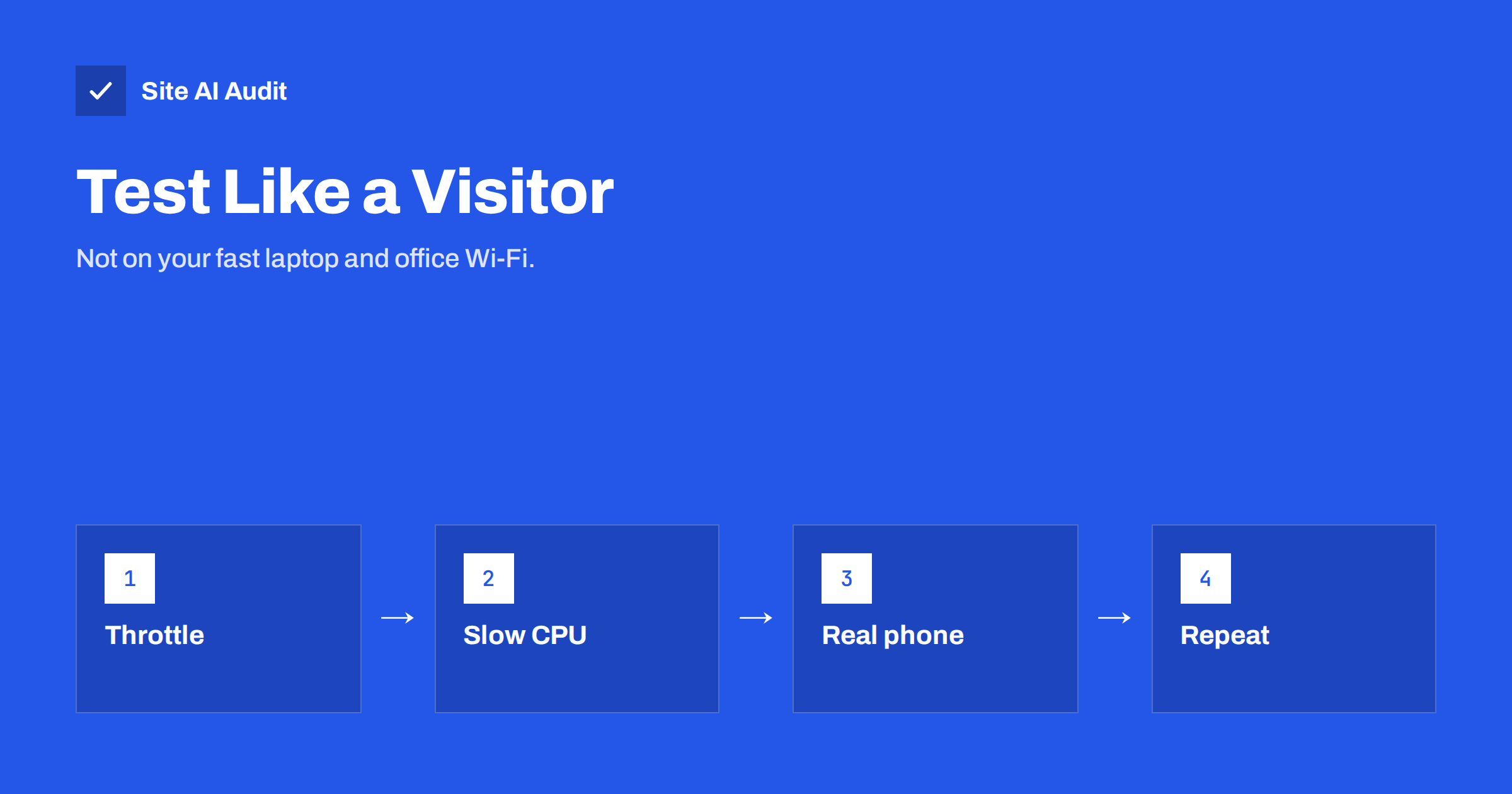
Short answer: Test your site the way many visitors experience it: on a mid-range phone with a slower mobile connection and a cold cache. In your browser’s developer tools you can throttle the network and the processor, and tools such as PageSpeed Insights and WebPageTest already simulate a slower phone. Then confirm the result on a real phone, because a fast laptop on office Wi-Fi hides problems that customers feel every day.
Why your own test lies to you
The person who builds or owns a website is almost always the worst-placed to judge its speed. You have a modern laptop or phone, a stable connection, the site saved in your browser’s cache and often a logged-in session that skips ads and consent banners. The page feels fast because everything is favourable.
Your visitors differ. Many use phones that are several years old, with processors a fraction as fast as yours, on mobile networks that vary from street to street. They arrive for the first time, with nothing cached. A page that loads in a second for you may take six seconds for them. The discussion in why your website is slow on mobile explains why phones suffer more than desktop computers.
Two kinds of test data
Before you test, know what the numbers mean. There are two families.
- Lab data comes from a controlled test that loads your page under fixed conditions. It is repeatable and great for finding causes, but it is only a model.
- Field data comes from real visitors over a period. It shows what people actually experience, including their devices and networks, as explained in the Chrome UX Report.
Use field data to find out whether you have a problem, and lab tests with throttling to find out why and to check a fix. Lab results change from run to run, so read why your PageSpeed score changes every time before you react to a small difference.
Throttle the network in your browser
Chrome and other browsers let you simulate a slower connection without any extra tools. Open the developer tools, go to the network panel and choose a preset from the throttling menu. Presets such as Fast 4G and Slow 4G approximate typical mobile conditions, while older presets simulate even slower links.
- Open your page in a private window so that extensions and saved logins do not interfere.
- Switch on the throttling preset and tick the option to disable the cache while the tools are open.
- Reload the page and watch how it builds up on screen.
- Look at the waterfall to see which files arrive late. The article on how to read a waterfall chart shows how to spot large images, slow servers and blocking scripts.
On a slow connection, file size matters more than anywhere else. A hero image of two megabytes feels invisible on fast Wi-Fi and painful on a weak signal.
Slow down the processor too
Network speed is only half of the story. Phones also have slower processors, and modern pages need a lot of processing for scripts, layout and animation. Developer tools offer a CPU throttling option, with settings that slow the processor by a factor such as four or six.
Turn it on together with the network preset. Pages that looked fine may now freeze for a moment after loading, because scripts keep the main thread busy. This is the problem behind long tasks and a poor score for interaction. Heavy third-party tools, such as chat widgets, tag managers and consent banners, tend to show up here, and the advice in cookie consent banners and page speed and how third-party scripts slow your website will help you handle them.
Lighthouse, the engine behind PageSpeed Insights, already applies a simulated slow mobile connection and a slowed processor in its mobile test. That is one reason why its mobile score is lower than what you feel on your own phone.
Use test services with realistic profiles
Online tools save effort because they test from a clean browser in a chosen location with a chosen connection.
- PageSpeed Insights combines field data, if enough visitors exist, with a lab run on a simulated phone.
- WebPageTest lets you pick a test location, a device type and a connection profile, and it can repeat the test several times to show the spread. It also provides filmstrips that show how the page appears over time.
- GTmetrix offers a similar view with a simple report and a choice of locations.
The comparison in PageSpeed Insights, GTmetrix and WebPageTest compared explains when to use each. Choose a test location close to your customers, since distance affects the first byte, as covered in does server location affect website speed.
Pay attention to the filmstrip or the visual progress as well as to the numbers. A page that shows readable text within two seconds but finishes loading late feels much better than one that stays blank and then appears all at once. If the filmstrip shows a long blank period, look for render-blocking files, a slow server response or a hero image that starts loading late.
Test on a real phone
Simulations are useful, but a real device shows what no model can: how the page feels under your thumb, how the keyboard and menus respond, and how the phone handles heat and memory.
- Pick an ordinary mid-range phone, ideally a few years old. If you do not own one, borrow one from a colleague or relative.
- Switch off Wi-Fi and use mobile data in a place with average coverage. A weak signal on purpose is even more revealing.
- Open your page from a fresh browser tab, after clearing the saved data of the site.
- Perform the real tasks: read an article, open the menu, fill in the contact form, add a product to the cart.
- Watch for delays, jumps in the layout and buttons that do not react at once.
You can also connect an Android phone to a computer and inspect the page with the developer tools while it runs on the device. That gives you real timing with the full set of diagnostic views.
What to measure and write down
Do not try to remember results. Make a small table and fill it in each time you test, with the page, the device or profile, the date, the main load metric and notes about what you saw. Key metrics are the largest content paint, layout shift and the response to interaction, introduced in Core Web Vitals explained.
Test the pages that matter most to the business: the home page, a typical article or product page, the contact page and the checkout. Test them on a fresh load and on a second visit. Change one thing at a time, then retest, so that you know which change helped.
A few habits make the results more trustworthy. Run each test at least three times and use the median, since a single run can be thrown off by a busy server or a network hiccup. Test at different times of day, because a shared server may be slower when its other tenants are busy. Test both the logged-out and logged-in views if your site has accounts, because the second often loads extra scripts. Finally, test a page that is typical for your audience, not only the home page, since most visitors arrive on inner pages from search.
Turn the findings into a budget
Once you know how the site behaves on a slow phone, set limits that keep it that way. A performance budget might say that the home page must stay under a certain weight, that no new script is added without a test and that the main image must be ready within a set time on the slow profile. The method is described in performance budgets. Add a quick throttled test to your routine before every major release, and the site will not quietly become heavy again.
How Site AI Audit helps
Site AI Audit does not run your page on a throttled phone in your browser. It reports Google PageSpeed measurements for your site, including LCP, CLS and INP, along with server response time, compression and page weight, together with SEO, security headers, SSL and e-mail authentication. The first check is free, covers up to 50 pages and needs no sign-up. You can run a free check of your website or see the plans for weekly monitoring.
Related reading
- Website Speed Monitoring: Catch Slowdowns Before Customers Do
- Total Blocking Time Explained: What It Means and How to Cut It
- Website Speed Checklist: 30 Checks Before and After Launch
- How to Read a PageSpeed Insights Report Without Guesswork
The bottom line
A fast result on your own device proves little. Throttle the network and processor, use test tools with realistic profiles and confirm on a real phone with a cold cache. Record the results, fix one thing at a time and keep a budget so that the speed you win stays won.
FAQ
Which throttling preset should I use?
Start with a slow 4G type preset together with CPU slowdown. It approximates the conditions used by Lighthouse for mobile and reflects many real users.
Is lab testing enough?
No. Lab tests are good for diagnosis, but field data shows what visitors really experience. Use both.
Do I need an expensive phone to test?
No. An ordinary mid-range phone, even an older one, is better than a flagship device because it reveals processor-related problems.
Why does my site feel fast but score poorly?
Mobile lab tests use a slow simulated phone and network on purpose, so they are stricter than your own experience. Treat the gap as a warning for visitors with weaker devices.
How often should I test?
Before and after each significant change, and at least monthly for important pages. Automated monitoring can catch slowdowns between manual tests.