ENEnglish
 LTLietuviškai
 DEDeutsch
 FRFrançais
 RUРусский
 ESEspañol
 PLPolski
 ITItaliano
 UKУкраїнська
 CSČeština
 PTPortuguês
 JA日本語
JA日本語 LVLatviešu valoda
 ETEesti
 HUMagyar
 IDBahasa Indonesia
 TRTürkçe
 HIहिन्दी
 ELΕλληνικά
 ARالعربية
 THไทย
THไทย VITiếng Việt
 RORomână
 MSBahasa Melayu
 BNবাংলা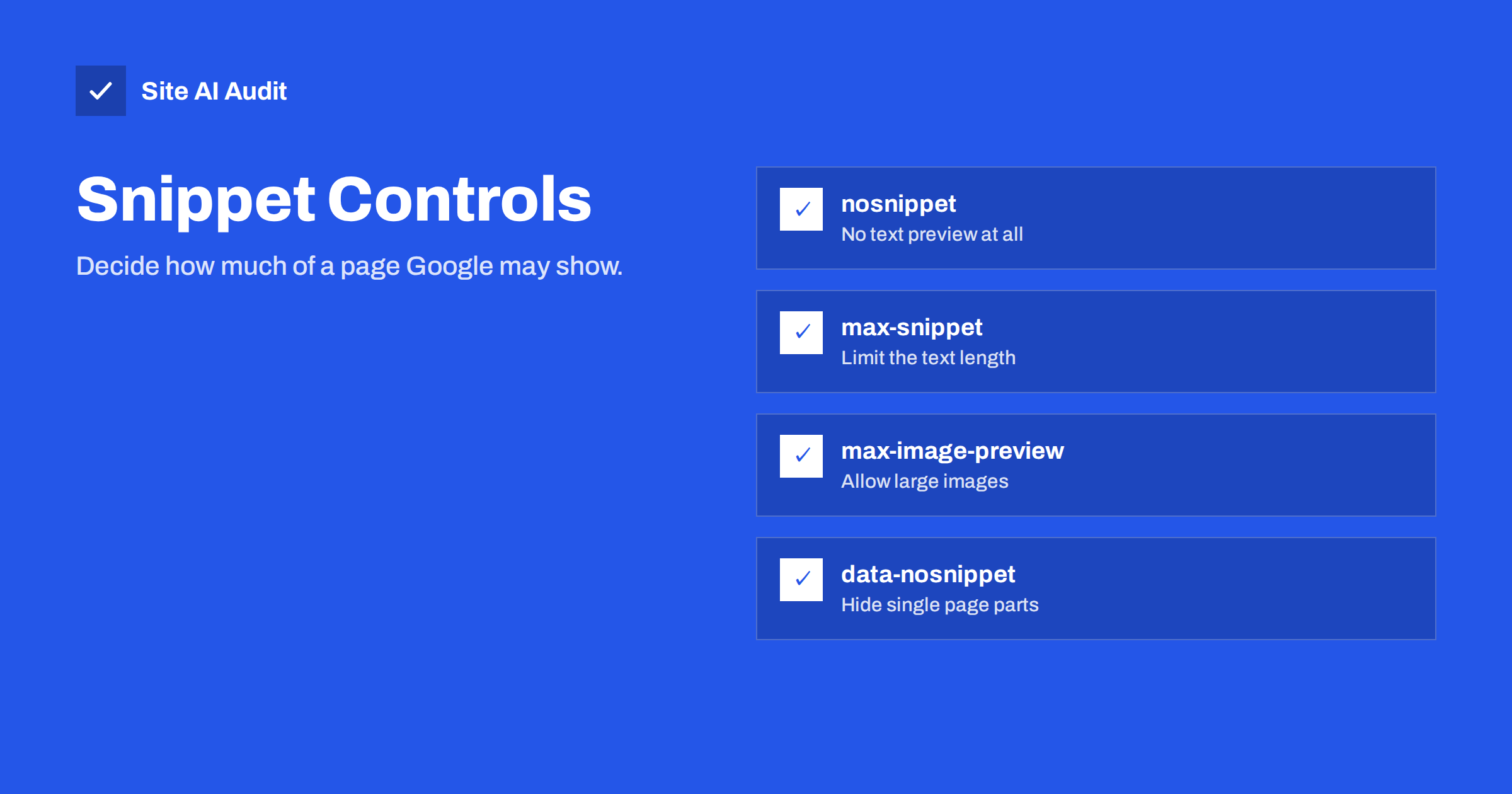
Short answer: Snippet controls are robots directives that tell Google how much of your page it may show in search results. The meta tags nosnippet, max-snippet, max-image-preview and max-video-preview apply to a whole page, and the data-nosnippet attribute hides a single part of it. Most sites need none of them, but they help when part of a page is sensitive, or when you want large image previews.
What a snippet is and who controls it
A snippet is the short text under the title in a search result. Google creates it automatically from the page, and it often chooses text that matches the query, rather than the description you wrote. Our article on meta descriptions explains why the snippet can differ from the tag, and when Google prefers your text.
Besides the text, a result can include an image thumbnail, a video preview and highlighted passages. Webmasters have some control over all of these through robots directives, which means the instructions in a robots meta tag or an X-Robots-Tag HTTP header. These are separate from robots.txt, which controls crawling, and from noindex, which controls whether a page appears at all. If you mix the three up, read robots.txt versus noindex.
The page-level directives
The following directives go in a robots meta tag in the head of the page, for example <meta name="robots" content="max-snippet:160">. You can combine several, separated by commas.
- nosnippet. No text or video snippet is shown for the page in search results. Google may still show the title, address and, depending on other settings, an image.
- max-snippet:[number]. The text snippet is limited to that many characters. A value of 0 behaves like nosnippet, and -1 means there is no limit.
- max-image-preview:[none, standard or large]. Controls the size of the image preview. The value large allows a wide preview, which Google lists as a requirement for large images in some features such as Discover.
- max-video-preview:[number]. The maximum length in seconds of a video preview. A value of 0 allows a still image only, and -1 means no limit.
- notranslate and noarchive. Related directives that stop the offer to translate the page and the cached link, where such features exist. These are not about snippets, but are often listed with them.
If you set none of these, Google uses its defaults and decides what to show. That is right for most pages.
The data-nosnippet attribute for part of a page
Sometimes you want a page to be visible in search, but not a specific block. A price that changes daily, a member-only teaser or a line of text that makes no sense out of context can be marked with data-nosnippet.
The attribute is added to an HTML element, and it works on span, div and section elements:
<p>Public text.<span data-nosnippet>Text kept out of snippets.</span></p>Some rules matter in practice:
- The HTML must be valid and the element must be closed properly, or Google may ignore the attribute.
- If you add or remove the attribute with JavaScript, Google needs to render the page to see it, as discussed in JavaScript SEO basics.
- The text still counts for ranking and understanding the page. The attribute affects only what is shown in a snippet.
- It does not hide the text from visitors, and it is not a security measure.
Setting the controls with an HTTP header
For files that have no HTML head, such as PDFs, the same directives can be sent in an X-Robots-Tag response header. For example, a server rule can add X-Robots-Tag: max-snippet:100 to all PDF files. This is helpful for downloads and is described further in our guide to PDF files and SEO.
The header can also be used site-wide through the web server or a plugin. Be careful with broad rules. A single line that applies nosnippet to every response would remove text previews from your whole site, including pages you want to promote.
When to use each control
| Situation | Control to consider |
|---|---|
| You want the biggest image previews in Search and Discover | max-image-preview:large |
| A page contains one sensitive or confusing paragraph | data-nosnippet on that element |
| You do not want any text excerpt from a premium page | nosnippet or max-snippet:0 |
| You want a short excerpt only | max-snippet with a character limit |
| You publish video and want only a short preview | max-video-preview with a number of seconds |
| A downloadable file needs the same rules | X-Robots-Tag header |
Effects on clicks and features
Limiting snippets is a trade-off. A shorter or missing snippet gives searchers less reason to click, or less information to decide. At the same time, full text can answer a question so well that nobody visits. Which is better depends on your content and goals.
- Pages that sell information, such as paid reports, may prefer short snippets or none.
- Pages that earn from advertising or leads usually benefit from complete, helpful snippets.
- Restrictive settings can stop a page from appearing in featured snippets. If those matter to you, see our guide on featured snippets and how to format content for them.
- Google’s documentation explains how these directives interact with other search features, and the details change over time. Read the current page before you depend on a particular behaviour.
After a change, expect delays. Google has to recrawl the page and update the result, which can take days or weeks.
Common mistakes
- Using nosnippet to hide a bad description. The better fix is to improve the page and the description, so the snippet looks good.
- Blocking a page in robots.txt and adding snippet tags. If Google cannot crawl the page, it never sees the tag. The directive must be on a page that Google can fetch.
- Combining noindex with snippet directives. A page that is not indexed has no snippet, so the extra tags do nothing.
- Setting max-snippet to a tiny number by accident. A value of 1 or 5 leaves a result with almost no text.
- Applying a rule site-wide by a plugin or a header and forgetting it later. Review robots settings after every theme, plugin or server change.
- Treating the controls as a security feature. Text with data-nosnippet is still public, and can be read by anyone who opens the page.
How to check your settings
Start with the page source: search for the word robots in the head and look at the content value. Then use the URL Inspection tool in Search Console, which shows how Google read the page. For headers, request the page with a tool that prints response headers and look for X-Robots-Tag. Finally, search for a sample of your pages and check that the results look the way you expect. Our guide to the noindex tag lists further ways to see what search engines see.
Keep a simple record of every robots directive you have added and why. A note such as “max-image-preview:large added to all articles for Discover, March” or “data-nosnippet on the price block of the offers page” makes it easy to review later and to undo a change that did not work. When you test, change one thing at a time and give Google a few weeks before you judge the result. Compare clicks and impressions in the Search Console performance report for the affected pages before and after, because snippet changes can shift click-through rates in either direction.
What Site AI Audit can and cannot tell you
Site AI Audit crawls up to 50 pages and reports on titles and descriptions, headings, alt texts, broken links, redirects, the sitemap, robots.txt and noindex tags. It can show you pages that are blocked or set to noindex by mistake, which matters more than snippet tuning. It does not report snippet directives such as max-snippet or data-nosnippet, so use the page source and Search Console to review those. You can run a free check of your website or see the plans.
Related reading
- Meta Descriptions: What They Do and How to Write Them
- Featured Snippets: How to Format Content Google Can Quote
- The Noindex Tag: When to Use It and How to Check It
- Robots.txt vs Noindex: Which One Should You Use?
The bottom line
Snippet controls are precise tools for a few specific cases. Leave the defaults alone for most pages, use max-image-preview:large when you want big previews, apply data-nosnippet to a single block that should not be quoted, and reserve nosnippet for pages that really must not show text. Keep the pages crawlable and review any site-wide rule regularly.
FAQ
What does nosnippet do?
It tells Google not to show a text or video snippet for the page in search results. The page can still rank and appear with its title and address. It can also stop the page from being used in features that quote text.
What is the difference between nosnippet and noindex?
Noindex keeps the whole page out of the search results. Nosnippet leaves the page in the results but removes the text excerpt. Use noindex to remove a page, and nosnippet only to limit what is displayed.
Can I use max-snippet with a meta description?
Yes. The meta description is one possible source of the snippet, and max-snippet limits the length of whatever Google shows. If the limit is shorter than your description, Google may cut the text.
Does data-nosnippet remove content from Google?
No. The content is still crawled and can influence how the page is understood. The attribute only asks Google not to use that part in a snippet. If something must be private, put it behind a login.
Which snippet control helps with Discover?
Google states that large images in Discover need either the max-image-preview:large directive or AMP. Adding the directive, together with high-quality images at least 1200 pixels wide, makes a page eligible for large previews, but it does not guarantee that Discover will show it.